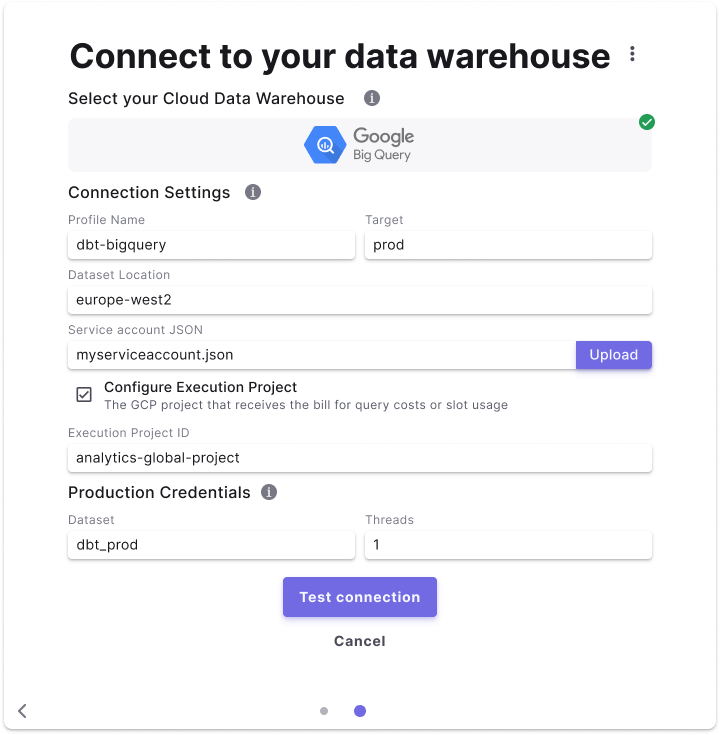
| Profile Name | The profile name set in your dbt_project.yaml. See more here. | dbt-bigquery |
| Target | The target name used to identify the DinoAI agent environment connection. See more here. | dinoai |
| Dataset Location | The location of BigQuery datasets. Can be a multi-regional location (e.g. EU, US) or a regional location (e.g. europe-west2). See more here. | US |
| Service Account JSON | The service account JSON file created for the DinoAI agent service user. | service_account_dinoai.json |
| Execution Project ID (Optional) | Specify an execution project to bill for query execution, instead of the project where you materialise your resources. See more here. | analytics-global-project |
| Dataset | The default dataset used to build dbt™ objects during DinoAI background agent sessions. | dbt_dinoai |
| Threads | The number of threads used in this connection. See more here. | 8 |