# Microsoft SQL Server

Microsoft SQL Server is a relational database management system developed by Microsoft. As a DinoAI agent environment in Paradime, SQL Server enables running dbt™ models and queries during DinoAI background agent sessions.

{% hint style="warning" %}
**IP RESTRICTIONS**

Make sure to allow traffic from one of the Paradime IPs in your firewall depending on the data location selected.

👉 See also: [Paradime IP addresses](https://docs.paradime.io/app-help/developers/ip-restrictions).
{% endhint %}

#### Setup Instructions

1. Click **Settings** in the top menu bar of the Paradime interface to access **Account Settings**
2. In the left sidebar, click **Connections**
3. Click **Add New** next to the **DinoAI Background Agent Environment** section
4. Select **SQL Server**
5. In the **Profile Configuration** field, add at least these required parameters. For additional configuration options, see the Profile Fields Reference section.

```yaml
driver: 'ODBC Driver 18 for SQL Server'     # ODBC Driver 18 for SQL Server
server: sql.company.com                     # Hostname or IP address
port: 1433                                  # Default: 1433
database: analytics_db                      # Name of the database
user: sql_user                              # DinoAI agent service user
password: your_password                     # Service user password
```

{% hint style="info" %}
After adding the configuration, ensure it's properly formatted using a YAML formatter like [YAML Formatter](https://jsonformatter.org/yaml-formatter).
{% endhint %}

6. Provide a dbt™ **Profile Name** (this should match the profile name set in your `dbt_project.yml`).
7. In the **Target** field, enter **`dinoai`**. This is the target your dbt™ project will use during DinoAI background agent sessions.
8. The **Schema** field is pre-configured, but you can change it to specify the schema where dbt™ will build objects.
9. The **Threads** value is pre-configured to 1, but you can adjust this to specify how many parallel operations your dbt™ project can run.

***

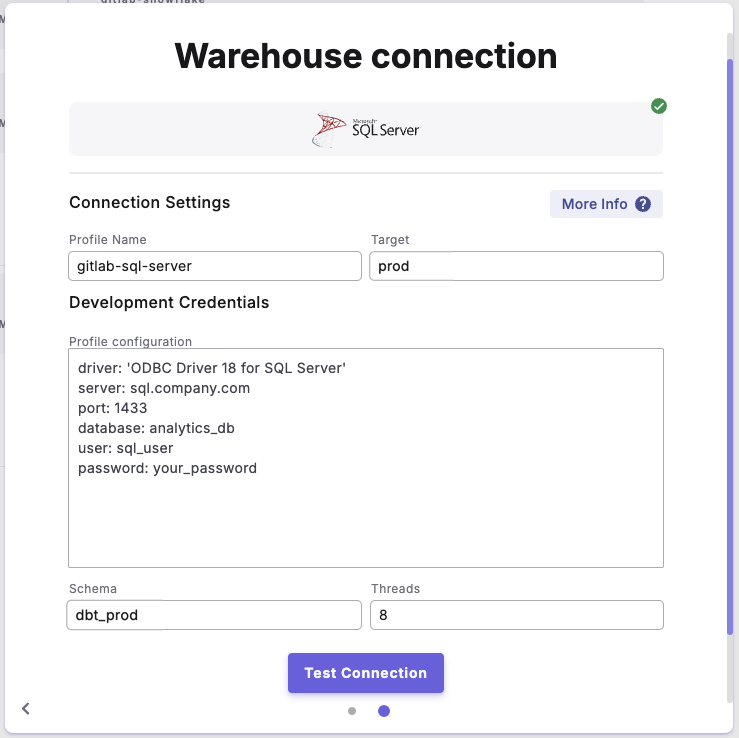
#### Example Profile Configuration

<figure><img src="https://2337193041-files.gitbook.io/~/files/v0/b/gitbook-x-prod.appspot.com/o/spaces%2FHET0AD04uHMgdeLAjptq%2Fuploads%2Fivf1eMLF6VDcXWB3mrbK%2Fimage.png?alt=media&#x26;token=e75fbb7f-4329-4868-95a8-8d3446f0918d" alt=""><figcaption></figcaption></figure>

***

#### Profile Fields Reference

<table><thead><tr><th width="208">Field</th><th width="210">Description</th><th width="167">Example</th><th width="138">Default Value</th><th width="121">Required</th></tr></thead><tbody><tr><td>driver</td><td>ODBC driver</td><td><code>ODBC Driver 18 for SQL Server</code></td><td><code>ODBC Driver 18 for SQL Server</code></td><td>✅</td></tr><tr><td>server</td><td>Server hostname or IP</td><td><code>sql.company.com</code></td><td>None</td><td>✅</td></tr><tr><td>port</td><td>Server port number</td><td><code>1433</code></td><td><code>1433</code></td><td>✅</td></tr><tr><td>database</td><td>Database name</td><td><code>analytics_db</code></td><td>None</td><td>✅</td></tr><tr><td>schema</td><td>Schema name. Configured in the UI Schema field.</td><td><code>dbo</code></td><td>None</td><td>✅</td></tr><tr><td>user</td><td>Authentication username for the DinoAI agent service user</td><td><code>sql_user</code></td><td>None</td><td>✅</td></tr><tr><td>password</td><td>Authentication password for the DinoAI agent service user</td><td><code>your_password</code></td><td>None</td><td>✅</td></tr><tr><td>retries</td><td>Number of query retry attempts</td><td><code>3</code></td><td><code>1</code></td><td>❌</td></tr><tr><td>encrypt</td><td>Enable connection encryption</td><td><code>true</code></td><td><code>true</code></td><td>❌</td></tr><tr><td>trust_cert</td><td>Trust server certificate</td><td><code>false</code></td><td><code>false</code></td><td>❌</td></tr><tr><td>login_timeout</td><td>Connection timeout in seconds</td><td><code>10</code></td><td><code>0</code></td><td>❌</td></tr><tr><td>query_timeout</td><td>Query timeout in seconds</td><td><code>300</code></td><td><code>0</code></td><td>❌</td></tr><tr><td>schema_authorization</td><td>Schema owner principal</td><td><code>db_owner</code></td><td>None</td><td>❌</td></tr></tbody></table>


---

# Agent Instructions: Querying This Documentation

If you need additional information that is not directly available in this page, you can query the documentation dynamically by asking a question.

Perform an HTTP GET request on the current page URL with the `ask` query parameter:

```
GET https://docs.paradime.io/app-help/documentation/settings/connections/dinoai-background-agent-environment/microsoft-sql-server.md?ask=<question>
```

The question should be specific, self-contained, and written in natural language.
The response will contain a direct answer to the question and relevant excerpts and sources from the documentation.

Use this mechanism when the answer is not explicitly present in the current page, you need clarification or additional context, or you want to retrieve related documentation sections.