> ## Documentation Index
> Fetch the complete documentation index at: https://docs.paradime.io/llms.txt
> Use this file to discover all available pages before exploring further.
# API Keys
Paradime supports two types of API keys to authenticate calls to the Paradime API:
| | Account API Keys | Workspace API Keys \[legacy] |
| ----------------------- | ---------------------------------------------------- | ---------------------------------------------------------- |
| **Scope** | One or more workspaces in your account | A single workspace |
| **Authentication** | `Authorization: Bearer` token | `X-API-KEY` and `X-API-SECRET` headers |
| **Workspace selection** | Per request, using the `X-Paradime-Workspace` header | Fixed — bound to the workspace where the key was generated |
**Account API keys are the recommended way to authenticate with the Paradime API.**
A single account API key can access multiple workspaces, so you no longer need to generate and manage a separate set of credentials for each workspace. Workspace API keys remain fully supported for existing integrations.
### Capabilities
Both key types grant access through the same set of capabilities (scopes). When generating a key you choose which capabilities to grant it.
| Capabilities | Description |
| ---------------------------------- | -------------------------------------------------------------------------------------------------------------------------------------------------------- |
| **Audit logs viewer** | This permission grants access to view and export Audit Logs. |
| **Bolt schedules admin** | This permission grants access to create and delete Bolt schedules, trigger and cancel Bolt runs, as well as access to Bolt schedules and runs' metadata. |
| **Bolt schedules metadata viewer** | This permission grants access to Bolt schedules and runs' metadata. |
| **Catalog admin** | This permission grants access to refresh dbt™ docs in the Paradime Catalog. |
| **DinoAI agent API** | This permission grants access to trigger DinoAI agent runs and read their output. |
| **Custom integrations admin** | This permission grants access to create and manage custom integrations. |
| **User management admin** | This permission grants access to invite, disabling, updating users in a workspace, as well as listing users' metadata. |
| **User metadata viewer** | This permission grants access to view users' metadata. |
| **Workspace metadata viewer** | This permission grants access to view the account workspaces' metadata. |
For an **account API key**, the granted capabilities apply to every workspace the key has access to. For a **workspace API key**, they apply to the single workspace the key belongs to.
***
## Account API Keys
**Account API keys are generated at the account level.**
A single account API key can be granted access to one or more workspaces in your Paradime account. You select the target workspace on each API request using the `X-Paradime-Workspace` header — so you no longer need separate credentials for each workspace.
### Generate a new account API key
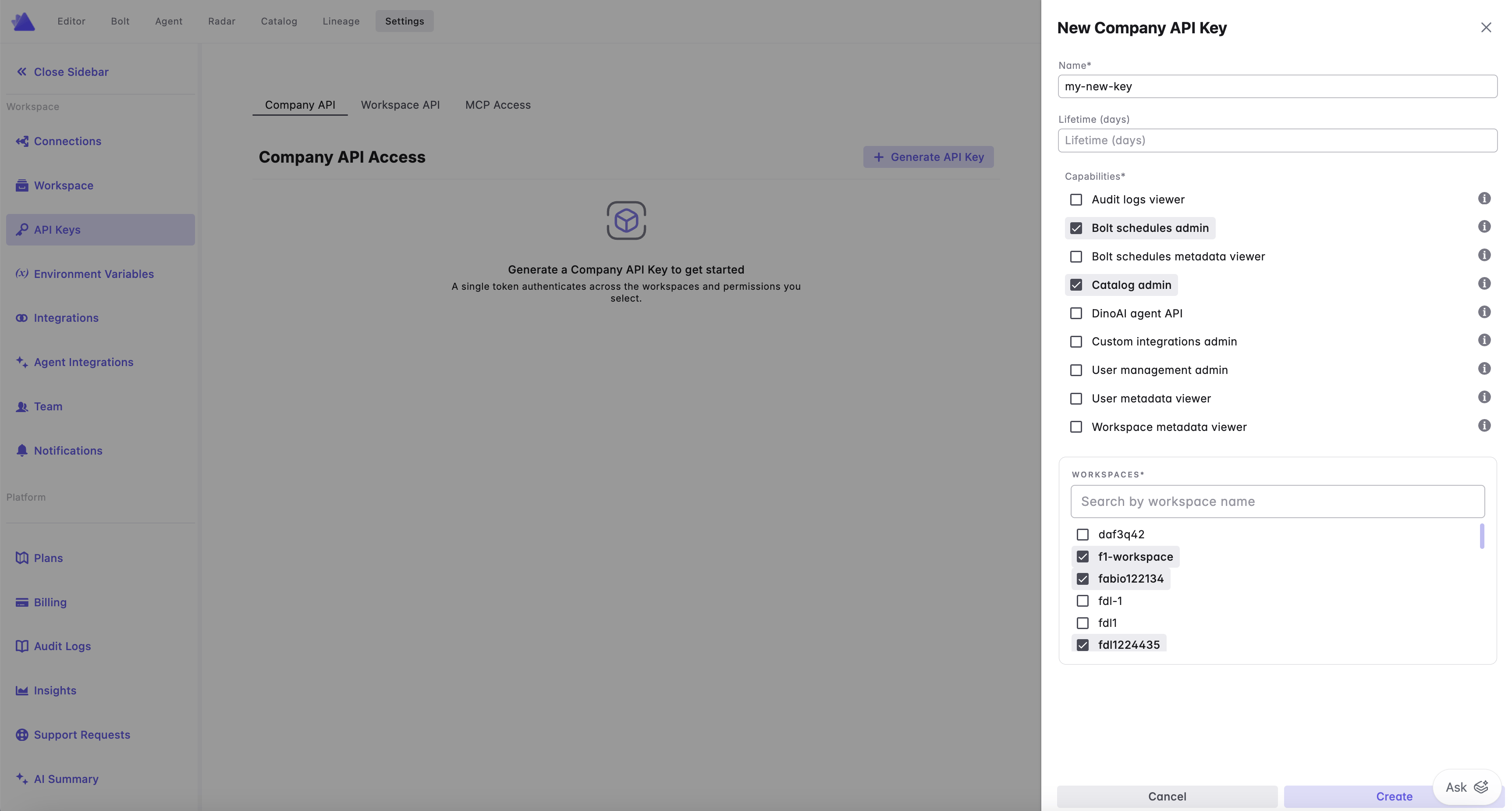
To generate an account API key, navigate to the **Settings** screen and select **API Keys** from the left panel. Click on **Generate API Key**.
Only workspace admins can generate account API keys, and a key can only be granted access to workspaces where you are an admin.
Here you will be able to:
* Provide a human readable name to help identify what the API key is generated for
* Set an optional expiration date, after which the key will no longer be valid
* Grant a set of capabilities or scopes to the API key
* Select one or more workspaces the API key can access
 Make sure to store your API key securely in a password manager like 1Password/Lastpass/Dashlane.
After refreshing/leaving this screen you won't be able to retrieve the API key again.
### Authenticate with your account API key
Account API keys use **Bearer token** authentication. On each request, pass:
* The `Authorization` header with your account API key (starting with `prdm_cmp_`)
* The `X-Paradime-Workspace` header with the `workspace_token` of the workspace you want the request to run against
The API endpoint is displayed when you generate the key. To find your `workspace_token`, see Company & Workspace token.
```bash theme={"system"}
curl -X POST "https://api.paradime.io/api/v1//graphql" \
-H "Authorization: Bearer prdm_cmp_xxxxxxxxxxxxxxxxxxxxxxxxxxxxxxxx" \
-H "X-Paradime-Workspace: " \
-H "Content-Type: application/json" \
-d '{"query": "query { listWorkspaces { workspaces { name uid } } }"}'
```
```python theme={"system"}
import requests
api_endpoint = "https://api.paradime.io/api/v1//graphql"
api_token = "prdm_cmp_xxxxxxxxxxxxxxxxxxxxxxxxxxxxxxxx"
workspace_token = ""
response = requests.post(
api_endpoint,
json={"query": "query { listWorkspaces { workspaces { name uid } } }"},
headers={
"Authorization": f"Bearer {api_token}",
"X-Paradime-Workspace": workspace_token,
"Content-Type": "application/json",
},
)
print(response.json())
```
To run the same operation against a different workspace, keep the same Bearer token and change the `X-Paradime-Workspace` header to the other workspace's `workspace_token`. The API key must have been granted access to that workspace, otherwise the request will be rejected.
Account-wide operations that are not tied to a specific workspace (for example listing the workspaces in your account) can be called without the `X-Paradime-Workspace` header.
### View existing account API keys
To view all active account API keys, navigate to the **Settings** screen and select **API Keys** from the left panel.
For each API key you can see its name, the workspaces and capabilities it has been granted, when it was created, when it was last used, and its expiration date (if set).
### Revoke account API keys
To revoke an account API key, navigate to the **Settings** screen and select **API Keys** from the left panel. Select the API key you want to revoke and choose the delete option.
Please note that this action is irreversible, and any API calls made using the revoked API key will fail.
***
## Workspace API Keys \[legacy]
**Workspace API keys are a legacy feature.** They remain fully supported for existing integrations, but we recommend using **Account API Keys** (above) for new integrations — a single Bearer token that can access multiple workspaces in your account.
The key differences from account API keys: a workspace key is scoped to a **single workspace**, authenticates using the `X-API-KEY` and `X-API-SECRET` headers (not a Bearer token), and is bound to the workspace where it was generated (no `X-Paradime-Workspace` header). If you use multiple workspaces, you need a separate set of workspace credentials for each one.
**Workspace API keys in Paradime are generated at a workspace level.**
If using multiple workspaces you will need to use different API credentials in the Authorization headers.
### Generate a new set of API keys
To generate API credentials for making API calls in Paradime, navigate to the *Settings* screen and select *Workspace Settings* from the left panel. Scroll to the bottom of the screen and click on **Generate API Keys**.
Here you will be able to:
* Provide a human readable name to help identify what is the API key generated for
* Set an optional lifetime in days for the API keys, after the credentials will expire those will not be valid
* Grant a set of capabilities or scopes to the API keys
Make sure to store your API credentials securely in a password manager like Lastpass/Dashlane.
After refreshing/leaving this screen you wont be able to retrieve the API keys again.
#### Authenticate with your workspace API keys
Workspace API keys authenticate using two request headers — `X-API-KEY` and `X-API-SECRET` — posted to your workspace's API endpoint. Unlike account API keys, there is no `Authorization: Bearer` token and no `X-Paradime-Workspace` header: the key is already bound to a single workspace.
```bash theme={"system"}
curl -X POST "" \
-H "X-API-KEY: " \
-H "X-API-SECRET: " \
-H "Content-Type: application/json" \
-d '{"query": "query { ... }"}'
```
```python theme={"system"}
import requests
response = requests.post(
"",
json={"query": "query { ... }"},
headers={
"X-API-KEY": "",
"X-API-SECRET": "",
"Content-Type": "application/json",
},
)
print(response.json())
```
### View existing API keys details
To view all active account API keys, navigate to the **Settings** screen and select **API Keys** from the left panel.
For each API key you can see its name, capabilities it has been granted, when it was created, when it was last used, and its expiration date (if set).
### Revoke account API keys
To revoke an account API key, navigate to the **Settings** screen and select **API Keys** from the left panel. Select the API key you want to revoke and choose the delete option.
Please note that this action is irreversible, and any API calls made using the deleted API key will fail.
## Related topics
- [Generate API Keys (Legacy)](/developers/generate-api-keys-legacy.md)
- [Bolt API](/developers/graphql-api/api-reference/bolt-api.md)
- [Audit Logs API](/developers/graphql-api/api-reference/audit-logs-api.md)
- [User Management API](/developers/graphql-api/api-reference/user-management-api.md)
- [Workspace Management API](/developers/graphql-api/api-reference/workspace-management-api.md)
Make sure to store your API key securely in a password manager like 1Password/Lastpass/Dashlane.
After refreshing/leaving this screen you won't be able to retrieve the API key again.
### Authenticate with your account API key
Account API keys use **Bearer token** authentication. On each request, pass:
* The `Authorization` header with your account API key (starting with `prdm_cmp_`)
* The `X-Paradime-Workspace` header with the `workspace_token` of the workspace you want the request to run against
The API endpoint is displayed when you generate the key. To find your `workspace_token`, see Company & Workspace token.
```bash theme={"system"}
curl -X POST "https://api.paradime.io/api/v1//graphql" \
-H "Authorization: Bearer prdm_cmp_xxxxxxxxxxxxxxxxxxxxxxxxxxxxxxxx" \
-H "X-Paradime-Workspace: " \
-H "Content-Type: application/json" \
-d '{"query": "query { listWorkspaces { workspaces { name uid } } }"}'
```
```python theme={"system"}
import requests
api_endpoint = "https://api.paradime.io/api/v1//graphql"
api_token = "prdm_cmp_xxxxxxxxxxxxxxxxxxxxxxxxxxxxxxxx"
workspace_token = ""
response = requests.post(
api_endpoint,
json={"query": "query { listWorkspaces { workspaces { name uid } } }"},
headers={
"Authorization": f"Bearer {api_token}",
"X-Paradime-Workspace": workspace_token,
"Content-Type": "application/json",
},
)
print(response.json())
```
To run the same operation against a different workspace, keep the same Bearer token and change the `X-Paradime-Workspace` header to the other workspace's `workspace_token`. The API key must have been granted access to that workspace, otherwise the request will be rejected.
Account-wide operations that are not tied to a specific workspace (for example listing the workspaces in your account) can be called without the `X-Paradime-Workspace` header.
### View existing account API keys
To view all active account API keys, navigate to the **Settings** screen and select **API Keys** from the left panel.
For each API key you can see its name, the workspaces and capabilities it has been granted, when it was created, when it was last used, and its expiration date (if set).
### Revoke account API keys
To revoke an account API key, navigate to the **Settings** screen and select **API Keys** from the left panel. Select the API key you want to revoke and choose the delete option.
Please note that this action is irreversible, and any API calls made using the revoked API key will fail.
***
## Workspace API Keys \[legacy]
**Workspace API keys are a legacy feature.** They remain fully supported for existing integrations, but we recommend using **Account API Keys** (above) for new integrations — a single Bearer token that can access multiple workspaces in your account.
The key differences from account API keys: a workspace key is scoped to a **single workspace**, authenticates using the `X-API-KEY` and `X-API-SECRET` headers (not a Bearer token), and is bound to the workspace where it was generated (no `X-Paradime-Workspace` header). If you use multiple workspaces, you need a separate set of workspace credentials for each one.
**Workspace API keys in Paradime are generated at a workspace level.**
If using multiple workspaces you will need to use different API credentials in the Authorization headers.
### Generate a new set of API keys
To generate API credentials for making API calls in Paradime, navigate to the *Settings* screen and select *Workspace Settings* from the left panel. Scroll to the bottom of the screen and click on **Generate API Keys**.
Here you will be able to:
* Provide a human readable name to help identify what is the API key generated for
* Set an optional lifetime in days for the API keys, after the credentials will expire those will not be valid
* Grant a set of capabilities or scopes to the API keys
Make sure to store your API credentials securely in a password manager like Lastpass/Dashlane.
After refreshing/leaving this screen you wont be able to retrieve the API keys again.
#### Authenticate with your workspace API keys
Workspace API keys authenticate using two request headers — `X-API-KEY` and `X-API-SECRET` — posted to your workspace's API endpoint. Unlike account API keys, there is no `Authorization: Bearer` token and no `X-Paradime-Workspace` header: the key is already bound to a single workspace.
```bash theme={"system"}
curl -X POST "" \
-H "X-API-KEY: " \
-H "X-API-SECRET: " \
-H "Content-Type: application/json" \
-d '{"query": "query { ... }"}'
```
```python theme={"system"}
import requests
response = requests.post(
"",
json={"query": "query { ... }"},
headers={
"X-API-KEY": "",
"X-API-SECRET": "",
"Content-Type": "application/json",
},
)
print(response.json())
```
### View existing API keys details
To view all active account API keys, navigate to the **Settings** screen and select **API Keys** from the left panel.
For each API key you can see its name, capabilities it has been granted, when it was created, when it was last used, and its expiration date (if set).
### Revoke account API keys
To revoke an account API key, navigate to the **Settings** screen and select **API Keys** from the left panel. Select the API key you want to revoke and choose the delete option.
Please note that this action is irreversible, and any API calls made using the deleted API key will fail.
## Related topics
- [Generate API Keys (Legacy)](/developers/generate-api-keys-legacy.md)
- [Bolt API](/developers/graphql-api/api-reference/bolt-api.md)
- [Audit Logs API](/developers/graphql-api/api-reference/audit-logs-api.md)
- [User Management API](/developers/graphql-api/api-reference/user-management-api.md)
- [Workspace Management API](/developers/graphql-api/api-reference/workspace-management-api.md)