> ## Documentation Index
> Fetch the complete documentation index at: https://docs.paradime.io/llms.txt
> Use this file to discover all available pages before exploring further.
# Create a Linear Issue when a Bolt run complete with errors
> Paradime Linear Integration: Automatically create Linear issues for dbt™ project errors. For better issue tracking and resolution.
## Introduction
This guide will show you how to set up an integration between Paradime and [Linear](https://linear.app/) using Paradime Webhooks and [Zapier](https://zapier.com/).
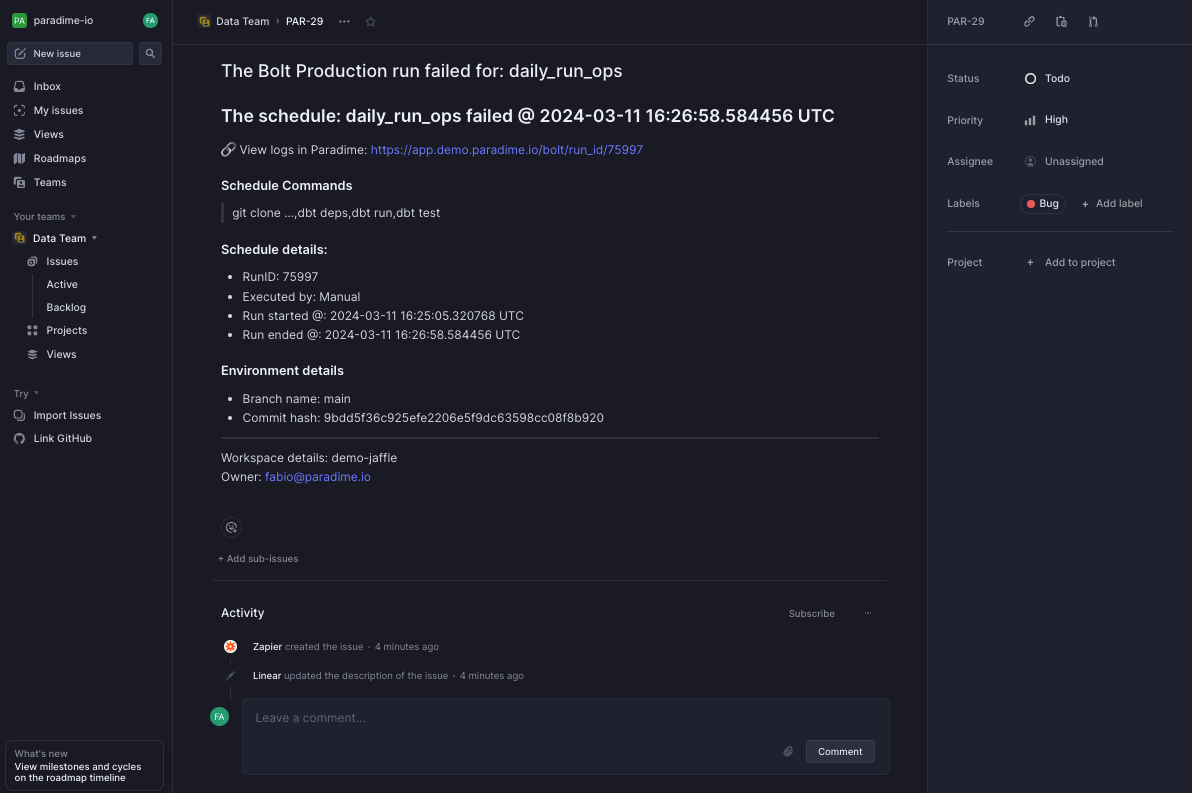
At the end of this tutorial, you will be able to create a Linear Issue every time a Bolt schedule fails including details of the Bolt schedule.
### Prerequisites
For this integration, make sure you have the following:
* A Paradime [Bolt schedule configured](/products/bolt/creating-schedules/index)
* Paradime Webhooks enabled
* A [Linear](https://linear.app/) account
* A [Zapier](https://zapier.com) account
## Create a new Zap in Zapier
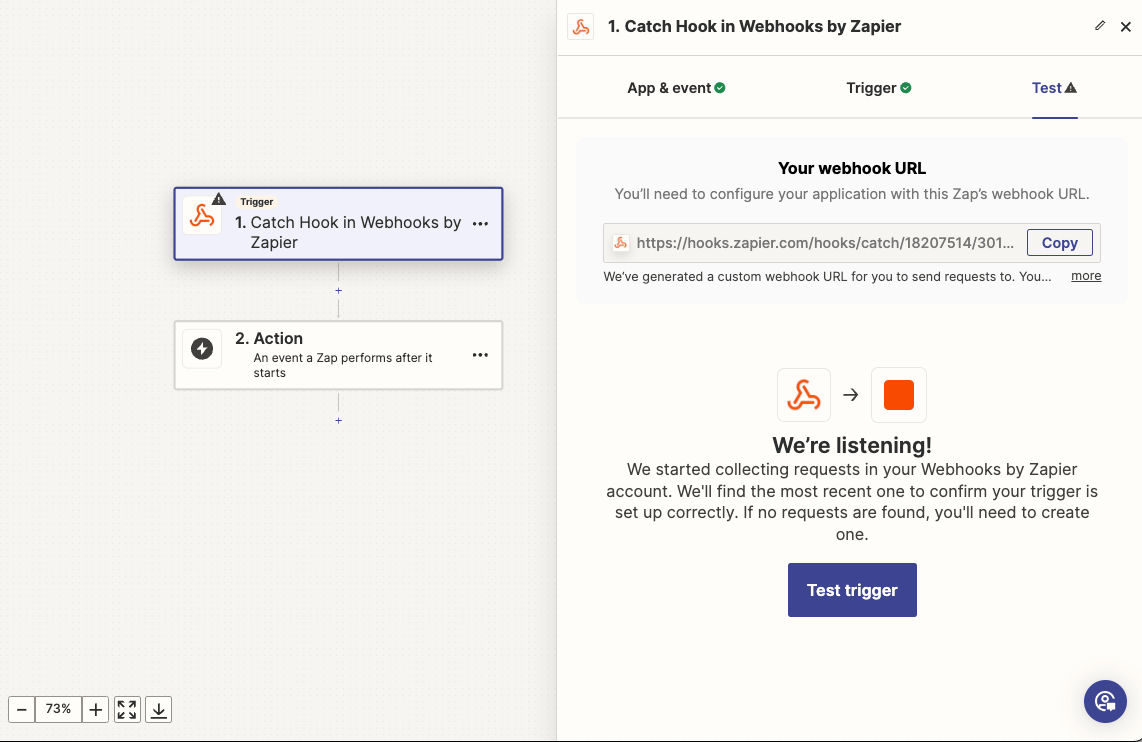
To trigger an action each time a webhook event is delivered in Zapier, create a new Zap with **Webhooks by Zapier** as the Trigger and **Catch Hook** as the Event.
Press **Continue**, and copy the webhook URL. You will need this to connect Zapier to Paradime.
 ## Configure a new Webhook in Paradime
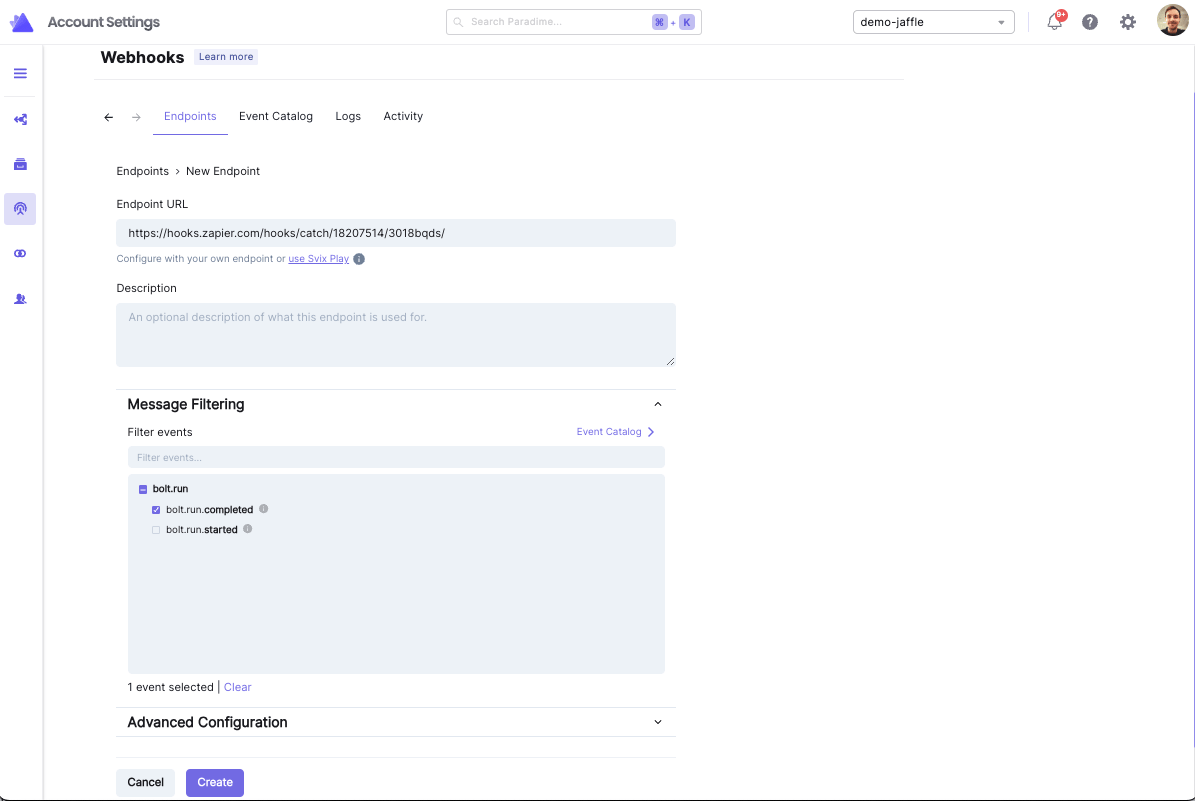
In Paradime navigate to Account Settings and select Webhooks from the left Panel. Now you can click on `+ Add Endpoint` to configure your webhook.
* Enter the webhook URL generated by Zapier in the previews step
* Add a description for your webhook integration (optional)
* Filter to include in the event only the `bolt.run.`**`completed`** event
When done, click on `Create` to setup the webhook.
## Configure a new Webhook in Paradime
In Paradime navigate to Account Settings and select Webhooks from the left Panel. Now you can click on `+ Add Endpoint` to configure your webhook.
* Enter the webhook URL generated by Zapier in the previews step
* Add a description for your webhook integration (optional)
* Filter to include in the event only the `bolt.run.`**`completed`** event
When done, click on `Create` to setup the webhook.
 Now that the integration is configured, to help with the next steps:
* Trigger a Bolt Run
* When the Bolt Run is completed, in Zapier, click on test trigger to receive a Bolt event which can be used to setup and test the Zapier action.
## Configure a Zapier filter
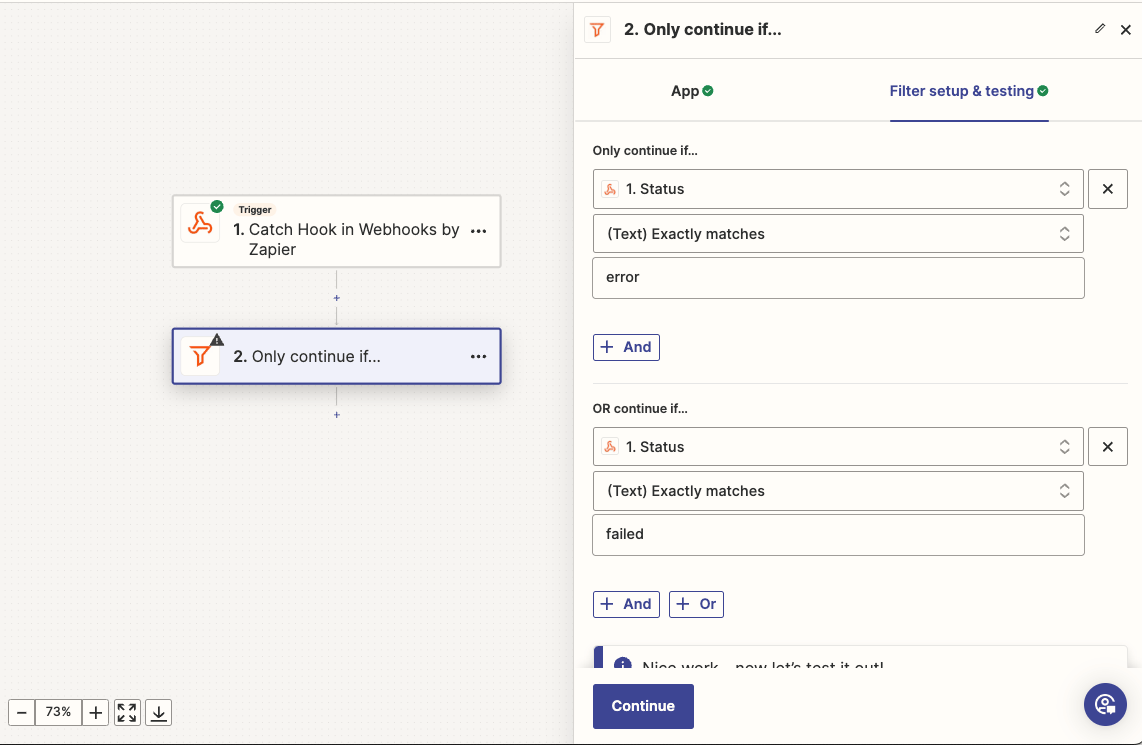
Now let's filter the webhook events for Bolt schedule completed with status: `error` or `failed`. This will ensure that Linear Issues only for Bolt schedules completed with errors.
Add a **Only continue if...** step in Zapier, choose the **Status** field from the webhook response and filter for the condition to filer when status exactly match `error` or `failed`.
Click **Continue**. If the example Bolt run for your Zap setup matches any of the mentioned states, a confirmation message will display, indicating the Zap will proceed.
Now that the integration is configured, to help with the next steps:
* Trigger a Bolt Run
* When the Bolt Run is completed, in Zapier, click on test trigger to receive a Bolt event which can be used to setup and test the Zapier action.
## Configure a Zapier filter
Now let's filter the webhook events for Bolt schedule completed with status: `error` or `failed`. This will ensure that Linear Issues only for Bolt schedules completed with errors.
Add a **Only continue if...** step in Zapier, choose the **Status** field from the webhook response and filter for the condition to filer when status exactly match `error` or `failed`.
Click **Continue**. If the example Bolt run for your Zap setup matches any of the mentioned states, a confirmation message will display, indicating the Zap will proceed.
 ## Configure Linear action
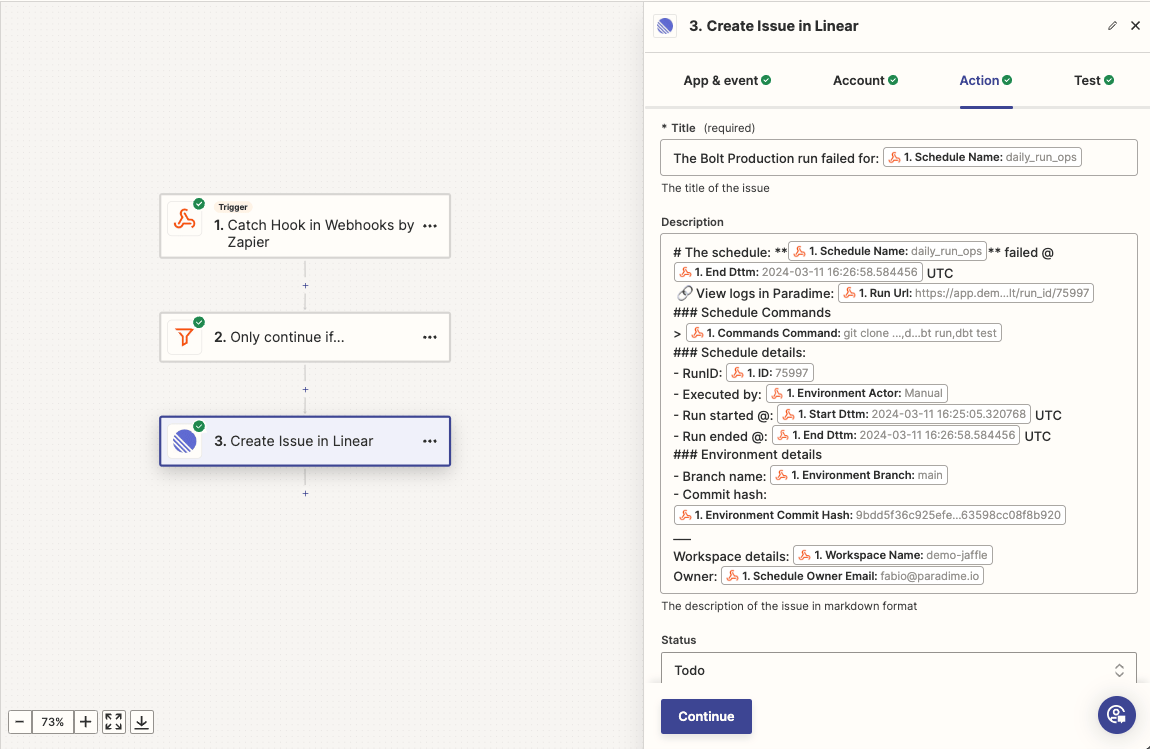
Finally add another step to your Zap and select the Linear action. From the menu, select the event **Create Issue** and click on **Continue**.
You will now need to authenticate to your Linear account and establish a connect. When completed you can setup the action to create an Linear Issue using Bolt Webhook events when a run completed with errors.
Here you will be able to template the Title and Description of the Linear Issue using any of the available metadata fields from the Paradime Webhook JSON payload.
## Configure Linear action
Finally add another step to your Zap and select the Linear action. From the menu, select the event **Create Issue** and click on **Continue**.
You will now need to authenticate to your Linear account and establish a connect. When completed you can setup the action to create an Linear Issue using Bolt Webhook events when a run completed with errors.
Here you will be able to template the Title and Description of the Linear Issue using any of the available metadata fields from the Paradime Webhook JSON payload.
 ## Test and deploy your Zap
When done, you can click on **Continue** and Test your Zap, and finally click on the **Publish** button to go live. Each time a Bolt run will complete with errors, a new Linear Issue will be created :raised\_hands:.
## Test and deploy your Zap
When done, you can click on **Continue** and Test your Zap, and finally click on the **Publish** button to go live. Each time a Bolt run will complete with errors, a new Linear Issue will be created :raised\_hands:.
 ## Related topics
- [Create a Jira Issue when a Bolt run complete with errors](/developers/webhooks/custom-webhook-guides/jira-issue.md)
- [Create an Azure DevOps Work item when a Bolt run complete with errors](/developers/webhooks/custom-webhook-guides/azure-devops.md)
- [Custom Webhook Guides](/developers/webhooks/custom-webhook-guides/index.md)
- [Create Linear Issues](/products/bolt/creating-schedules/templates/ticketing-templates/create-linear-issues.md)
- [Linear Tool](/products/dino-ai/tools-and-features/linear-tool.md)
## Related topics
- [Create a Jira Issue when a Bolt run complete with errors](/developers/webhooks/custom-webhook-guides/jira-issue.md)
- [Create an Azure DevOps Work item when a Bolt run complete with errors](/developers/webhooks/custom-webhook-guides/azure-devops.md)
- [Custom Webhook Guides](/developers/webhooks/custom-webhook-guides/index.md)
- [Create Linear Issues](/products/bolt/creating-schedules/templates/ticketing-templates/create-linear-issues.md)
- [Linear Tool](/products/dino-ai/tools-and-features/linear-tool.md)