> ## Documentation Index
> Fetch the complete documentation index at: https://docs.paradime.io/llms.txt
> Use this file to discover all available pages before exploring further.
# Commands
> Covers the key dbt CLI commands and their use cases, including run, test, source freshness, compile, documentation, and utility commands to control data transformations.
The dbt™ CLI offers a range of commands for executing data transformations. Each command has its own options and parameters, allowing you to precisely control your data transformations. Let's explore these commands and their common use cases.
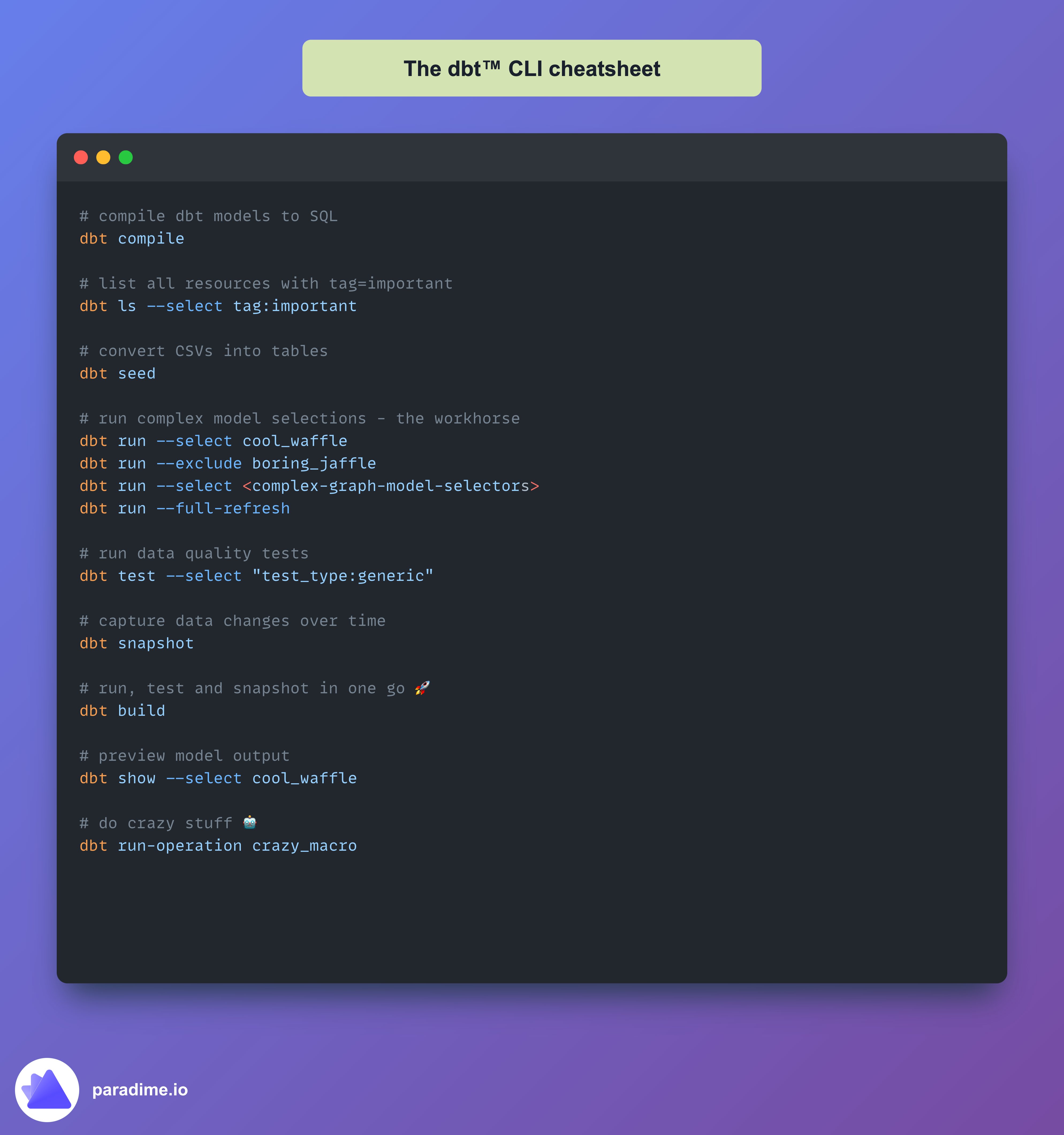 ### The Basics: dbt run
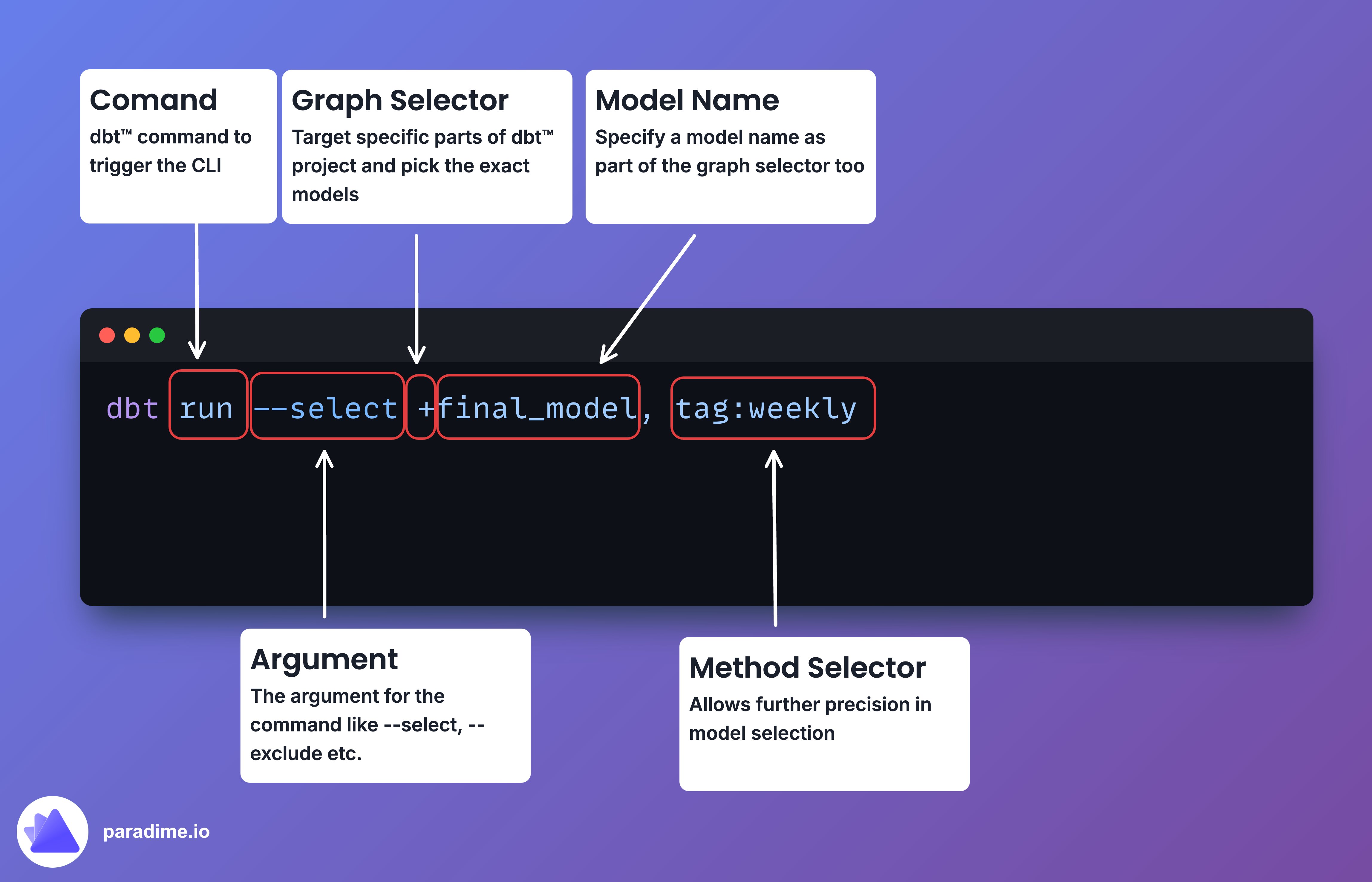
The bread and butter of dbt™ is the run command. It's like hitting the "Go" button on your data transformations. The dbt run command is the most complex and can be broken down into 4 parts:
* **Arguments** like --select, --exclude and others
* **Model names** to choose what models to run
* **Method selectors** offering ability to fine tune which models to run
* **Graph selectors** offering further fine tuning to apply complex boolean-like logic
### The Basics: dbt run
The bread and butter of dbt™ is the run command. It's like hitting the "Go" button on your data transformations. The dbt run command is the most complex and can be broken down into 4 parts:
* **Arguments** like --select, --exclude and others
* **Model names** to choose what models to run
* **Method selectors** offering ability to fine tune which models to run
* **Graph selectors** offering further fine tuning to apply complex boolean-like logic
 Further configure your `dbt run` command with these options:
```bash theme={"system"}
# Run specific models
dbt run --select cool_waffle
# Skip certain models
dbt run --exclude boring_jaffle
# Rebuild everything from scratch
dbt run --full-refresh
# Pass variables to models
dbt run --vars '{"my_var": "value"}'
# Speed up runs with multiple threads
dbt run --threads 4
```
### Running Tests
Don't let bad data crash your party.
Use dbt test to keep your transformations in check and apply data quality best practices to your dbt™ transformation pipelines:
```bash theme={"system"}
dbt test
# Test specific models
dbt test --select critical_data
# Run schema tests only
dbt test --select "test_type:generic"
```
### Source Freshness
Source freshness in dbt™ is like a built-in data freshness checker. It helps you:
* Monitor when your source data was last updated
* Set expectations for how recent your data should be
* Alert you when data is stale
To check the freshness of all your defined sources, run:
```bash theme={"system"}
dbt source freshness
```
### Compile
Use dbt compile to convert all your dbt™ models with their Jinja references into raw SQL. This is the SQL dbt™ will run against your data warehouse. It's like X-ray vision for your SQL:
```bash theme={"system"}
bashCopydbt compile
```
When your dbt™ models fail to run, you need to start with the compiled SQL first.
### Generate Documentation
Convert all your schema and table descriptions into static HTML files and then serve them from a server or cloud bucket like AWS S3.
```bash theme={"system"}
dbt docs generate
dbt docs serve
```
### Debug Mode
When you can't make head or tail of errors you're seeing during development or production runs, use the --debug option. This will generate additional logs in your terminal to help triage the situation. This is most useful in diagnosing warehouse connection errors.
```bash theme={"system"}
dbt run --debug
```
### The Snapshot
Capture data changes over time:
```bash theme={"system"}
dbt snapshot
```
### Build Everything
The all-in-one command for the impatient:
```bash theme={"system"}
dbt build
```
It runs, tests, and snapshots in one go.
### CSVs: dbt seed
Convert CSV files to tables:
```bash theme={"system"}
dbt seed
```
### List Models: dbt ls
List your models:
```bash theme={"system"}
dbt ls
# List the most important resources
dbt ls --select tag:important
```
### Preview Model Output: dbt show
Preview your model's output:
```bash theme={"system"}
dbt show --select cool_waffle
```
### Retry When Something Fails
Oops, something failed? Try again:
```bash theme={"system"}
dbt retry
```
### Custom Macros: dbt run-operation
Run custom macros:
```bash theme={"system"}
dbt run-operation crazy_macro
```
### Clone Production Environment
Clone your production environment faster than you can say "duplicate":
```bash theme={"system"}
dbt clone --state path/to/artifacts
```
## Related topics
- [Alert Templates](/products/bolt/creating-schedules/alert-templates.md)
- [3. Command Settings](/products/bolt/creating-schedules/command-settings/index.md)
- [dbt™ Commands](/products/bolt/creating-schedules/command-settings/dbt-tm-commands.md)
- [Command Panel](/products/code-ide/command-panel/index.md)
Further configure your `dbt run` command with these options:
```bash theme={"system"}
# Run specific models
dbt run --select cool_waffle
# Skip certain models
dbt run --exclude boring_jaffle
# Rebuild everything from scratch
dbt run --full-refresh
# Pass variables to models
dbt run --vars '{"my_var": "value"}'
# Speed up runs with multiple threads
dbt run --threads 4
```
### Running Tests
Don't let bad data crash your party.
Use dbt test to keep your transformations in check and apply data quality best practices to your dbt™ transformation pipelines:
```bash theme={"system"}
dbt test
# Test specific models
dbt test --select critical_data
# Run schema tests only
dbt test --select "test_type:generic"
```
### Source Freshness
Source freshness in dbt™ is like a built-in data freshness checker. It helps you:
* Monitor when your source data was last updated
* Set expectations for how recent your data should be
* Alert you when data is stale
To check the freshness of all your defined sources, run:
```bash theme={"system"}
dbt source freshness
```
### Compile
Use dbt compile to convert all your dbt™ models with their Jinja references into raw SQL. This is the SQL dbt™ will run against your data warehouse. It's like X-ray vision for your SQL:
```bash theme={"system"}
bashCopydbt compile
```
When your dbt™ models fail to run, you need to start with the compiled SQL first.
### Generate Documentation
Convert all your schema and table descriptions into static HTML files and then serve them from a server or cloud bucket like AWS S3.
```bash theme={"system"}
dbt docs generate
dbt docs serve
```
### Debug Mode
When you can't make head or tail of errors you're seeing during development or production runs, use the --debug option. This will generate additional logs in your terminal to help triage the situation. This is most useful in diagnosing warehouse connection errors.
```bash theme={"system"}
dbt run --debug
```
### The Snapshot
Capture data changes over time:
```bash theme={"system"}
dbt snapshot
```
### Build Everything
The all-in-one command for the impatient:
```bash theme={"system"}
dbt build
```
It runs, tests, and snapshots in one go.
### CSVs: dbt seed
Convert CSV files to tables:
```bash theme={"system"}
dbt seed
```
### List Models: dbt ls
List your models:
```bash theme={"system"}
dbt ls
# List the most important resources
dbt ls --select tag:important
```
### Preview Model Output: dbt show
Preview your model's output:
```bash theme={"system"}
dbt show --select cool_waffle
```
### Retry When Something Fails
Oops, something failed? Try again:
```bash theme={"system"}
dbt retry
```
### Custom Macros: dbt run-operation
Run custom macros:
```bash theme={"system"}
dbt run-operation crazy_macro
```
### Clone Production Environment
Clone your production environment faster than you can say "duplicate":
```bash theme={"system"}
dbt clone --state path/to/artifacts
```
## Related topics
- [Alert Templates](/products/bolt/creating-schedules/alert-templates.md)
- [3. Command Settings](/products/bolt/creating-schedules/command-settings/index.md)
- [dbt™ Commands](/products/bolt/creating-schedules/command-settings/dbt-tm-commands.md)
- [Command Panel](/products/code-ide/command-panel/index.md)