> ## Documentation Index
> Fetch the complete documentation index at: https://docs.paradime.io/llms.txt
> Use this file to discover all available pages before exploring further.
# Using Defer to Production in Paradime
> dbt™ Defer to Production: Manage dbt™ project transitions to production environments efficiently. Ensure seamless deployment with Paradime.
export const Arcade = ({src, title}) =>
;
The `--defer` feature in Paradime allows you to leverage production data and schemas during development, significantly speeding up your dbt™ workflow. This guide will walk you through using `--defer`, from basic usage to advanced features.
**Prerequisites**
1. A connected [Scheduler Connection](/products/settings/connections/scheduler-environment/index) to your data warehouse
2. An existing [Bolt Schedule](/products/bolt/index)
3. An Enabled "[Defer to Production](/products/bolt/managing-schedules/schedule-configurations#defer-to-production-configuration)" Schedule
### Understanding `defer`
#### How It Works
When using `--defer`, dbt™ resolves `ref()` calls based on two key criteria:
1. **Is the referenced node included in the current run's model selection?**
2. **Does the referenced node exist as a database object in your development environment?**
If the answer to both questions is **No**, then `--defer` resolves the `ref()` call using the namespace from the state manifest of the specified production schedule. This means you'll be reading from production tables instead of building them in your development environment.
#### Benefits
With Paradime's defer to production feature, you can continuously develop using production data and schemas. When you enable defer to prod in a dbt™ run command, Paradime automatically fetches the latest `manifest.json`, ensuring you always work with the most current production state.
### Using Defer to Production in the Code IDE
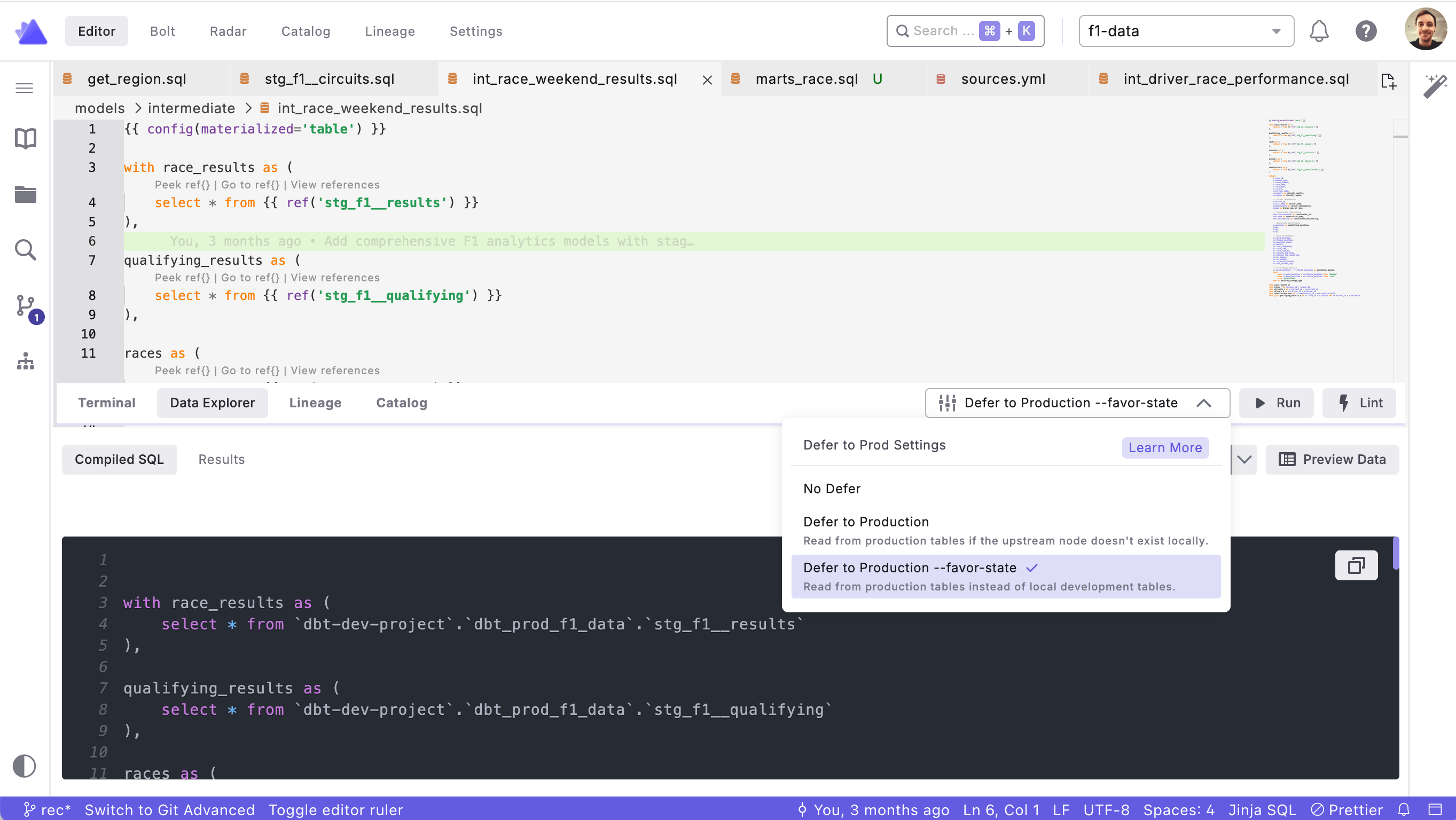 #### Enabling Defer to Production
You can enable defer to production directly in the Code IDE:
1. Locate the defer menu in the editor toolbar, positioned next to the run button
2. Click on the defer menu to reveal the available options
3. Choose between:
* **Standard defer to production** - References production objects only when necessary
* **Defer with --favor-state** - Always prioritizes reading from the production manifest
When defer to production is enabled, both the data preview and terminal commands will automatically defer to production manifests.
#### Using --favor-state
If you always want to read from your production manifest (even when models exist in your development environment), select the `--favor-state` option. This ensures maximum consistency with your production environment during development.
### Example: Deferred vs Standard Run
To illustrate the effect of using defer to prod, here's a comparison of compiled SQL for the same model:
#### Deferred Run (Using Production Schema)
```sql theme={"system"}
with orders as (
select * from `dbt-demo-project.dbt_prod.stg_orders`
),
final as (
select
customer_id,
min(order_date) as first_order,
max(order_date) as most_recent_order,
count(order_id) as number_of_orders
from orders
group by 1
)
select * from final
```
#### Standard Run (Using Development Schema)
```sql theme={"system"}
with orders as (
select * from `dbt-demo-project.dbt_fabio.stg_orders`
),
final as (
select
customer_id,
min(order_date) as first_order,
max(order_date) as most_recent_order,
count(order_id) as number_of_orders
from orders
group by 1
)
select * from final
```
**Key Difference:** Notice how the deferred run references the production schema (`dbt_prod`), while the standard run uses the development schema (`dbt_fabio`). This allows you to build only the models you're actively developing, while referencing stable upstream models from production.
### Viewing the Deferred Schedule
After running a dbt™ command with "defer to prod" enabled, you can view details about the production run used for deferral:
1. Check the output in the Integrated Terminal
2. Look for the deferred schedule information, which includes a clickable URL
3. Click the URL to navigate to the Bolt UI for more detailed information about the production run
Read about [state comparison caveats and limitations](https://docs.getdbt.com/reference/node-selection/state-comparison-caveats).
## Related topics
- [Data Explorer](/products/code-ide/command-panel/data-explorer.md)
- [Paradime fundamentals](/guides/paradime-fundamentals/index.md)
- [Schedule Configurations](/products/bolt/managing-schedules/schedule-configurations.md)
- [Translation of Key Terms](/guides/migrations/dbt-cloud-tm-importer/translation-of-key-terms.md)
- [Understanding schedule types and triggers](/guides/paradime-101/running-dbt-in-production-with-bolt/understanding-schedule-types-and-triggers.md)
#### Enabling Defer to Production
You can enable defer to production directly in the Code IDE:
1. Locate the defer menu in the editor toolbar, positioned next to the run button
2. Click on the defer menu to reveal the available options
3. Choose between:
* **Standard defer to production** - References production objects only when necessary
* **Defer with --favor-state** - Always prioritizes reading from the production manifest
When defer to production is enabled, both the data preview and terminal commands will automatically defer to production manifests.
#### Using --favor-state
If you always want to read from your production manifest (even when models exist in your development environment), select the `--favor-state` option. This ensures maximum consistency with your production environment during development.
### Example: Deferred vs Standard Run
To illustrate the effect of using defer to prod, here's a comparison of compiled SQL for the same model:
#### Deferred Run (Using Production Schema)
```sql theme={"system"}
with orders as (
select * from `dbt-demo-project.dbt_prod.stg_orders`
),
final as (
select
customer_id,
min(order_date) as first_order,
max(order_date) as most_recent_order,
count(order_id) as number_of_orders
from orders
group by 1
)
select * from final
```
#### Standard Run (Using Development Schema)
```sql theme={"system"}
with orders as (
select * from `dbt-demo-project.dbt_fabio.stg_orders`
),
final as (
select
customer_id,
min(order_date) as first_order,
max(order_date) as most_recent_order,
count(order_id) as number_of_orders
from orders
group by 1
)
select * from final
```
**Key Difference:** Notice how the deferred run references the production schema (`dbt_prod`), while the standard run uses the development schema (`dbt_fabio`). This allows you to build only the models you're actively developing, while referencing stable upstream models from production.
### Viewing the Deferred Schedule
After running a dbt™ command with "defer to prod" enabled, you can view details about the production run used for deferral:
1. Check the output in the Integrated Terminal
2. Look for the deferred schedule information, which includes a clickable URL
3. Click the URL to navigate to the Bolt UI for more detailed information about the production run
Read about [state comparison caveats and limitations](https://docs.getdbt.com/reference/node-selection/state-comparison-caveats).
## Related topics
- [Data Explorer](/products/code-ide/command-panel/data-explorer.md)
- [Paradime fundamentals](/guides/paradime-fundamentals/index.md)
- [Schedule Configurations](/products/bolt/managing-schedules/schedule-configurations.md)
- [Translation of Key Terms](/guides/migrations/dbt-cloud-tm-importer/translation-of-key-terms.md)
- [Understanding schedule types and triggers](/guides/paradime-101/running-dbt-in-production-with-bolt/understanding-schedule-types-and-triggers.md)