> ## Documentation Index
> Fetch the complete documentation index at: https://docs.paradime.io/llms.txt
> Use this file to discover all available pages before exploring further.
# Airbyte Server
To connect Airbyte Server to Paradime, you will need to configure the connection with your self-hosted Airbyte instance credentials. See also the [Airbyte documentation](https://docs.airbyte.com/).
### Prerequisites
Before connecting Airbyte Server to Paradime, ensure you have:
* A self-hosted Airbyte Server instance that can be accessed from the Internet
* Access to the Airbyte Server API container
* Network access from Paradime to your Airbyte Server instance
### Host Configuration
The Airbyte URL must include the correct port number based on your Airbyte Server version:
* **Airbyte Server v0.59.1 and later**: The API is exposed on port `8000` or `8001`. Your `AIRBYTE_HOST` should look like `https://your-server:8000` or `https://your-server:8001`.
* **Airbyte Server prior to v0.59.1**: The API is started on port `8006`. Your `AIRBYTE_HOST` should look like `https://your-server:8006`.
Unless you have exposed the API server on port 80 or 443, you must include the port number in the Airbyte Server URL.
Paradime connects to your running Airbyte API container. Ensure your Airbyte Server is configured to expose the API on the appropriate port. Airbyte recommends using a reverse proxy or load balancer to direct API traffic to the correct port.
### Network Configuration
#### Whitelisting IPs
Paradime will need to be whitelisted to access the Airbyte Server API if you use a network policy. Please refer to the [IP whitelist documentation](/developers/ip-restrictions) for the current list of Paradime IPs that need to be allowed through your firewall.
#### Authentication Methods
Airbyte Server supports two authentication methods:
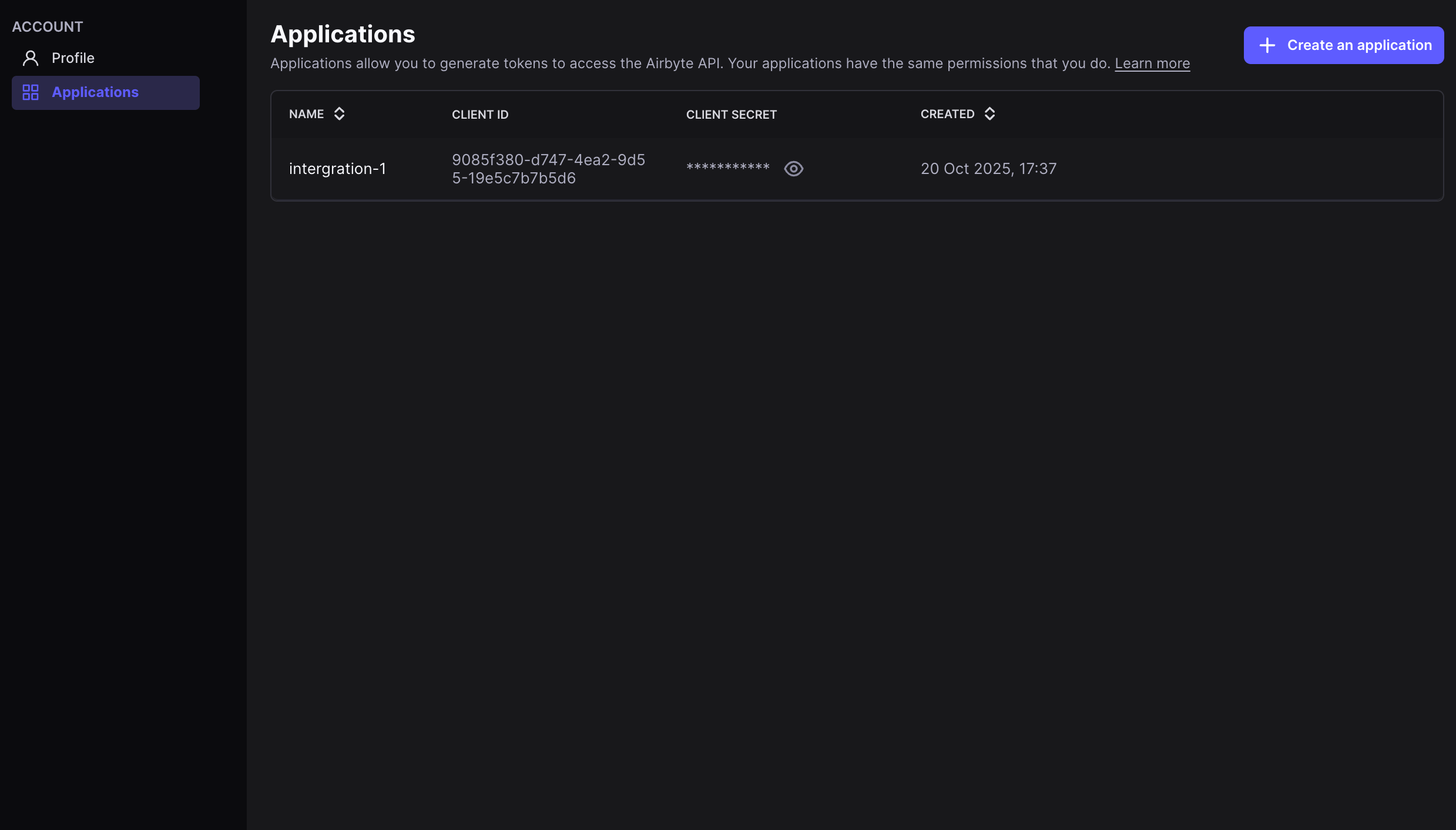
* **Client ID and Secret**: Supported on Airbyte Server v1.0 and onwards. Set `AIRBYTE_AUTH_TYPE` to `client_credentials`. Client credentials can be found in the **Applications** view in your Airbyte Server settings.
If you are running a local instance of Airbyte Server, you can also retrieve credentials by running `abctl local credentials`.
 ### Connect the Airbyte Server Integration
The Airbyte Server integration can be connected by a Paradime Admin user. To enable the integration, you will need to set your Airbyte Server credentials as environment variables in Paradime before connecting the integration.
#### Steps to Connect
1. In Paradime, go to [Paradime Account Settings > Environment Variables](/products/settings/environment-variables/bolt-schedule-env-variables)
2. Create the required environment variables with the following names and values:
* `AIRBYTE_BASE_URL` - The URL of your Airbyte Server API endpoint (including the correct port number)
* `AIRBYTE_CLIENT_ID` - The client ID of your Airbyte Server application (required for client credentials auth)
* `AIRBYTE_CLIENT_SECRET` - The client secret of your Airbyte Server application (required for client credentials auth)
* `USE_SERVER_AUTH` - Set to `TRUE` to use authentication for self-hosted Airbyte Server (instead of OAuth for Cloud)
3. Click **Save** to store the environment variables.
### Authentication Parameters
| Environment Variable | Type | Required | Information |
| ----------------------- | ----------------- | -------- | ----------------------------------------------------------------------------------------------- |
| AIRBYTE\_BASE\_URL | string (url) | Yes | The URL of your Airbyte Server API endpoint including the correct port number |
| AIRBYTE\_CLIENT\_ID | string | Yes | The client ID of your Airbyte Server application |
| AIRBYTE\_CLIENT\_SECRET | string (password) | Yes | The client secret of your Airbyte Server application |
| USE\_SERVER\_AUTH | boolean | Yes | Set to `TRUE` to use authentication for self-hosted Airbyte Server (instead of OAuth for Cloud) |
Make sure all required environment variables are set in your Paradime Account Settings > Environment Variables before attempting to trigger the Airbyte Sync.
### Airbyte Server Integration Capabilities
Paradime uses the Airbyte Server API to trigger [Airbyte syncs](/products/bolt/creating-schedules/command-settings/airbyte-connector-sync) from [Bolt](/products/bolt/creating-schedules/command-settings/airbyte-connector-sync). This allows you to orchestrate your Airbyte data pipelines as part of your Paradime workflows, enabling:
* Triggering Airbyte connections on-demand from Bolt
* Monitoring sync status and job execution
* Integrating Airbyte syncs into larger data orchestration workflows
* Error handling and retry logic for failed syncs
## Related topics
- [Airbyte](/integrations/airbyte/index.md)
- [Airbyte CLI](/developers/paradime-cli/airbyte-cli.md)
- [Airbyte Connector Sync](/products/bolt/creating-schedules/command-settings/airbyte-connector-sync.md)
- [Airbyte Cloud](/integrations/airbyte/airbyte-cloud.md)
- [MCP Server](/products/dino-ai/mcp-server/index.md)
### Connect the Airbyte Server Integration
The Airbyte Server integration can be connected by a Paradime Admin user. To enable the integration, you will need to set your Airbyte Server credentials as environment variables in Paradime before connecting the integration.
#### Steps to Connect
1. In Paradime, go to [Paradime Account Settings > Environment Variables](/products/settings/environment-variables/bolt-schedule-env-variables)
2. Create the required environment variables with the following names and values:
* `AIRBYTE_BASE_URL` - The URL of your Airbyte Server API endpoint (including the correct port number)
* `AIRBYTE_CLIENT_ID` - The client ID of your Airbyte Server application (required for client credentials auth)
* `AIRBYTE_CLIENT_SECRET` - The client secret of your Airbyte Server application (required for client credentials auth)
* `USE_SERVER_AUTH` - Set to `TRUE` to use authentication for self-hosted Airbyte Server (instead of OAuth for Cloud)
3. Click **Save** to store the environment variables.
### Authentication Parameters
| Environment Variable | Type | Required | Information |
| ----------------------- | ----------------- | -------- | ----------------------------------------------------------------------------------------------- |
| AIRBYTE\_BASE\_URL | string (url) | Yes | The URL of your Airbyte Server API endpoint including the correct port number |
| AIRBYTE\_CLIENT\_ID | string | Yes | The client ID of your Airbyte Server application |
| AIRBYTE\_CLIENT\_SECRET | string (password) | Yes | The client secret of your Airbyte Server application |
| USE\_SERVER\_AUTH | boolean | Yes | Set to `TRUE` to use authentication for self-hosted Airbyte Server (instead of OAuth for Cloud) |
Make sure all required environment variables are set in your Paradime Account Settings > Environment Variables before attempting to trigger the Airbyte Sync.
### Airbyte Server Integration Capabilities
Paradime uses the Airbyte Server API to trigger [Airbyte syncs](/products/bolt/creating-schedules/command-settings/airbyte-connector-sync) from [Bolt](/products/bolt/creating-schedules/command-settings/airbyte-connector-sync). This allows you to orchestrate your Airbyte data pipelines as part of your Paradime workflows, enabling:
* Triggering Airbyte connections on-demand from Bolt
* Monitoring sync status and job execution
* Integrating Airbyte syncs into larger data orchestration workflows
* Error handling and retry logic for failed syncs
## Related topics
- [Airbyte](/integrations/airbyte/index.md)
- [Airbyte CLI](/developers/paradime-cli/airbyte-cli.md)
- [Airbyte Connector Sync](/products/bolt/creating-schedules/command-settings/airbyte-connector-sync.md)
- [Airbyte Cloud](/integrations/airbyte/airbyte-cloud.md)
- [MCP Server](/products/dino-ai/mcp-server/index.md)