> ## Documentation Index
> Fetch the complete documentation index at: https://docs.paradime.io/llms.txt
> Use this file to discover all available pages before exploring further.
# BitBucket
> Connect a BitBucket Cloud or Server Git repository to Paradime using an SSH deploy key so you can develop, branch, and pull request your dbt™ project.
[BitBucket](https://bitbucket.org/) hosts your dbt™ repositories. Connect a BitBucket repository to Paradime using an SSH deploy key so Paradime can read and write files in your project, letting you develop in the [Code IDE](/products/code-ide/index), run [schedules](/products/bolt/index) in Bolt, and use CI/CD.
You must use the `git@...` or `ssh:...` version of your git URL, not the `https://...` version. Paradime uses the SSH protocol to clone repositories, so it cannot clone repos supplied with the HTTP protocol.
Before you start, import your repository in Paradime using its SSH URL to generate a deploy key. See [Importing a repository](/products/settings/git-repositories/importing-a-repository/index).
## BitBucket Cloud
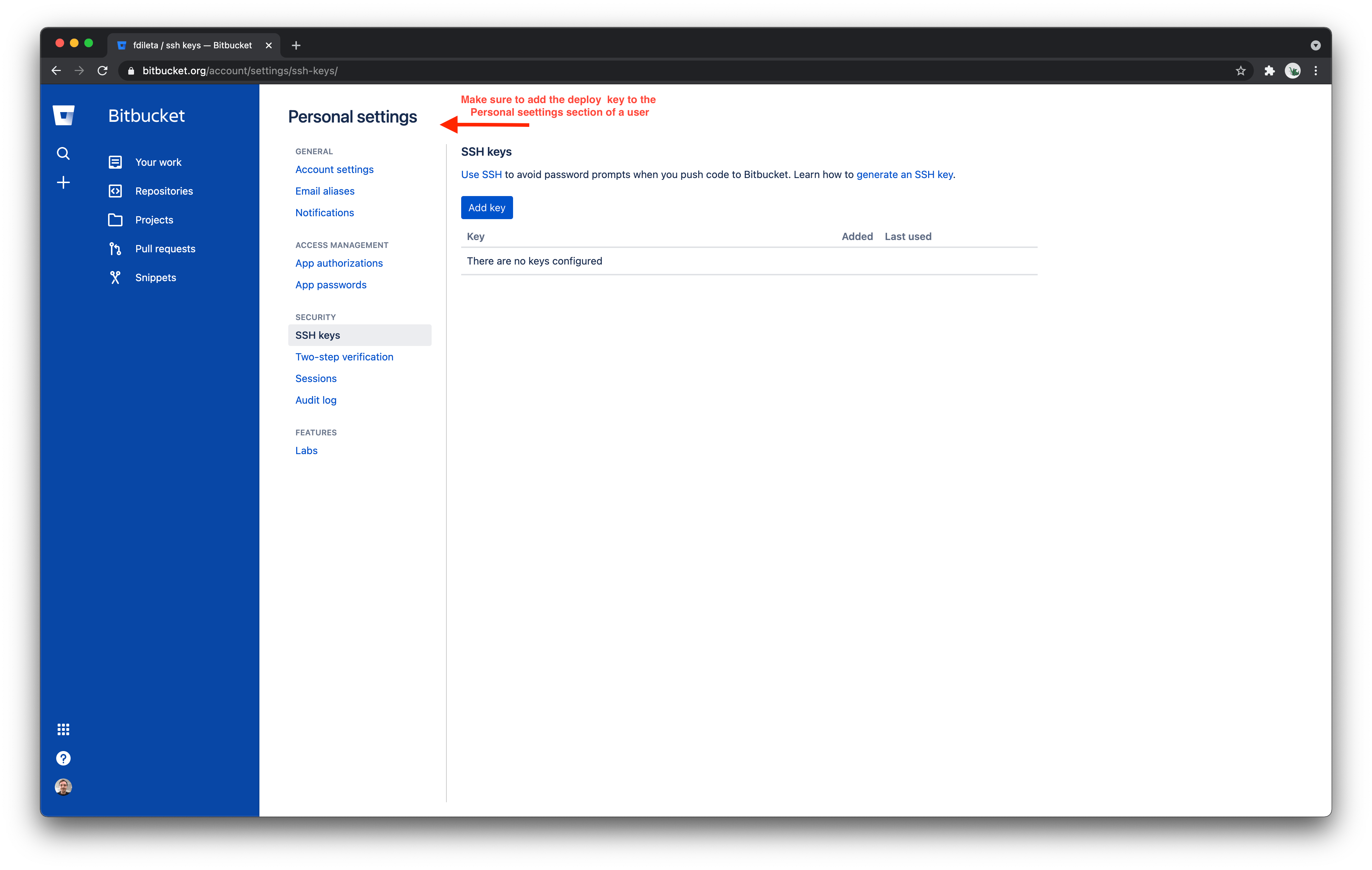
We advise creating a service account user in your BitBucket account like **`paradime.bitbucket.maintainer@yourcompany.com`** with write access to the repository, and letting this user own the SSH key.
1. In BitBucket Cloud, open the **SSH keys** tab in your **Personal Settings**.
2. Click **Add key** and paste in the deploy key generated by Paradime.
3. Save the key.
After saving this SSH key, Paradime can read and write files in your BitBucket repository.
 ## BitBucket Server
BitBucket Server supports `SSH access keys for system use` with Read/Write access.
1. In your BitBucket Server repository, open the **Settings** tab.
2. Click **Access keys**, then **Add key**.
3. Choose the **Read/Write** permission, paste in the key generated by Paradime, and click **Add Key**.
Paradime can now read and write files in your BitBucket repository.
For more detail, see Atlassian's guide on [SSH access keys for system use](https://confluence.atlassian.com/bitbucketserver/ssh-access-keys-for-system-use-776639781.html).
## Related topics
- [Continuous Deployment with BitBucket Pipelines](/products/bolt/ci-cd/continuous-deployment/bitbucket.md)
- [Turbo CI on BitBucket pull requests](/products/bolt/ci-cd/turbo-ci/bitbucket.md)
- [Column-Level Lineage Diff on BitBucket](/products/bolt/ci-cd/lineage-diff/bitbucket.md)
- [Continuous Deployment](/products/bolt/ci-cd/continuous-deployment/index.md)
- [Integrations](/integrations/index.md)
## BitBucket Server
BitBucket Server supports `SSH access keys for system use` with Read/Write access.
1. In your BitBucket Server repository, open the **Settings** tab.
2. Click **Access keys**, then **Add key**.
3. Choose the **Read/Write** permission, paste in the key generated by Paradime, and click **Add Key**.
Paradime can now read and write files in your BitBucket repository.
For more detail, see Atlassian's guide on [SSH access keys for system use](https://confluence.atlassian.com/bitbucketserver/ssh-access-keys-for-system-use-776639781.html).
## Related topics
- [Continuous Deployment with BitBucket Pipelines](/products/bolt/ci-cd/continuous-deployment/bitbucket.md)
- [Turbo CI on BitBucket pull requests](/products/bolt/ci-cd/turbo-ci/bitbucket.md)
- [Column-Level Lineage Diff on BitBucket](/products/bolt/ci-cd/lineage-diff/bitbucket.md)
- [Continuous Deployment](/products/bolt/ci-cd/continuous-deployment/index.md)
- [Integrations](/integrations/index.md)