> ## Documentation Index
> Fetch the complete documentation index at: https://docs.paradime.io/llms.txt
> Use this file to discover all available pages before exploring further.
# Confluence Data Center
To authorize Confluence, navigate to your **Workspace Settings**, open the **User Integrations** page, find the **Confluence** integration, and click **Connect**. You'll then be prompted to enter your credentials.
The required credentials differ depending on your Confluence setup — make sure you select the correct option for your environment.
For **Confluence Cloud** users, see [Connecting Confluence Cloud to Paradime ](/integrations/confluence/index)for setup instructions specific to your environment.
Once connected, DinoAI will be able to access Confluence on your behalf using the [Confluence Tool](/products/dino-ai/tools-and-features/confluence-tool).
You will need a Personal Access Token (PAT) from your Data Center instance to connect. See the table below for instructions on where to find each required field.
| Field | Description | Where to find it |
| ------------------------------- | ---------------------------------------------------- | ---------------------------------------------------------------------------------------------------------------- |
| **Instance Base URL** | The base URL of your Confluence Data Center instance | Your self-hosted Confluence URL, e.g. `https://confluence.your-org.com` |
| **Personal Access Token (PAT)** | A personal access token to authenticate requests | In Confluence Data Center, go to your **Profile** → **Settings** → **Personal Access Tokens** → **Create token** |
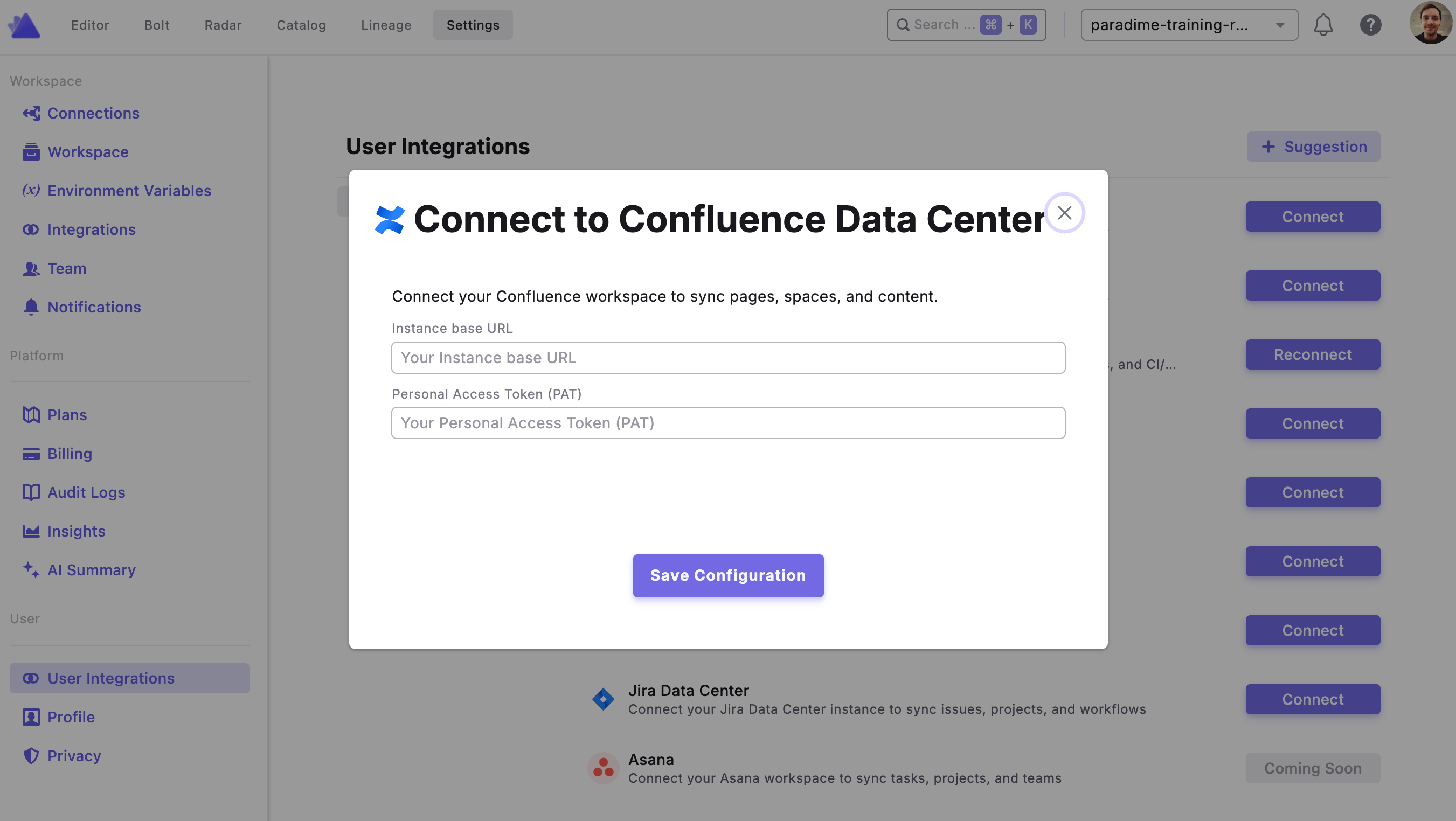 Once all fields are filled in, click **Save Configuration** to complete the connection.
## Related topics
- [Confluence](/integrations/confluence/index.md)
- [Confluence Cloud](/integrations/confluence/confluence-cloud.md)
- [Confluence Tool](/products/dino-ai/tools-and-features/confluence-tool.md)
- [Jira Data Center](/integrations/jira/jira-data-center.md)
- [Jira Cloud](/integrations/jira/jira-cloud.md)
Once all fields are filled in, click **Save Configuration** to complete the connection.
## Related topics
- [Confluence](/integrations/confluence/index.md)
- [Confluence Cloud](/integrations/confluence/confluence-cloud.md)
- [Confluence Tool](/products/dino-ai/tools-and-features/confluence-tool.md)
- [Jira Data Center](/integrations/jira/jira-data-center.md)
- [Jira Cloud](/integrations/jira/jira-cloud.md)