> ## Documentation Index
> Fetch the complete documentation index at: https://docs.paradime.io/llms.txt
> Use this file to discover all available pages before exploring further.
# Datadog
Connect Datadog to Paradime to receive real-time alerts for your Bolt Pipelines.
**Prerequisites**
Before connecting Datadog to Paradime, make sure you have:
* An existing Bolt schedule
* Datadog account
* Datadog API Key
* Datadog Application Key
### Setup Guide
Set up Datadog incident creation for failed runs by following the steps below.
#### Step 1: Gather Your Datadog Credentials
1. **Generate API Key:**
* Follow the instructions in [Datadog documentation](https://docs.datadoghq.com/account_management/api-app-keys/#api-keys)
* Copy and save your API Key securely
2. **Generate Application Key:**
* Follow the instructions in [Datadog documentation](https://docs.datadoghq.com/account_management/api-app-keys/#application-keys)
* Copy and save your Application Key securely
3. **Ensure Application Key has the below permissions**
1. `incident_notification_settings_read`
2. `incident_read`
3. `incident_write`
4. `teams_read`
5. `user_access_read`
**Important:** Store your API Key and Application Key securely. You will need both to configure the Paradime integration.
#### Step 2: Connect Datadog to Paradime
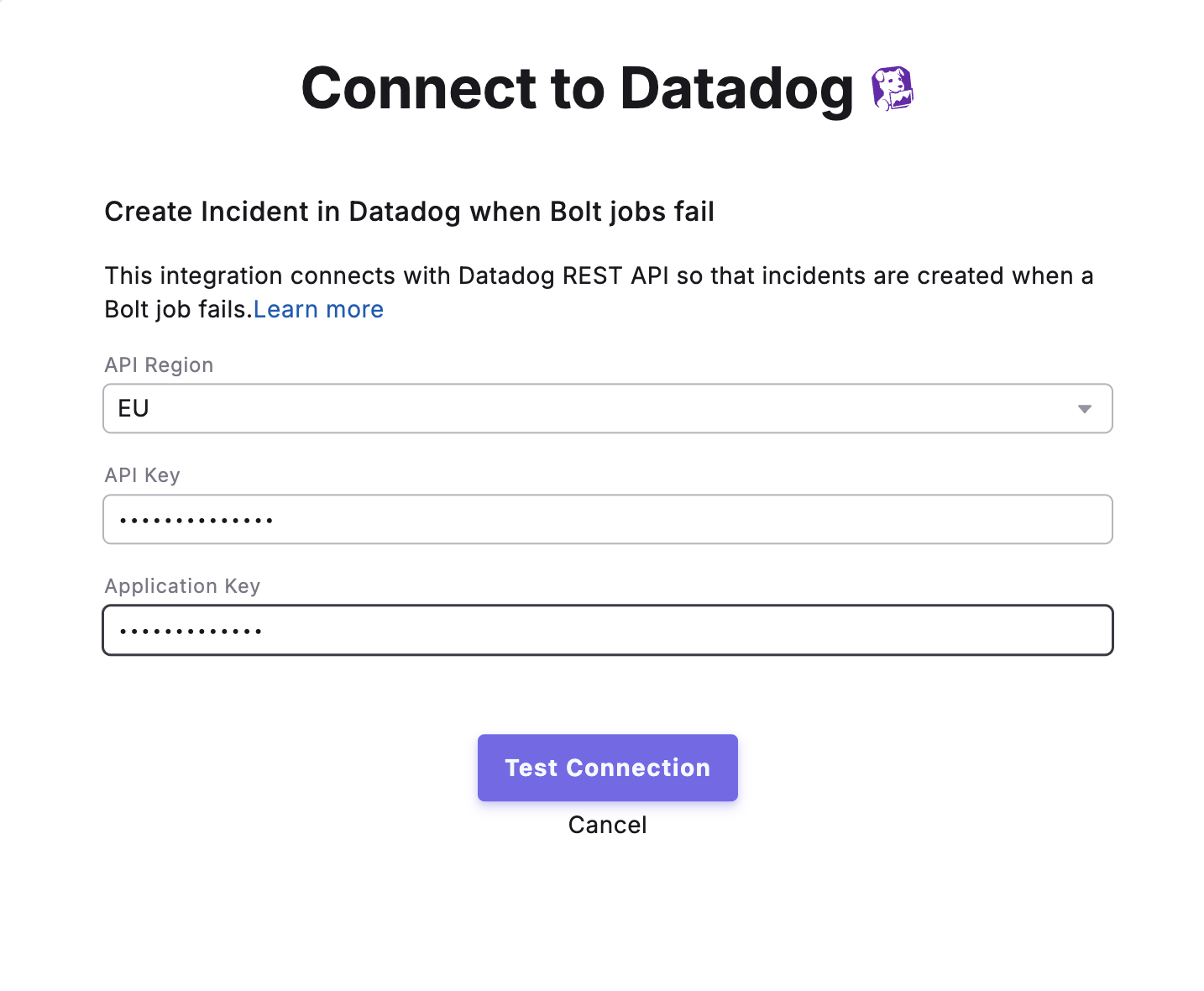
1. In Paradime, navigate to **Settings → Integrations → Datadog**.
2. Select your Datadog API region
3. Enter your Datadog API Key into the field provided.
4. Enter your Datadog Application Key into the field provided.
5. Click **Create** to establish the connection.
Once connected, Paradime will automatically create incidents in Datadog whenever Bolt runs fail.
 ### Enable Datadog for Your Bolt Schedules
After enabling the integration, you can configure which Bolt Schedules should create incidents in Datadog when they fail.
To configure incident creation:
1. Navigate to **Bolt** > **Schedules** in the Paradime interface.
2. Select the schedule you want to monitor.
3. Open the [**Integration Settings** ](/products/bolt/creating-schedules/trigger-integrations/trigger-datadog-incidents)for that schedule.
4. Enable **Datadog Incident Creation** to automatically create incidents in Datadog when the schedule fails.
Once enabled, any failures in the configured Bolt Schedules will automatically trigger incident creation in Datadog, allowing your team to respond quickly to data pipeline issues.
### Datadog Integration Capabilities
Paradime uses the Datadog API to automatically create incidents for [Bolt Schedules](/products/bolt/index).
This integration enables you to:
* Automatically track dbt™ run failures in Datadog
* Leverage Datadog's incident management workflows
* Monitor pipeline health alongside your application monitoring
* Reduce time to resolution for data pipeline issues
## Related topics
- [Datadog Alerts](/integrations/elementary-data/sending-alerts/datadog-alerts.md)
- [Create Datadog Incident](/products/bolt/creating-schedules/templates/incident-templates/create-datadog-incident.md)
- [Trigger Datadog Incidents](/products/bolt/creating-schedules/trigger-integrations/trigger-datadog-incidents.md)
- [copy-of-datadog-alerts](/integrations/elementary-data/sending-alerts/copy-of-datadog-alerts.md)
- [7. Trigger Integrations](/products/bolt/creating-schedules/trigger-integrations/index.md)
### Enable Datadog for Your Bolt Schedules
After enabling the integration, you can configure which Bolt Schedules should create incidents in Datadog when they fail.
To configure incident creation:
1. Navigate to **Bolt** > **Schedules** in the Paradime interface.
2. Select the schedule you want to monitor.
3. Open the [**Integration Settings** ](/products/bolt/creating-schedules/trigger-integrations/trigger-datadog-incidents)for that schedule.
4. Enable **Datadog Incident Creation** to automatically create incidents in Datadog when the schedule fails.
Once enabled, any failures in the configured Bolt Schedules will automatically trigger incident creation in Datadog, allowing your team to respond quickly to data pipeline issues.
### Datadog Integration Capabilities
Paradime uses the Datadog API to automatically create incidents for [Bolt Schedules](/products/bolt/index).
This integration enables you to:
* Automatically track dbt™ run failures in Datadog
* Leverage Datadog's incident management workflows
* Monitor pipeline health alongside your application monitoring
* Reduce time to resolution for data pipeline issues
## Related topics
- [Datadog Alerts](/integrations/elementary-data/sending-alerts/datadog-alerts.md)
- [Create Datadog Incident](/products/bolt/creating-schedules/templates/incident-templates/create-datadog-incident.md)
- [Trigger Datadog Incidents](/products/bolt/creating-schedules/trigger-integrations/trigger-datadog-incidents.md)
- [copy-of-datadog-alerts](/integrations/elementary-data/sending-alerts/copy-of-datadog-alerts.md)
- [7. Trigger Integrations](/products/bolt/creating-schedules/trigger-integrations/index.md)