> ## Documentation Index
> Fetch the complete documentation index at: https://docs.paradime.io/llms.txt
> Use this file to discover all available pages before exploring further.
# DataHub
To connect DataHub to Paradime, you will need a DataHub instance and permission to create a Personal Access Token. See also the [DataHub documentation](https://datahubproject.io/docs/).
Once connected, Paradime keeps your DataHub catalog in sync as part of its **background data catalog refresh** — pushing dbt™ docs artifacts (models, lineage, columns, and descriptions) to DataHub after every production `dbt docs generate` run.
You can connect the integration in two ways:
* **Connect UI** — a dedicated form to enter your GMS URL, token, and optional domain, with a built‑in connection test. Fastest way to get set up.
* **Environment variables** — set your DataHub credentials as Paradime environment variables. Useful for scripted or templated setups.
Both methods use the same underlying credentials, described below.
**Generate API Credentials**
Paradime authenticates to DataHub's GMS (Generalized Metadata Service) endpoint using a Personal Access Token. The token is created from your DataHub instance and used together with your GMS server URL.
**Prerequisites**
Before generating API credentials, ensure you have:
* An active DataHub instance (DataHub Cloud / Acryl)
* Permission to create Personal Access Tokens in DataHub
* Metadata Service Authentication enabled on your instance
* The service account used to generate the Personal Access Token must have **Admin** permissions in DataHub. The token inherits the account's privileges, and Admin access is required to push dbt™ metadata to the GMS endpoint.
**Steps to Generate a Personal Access Token**
1. Log in to your DataHub instance as a user with permission to manage access tokens.
2. Click your profile in the top right corner and navigate to **Settings**.
3. Select the **Access Tokens** tab from the settings menu.
4. Click the **Generate new token** button.
5. Enter a name for your token (e.g., "Paradime Integration"), set an expiry, and click **Create**.
6. Copy the **Access Token** from the dialog. Store it securely as we will need it to set up the Paradime integration. **Important:** The Access Token will only be displayed once. Make sure to copy and store it in a secure location before closing this dialog.
**Find Your GMS Server URL**
Paradime sends metadata to your DataHub GMS endpoint. For DataHub Cloud, this is your instance URL with the `/gms` path, for example:
```text theme={"system"}
https://.acryl.io/gms
```
**Connect the DataHub Integration**
The DataHub integration can be connected by a Paradime Admin user. Choose one of the following methods — both enable the background data catalog refresh.
**Option 1 — Connect via the UI (recommended)**
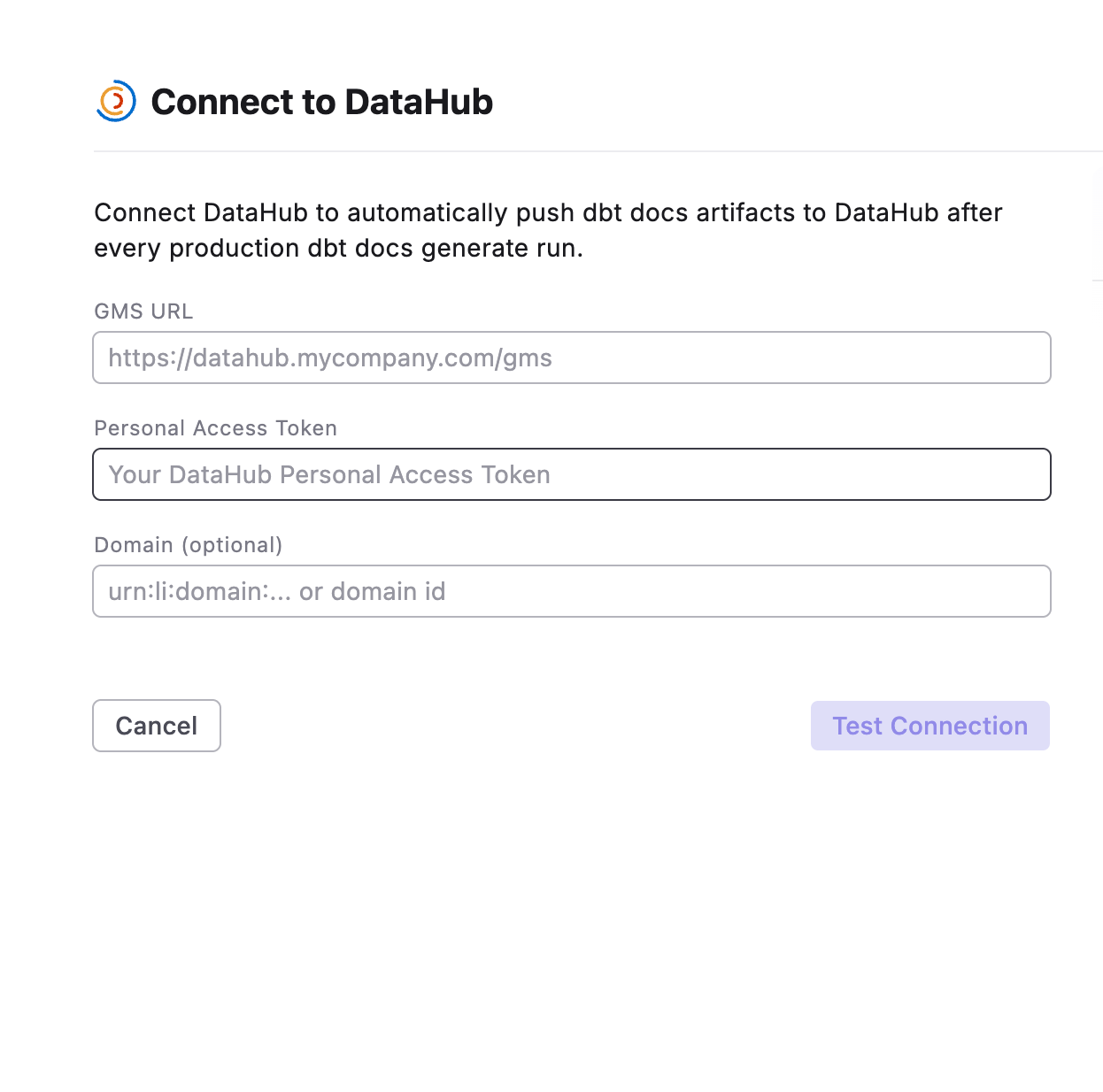 Use the dedicated **Connect to DataHub** panel to set up the integration and enable the background catalog refresh directly from Paradime.
1. In Paradime, go to **Account Settings** > **Integrations**.
2. Find **DataHub** and click **Connect** to open the **Connect to DataHub** panel.
3. Fill in the fields:
* **GMS URL** — your DataHub GMS server URL (e.g. `https://.acryl.io/gms`).
* **Personal Access Token** — the token you generated from your DataHub instance.
* **Domain (optional)** — a DataHub domain URN or domain id to associate pushed assets with (e.g. `urn:li:domain:sales`).
4. Click **Test Connection** to verify Paradime can reach your GMS endpoint with the supplied token.
5. Once the test passes, save the connection.
After connecting, Paradime automatically pushes dbt™ docs artifacts to DataHub after every production `dbt docs generate` run — no environment variables required. The target warehouse platform is inferred from your production connection.
You will be able to control the sync by using the [Paradime Catalog Refresh](/products/bolt/creating-schedules/command-settings/paradime-refresh-catalog) Command in Bolt.
**Option 2 — Connect via Environment Variables**
Alternatively, set your DataHub credentials as environment variables in Paradime before connecting the integration.
1. In Paradime, go to **Account Settings** > **Environment Variables**.
2. Create the following environment variables:
* `DATAHUB_GMS_URL` - Set this to your DataHub GMS server URL (e.g. `https://.acryl.io/gms`)
* `DATAHUB_GMS_TOKEN` - Set this to your DataHub Personal Access Token
* `DATAHUB_TARGET_PLATFORM` - Set this to the warehouse your dbt™ models run on (e.g. `snowflake`)
3. Click **Save** to store the environment variables.
**Authentication Parameters**
Whichever method you use, Paradime reads the same DataHub credentials and configuration. The UI captures these in the **Connect to DataHub** form; the environment variable method reads them from the following variables:
| Environment Variable | Type | Required | Information |
| ------------------------- | ----------------- | -------- | --------------------------------------------------------------------------------------------- |
| DATAHUB\_GMS\_URL | string | Yes | The DataHub GMS server URL (e.g. `https://.acryl.io/gms`) |
| DATAHUB\_GMS\_TOKEN | string (password) | Yes | The Personal Access Token generated from your DataHub instance |
| DATAHUB\_TARGET\_PLATFORM | string | Yes | The data warehouse platform the dbt™ models run on (e.g. `snowflake`, `bigquery`, `redshift`) |
| DATAHUB\_DOMAIN | string | No | A DataHub domain URN to associate pushed assets with (e.g. `urn:li:domain:sales`) |
Make sure these environment variables are set in your Paradime Account Settings > Environment Variables before attempting to use the environment variable method.
**DataHub Integration Capabilities**
Paradime uses DataHub's native `dbt` ingestion source to push dbt™ metadata from Bolt into DataHub. This allows you to keep your DataHub catalog in sync with your dbt™ project as part of your Paradime workflows, enabling:
* Pushing dbt™ models, lineage, columns, and descriptions to DataHub on every run
* Associating pushed assets with a DataHub domain
* Pushing artifacts for multiple dbt™ projects in a single task
* Integrating catalog updates into larger data orchestration workflows
## Related topics
- [datahub-sync](/products/bolt/creating-schedules/command-settings/datahub-sync.md)
- [GitHub](/integrations/github.md)
- [GitHub Native Continuous Deployment](/products/bolt/ci-cd/continuous-deployment-with-bolt/continuous-deployment.md)
Use the dedicated **Connect to DataHub** panel to set up the integration and enable the background catalog refresh directly from Paradime.
1. In Paradime, go to **Account Settings** > **Integrations**.
2. Find **DataHub** and click **Connect** to open the **Connect to DataHub** panel.
3. Fill in the fields:
* **GMS URL** — your DataHub GMS server URL (e.g. `https://.acryl.io/gms`).
* **Personal Access Token** — the token you generated from your DataHub instance.
* **Domain (optional)** — a DataHub domain URN or domain id to associate pushed assets with (e.g. `urn:li:domain:sales`).
4. Click **Test Connection** to verify Paradime can reach your GMS endpoint with the supplied token.
5. Once the test passes, save the connection.
After connecting, Paradime automatically pushes dbt™ docs artifacts to DataHub after every production `dbt docs generate` run — no environment variables required. The target warehouse platform is inferred from your production connection.
You will be able to control the sync by using the [Paradime Catalog Refresh](/products/bolt/creating-schedules/command-settings/paradime-refresh-catalog) Command in Bolt.
**Option 2 — Connect via Environment Variables**
Alternatively, set your DataHub credentials as environment variables in Paradime before connecting the integration.
1. In Paradime, go to **Account Settings** > **Environment Variables**.
2. Create the following environment variables:
* `DATAHUB_GMS_URL` - Set this to your DataHub GMS server URL (e.g. `https://.acryl.io/gms`)
* `DATAHUB_GMS_TOKEN` - Set this to your DataHub Personal Access Token
* `DATAHUB_TARGET_PLATFORM` - Set this to the warehouse your dbt™ models run on (e.g. `snowflake`)
3. Click **Save** to store the environment variables.
**Authentication Parameters**
Whichever method you use, Paradime reads the same DataHub credentials and configuration. The UI captures these in the **Connect to DataHub** form; the environment variable method reads them from the following variables:
| Environment Variable | Type | Required | Information |
| ------------------------- | ----------------- | -------- | --------------------------------------------------------------------------------------------- |
| DATAHUB\_GMS\_URL | string | Yes | The DataHub GMS server URL (e.g. `https://.acryl.io/gms`) |
| DATAHUB\_GMS\_TOKEN | string (password) | Yes | The Personal Access Token generated from your DataHub instance |
| DATAHUB\_TARGET\_PLATFORM | string | Yes | The data warehouse platform the dbt™ models run on (e.g. `snowflake`, `bigquery`, `redshift`) |
| DATAHUB\_DOMAIN | string | No | A DataHub domain URN to associate pushed assets with (e.g. `urn:li:domain:sales`) |
Make sure these environment variables are set in your Paradime Account Settings > Environment Variables before attempting to use the environment variable method.
**DataHub Integration Capabilities**
Paradime uses DataHub's native `dbt` ingestion source to push dbt™ metadata from Bolt into DataHub. This allows you to keep your DataHub catalog in sync with your dbt™ project as part of your Paradime workflows, enabling:
* Pushing dbt™ models, lineage, columns, and descriptions to DataHub on every run
* Associating pushed assets with a DataHub domain
* Pushing artifacts for multiple dbt™ projects in a single task
* Integrating catalog updates into larger data orchestration workflows
## Related topics
- [datahub-sync](/products/bolt/creating-schedules/command-settings/datahub-sync.md)
- [GitHub](/integrations/github.md)
- [GitHub Native Continuous Deployment](/products/bolt/ci-cd/continuous-deployment-with-bolt/continuous-deployment.md)