> ## Documentation Index
> Fetch the complete documentation index at: https://docs.paradime.io/llms.txt
> Use this file to discover all available pages before exploring further.
# Hightouch
export const Arcade = ({src, title}) =>
;
Paradime integrates with Hightouch to trigger a sync as soon as a Paradime Bolt schedule completes.
This ensure your Hightouch syncs are triggered as soon as fresh data is available after running your dbt™️ models in production.
To create API keys in Hightouch, you will need have **Admin** access. See also the Hightouch docs [here](https://hightouch.com/docs/developer-tools/api-guide#overview).
## Generate an API key
API keys in Hightouch are generated at a workspace level. Make sure to create the API key for the workspace you want to connect to Paradime.
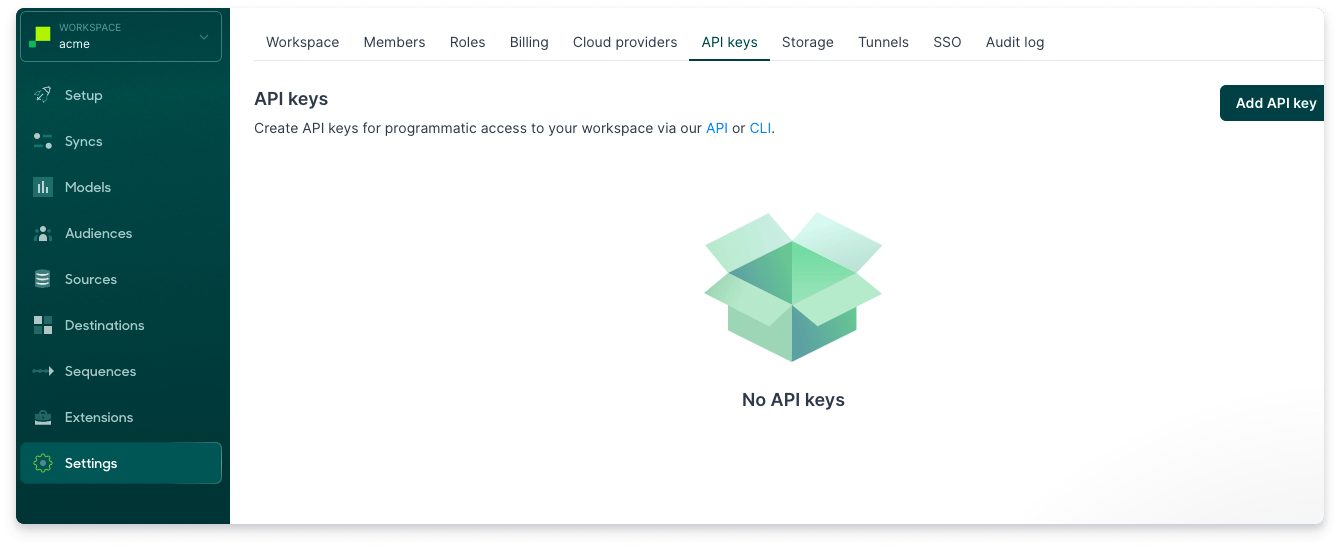
1. From the [API keys](https://app.hightouch.com/settings/api-keys) tab on the Settings page, select Add API key.
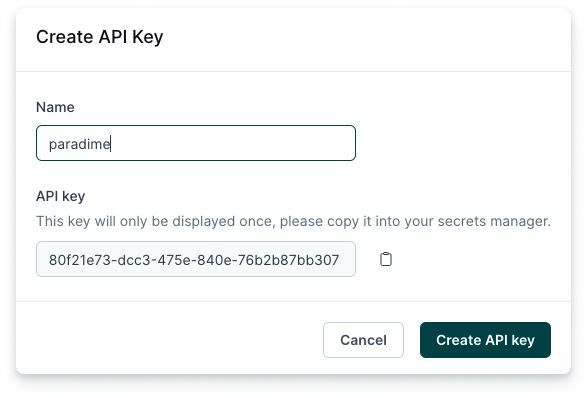
 2. Enter a descriptive Name for your key. Copy your API key and store it in a safe location. The key will only be displayed once. Click Create API key.
 ## Connect the Hightouch Integration
The Hightouch integration can be connected by a Paradime **Admin user**. To enable the integration, in Paradime navigate to your *Account Settings > Integrations*, find the Hightouch integration and click *Connect*.
1. Add the API Key for your Hightouch account
2. Click on Test Connection to validate that Paradime can connect to Hightouch and start importing Metadata from your Connectors.
Now that the integration is connected, you can trigger syncs after a Paradime Schedule completes.
## Related topics
- [Trigger Hightouch Syncs](/products/bolt/creating-schedules/templates/reverse-etl-templates/trigger-hightouch-syncs.md)
- [Trigger Hightouch Sequence Sync](/products/bolt/creating-schedules/templates/reverse-etl-templates/trigger-hightouch-sequence-sync.md)
- [Integration errors](/get-help/error-list/integration-errors.md)
- [Reverse ETL Templates](/products/bolt/creating-schedules/templates/reverse-etl-templates/index.md)
- [Workspaces and data mesh](/guides/paradime-fundamentals/workspaces-and-data-mesh.md)
## Connect the Hightouch Integration
The Hightouch integration can be connected by a Paradime **Admin user**. To enable the integration, in Paradime navigate to your *Account Settings > Integrations*, find the Hightouch integration and click *Connect*.
1. Add the API Key for your Hightouch account
2. Click on Test Connection to validate that Paradime can connect to Hightouch and start importing Metadata from your Connectors.
Now that the integration is connected, you can trigger syncs after a Paradime Schedule completes.
## Related topics
- [Trigger Hightouch Syncs](/products/bolt/creating-schedules/templates/reverse-etl-templates/trigger-hightouch-syncs.md)
- [Trigger Hightouch Sequence Sync](/products/bolt/creating-schedules/templates/reverse-etl-templates/trigger-hightouch-sequence-sync.md)
- [Integration errors](/get-help/error-list/integration-errors.md)
- [Reverse ETL Templates](/products/bolt/creating-schedules/templates/reverse-etl-templates/index.md)
- [Workspaces and data mesh](/guides/paradime-fundamentals/workspaces-and-data-mesh.md)