> ## Documentation Index
> Fetch the complete documentation index at: https://docs.paradime.io/llms.txt
> Use this file to discover all available pages before exploring further.
# Block Diagrams
### What are Block Diagrams?
Marmaid's Block diagrams are intuitive and efficient visual tools used to represent complex systems, processes, or architectures. They consist of blocks and connectors:
* **Blocks** represent fundamental components or functions.
* **Connectors** show relationships or flows between these components.
Block diagrams are widely used across industries to:
* Simplify complex systems.
* Provide a high-level overview of components and interactions.
* Enhance understanding and facilitate communication.
***
### Creating Your First Block Diagram
1. **Launch DinoAI:** From Code IDE, access [DinoAI](/products/dino-ai/index) to start creating diagrams.
2. **Use a Simple Prompt:** Tell DinoAI what kind of Block Diagram you want to create. For example:
```text theme={"system"}
- "Create a mermaid block diagram showing my data processing workflow with input, transformation, and output blocks"
- "Generate a mermaid block diagram for my system architecture with connected components"
- "Build a mermaid block diagram showing my dbt™ model dependencies and data flow"
```
3. **Get Your Diagram:** DinoAI will generate a complete `.mmd` file with proper Mermaid syntax.
4. **Preview Your Work:** Click the eye icon (👁️) to preview your diagram in real-time as you edit.
5. **Iterate and Refine:** Modify the generated `.mmd` file directly, or ask DinoAI to make specific changes.
#### Example:
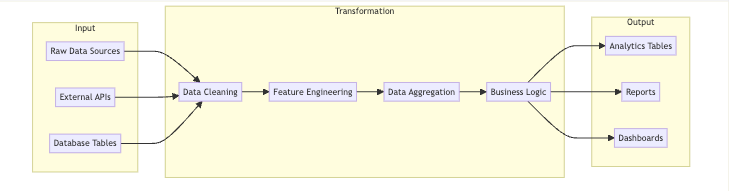
```mermaid theme={"system"}
flowchart LR
subgraph Input
A[Raw Data Sources]
B[External APIs]
C[Database Tables]
end
subgraph Transformation
D[Data Cleaning]
E[Feature Engineering]
F[Data Aggregation]
G[Business Logic]
end
subgraph Output
H[Analytics Tables]
I[Reports]
J[Dashboards]
end
A --> D
B --> D
C --> D
D --> E
E --> F
F --> G
G --> H
G --> I
G --> J
```
 **Reusable Block prompts for you and your team**
You can create custom, standardized [.dinoprompts](/products/dino-ai/copilot/dino-prompts) for Mermaid's Block Diagrams ensure consistency across your data team. See [step-by-step guide.](/integrations/mermaid-js/index#creating-mermaid-diagrams-with-.dinoprompts)
***
### Diagram Syntax Guide
#### Basic Structure
At its core, a block diagram consists of blocks arranged in rows or columns. Blocks are labeled with identifiers and connected using arrows.
Example:
```mermaid theme={"system"}
block-beta
columns 1
A
B["Middle Block"]
C
A --> B
B --> C
```
#### Columns and Layout
Arrange blocks into columns for a structured layout:
```mermaid theme={"system"}
block-beta
columns 3
A B C
D
```
#### Styling Blocks
Apply styles to blocks for enhanced clarity:
```mermaid theme={"system"}
block-beta
A["Start"] --> B["Process"]
style A fill:#969,stroke:#333,stroke-width:2px
style B fill:#bbf,stroke:#333,stroke-width:3px
```
#### Nested Blocks
Create composite or nested blocks for hierarchical structures:
```mermaid theme={"system"}
block-beta
block:Parent
Child1
Child2
end
```
***
### Advanced Features
#### Block Shapes
Mermaid supports various block shapes to cater to specific needs:
* **Rectangle**: Standard shape.
* **Circle**: For pivotal components.
* **Cylinder**: Ideal for databases.
Example:
```mermaid theme={"system"}
block-beta
A(("Circle Block"))
B(("Database"))
```
#### Connecting Blocks
Use arrows to link blocks, representing data flow or relationships:
```mermaid theme={"system"}
block-beta
A --> B
B -- "Label" --> C
```
#### Block Arrows and Space Blocks
Use block arrows for directional emphasis and space blocks for layout adjustments:
```mermaid theme={"system"}
block-beta
blockArrowId6<["Label"]>(right)
space:2
```
***
### Data Team Examples
#### Software Architecture
```mermaid theme={"system"}
block-beta
columns 3
Frontend --> Backend
Backend --> Database
```
#### Business Workflow
```mermaid theme={"system"}
block-beta
columns 1
Start --> Decision{{"Decision"}}
Decision --> Yes["Process A"]
Decision --> No["Process B"]
Yes --> End
No --> End
```
***
### Best Practices
1. **Plan Layout**: Organize blocks logically to reflect the system's structure.
2. **Use Consistent Styles**: Maintain uniform block and connector styles.
3. **Add Labels**: Provide context for connectors with descriptive labels.
4. **Iterate**: Continuously refine diagrams for clarity and accuracy.
***
### Troubleshooting and Tips
#### Common Issues
* **Misplaced Links**: Ensure correct syntax for arrows.
* **Overlapping Blocks**: Adjust columns or use space blocks.
#### Modular Design
Break large diagrams into smaller components for better readability.
***
**Additional Resources**
For more details, visit the [official Mermaid documentation](https://mermaid.js.org/syntax/block.html).
## Related topics
- [Mermaid](/integrations/mermaid-js/index.md)
- [Architecture Diagrams](/integrations/mermaid-js/architecture-diagrams.md)
- [Sequence Diagrams](/integrations/mermaid-js/sequence-diagrams.md)
- [customize-agent](/products/dino-ai/slack-agent/customize-agent.md)
- [Timeline Diagrams](/integrations/mermaid-js/timeline-diagrams.md)
**Reusable Block prompts for you and your team**
You can create custom, standardized [.dinoprompts](/products/dino-ai/copilot/dino-prompts) for Mermaid's Block Diagrams ensure consistency across your data team. See [step-by-step guide.](/integrations/mermaid-js/index#creating-mermaid-diagrams-with-.dinoprompts)
***
### Diagram Syntax Guide
#### Basic Structure
At its core, a block diagram consists of blocks arranged in rows or columns. Blocks are labeled with identifiers and connected using arrows.
Example:
```mermaid theme={"system"}
block-beta
columns 1
A
B["Middle Block"]
C
A --> B
B --> C
```
#### Columns and Layout
Arrange blocks into columns for a structured layout:
```mermaid theme={"system"}
block-beta
columns 3
A B C
D
```
#### Styling Blocks
Apply styles to blocks for enhanced clarity:
```mermaid theme={"system"}
block-beta
A["Start"] --> B["Process"]
style A fill:#969,stroke:#333,stroke-width:2px
style B fill:#bbf,stroke:#333,stroke-width:3px
```
#### Nested Blocks
Create composite or nested blocks for hierarchical structures:
```mermaid theme={"system"}
block-beta
block:Parent
Child1
Child2
end
```
***
### Advanced Features
#### Block Shapes
Mermaid supports various block shapes to cater to specific needs:
* **Rectangle**: Standard shape.
* **Circle**: For pivotal components.
* **Cylinder**: Ideal for databases.
Example:
```mermaid theme={"system"}
block-beta
A(("Circle Block"))
B(("Database"))
```
#### Connecting Blocks
Use arrows to link blocks, representing data flow or relationships:
```mermaid theme={"system"}
block-beta
A --> B
B -- "Label" --> C
```
#### Block Arrows and Space Blocks
Use block arrows for directional emphasis and space blocks for layout adjustments:
```mermaid theme={"system"}
block-beta
blockArrowId6<["Label"]>(right)
space:2
```
***
### Data Team Examples
#### Software Architecture
```mermaid theme={"system"}
block-beta
columns 3
Frontend --> Backend
Backend --> Database
```
#### Business Workflow
```mermaid theme={"system"}
block-beta
columns 1
Start --> Decision{{"Decision"}}
Decision --> Yes["Process A"]
Decision --> No["Process B"]
Yes --> End
No --> End
```
***
### Best Practices
1. **Plan Layout**: Organize blocks logically to reflect the system's structure.
2. **Use Consistent Styles**: Maintain uniform block and connector styles.
3. **Add Labels**: Provide context for connectors with descriptive labels.
4. **Iterate**: Continuously refine diagrams for clarity and accuracy.
***
### Troubleshooting and Tips
#### Common Issues
* **Misplaced Links**: Ensure correct syntax for arrows.
* **Overlapping Blocks**: Adjust columns or use space blocks.
#### Modular Design
Break large diagrams into smaller components for better readability.
***
**Additional Resources**
For more details, visit the [official Mermaid documentation](https://mermaid.js.org/syntax/block.html).
## Related topics
- [Mermaid](/integrations/mermaid-js/index.md)
- [Architecture Diagrams](/integrations/mermaid-js/architecture-diagrams.md)
- [Sequence Diagrams](/integrations/mermaid-js/sequence-diagrams.md)
- [customize-agent](/products/dino-ai/slack-agent/customize-agent.md)
- [Timeline Diagrams](/integrations/mermaid-js/timeline-diagrams.md)