> ## Documentation Index
> Fetch the complete documentation index at: https://docs.paradime.io/llms.txt
> Use this file to discover all available pages before exploring further.
# Timeline Diagrams
### What Are Timeline Diagrams?
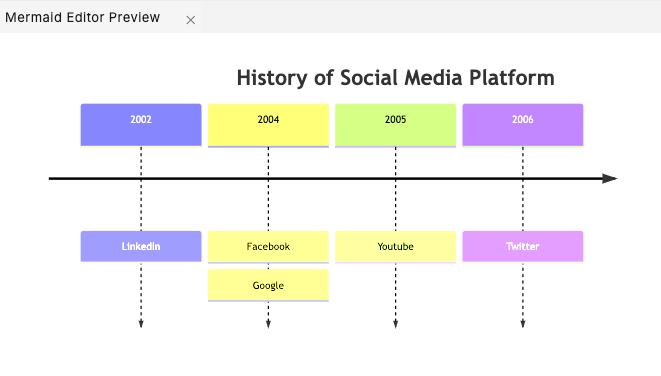
Marmaid's Timeline diagrams provide a graphical representation of events or periods over time. They help illustrate the sequence and relationship between events, making them a powerful tool for visualizing histories, schedules, and project timelines.
***
### Creating Your First Timeline Diagram
1. **Launch DinoAI:** From Code IDE, access [DinoAI](/products/dino-ai/index) to start creating diagrams.
2. **Use a Simple Prompt:** Tell DinoAI what kind of Timeline Diagram you want to create. For example:
```text theme={"system"}
- "Create a mermaid timeline showing my data platform evolution and major milestones"
- "Generate a mermaid timeline diagram for my dbt™ project development phases and releases"
- "Build a mermaid timeline showing data migration project phases with key events"
```
1. **Get Your Diagram:** DinoAI will generate a complete `.mmd` file with proper Mermaid syntax.
2. **Preview Your Work:** Click the eye icon (👁️) to preview your diagram in real-time as you edit.
3. **Iterate and Refine:** Modify the generated `.mmd` file directly, or ask DinoAI to make specific changes.
#### Example:
```mermaid theme={"system"}
timeline
title History of Social Media Platform
2002 : LinkedIn
2004 : Facebook
: Google
2005 : Youtube
2006 : Twitter
```
 **Reusable Timeline Diagram prompts for you and your team**
You can create custom, standardized [.dinoprompts](/products/dino-ai/copilot/dino-prompts) for Mermaid's Timeline Diagram that ensure consistency across your data team. See [step-by-step guide.](/integrations/mermaid-js/index#creating-mermaid-diagrams-with-.dinoprompts)
***
### Syntax and Components
The syntax for creating Timeline diagrams in Mermaid is straightforward:
* Start with the `timeline` keyword.
* Optionally add a title with the `title` keyword.
* Define time periods followed by their events in the format:
```mermaid theme={"system"}
{time period} : {event}
```
You can include multiple events for a single time period using the same format:
```mermaid theme={"system"}
{time period} : {event} : {event}
```
***
### Examples
#### Basic Timeline
```mermaid theme={"system"}
timeline
title History of Social Media Platform
2002 : LinkedIn
2004 : Facebook : Google
2005 : Youtube
2006 : Twitter
```
#### Grouping Time Periods
```mermaid theme={"system"}
timeline
title Timeline of Industrial Revolution
section 17th-20th century
Industry 1.0 : Machinery, Water power, Steam power
Industry 2.0 : Electricity, Internal combustion engine, Mass production
Industry 3.0 : Electronics, Computers, Automation
section 21st century
Industry 4.0 : Internet, Robotics, Internet of Things
Industry 5.0 : Artificial Intelligence, Big Data, 3D Printing
```
***
### Styling Options
#### Using Themes
Mermaid offers several themes such as `base`, `forest`, `dark`, `neutral`, and `default`. To apply a theme, use the `%%{init}` directive:
```mermaid theme={"system"}
%%{init: { 'theme': 'forest' }}%%
timeline
title Thematic Example
2020 : Event A
2021 : Event B : Event C
```
#### Custom Colors
You can customize colors using `cScale` and `cScaleLabel` variables:
```mermaid theme={"system"}
%%{init: { 'themeVariables': {
'cScale0': '#ff0000', 'cScaleLabel0': '#ffffff',
'cScale1': '#00ff00',
'cScale2': '#0000ff', 'cScaleLabel2': '#ffffff'
}}}%%
timeline
title Custom Colored Timeline
2020 : Event A
2021 : Event B : Event C
2022 : Event D
```
***
### Best Practices
1. **Keep it Chronological**: Ensure events are listed in proper order.
2. **Use Sections for Clarity**: Group related events into sections for better organization.
3. **Customize Colors**: Use distinct colors for sections to enhance readability.
***
### Advanced Features
* **Line Breaks**: Use `
**Reusable Timeline Diagram prompts for you and your team**
You can create custom, standardized [.dinoprompts](/products/dino-ai/copilot/dino-prompts) for Mermaid's Timeline Diagram that ensure consistency across your data team. See [step-by-step guide.](/integrations/mermaid-js/index#creating-mermaid-diagrams-with-.dinoprompts)
***
### Syntax and Components
The syntax for creating Timeline diagrams in Mermaid is straightforward:
* Start with the `timeline` keyword.
* Optionally add a title with the `title` keyword.
* Define time periods followed by their events in the format:
```mermaid theme={"system"}
{time period} : {event}
```
You can include multiple events for a single time period using the same format:
```mermaid theme={"system"}
{time period} : {event} : {event}
```
***
### Examples
#### Basic Timeline
```mermaid theme={"system"}
timeline
title History of Social Media Platform
2002 : LinkedIn
2004 : Facebook : Google
2005 : Youtube
2006 : Twitter
```
#### Grouping Time Periods
```mermaid theme={"system"}
timeline
title Timeline of Industrial Revolution
section 17th-20th century
Industry 1.0 : Machinery, Water power, Steam power
Industry 2.0 : Electricity, Internal combustion engine, Mass production
Industry 3.0 : Electronics, Computers, Automation
section 21st century
Industry 4.0 : Internet, Robotics, Internet of Things
Industry 5.0 : Artificial Intelligence, Big Data, 3D Printing
```
***
### Styling Options
#### Using Themes
Mermaid offers several themes such as `base`, `forest`, `dark`, `neutral`, and `default`. To apply a theme, use the `%%{init}` directive:
```mermaid theme={"system"}
%%{init: { 'theme': 'forest' }}%%
timeline
title Thematic Example
2020 : Event A
2021 : Event B : Event C
```
#### Custom Colors
You can customize colors using `cScale` and `cScaleLabel` variables:
```mermaid theme={"system"}
%%{init: { 'themeVariables': {
'cScale0': '#ff0000', 'cScaleLabel0': '#ffffff',
'cScale1': '#00ff00',
'cScale2': '#0000ff', 'cScaleLabel2': '#ffffff'
}}}%%
timeline
title Custom Colored Timeline
2020 : Event A
2021 : Event B : Event C
2022 : Event D
```
***
### Best Practices
1. **Keep it Chronological**: Ensure events are listed in proper order.
2. **Use Sections for Clarity**: Group related events into sections for better organization.
3. **Customize Colors**: Use distinct colors for sections to enhance readability.
***
### Advanced Features
* **Line Breaks**: Use `
` to add line breaks in event text.
* **Disable Multi-Color**: Use the `disableMulticolor` option for uniform colors.
```mermaid theme={"system"}
%%{init: { 'timeline': { 'disableMulticolor': true }}}%%
timeline
title Uniform Colors Timeline
2020 : Event A
2021 : Event B : Event C
2022 : Event D
```
***
**Additional Resources**
For more advanced configurations and examples, refer to the [Mermaid documentation](https://mermaid.js.org/syntax/timeline.html).
## Related topics
- [Mermaid](/integrations/mermaid-js/index.md)
- [Gantt Diagrams](/integrations/mermaid-js/gantt-diagrams.md)
- [Architecture Diagrams](/integrations/mermaid-js/architecture-diagrams.md)
- [Block Diagrams](/integrations/mermaid-js/block-diagrams.md)
- [Class Diagrams](/integrations/mermaid-js/class-diagrams.md)