> ## Documentation Index
> Fetch the complete documentation index at: https://docs.paradime.io/llms.txt
> Use this file to discover all available pages before exploring further.
# User Journey Diagrams
### What are User Journey Diagrams?
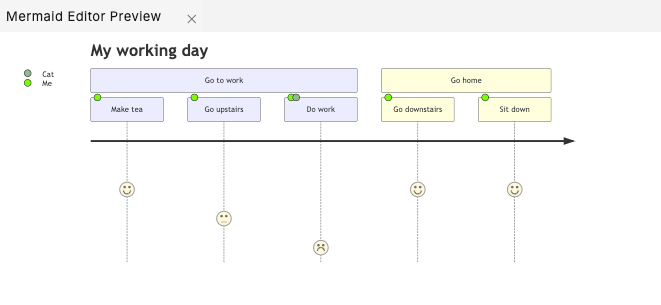
Mermaid's User Journey Diagrams are a visual representation of the steps users take to complete a task within a system, application, or website. These diagrams illustrate the current ("as-is") user workflow, helping identify bottlenecks and areas for improvement in the future ("to-be") workflow.
Mermaid provides the ability to render **User Journey Diagrams** using simple text-based syntax. These diagrams are useful for analyzing and improving user experience.
***
### Creating Your First User Journey Diagram
1. **Launch DinoAI:** From Code IDE, access [DinoAI](/products/dino-ai/index) to start creating diagrams.
2. **Use a Simple Prompt:** Tell DinoAI what kind of User Journey Diagram you want to create. For example:
```text theme={"system"}
- "Create a mermaid user journey showing how analysts interact with our data platform"
- "Generate a mermaid user journey for data consumers accessing reports and dashboards"
- "Build a mermaind user journey showing the data request and fulfillment process"
```
3. **Get Your Diagram:** DinoAI will generate a complete `.mmd` file with proper Mermaid syntax.
4. **Preview Your Work:** Click the eye icon (👁️) to preview your diagram in real-time as you edit.
5. **Iterate and Refine:** Modify the generated `.mmd` file directly, or ask DinoAI to make specific changes.
#### Example:
```mermaid theme={"system"}
journey
title My working day
section Go to work
Make tea: 5: Me
Go upstairs: 3: Me
Do work: 1: Me, Cat
section Go home
Go downstairs: 5: Me
Sit down: 5: Me
```
 **Reusable Sequence Diagram prompts for you and your team**
You can create custom, standardized [.dinoprompts](/products/dino-ai/copilot/dino-prompts) for Mermaid's Sequence Diagram that ensure consistency across your data team. See [step-by-step guide.](/integrations/mermaid-js/index#creating-mermaid-diagrams-with-.dinoprompts)
***
### Diagram Syntax Guide
#### Basic Structure
A User Journey Diagram consists of the following components:
* **Title**: Describes the overall user journey.
* **Sections**: Break down the journey into major steps or phases.
* **Tasks**: Individual actions within a section.
The basic syntax is as follows:
```mermaid theme={"system"}
journey
title Journey Title
section Section Title
Task Name: Score: Actor(s)
```
#### Defining Tasks
Each task is defined with:
* **Task Name**: A descriptive label for the task.
* **Score**: A number from 1 (negative experience) to 5 (positive experience).
* **Actors**: The individuals or entities involved in the task, separated by commas.
Example:
```mermaid theme={"system"}
journey
title Example User Journey
section Example Section
Task 1: 4: User
Task 2: 2: User, System
```
#### Defining Sections
Sections group related tasks together and are defined using the `section` keyword followed by the section title.
Example:
```mermaid theme={"system"}
journey
title Product Purchase Journey
section Browsing
View product: 5: User
Search for alternatives: 4: User
section Purchase
Add to cart: 5: User
Complete payment: 3: User, Payment Gateway
```
***
### Examples
#### E-Commerce Purchase Journey
```mermaid theme={"system"}
journey
title E-Commerce Purchase Journey
section Browsing
Explore homepage: 4: User
Search for products: 3: User
View product details: 5: User
section Checkout
Add to cart: 5: User
Apply coupon: 3: User
Make payment: 4: User, Payment Gateway
section Post-Purchase
Receive confirmation: 5: User
Provide feedback: 4: User
```
#### Software Installation Journey
```mermaid theme={"system"}
journey
title Software Installation Journey
section Download
Visit website: 4: User
Select download link: 5: User
section Installation
Open installer: 3: User
Complete setup: 4: User, Installer
section First Use
Launch software: 5: User
Complete onboarding: 3: User, Support Bot
```
***
### Best Practices
1. **Keep it Simple**: Use clear task names and group related tasks into sections.
2. **Use Scores Effectively**: Assign scores based on user experience (1 = poor, 5 = excellent).
3. **Include Relevant Actors**: Specify all participants involved in each task.
4. **Iterate**: Refine the diagram as new insights are gained about the user journey.
5. **Focus on the User**: Highlight pain points and positive moments in the journey.
***
**Additional Resources**
For more syntax options and advanced features, visit the [official Mermaid documentation](https://mermaid.js.org/syntax/journey.html).
## Related topics
- [Mermaid](/integrations/mermaid-js/index.md)
- [Managing Users in the Workspace](/guides/paradime-101/getting-started-with-your-paradime-workspace/managing-users-in-the-workspace.md)
- [State Diagrams](/integrations/mermaid-js/state-diagrams.md)
- [Sequence Diagrams](/integrations/mermaid-js/sequence-diagrams.md)
- [Git Lite](/guides/working-with-git/git-lite.md)
**Reusable Sequence Diagram prompts for you and your team**
You can create custom, standardized [.dinoprompts](/products/dino-ai/copilot/dino-prompts) for Mermaid's Sequence Diagram that ensure consistency across your data team. See [step-by-step guide.](/integrations/mermaid-js/index#creating-mermaid-diagrams-with-.dinoprompts)
***
### Diagram Syntax Guide
#### Basic Structure
A User Journey Diagram consists of the following components:
* **Title**: Describes the overall user journey.
* **Sections**: Break down the journey into major steps or phases.
* **Tasks**: Individual actions within a section.
The basic syntax is as follows:
```mermaid theme={"system"}
journey
title Journey Title
section Section Title
Task Name: Score: Actor(s)
```
#### Defining Tasks
Each task is defined with:
* **Task Name**: A descriptive label for the task.
* **Score**: A number from 1 (negative experience) to 5 (positive experience).
* **Actors**: The individuals or entities involved in the task, separated by commas.
Example:
```mermaid theme={"system"}
journey
title Example User Journey
section Example Section
Task 1: 4: User
Task 2: 2: User, System
```
#### Defining Sections
Sections group related tasks together and are defined using the `section` keyword followed by the section title.
Example:
```mermaid theme={"system"}
journey
title Product Purchase Journey
section Browsing
View product: 5: User
Search for alternatives: 4: User
section Purchase
Add to cart: 5: User
Complete payment: 3: User, Payment Gateway
```
***
### Examples
#### E-Commerce Purchase Journey
```mermaid theme={"system"}
journey
title E-Commerce Purchase Journey
section Browsing
Explore homepage: 4: User
Search for products: 3: User
View product details: 5: User
section Checkout
Add to cart: 5: User
Apply coupon: 3: User
Make payment: 4: User, Payment Gateway
section Post-Purchase
Receive confirmation: 5: User
Provide feedback: 4: User
```
#### Software Installation Journey
```mermaid theme={"system"}
journey
title Software Installation Journey
section Download
Visit website: 4: User
Select download link: 5: User
section Installation
Open installer: 3: User
Complete setup: 4: User, Installer
section First Use
Launch software: 5: User
Complete onboarding: 3: User, Support Bot
```
***
### Best Practices
1. **Keep it Simple**: Use clear task names and group related tasks into sections.
2. **Use Scores Effectively**: Assign scores based on user experience (1 = poor, 5 = excellent).
3. **Include Relevant Actors**: Specify all participants involved in each task.
4. **Iterate**: Refine the diagram as new insights are gained about the user journey.
5. **Focus on the User**: Highlight pain points and positive moments in the journey.
***
**Additional Resources**
For more syntax options and advanced features, visit the [official Mermaid documentation](https://mermaid.js.org/syntax/journey.html).
## Related topics
- [Mermaid](/integrations/mermaid-js/index.md)
- [Managing Users in the Workspace](/guides/paradime-101/getting-started-with-your-paradime-workspace/managing-users-in-the-workspace.md)
- [State Diagrams](/integrations/mermaid-js/state-diagrams.md)
- [Sequence Diagrams](/integrations/mermaid-js/sequence-diagrams.md)
- [Git Lite](/guides/working-with-git/git-lite.md)