> ## Documentation Index
> Fetch the complete documentation index at: https://docs.paradime.io/llms.txt
> Use this file to discover all available pages before exploring further.
# Sigma
export const Arcade = ({src, title}) =>
;
## Identify your organization's cloud
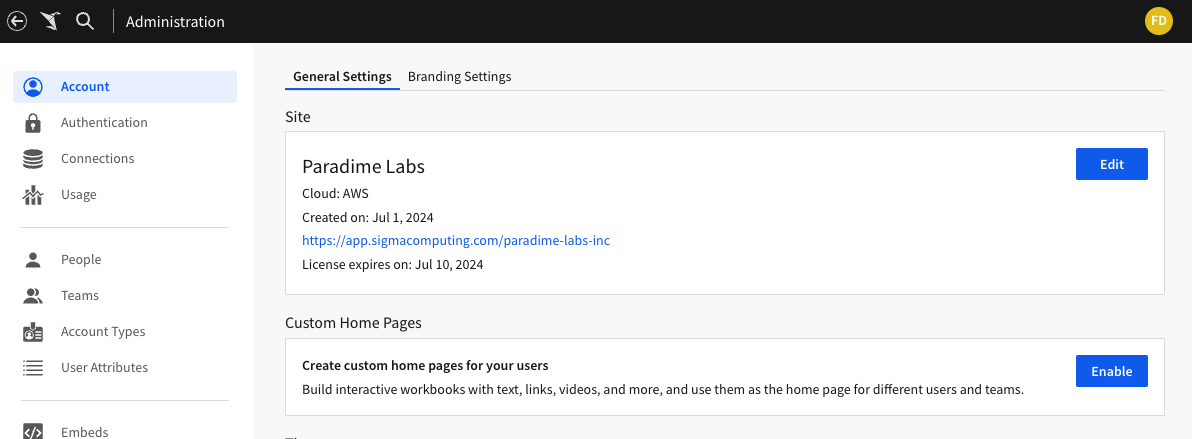
You'll need your organization's cloud details to identify the endpoint for Paradime authentication.
For GCP organizations, use: `https://api.sigmacomputing.com/`
For AWS organizations, use: `https://aws-api.sigmacomputing.com/`
To identify your organization's cloud:
1. Login to your Sigma account.
2. In the top right of the screen, click your **profile avatar** and then click **Administration** to open your *Account* page.
3. On the *Account* page, under *Site* in *General Settings*, view the cloud details.
 ## Create an API token and client ID
To create an API token and client ID:
1. Login to your Sigma account.
2. In the top right of the screen, click your profile avatar and then click **Administration**.
3. In the left panel, navigate to **Developer Access**.
4. In the top right of the *Developer Access* page, click the **Create New** button.
5. In the *Create client credentials* dialog,
1. *Select privileges:* click the **Rest API** checkbox
2. *Name:* enter a meaningful name like `Paradime API credentials`
3. *Owner:* select the user you would like to associate with the token
6. Click **Create** to finish creating the API token.
7. Once prompted, copy and paste your Client ID and API key secret in a secure location.
Both the API token and the client ID are required for authentication in Paradime.
### Verify necessary permissions
Ensure that the owner associated with the API token has the following permissions:
* `Can View` permission for all the Sigma workbooks and datasets you want to crawl.
* `Can Use` permission for all the Sigma connections used in the workbooks and datasets.
To grant permissions, follow the instructions in these links:
* [Workbooks and datasets](https://help.sigmacomputing.com/hc/en-us/articles/4402444938003)
* [Connections](https://help.sigmacomputing.com/hc/en-us/articles/360037430393)
## Connect the Sigma integration
The Sigma integration is set up by the **Admin user** for your organization profile. To enable the integration open your *Account Settings > Integrations* find the Sigma integration and click Connect.
1. Add your Host Name, Client ID and Client Secret to get Paradime connected to your Sigma instance.
2. Click on Test Connection to validate that Paradime can connect to your Sigma account.
## Create an API token and client ID
To create an API token and client ID:
1. Login to your Sigma account.
2. In the top right of the screen, click your profile avatar and then click **Administration**.
3. In the left panel, navigate to **Developer Access**.
4. In the top right of the *Developer Access* page, click the **Create New** button.
5. In the *Create client credentials* dialog,
1. *Select privileges:* click the **Rest API** checkbox
2. *Name:* enter a meaningful name like `Paradime API credentials`
3. *Owner:* select the user you would like to associate with the token
6. Click **Create** to finish creating the API token.
7. Once prompted, copy and paste your Client ID and API key secret in a secure location.
Both the API token and the client ID are required for authentication in Paradime.
### Verify necessary permissions
Ensure that the owner associated with the API token has the following permissions:
* `Can View` permission for all the Sigma workbooks and datasets you want to crawl.
* `Can Use` permission for all the Sigma connections used in the workbooks and datasets.
To grant permissions, follow the instructions in these links:
* [Workbooks and datasets](https://help.sigmacomputing.com/hc/en-us/articles/4402444938003)
* [Connections](https://help.sigmacomputing.com/hc/en-us/articles/360037430393)
## Connect the Sigma integration
The Sigma integration is set up by the **Admin user** for your organization profile. To enable the integration open your *Account Settings > Integrations* find the Sigma integration and click Connect.
1. Add your Host Name, Client ID and Client Secret to get Paradime connected to your Sigma instance.
2. Click on Test Connection to validate that Paradime can connect to your Sigma account.
## Related topics
- [Sigma assets](/products/data-catalog/data-assets/sigma-assets.md)