> ## Documentation Index
> Fetch the complete documentation index at: https://docs.paradime.io/llms.txt
> Use this file to discover all available pages before exploring further.
# Tableau
## Tableau
Paradime integrates with Tableau in two ways:
1. **Lineage & Catalog** — extract Tableau metadata to power column-level lineage and the asset catalog
2. **Bolt Refreshes** — trigger Tableau [data source](/products/bolt/creating-schedules/command-settings/tableau-data-source-refresh) and [workbook](/products/bolt/creating-schedules/command-settings/tableau-workbook-refresh) refreshes a as part of your dbt pipelines
***
### Prerequisites
#### Enable the Tableau Metadata API
For Tableau Server, make sure to enable the Tableau Metadata API. Check [Tableau's documentation](https://help.tableau.com/current/api/metadata_api/en-us/docs/meta_api_start.html#enable-the-tableau-metadata-api-for-tableau-server). Metadata API is always enabled for Tableau Online.
**Required version:** Ensure you are running Tableau Server or Tableau Online 2020.1 or higher.
**Note:** Paradime will only extract **published** Tableau assets from the Metadata API.
#### Whitelist Paradime IP
If using Tableau Server, allow traffic from the relevant Paradime IP in your firewall. See: [Paradime IP addresses](https://docs.paradime.io/app-help/developers/ip-restrictions).
#### Update Cloudflare Browser Integrity Check (BIC) rules
If you're using Cloudflare, your firewall may block Paradime's requests to the Tableau Metadata API. Create a firewall skip rule for the [Paradime IP address](https://docs.paradime.io/app-help/developers/ip-restrictions).
See [Cloudflare Browser Integrity Check docs](https://developers.cloudflare.com/waf/tools/browser-integrity-check/).
***
### Step 1 — Create a dedicated Tableau user
We advise creating a new Tableau user, in order to grant the correct access required to connect using the Tableau Metadata API.
Add a user with the **Site Administrator Explorer** role to the site you want to connect.
* 👉 [How to create users in Tableau](https://help.tableau.com/current/server/en-us/sites_addusers.htm)
* 👉 [How to grant the Site Administrator Explorer role](https://help.tableau.com/current/online/en-us/users_site_roles.htm)
***
### Step 2 — Generate API credentials
Paradime connects to Tableau via Personal Access Tokens. You'll need:
* **Host name**
* Tableau Cloud: `https://xxxx.online.tableau.com/#/site/your_site/`
* Tableau Server: `https://xxxx.tableau.com/`
* **Token Name**
* **Token Secret**
To generate a Personal Access Token in the Tableau UI:
1. Click your avatar (top right) → **My Account Settings**
2. Go to the **Settings** tab → scroll to **Personal Access Tokens**
3. Enter a token name (e.g. `paradime`) → click **Create new token**
4. Save the **Token Name** and **Token Secret** — you'll need both below
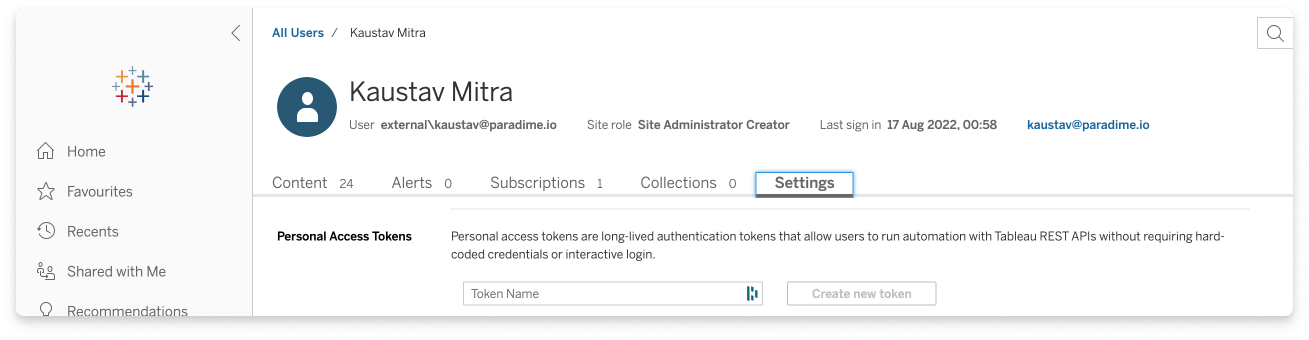 If you delete this token from Tableau, all Paradime integrations using it will stop working.
👉 [Tableau docs: Personal Access Tokens](https://help.tableau.com/current/server/en-us/security_personal_access_tokens.htm)
***
### Connect to Lineage & Catalog
This integration powers Tableau asset metadata in Paradime's Lineage and Catalog features.
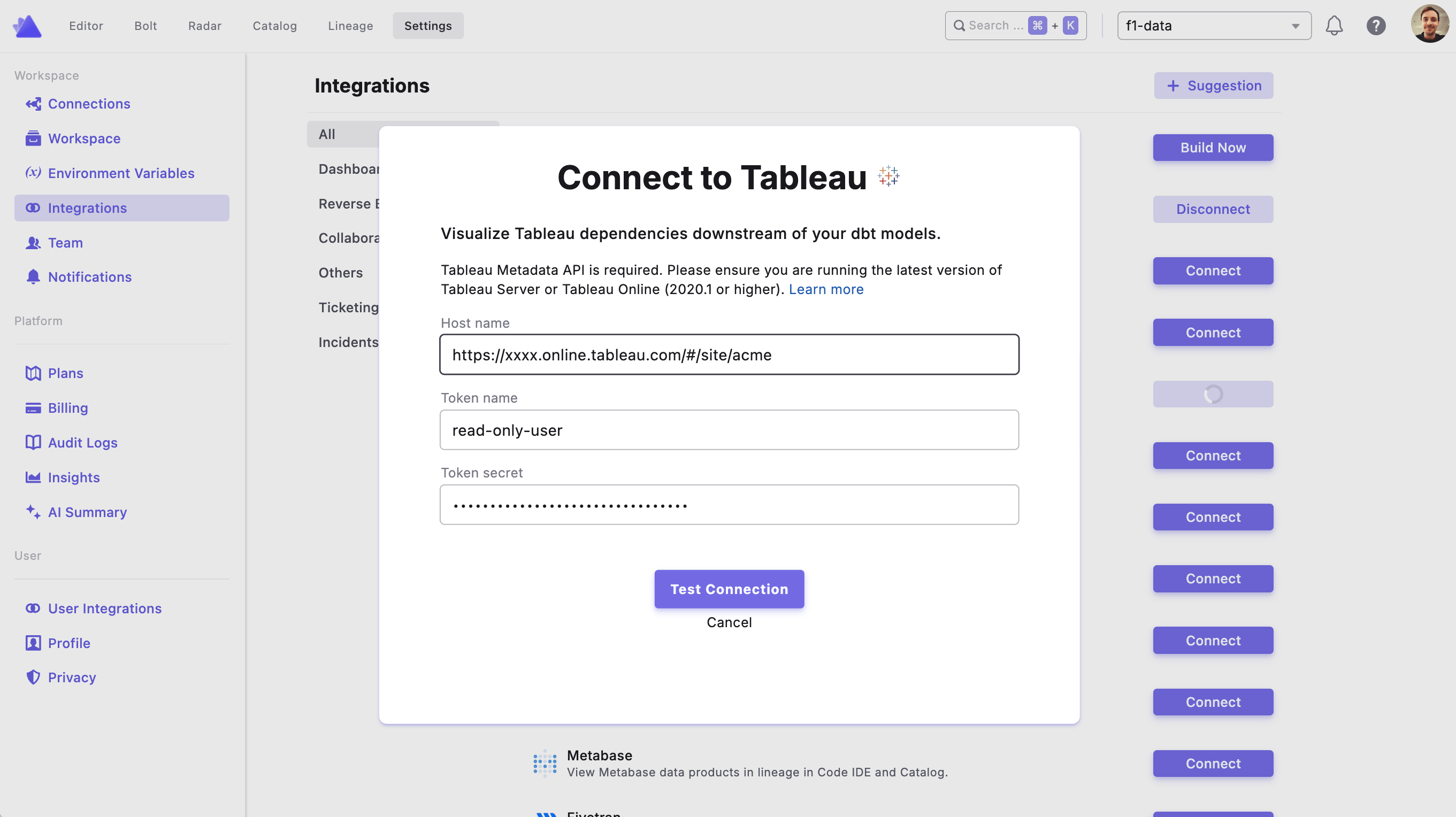
The integration is configured by the **Admin user**. Go to **Account Settings → Integrations**, find Tableau, and click **Connect**.
1. Enter your **Host Name**, **Token Name**, and **Token Secret**
2. Click **Test Connection** to validate
If you delete this token from Tableau, all Paradime integrations using it will stop working.
👉 [Tableau docs: Personal Access Tokens](https://help.tableau.com/current/server/en-us/security_personal_access_tokens.htm)
***
### Connect to Lineage & Catalog
This integration powers Tableau asset metadata in Paradime's Lineage and Catalog features.
The integration is configured by the **Admin user**. Go to **Account Settings → Integrations**, find Tableau, and click **Connect**.
1. Enter your **Host Name**, **Token Name**, and **Token Secret**
2. Click **Test Connection** to validate
 #### What metadata does Paradime extract?
Paradime uses the following Tableau Metadata API endpoints:
* [Dashboard](https://help.tableau.com/current/api/metadata_api/en-us/reference/dashboard.doc.html)
* [Flows](https://help.tableau.com/current/api/metadata_api/en-us/reference/flow.doc.html)
* [Sheets](https://help.tableau.com/current/api/metadata_api/en-us/reference/sheet.doc.html)
* [Data sources](https://help.tableau.com/current/api/metadata_api/en-us/reference/datasource.doc.html)
* [Fields](https://help.tableau.com/current/api/metadata_api/en-us/reference/field.doc.html)
* [Calculated fields](https://help.tableau.com/current/api/metadata_api/en-us/reference/calculatedfield.doc.html)
* [Database](https://help.tableau.com/current/api/metadata_api/en-us/reference/database.doc.html)
* [Metric](https://help.tableau.com/current/api/metadata_api/en-us/reference/metric.doc.html)
* [Tables](https://help.tableau.com/current/api/metadata_api/en-us/reference/table.doc.html)
* [Database table](https://help.tableau.com/current/api/metadata_api/en-us/reference/databasetable.doc.html)
* [Workbook](https://help.tableau.com/current/api/metadata_api/en-us/reference/workbook.doc.html)
* [Site](https://help.tableau.com/current/api/metadata_api/en-us/reference/tableausite.doc.html)
* [User](https://help.tableau.com/current/api/metadata_api/en-us/reference/tableauuser.doc.html)
* [View](https://help.tableau.com/current/api/metadata_api/en-us/reference/view.doc.html)
* [Tag](https://help.tableau.com/current/api/metadata_api/en-us/reference/tag.doc.html)
***
### Connect to Bolt (Tableau Refreshes)
Bolt can trigger Tableau data source refreshes at the end of your dbt pipeline runs — so your Tableau extracts are always in sync with your freshest data.
#### 1. Generate API credentials
Use the same credentials generated in Step 2 above. If you haven't done that yet, follow the instructions there first.
#### 2. Configure data source credentials
For Paradime to trigger a data source refresh, credentials must be embedded within the extract in Tableau.
1. Open the data source in Tableau
2. Click **Publish**
3. Select **Embed credentials**
#### 3. Set environment variables
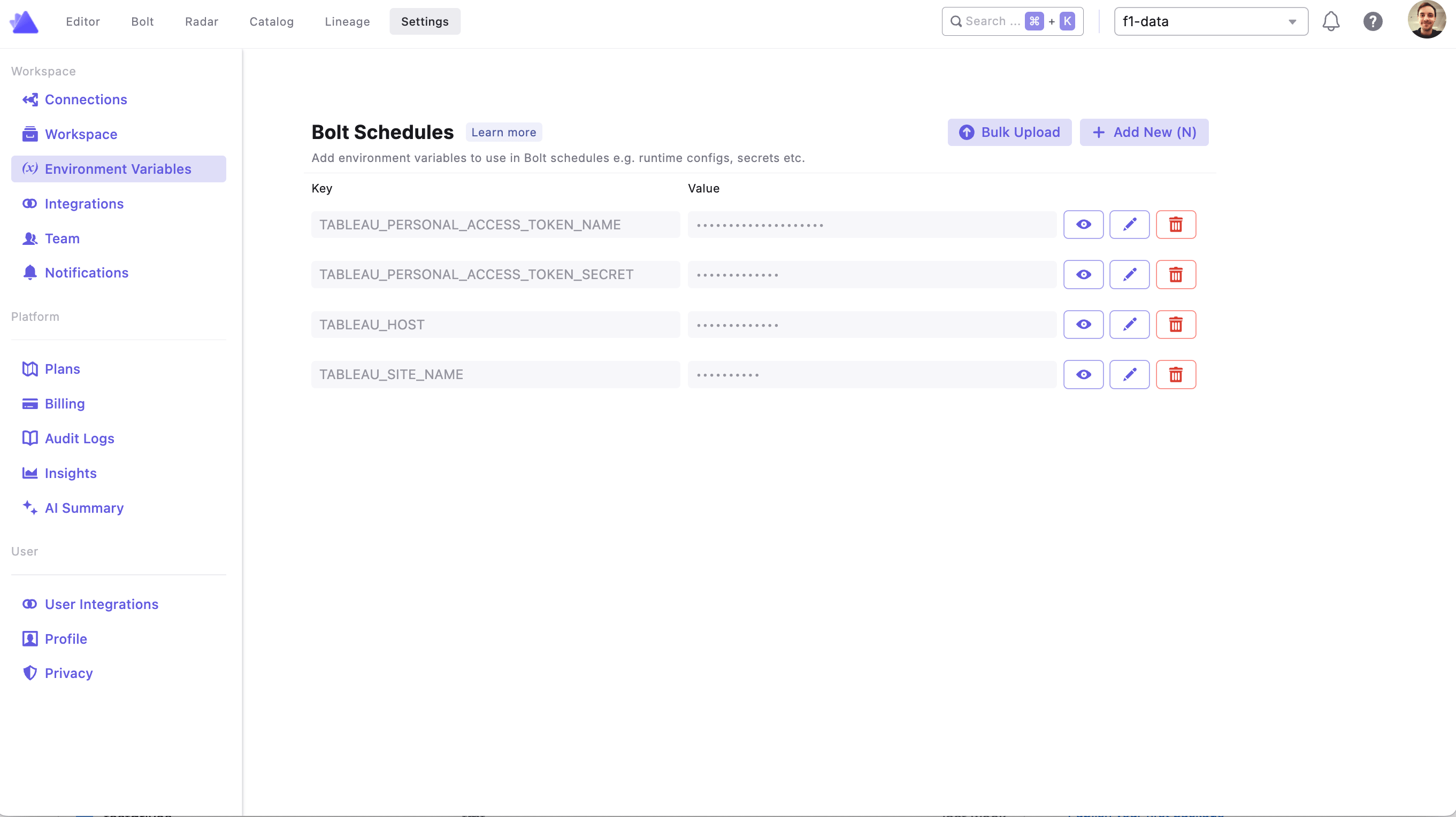
Add the following environment variables to your Bolt schedule:
#### What metadata does Paradime extract?
Paradime uses the following Tableau Metadata API endpoints:
* [Dashboard](https://help.tableau.com/current/api/metadata_api/en-us/reference/dashboard.doc.html)
* [Flows](https://help.tableau.com/current/api/metadata_api/en-us/reference/flow.doc.html)
* [Sheets](https://help.tableau.com/current/api/metadata_api/en-us/reference/sheet.doc.html)
* [Data sources](https://help.tableau.com/current/api/metadata_api/en-us/reference/datasource.doc.html)
* [Fields](https://help.tableau.com/current/api/metadata_api/en-us/reference/field.doc.html)
* [Calculated fields](https://help.tableau.com/current/api/metadata_api/en-us/reference/calculatedfield.doc.html)
* [Database](https://help.tableau.com/current/api/metadata_api/en-us/reference/database.doc.html)
* [Metric](https://help.tableau.com/current/api/metadata_api/en-us/reference/metric.doc.html)
* [Tables](https://help.tableau.com/current/api/metadata_api/en-us/reference/table.doc.html)
* [Database table](https://help.tableau.com/current/api/metadata_api/en-us/reference/databasetable.doc.html)
* [Workbook](https://help.tableau.com/current/api/metadata_api/en-us/reference/workbook.doc.html)
* [Site](https://help.tableau.com/current/api/metadata_api/en-us/reference/tableausite.doc.html)
* [User](https://help.tableau.com/current/api/metadata_api/en-us/reference/tableauuser.doc.html)
* [View](https://help.tableau.com/current/api/metadata_api/en-us/reference/view.doc.html)
* [Tag](https://help.tableau.com/current/api/metadata_api/en-us/reference/tag.doc.html)
***
### Connect to Bolt (Tableau Refreshes)
Bolt can trigger Tableau data source refreshes at the end of your dbt pipeline runs — so your Tableau extracts are always in sync with your freshest data.
#### 1. Generate API credentials
Use the same credentials generated in Step 2 above. If you haven't done that yet, follow the instructions there first.
#### 2. Configure data source credentials
For Paradime to trigger a data source refresh, credentials must be embedded within the extract in Tableau.
1. Open the data source in Tableau
2. Click **Publish**
3. Select **Embed credentials**
#### 3. Set environment variables
Add the following environment variables to your Bolt schedule:
 | Variable | Required | Description |
| -------------------------------------- | -------- | ----------------------------------------- |
| `TABLEAU_PERSONAL_ACCESS_TOKEN_NAME` | ✅ | Token name from Step 2 |
| `TABLEAU_PERSONAL_ACCESS_TOKEN_SECRET` | ✅ | Token secret from Step 2 |
| `TABLEAU_HOST` | ✅ | Your Tableau host URL |
| `TABLEAU_SITE_NAME` | ✅ | The site name you want to connect to |
| `TABLEAU_TIMEOUT` | Optional | Request timeout in seconds (default: 300) |
👉 [How to set environment variables in Bolt](https://docs.paradime.io/app-help/bolt/environment-variables)
## Related topics
- [Tableau](/products/bolt/ci-cd/lineage-diff/tableau.md)
- [Security model](/resources/other-important-stuff/security-model.md)
- [Tableau assets](/products/data-catalog/data-assets/tableau-assets.md)
- [Tableau CLI](/developers/paradime-cli/tableau-cli.md)
| Variable | Required | Description |
| -------------------------------------- | -------- | ----------------------------------------- |
| `TABLEAU_PERSONAL_ACCESS_TOKEN_NAME` | ✅ | Token name from Step 2 |
| `TABLEAU_PERSONAL_ACCESS_TOKEN_SECRET` | ✅ | Token secret from Step 2 |
| `TABLEAU_HOST` | ✅ | Your Tableau host URL |
| `TABLEAU_SITE_NAME` | ✅ | The site name you want to connect to |
| `TABLEAU_TIMEOUT` | Optional | Request timeout in seconds (default: 300) |
👉 [How to set environment variables in Bolt](https://docs.paradime.io/app-help/bolt/environment-variables)
## Related topics
- [Tableau](/products/bolt/ci-cd/lineage-diff/tableau.md)
- [Security model](/resources/other-important-stuff/security-model.md)
- [Tableau assets](/products/data-catalog/data-assets/tableau-assets.md)
- [Tableau CLI](/developers/paradime-cli/tableau-cli.md)