> ## Documentation Index
> Fetch the complete documentation index at: https://docs.paradime.io/llms.txt
> Use this file to discover all available pages before exploring further.
# Azure DevOps
> Azure DevOps & Bolt Turbo CI: Integrate Azure DevOps with Paradime for dbt™ projects. Streamline continuous integration and deployment.
export const Arcade = ({src, title}) =>
;
With Paradime Turbo CI, you can run and test code changes to your dbt™️ project prior to merge them in your main branch, by configuring a Bolt schedule to run when a new pull request is opened against your dbt™️ repository.
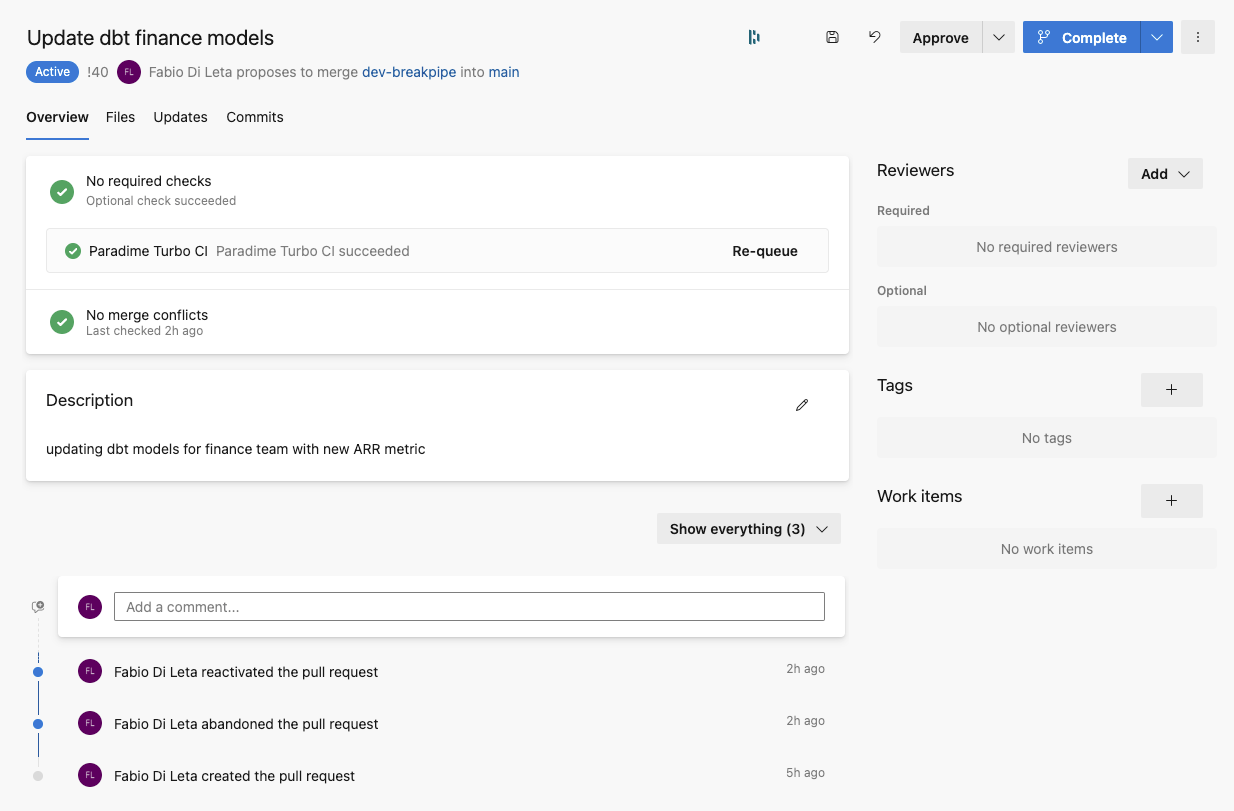
Paradime will build the models affected by your changed into a temporary schema, and will run tests that you have written against the changes models to validate your test are still passing. When opening a pull request, Paradime Turbo CI run status will be showing in the pull request.
## How Turbo CI works
When Turbo CI is configured, an Azure Pipeline will trigger a TurboCI schedule in Paradime executing your configured dbt™️ command to run and test your dbt™️ changes.
When running, models will be built in a temporary schema using the prefix **`paradime_turbo_ci_pr_`** followed by the commit SHA number (e.g **`paradime_turbo_ci_pr_6d8f55c0`**). This will enabled you to see the results of your changes associated with the code in your pull request in your production data warehouse
 ## Pre-requisites
**A Scheduler Connection to your data warehouse where the target is set to `ci`.**
**ℹ️** [**Check our setup guide here based on your data warehouse provider**](/products/settings/connections/scheduler-environment/index)**.**
### Configure a custom schema for CI runs
Customize you dbt™️ schema generation at runtime, to make sure that when a PR is opened, Paradime Turbo CI will build and test your changed dbt™️ models in a temporary schema. We will want to update the dbt™️ `generate_schema_name.sql` macro.
In your dbt™️ project, in your *macros* folder create a macro called: `generate_schema_name.sql` and use a similar logic as below, where when a Bolt run is executed using the `ci` target the schema where your models will be built will use the **`paradime_turbo_ci_pr`** prefix.
```sql theme={"system"}
{% macro generate_schema_name(custom_schema_name, node) -%}
{%- set default_schema = target.schema -%}
{%- if target.name == 'prod' -%}
{{ custom_schema_name | trim }}
{%- elif target.name == 'ci' -%}
{{ default_schema }}
{%- else -%}
{%- if custom_schema_name is none -%}
{{ default_schema }}
{%- else -%}
{{ default_schema }}_{{ custom_schema_name | trim }}
{%- endif -%}
{%- endif -%}
{%- endmacro %}
```
See also:
[https://docs.getdbt.com/docs/build/custom-schemas#advanced-custom-schema-configuration](https://docs.getdbt.com/docs/build/custom-schemas#advanced-custom-schema-configuration)
### Deferral and State Comparison explained
When creating the Turbo CI job in Paradime, you can set your execution settings to defer to a previous run state by adding in the `deferred_schedule_slug` configuration the slug of the Bolt production schedule you want to defer to
Paradime will look at the `manifest.json` from the specified schedule's most recent successful run *(unless setting the optional parameter `successful_run_only: false`)* to determined the set of new and modified dbt™️ resources. In your Turbo CI commands, you can then use the `state:modified+` argument to only run the modified resources and their downstream dependencies.
**A common example is:**
```bash theme={"system"}
dbt build --select state:modified+ --target ci
```
This will run and test all modified models with the downstream dependencies. Useful to validate that test are still passing after making changes to upstream dbt™️ models.
👉 To read more about state comparison check the dbt Core™️ documentation [here](https://docs.getdbt.com/reference/node-selection/state-comparison-caveats).
## 1. Configuring Bolt Turbo CI job
Setting up your Turbo CI Bolt Schedule is very similar to a normal bolt schedule with the addition of a couple more configurations.
A Turbo CI job differ from a bolt schedule as it involves:
* The Bolt schedule to defer to
* The `commands` to use the `state:modified+` selector to build / tests only new dbt™️ models and their downstream dependencies. State comparison can only happen when there is a deferred schedule name configured to compare state to.
* Being triggered by a pull request opened in your Azure DevOps dbt™️ repository
**Check our template:**
## 2. Create an Azure Pipeline
### Generate API keys and find you workspace token
**API keys are generate at a workspace level.**
To be able to trigger Bolt using the API, you will first need to generate API keys for your workspace. Got to account settings and generate your API keys, make sure to save in your password manager:
* API key
* API secret
* API Endpoint
You will need this later when setting up the secrete in Azure pipelines.
### Create an Azure Pipeline
Now you will need to create a new `azure-pipeline.yml` file in your dbt™️ repository. Copy the code block below and enter the values required.
```yaml title="paradime_turbo_ci.yml" lineNumbers theme={"system"}
# Define trigger conditions
trigger:
- none # Disable CI trigger (won't run on direct pushes)
# Define PR trigger conditions
pr:
- "*" # Run on PRs from any branch
# Define pipeline-level variables
variables:
# Slug of the Paradime schedule/job to run for CI
- name: PARADIME_SCHEDULE_SLUG
value: "flowing-pachy-wyy4fs"
# Define the steps to be executed in this pipeline
steps:
# Step 1: Set up Python environment
- task: UsePythonVersion@0 # Azure DevOps task to configure Python
inputs:
versionSpec: "3.11" # Specify Python version
addToPath: true # Add Python to system PATH
displayName: Use Python 3.11 # Name shown in Azure DevOps UI
# Step 2: Install dependencies and run Paradime CI job
# Check for latest version of the Paradime Python SDK on https://github.com/paradime-io/paradime-python-sdk/releases
- script: |
# Install Paradime Python SDK
pip install paradime-io==4.18.0
# Export required environment variables for Paradime
# $(VARIABLE) syntax is used to reference Azure Pipeline variables
export PARADIME_API_ENDPOINT=$(PARADIME_API_ENDPOINT)
export PARADIME_API_KEY=$(PARADIME_API_KEY)
export PARADIME_API_SECRET=$(PARADIME_API_SECRET)
# Get the PR number from Azure DevOps predefined variable
export PR_NUMBER=$(System.PullRequest.PullRequestNumber)
echo "PR Number: $PR_NUMBER"
# Get the commit SHA of the PR source branch
# System.PullRequest.SourceCommitId is an Azure DevOps predefined variable
export HEAD_COMMIT_SHA=$(System.PullRequest.SourceCommitId)
echo "Head Commit Hash: $HEAD_COMMIT_SHA"
# Run the Paradime bolt schedule/job with PR number
# --branch flag specifies which commit to analyze
# --pr-number flag passes the PR number to Paradime
paradime bolt run "$(PARADIME_SCHEDULE_SLUG)" --branch $HEAD_COMMIT_SHA --pr-number $PR_NUMBER --wait
displayName: "Run Paradime Turbo CI"
```
### Add the API keys and Credential in the Azure Pipeline variables
Finally you need to add the API key and credentials generated in the [previous step](/products/bolt/ci-cd/turbo-ci/azure-devops#generate-api-keys-and-find-you-workspace-uid) in Azure Pipelines.
Set the corresponding values using your credentials for the variable names:
* `PARADIME_API_KEY`
* `PARADIME_API_SECRET`
* `PARADIME_API_ENDPOINT`
## 3. Setup Git branch Build validation
Finally set up PR Build validation for your dbt™️ repository to trigger our Azure Pipeline and run Turbo CI when a new PR is opened against your default branch.
[https://learn.microsoft.com/en-us/azure/devops/repos/git/branch-policies?tabs=browser\&view=azure-devops#build-validation](https://learn.microsoft.com/en-us/azure/devops/repos/git/branch-policies?tabs=browser\&view=azure-devops#build-validation)
## View Turbo CI run Logs
As per other bolt schedules, you can inspect run logs for each of the Turbo CI jobs running when a pull request is opened.
## Pre-requisites
**A Scheduler Connection to your data warehouse where the target is set to `ci`.**
**ℹ️** [**Check our setup guide here based on your data warehouse provider**](/products/settings/connections/scheduler-environment/index)**.**
### Configure a custom schema for CI runs
Customize you dbt™️ schema generation at runtime, to make sure that when a PR is opened, Paradime Turbo CI will build and test your changed dbt™️ models in a temporary schema. We will want to update the dbt™️ `generate_schema_name.sql` macro.
In your dbt™️ project, in your *macros* folder create a macro called: `generate_schema_name.sql` and use a similar logic as below, where when a Bolt run is executed using the `ci` target the schema where your models will be built will use the **`paradime_turbo_ci_pr`** prefix.
```sql theme={"system"}
{% macro generate_schema_name(custom_schema_name, node) -%}
{%- set default_schema = target.schema -%}
{%- if target.name == 'prod' -%}
{{ custom_schema_name | trim }}
{%- elif target.name == 'ci' -%}
{{ default_schema }}
{%- else -%}
{%- if custom_schema_name is none -%}
{{ default_schema }}
{%- else -%}
{{ default_schema }}_{{ custom_schema_name | trim }}
{%- endif -%}
{%- endif -%}
{%- endmacro %}
```
See also:
[https://docs.getdbt.com/docs/build/custom-schemas#advanced-custom-schema-configuration](https://docs.getdbt.com/docs/build/custom-schemas#advanced-custom-schema-configuration)
### Deferral and State Comparison explained
When creating the Turbo CI job in Paradime, you can set your execution settings to defer to a previous run state by adding in the `deferred_schedule_slug` configuration the slug of the Bolt production schedule you want to defer to
Paradime will look at the `manifest.json` from the specified schedule's most recent successful run *(unless setting the optional parameter `successful_run_only: false`)* to determined the set of new and modified dbt™️ resources. In your Turbo CI commands, you can then use the `state:modified+` argument to only run the modified resources and their downstream dependencies.
**A common example is:**
```bash theme={"system"}
dbt build --select state:modified+ --target ci
```
This will run and test all modified models with the downstream dependencies. Useful to validate that test are still passing after making changes to upstream dbt™️ models.
👉 To read more about state comparison check the dbt Core™️ documentation [here](https://docs.getdbt.com/reference/node-selection/state-comparison-caveats).
## 1. Configuring Bolt Turbo CI job
Setting up your Turbo CI Bolt Schedule is very similar to a normal bolt schedule with the addition of a couple more configurations.
A Turbo CI job differ from a bolt schedule as it involves:
* The Bolt schedule to defer to
* The `commands` to use the `state:modified+` selector to build / tests only new dbt™️ models and their downstream dependencies. State comparison can only happen when there is a deferred schedule name configured to compare state to.
* Being triggered by a pull request opened in your Azure DevOps dbt™️ repository
**Check our template:**
## 2. Create an Azure Pipeline
### Generate API keys and find you workspace token
**API keys are generate at a workspace level.**
To be able to trigger Bolt using the API, you will first need to generate API keys for your workspace. Got to account settings and generate your API keys, make sure to save in your password manager:
* API key
* API secret
* API Endpoint
You will need this later when setting up the secrete in Azure pipelines.
### Create an Azure Pipeline
Now you will need to create a new `azure-pipeline.yml` file in your dbt™️ repository. Copy the code block below and enter the values required.
```yaml title="paradime_turbo_ci.yml" lineNumbers theme={"system"}
# Define trigger conditions
trigger:
- none # Disable CI trigger (won't run on direct pushes)
# Define PR trigger conditions
pr:
- "*" # Run on PRs from any branch
# Define pipeline-level variables
variables:
# Slug of the Paradime schedule/job to run for CI
- name: PARADIME_SCHEDULE_SLUG
value: "flowing-pachy-wyy4fs"
# Define the steps to be executed in this pipeline
steps:
# Step 1: Set up Python environment
- task: UsePythonVersion@0 # Azure DevOps task to configure Python
inputs:
versionSpec: "3.11" # Specify Python version
addToPath: true # Add Python to system PATH
displayName: Use Python 3.11 # Name shown in Azure DevOps UI
# Step 2: Install dependencies and run Paradime CI job
# Check for latest version of the Paradime Python SDK on https://github.com/paradime-io/paradime-python-sdk/releases
- script: |
# Install Paradime Python SDK
pip install paradime-io==4.18.0
# Export required environment variables for Paradime
# $(VARIABLE) syntax is used to reference Azure Pipeline variables
export PARADIME_API_ENDPOINT=$(PARADIME_API_ENDPOINT)
export PARADIME_API_KEY=$(PARADIME_API_KEY)
export PARADIME_API_SECRET=$(PARADIME_API_SECRET)
# Get the PR number from Azure DevOps predefined variable
export PR_NUMBER=$(System.PullRequest.PullRequestNumber)
echo "PR Number: $PR_NUMBER"
# Get the commit SHA of the PR source branch
# System.PullRequest.SourceCommitId is an Azure DevOps predefined variable
export HEAD_COMMIT_SHA=$(System.PullRequest.SourceCommitId)
echo "Head Commit Hash: $HEAD_COMMIT_SHA"
# Run the Paradime bolt schedule/job with PR number
# --branch flag specifies which commit to analyze
# --pr-number flag passes the PR number to Paradime
paradime bolt run "$(PARADIME_SCHEDULE_SLUG)" --branch $HEAD_COMMIT_SHA --pr-number $PR_NUMBER --wait
displayName: "Run Paradime Turbo CI"
```
### Add the API keys and Credential in the Azure Pipeline variables
Finally you need to add the API key and credentials generated in the [previous step](/products/bolt/ci-cd/turbo-ci/azure-devops#generate-api-keys-and-find-you-workspace-uid) in Azure Pipelines.
Set the corresponding values using your credentials for the variable names:
* `PARADIME_API_KEY`
* `PARADIME_API_SECRET`
* `PARADIME_API_ENDPOINT`
## 3. Setup Git branch Build validation
Finally set up PR Build validation for your dbt™️ repository to trigger our Azure Pipeline and run Turbo CI when a new PR is opened against your default branch.
[https://learn.microsoft.com/en-us/azure/devops/repos/git/branch-policies?tabs=browser\&view=azure-devops#build-validation](https://learn.microsoft.com/en-us/azure/devops/repos/git/branch-policies?tabs=browser\&view=azure-devops#build-validation)
## View Turbo CI run Logs
As per other bolt schedules, you can inspect run logs for each of the Turbo CI jobs running when a pull request is opened.
 ## Related topics
- [Azure DevOps](/products/settings/git-repositories/importing-a-repository/azure-devops.md)
- [Create Azure DevOps Items](/products/bolt/creating-schedules/templates/ticketing-templates/create-azure-devops-items.md)
- [Create an Azure DevOps Work item when a Bolt run complete with errors](/developers/webhooks/custom-webhook-guides/azure-devops.md)
- [Custom Webhook Guides](/developers/webhooks/custom-webhook-guides/index.md)
- [Importing a repository](/products/settings/git-repositories/importing-a-repository/index.md)
## Related topics
- [Azure DevOps](/products/settings/git-repositories/importing-a-repository/azure-devops.md)
- [Create Azure DevOps Items](/products/bolt/creating-schedules/templates/ticketing-templates/create-azure-devops-items.md)
- [Create an Azure DevOps Work item when a Bolt run complete with errors](/developers/webhooks/custom-webhook-guides/azure-devops.md)
- [Custom Webhook Guides](/developers/webhooks/custom-webhook-guides/index.md)
- [Importing a repository](/products/settings/git-repositories/importing-a-repository/index.md)