> ## Documentation Index
> Fetch the complete documentation index at: https://docs.paradime.io/llms.txt
> Use this file to discover all available pages before exploring further.
# GitHub
> GitHub & Bolt Turbo CI: Connect GitHub with Paradime for dbt™ projects. Enhance continuous integration and deployment workflows.
With Paradime Turbo CI, you can run and test code changes to your dbt™ project prior to merge them in your main branch, by configuring a Bolt schedule to run when a new pull request is opened against your dbt™ repository.
Paradime will build the models affected by your changed into a temporary schema, and will run tests that you have written against the changes models to validate your test are still passing. When opening a pull request, Paradime Turbo CI run status will be showing in the pull request.
**Prerequisites**
1. [Install the Paradime Github app](/products/settings/git-repositories/importing-a-repository/github) and authorize access to the dbt™ repository used in Paradime.
2. **Add an additional scheduler environment configured in Paradime, where the target is set to `ci`.** [**Check our setup guide here based on your data warehouse provider**](/products/settings/connections/scheduler-environment/index)**.**
***
### How Turbo CI works
When Turbo CI is configured, Paradime will listen for the pull request event from Github - Turbo CI will run on creation, reopening and when there is a new commit in a PR.
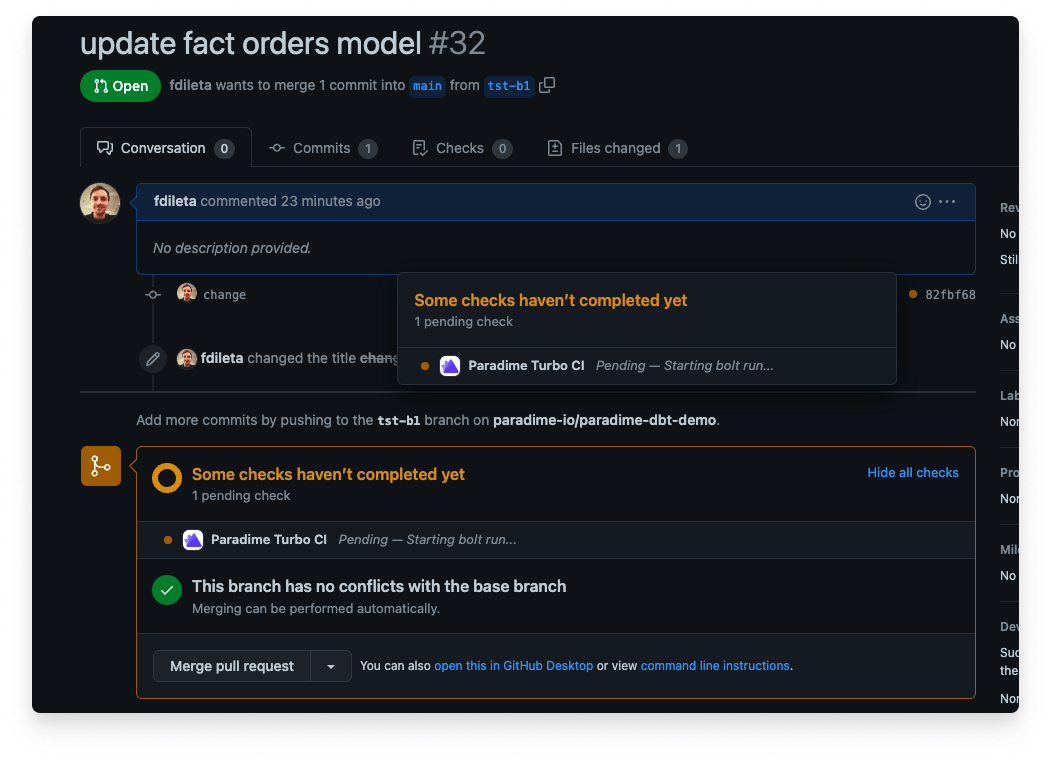 When Paradime receive the webhook event, Bolt will trigger a new run based on the configuration of the Turbo CI job.
When running, models will be built in a temporary schema using the prefix **`paradime_turbo_ci_pr_`** followed by the PR number (e.g **`paradime_turbo_ci_pr_123`**). This will enabled you to see the results of your changes associated with the code in your pull request in your production data warehouse
After the pull request is merged, Paradime will delete the temporary schema created as part of the turbo CI job to keep your database in order.
### DinoAI Summary on failed runs
When a Turbo CI run fails on a pull request, Paradime posts a **DinoAI Summary** as a comment on the PR — so reviewers can see why CI failed without leaving GitHub or opening the run logs.
When Paradime receive the webhook event, Bolt will trigger a new run based on the configuration of the Turbo CI job.
When running, models will be built in a temporary schema using the prefix **`paradime_turbo_ci_pr_`** followed by the PR number (e.g **`paradime_turbo_ci_pr_123`**). This will enabled you to see the results of your changes associated with the code in your pull request in your production data warehouse
After the pull request is merged, Paradime will delete the temporary schema created as part of the turbo CI job to keep your database in order.
### DinoAI Summary on failed runs
When a Turbo CI run fails on a pull request, Paradime posts a **DinoAI Summary** as a comment on the PR — so reviewers can see why CI failed without leaving GitHub or opening the run logs.
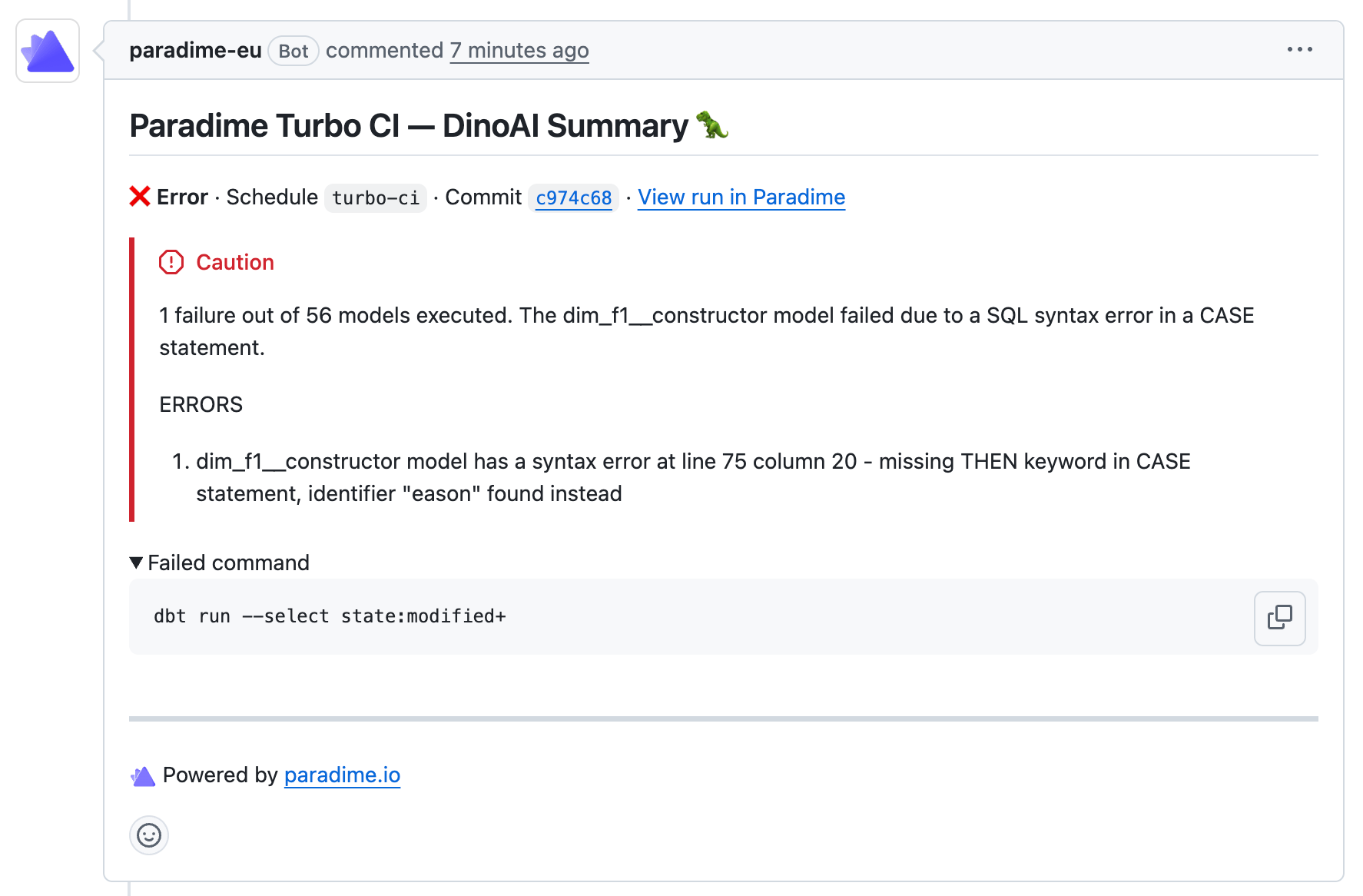 The PR comment includes:
* The schedule name and commit SHA, with a link to view the full run in Paradime
* A plain-language explanation of what went wrong (e.g. which models failed and why)
* The list of errors with the affected model and the underlying error message
* The exact command that failed (e.g. `dbt run --select state:modified+`)
No additional configuration is required — the DinoAI Summary is posted automatically whenever a Turbo CI run fails on a pull request.
💡 Learn more about how DinoAI generates these summaries in [Pipeline Insights.](/products/dino-ai/bolt-pipeline-agent/production-pipelines)
### Schedule Parse check on pull request
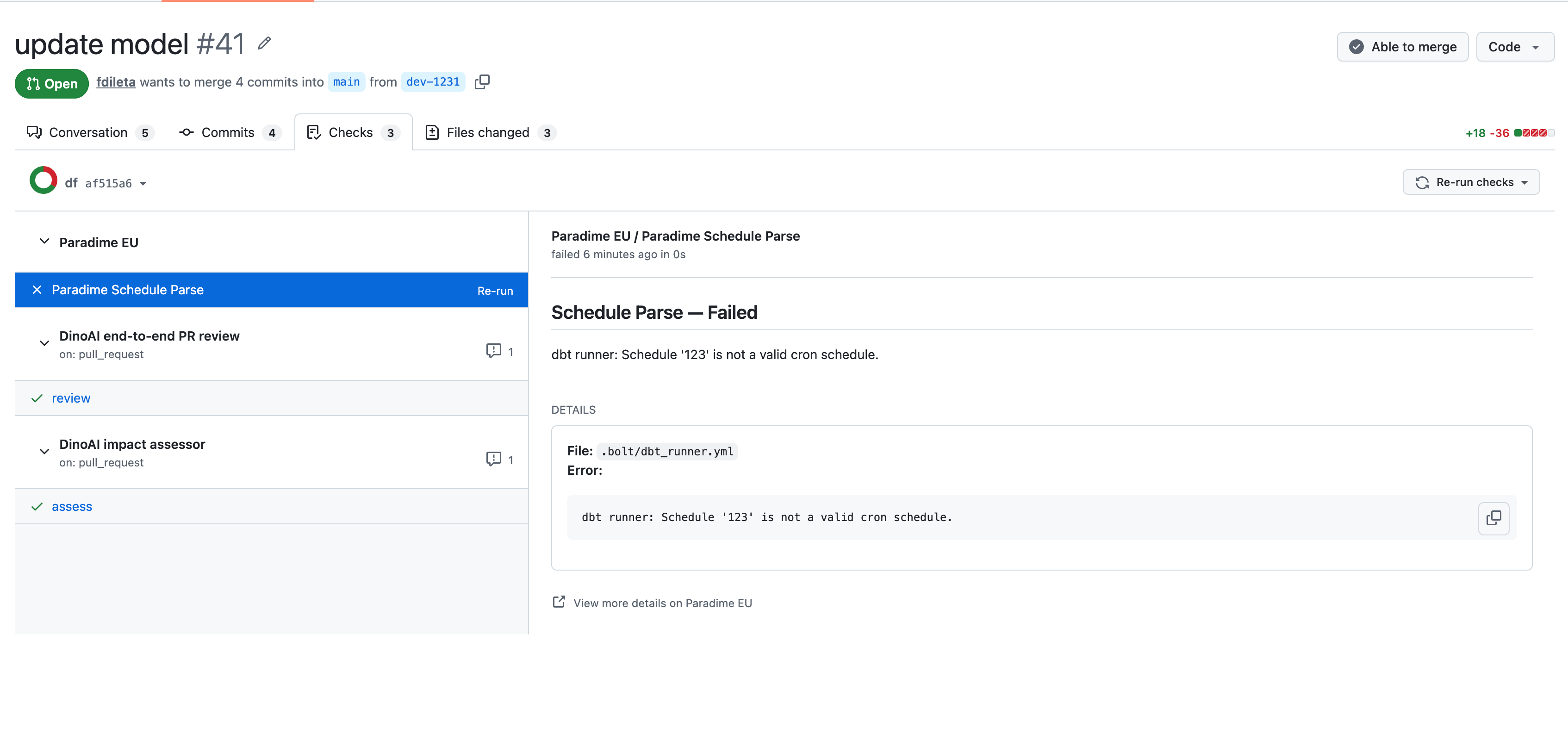
Alongside the main Turbo CI run, Paradime exposes a separate, lightweight GitHub check called **`Paradime Schedule Parse`** that validates your YAML schedule configuration on every PR that modifies it. The check uses the same parsing and per-schedule validation logic as the `paradime bolt verify` CLI command — but runs automatically in GitHub on the PR head commit.
The PR comment includes:
* The schedule name and commit SHA, with a link to view the full run in Paradime
* A plain-language explanation of what went wrong (e.g. which models failed and why)
* The list of errors with the affected model and the underlying error message
* The exact command that failed (e.g. `dbt run --select state:modified+`)
No additional configuration is required — the DinoAI Summary is posted automatically whenever a Turbo CI run fails on a pull request.
💡 Learn more about how DinoAI generates these summaries in [Pipeline Insights.](/products/dino-ai/bolt-pipeline-agent/production-pipelines)
### Schedule Parse check on pull request
Alongside the main Turbo CI run, Paradime exposes a separate, lightweight GitHub check called **`Paradime Schedule Parse`** that validates your YAML schedule configuration on every PR that modifies it. The check uses the same parsing and per-schedule validation logic as the `paradime bolt verify` CLI command — but runs automatically in GitHub on the PR head commit.
 **When it runs**
The check is triggered when a pull request is opened or updated **and** the PR changes one of the following files (scoped to your configured dbt™ root):
* The legacy flat file `paradime_schedules.yml`
* Any `.yaml` or `.yml` file under the modular `.bolt/` directory
If the PR doesn't touch any schedule file, the check is **skipped** — it doesn't appear on the PR.
**What it checks**
The check reads the schedule yaml file(s) at the PR head SHA via the GitHub Contents API (no clone, no Bolt run, no dbt™ execution) and validates that:
* Every schedule **parses** as valid YAML and matches the Bolt schedule schema.
* Every schedule **individually validates** (required fields present, references resolve, etc.) — the same rules the deployer applies when YAML schedules are merged to your default branch.
Because there's no dbt™ run involved, the Schedule Parse check is **cheap and fast** — it surfaces YAML mistakes on the PR before they reach `main` and break a scheduled deploy.
**Outcomes**
* **✅ Passed** — `Paradime Schedule Parse — Passed`. All schedules in the changed files are valid.
* **❌ Failed** — `Paradime Schedule Parse — Failed`. The check output lists each failing schedule along with the source file (`paradime_schedules.yml`, or the specific `.bolt/*.yaml` file) and the validation error. Multiple files can fail in one PR — every failure is reported.
The Schedule Parse check is **separate** from the main `Paradime Turbo CI` check. The two can pass or fail independently — for example, a PR that adds a syntactically valid but model change will pass Schedule Parse and fail Turbo CI; a PR that only edits `paradime_schedules.yml` will run Schedule Parse but won't trigger a Turbo CI dbt™ run.
💡 Mark the `Paradime Schedule Parse` status check as **required** in your GitHub branch protection rules to block merges that would introduce invalid schedule YAML into your default branch.
### Configure a custom schema for CI runs
Customize you dbt™ schema generation at runtime, to make sure that when a PR is opened, Paradime Turbo CI will build and test your changed dbt™ models in a temporary schema. We will want to update the dbt™ `generate_schema_name.sql` macro.
In your dbt™ project, in your *macros* folder create a macro called: `generate_schema_name.sql` and use a similar logic as below, where when a Bolt run is executed using the `ci` target the schema where your models will be built will use the **`paradime_turbo_ci_pr`** prefix.
```sql theme={"system"}
{% macro generate_schema_name(custom_schema_name, node) -%}
{%- set default_schema = target.schema -%}
{%- if target.name == 'prod' -%}
{{ custom_schema_name | trim }}
{%- elif target.name == 'ci' -%}
{{ default_schema }}
{%- else -%}
{%- if custom_schema_name is none -%}
{{ default_schema }}
{%- else -%}
{{ default_schema }}_{{ custom_schema_name | trim }}
{%- endif -%}
{%- endif -%}
{%- endmacro %}
```
💡 Learn more about custom schemas configurations in [dbt™ documentation](https://docs.getdbt.com/docs/build/custom-schemas#advanced-custom-schema-configuration).
***
### Deferral and State Comparison explained
When creating the Turbo CI job in Paradime, you can set your execution settings to defer to a previous run state by adding in the `deferred_schedule_slug` configuration the slug of the Bolt production schedule you want to defer to
Paradime will look at the `manifest.json` from the specified schedule's most recent successful run *(unless setting the optional parameter `successful_run_only: false`)* to determined the set of new and modified dbt™ resources. In your Turbo CI commands, you can then use the `state:modified+` argument to only run the modified resources and their downstream dependencies.
**A common example is:**
```bash theme={"system"}
dbt build --select state:modified+ --target ci
```
This will run and test all modified models with the downstream dependencies. Useful to validate that test are still passing after making changes to upstream dbt™ models.
💡 Read more about state comparison check the dbt Core™ documentation [here](https://docs.getdbt.com/reference/node-selection/state-comparison-caveats).
***
### Configuring Bolt Turbo CI job
Setting up your Turbo CI Bolt Schedule is very similar to a normal bolt schedule with the addition of a couple more configurations.
A Turbo CI job differ from a bolt schedule as it involves:
* The Bolt schedule to defer to
* The `commands` to use the `state:modified+` selector to build / tests only new dbt™ models and their downstream dependencies. State comparison can only happen when there is a deferred schedule name configured to compare state to.
* Being triggered by a pull request being opened in your Github dbt™ repository
**Implement using Paradime's Bolt Template -** [**Test Code Changes on Pull Request**](/products/bolt/creating-schedules/templates/ci-cd-templates/test-code-changes-on-pull-requests)**.**
***
### View Turbo CI run Logs
As per other bolt schedules, you can inspect run logs for each of the Turbo CI jobs running when a pull request is opened.
**When it runs**
The check is triggered when a pull request is opened or updated **and** the PR changes one of the following files (scoped to your configured dbt™ root):
* The legacy flat file `paradime_schedules.yml`
* Any `.yaml` or `.yml` file under the modular `.bolt/` directory
If the PR doesn't touch any schedule file, the check is **skipped** — it doesn't appear on the PR.
**What it checks**
The check reads the schedule yaml file(s) at the PR head SHA via the GitHub Contents API (no clone, no Bolt run, no dbt™ execution) and validates that:
* Every schedule **parses** as valid YAML and matches the Bolt schedule schema.
* Every schedule **individually validates** (required fields present, references resolve, etc.) — the same rules the deployer applies when YAML schedules are merged to your default branch.
Because there's no dbt™ run involved, the Schedule Parse check is **cheap and fast** — it surfaces YAML mistakes on the PR before they reach `main` and break a scheduled deploy.
**Outcomes**
* **✅ Passed** — `Paradime Schedule Parse — Passed`. All schedules in the changed files are valid.
* **❌ Failed** — `Paradime Schedule Parse — Failed`. The check output lists each failing schedule along with the source file (`paradime_schedules.yml`, or the specific `.bolt/*.yaml` file) and the validation error. Multiple files can fail in one PR — every failure is reported.
The Schedule Parse check is **separate** from the main `Paradime Turbo CI` check. The two can pass or fail independently — for example, a PR that adds a syntactically valid but model change will pass Schedule Parse and fail Turbo CI; a PR that only edits `paradime_schedules.yml` will run Schedule Parse but won't trigger a Turbo CI dbt™ run.
💡 Mark the `Paradime Schedule Parse` status check as **required** in your GitHub branch protection rules to block merges that would introduce invalid schedule YAML into your default branch.
### Configure a custom schema for CI runs
Customize you dbt™ schema generation at runtime, to make sure that when a PR is opened, Paradime Turbo CI will build and test your changed dbt™ models in a temporary schema. We will want to update the dbt™ `generate_schema_name.sql` macro.
In your dbt™ project, in your *macros* folder create a macro called: `generate_schema_name.sql` and use a similar logic as below, where when a Bolt run is executed using the `ci` target the schema where your models will be built will use the **`paradime_turbo_ci_pr`** prefix.
```sql theme={"system"}
{% macro generate_schema_name(custom_schema_name, node) -%}
{%- set default_schema = target.schema -%}
{%- if target.name == 'prod' -%}
{{ custom_schema_name | trim }}
{%- elif target.name == 'ci' -%}
{{ default_schema }}
{%- else -%}
{%- if custom_schema_name is none -%}
{{ default_schema }}
{%- else -%}
{{ default_schema }}_{{ custom_schema_name | trim }}
{%- endif -%}
{%- endif -%}
{%- endmacro %}
```
💡 Learn more about custom schemas configurations in [dbt™ documentation](https://docs.getdbt.com/docs/build/custom-schemas#advanced-custom-schema-configuration).
***
### Deferral and State Comparison explained
When creating the Turbo CI job in Paradime, you can set your execution settings to defer to a previous run state by adding in the `deferred_schedule_slug` configuration the slug of the Bolt production schedule you want to defer to
Paradime will look at the `manifest.json` from the specified schedule's most recent successful run *(unless setting the optional parameter `successful_run_only: false`)* to determined the set of new and modified dbt™ resources. In your Turbo CI commands, you can then use the `state:modified+` argument to only run the modified resources and their downstream dependencies.
**A common example is:**
```bash theme={"system"}
dbt build --select state:modified+ --target ci
```
This will run and test all modified models with the downstream dependencies. Useful to validate that test are still passing after making changes to upstream dbt™ models.
💡 Read more about state comparison check the dbt Core™ documentation [here](https://docs.getdbt.com/reference/node-selection/state-comparison-caveats).
***
### Configuring Bolt Turbo CI job
Setting up your Turbo CI Bolt Schedule is very similar to a normal bolt schedule with the addition of a couple more configurations.
A Turbo CI job differ from a bolt schedule as it involves:
* The Bolt schedule to defer to
* The `commands` to use the `state:modified+` selector to build / tests only new dbt™ models and their downstream dependencies. State comparison can only happen when there is a deferred schedule name configured to compare state to.
* Being triggered by a pull request being opened in your Github dbt™ repository
**Implement using Paradime's Bolt Template -** [**Test Code Changes on Pull Request**](/products/bolt/creating-schedules/templates/ci-cd-templates/test-code-changes-on-pull-requests)**.**
***
### View Turbo CI run Logs
As per other bolt schedules, you can inspect run logs for each of the Turbo CI jobs running when a pull request is opened.
 Paradime provides a set of system environment variables that can be added to your dbt™ models to inject metadata at run time to add more information to your materialized tables in your data warehouse.
These can be used to help identify which schedules run relates to a given row of data in your tables.
***
### Filter Turbo CI runs by PR number
Filter Turbo CI runs by pull request number to view all runs associated with a specific PR. This makes it easier to track the status and history of CI runs for a particular pull request.
To filter by PR number:
1. Navigate to the [Bolt](/products/bolt/index) and select a Turbo CI schedule
2. From the schedule detail view, scroll to **Run History** section
3. Enter PR number in text box (ex. **PR:183**)
Paradime provides a set of system environment variables that can be added to your dbt™ models to inject metadata at run time to add more information to your materialized tables in your data warehouse.
These can be used to help identify which schedules run relates to a given row of data in your tables.
***
### Filter Turbo CI runs by PR number
Filter Turbo CI runs by pull request number to view all runs associated with a specific PR. This makes it easier to track the status and history of CI runs for a particular pull request.
To filter by PR number:
1. Navigate to the [Bolt](/products/bolt/index) and select a Turbo CI schedule
2. From the schedule detail view, scroll to **Run History** section
3. Enter PR number in text box (ex. **PR:183**)
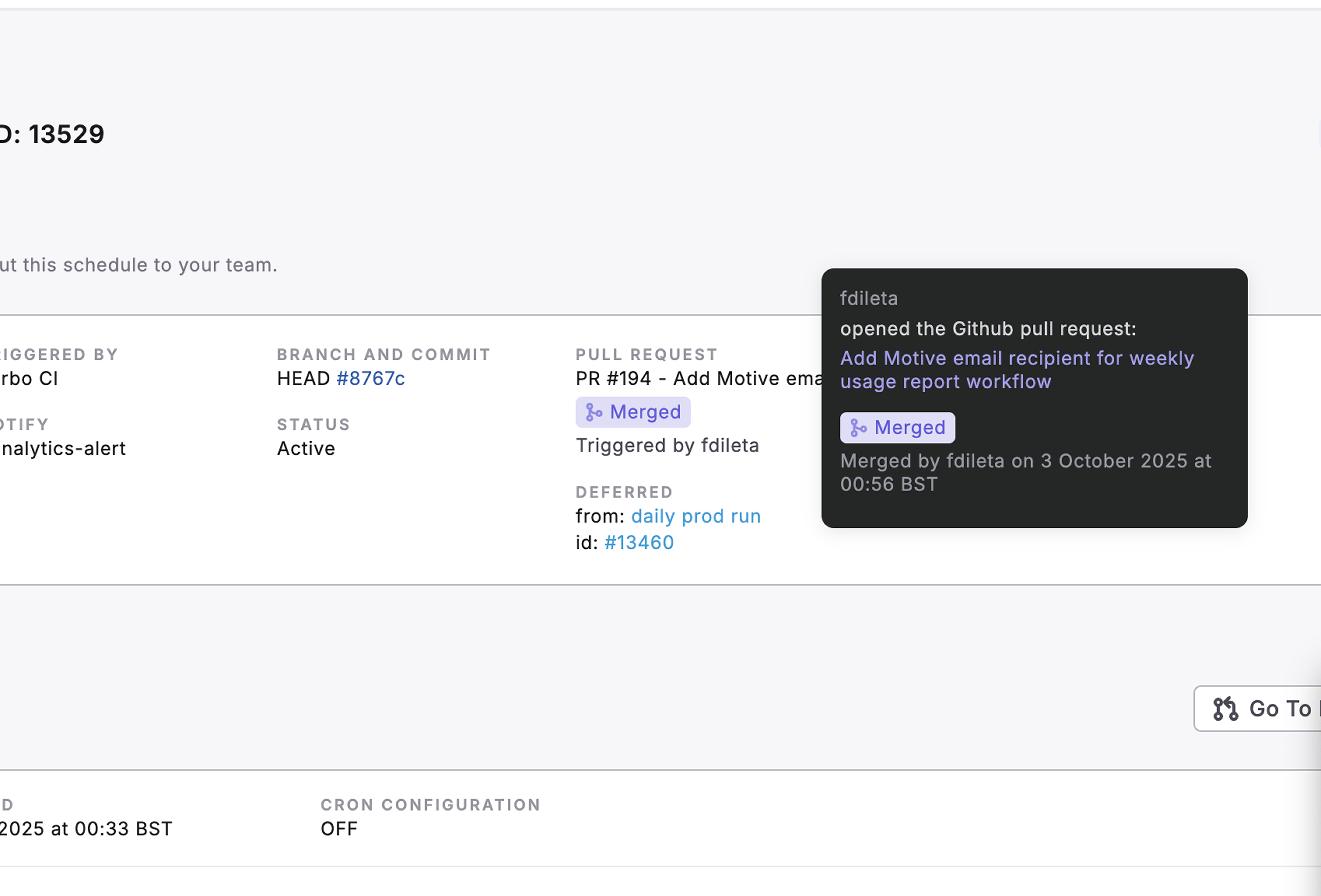
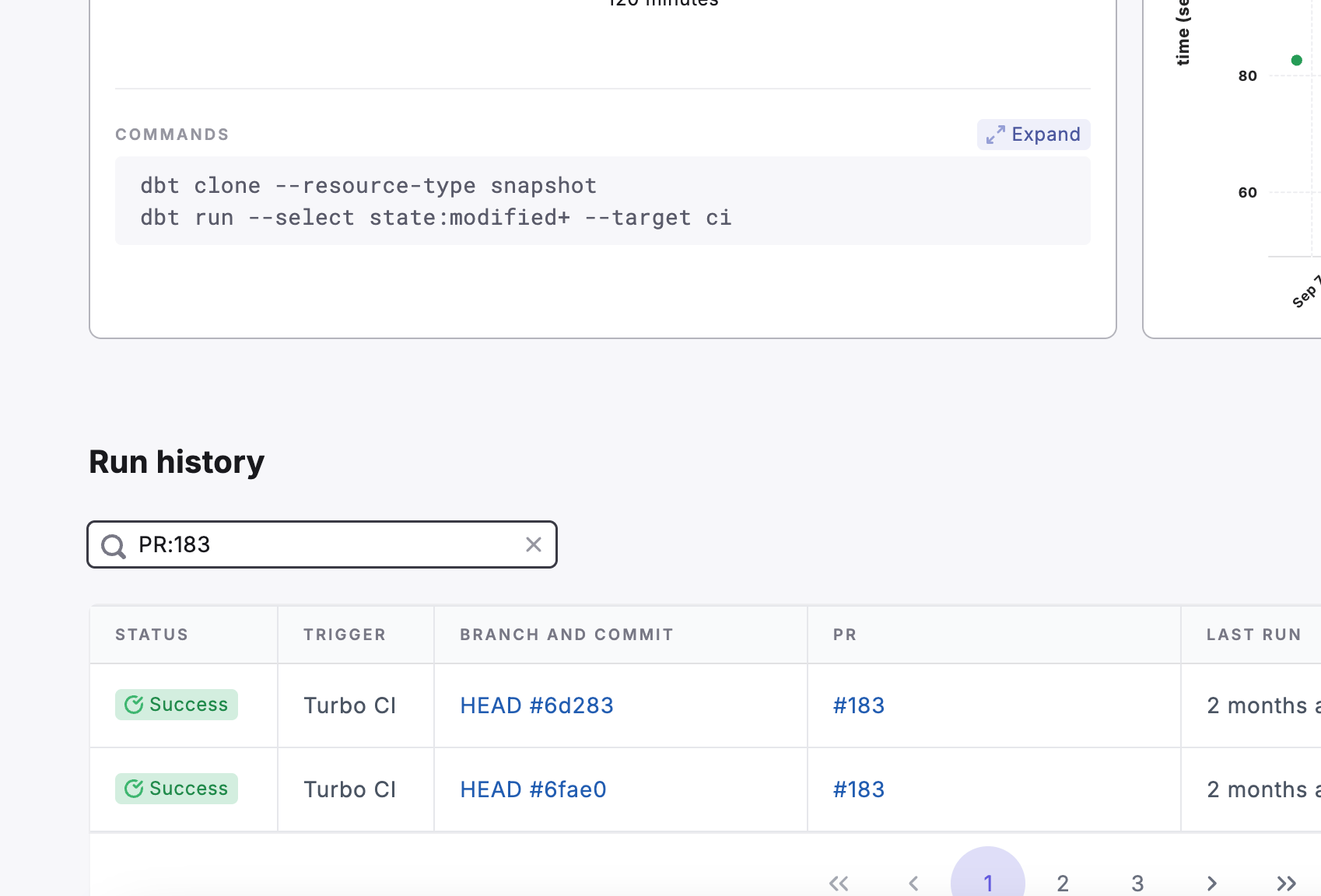 Additonally, you can view the status of a PR in bolt directly by hovering over the **Pull Request** section of a turbo CI run.
 ### Environment variables
Paradime provides a set of system environment variables that can be used to build custom logic for macro or schema generation when a PR is opened.
| Vairable name | example |
| -------------------------- | ---------------------------- |
| `PARADIME_TURBO_CI_PREFIX` | paradime\_turbo\_ci\_pr\_123 |
## Related topics
- [GitHub](/integrations/github.md)
- [Column-Level Lineage Diff](/products/bolt/ci-cd/lineage-diff/index.md)
- [GitHub Merge Queue](/guides/working-with-git/github-merge-queue.md)
- [GitHub PR Management Tool](/products/dino-ai/tools-and-features/github-pr-management-tool.md)
### Environment variables
Paradime provides a set of system environment variables that can be used to build custom logic for macro or schema generation when a PR is opened.
| Vairable name | example |
| -------------------------- | ---------------------------- |
| `PARADIME_TURBO_CI_PREFIX` | paradime\_turbo\_ci\_pr\_123 |
## Related topics
- [GitHub](/integrations/github.md)
- [Column-Level Lineage Diff](/products/bolt/ci-cd/lineage-diff/index.md)
- [GitHub Merge Queue](/guides/working-with-git/github-merge-queue.md)
- [GitHub PR Management Tool](/products/dino-ai/tools-and-features/github-pr-management-tool.md)