> ## Documentation Index
> Fetch the complete documentation index at: https://docs.paradime.io/llms.txt
> Use this file to discover all available pages before exploring further.
# datahub-sync
### Overview
Paradime provides a convenient way to push dbt™ metadata from your Bolt runs directly into DataHub, keeping your DataHub catalog up to date with the latest models, lineage, columns, and descriptions from your dbt™ project.
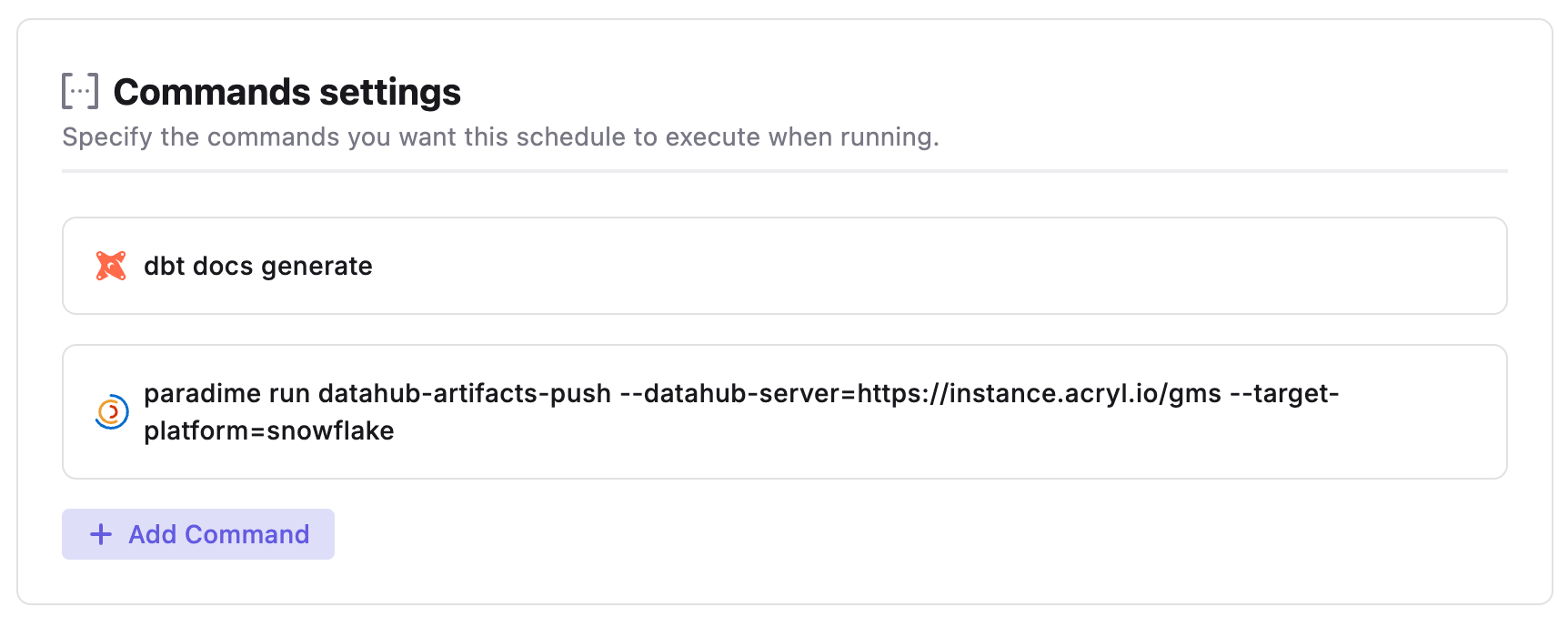
By leveraging Paradime's DataHub Integration, you can orchestrate your data pipeline by pushing dbt™ artifacts to DataHub immediately after your dbt™ transformations complete. You can configure this by adding the push command directly in the same Bolt schedule as your dbt™ commands, or by using the on run completion trigger in a separate pipeline.
Under the hood, Paradime feeds the [manifest file](https://docs.getdbt.com/reference/artifacts/manifest-json) and the [catalog file](https://docs.getdbt.com/reference/artifacts/catalog-json) into DataHub's native `dbt` ingestion source, so the result matches what a dbt Cloud / dbt Core ingestion produces.
 **Prerequisites**
**1. Configure the DataHub Integration**
You will need a DataHub GMS URL and a Personal Access Token to use these commands. See our docs here.
**🔧 dbt™ Artifact Configuration**
* DataHub's dbt source needs **both** `target/manifest.json` **and** `target/catalog.json`.
* The catalog is only produced by `dbt docs generate`, so your schedule must run `dbt docs generate` before the push command.
* Whenever a dbt™ command is executed, files in the `target` directory will be overwritten. So you will need to run the push command after your dbt™ artifacts have been generated.
**2. Set Environment Variables**
Set your DataHub credentials and configuration as environment variables for Bolt Schedules
* `DATAHUB_GMS_URL`
* `DATAHUB_GMS_TOKEN`
* `DATAHUB_TARGET_PLATFORM`
* `DATAHUB_DOMAIN` (optional)
#### How to Configure DataHub Artifacts Push
When setting up the DataHub Artifacts Push task, add the command after the dbt™ commands that generate your artifacts (including `dbt docs generate`). Paradime searches the resources directory and pushes **every** dbt™ project it finds (any folder containing both `target/manifest.json` and `target/catalog.json`), so a multi-project setup is handled in one task.
We recommend running `dbt docs generate` as the step immediately before the push command. This guarantees the `catalog.json` DataHub needs is present and up to date for every run.
### datahub-artifacts-push
Push Bolt dbt™ artifacts (manifest + catalog) to DataHub.
```
paradime run datahub-artifacts-push [OPTIONS]
```
| Flag | Type | Description |
| -------------------------------- | ------------------ | ----------------------------------------------------------------------------------------------------------------------------------------------------------------------------------------------------------------------------------------------------------------------------------------------- |
| `--datahub-server` | *`Required, TEXT`* |
**Prerequisites**
**1. Configure the DataHub Integration**
You will need a DataHub GMS URL and a Personal Access Token to use these commands. See our docs here.
**🔧 dbt™ Artifact Configuration**
* DataHub's dbt source needs **both** `target/manifest.json` **and** `target/catalog.json`.
* The catalog is only produced by `dbt docs generate`, so your schedule must run `dbt docs generate` before the push command.
* Whenever a dbt™ command is executed, files in the `target` directory will be overwritten. So you will need to run the push command after your dbt™ artifacts have been generated.
**2. Set Environment Variables**
Set your DataHub credentials and configuration as environment variables for Bolt Schedules
* `DATAHUB_GMS_URL`
* `DATAHUB_GMS_TOKEN`
* `DATAHUB_TARGET_PLATFORM`
* `DATAHUB_DOMAIN` (optional)
#### How to Configure DataHub Artifacts Push
When setting up the DataHub Artifacts Push task, add the command after the dbt™ commands that generate your artifacts (including `dbt docs generate`). Paradime searches the resources directory and pushes **every** dbt™ project it finds (any folder containing both `target/manifest.json` and `target/catalog.json`), so a multi-project setup is handled in one task.
We recommend running `dbt docs generate` as the step immediately before the push command. This guarantees the `catalog.json` DataHub needs is present and up to date for every run.
### datahub-artifacts-push
Push Bolt dbt™ artifacts (manifest + catalog) to DataHub.
```
paradime run datahub-artifacts-push [OPTIONS]
```
| Flag | Type | Description |
| -------------------------------- | ------------------ | ----------------------------------------------------------------------------------------------------------------------------------------------------------------------------------------------------------------------------------------------------------------------------------------------- |
| `--datahub-server` | *`Required, TEXT`* | The DataHub GMS server URL (e.g. https\://\.acryl.io/gms).
- Env: DATAHUB\_GMS\_URL
|
| `--datahub-token` | *`Required, TEXT`* | The DataHub personal access token used to authenticate to GMS.
- Env: DATAHUB\_GMS\_TOKEN
|
| `--target-platform` | *`Required, TEXT`* | The data warehouse platform the dbt™ models run on (e.g. snowflake, bigquery, redshift).
- Env: DATAHUB\_TARGET\_PLATFORM
|
| `--domain` | *`Optional, TEXT`* | DataHub domain URN to associate the pushed assets with (e.g. urn:li:domain:sales). When set, every emitted dataset is associated with that domain.
- Env: DATAHUB\_DOMAIN
|
| `--paradime-resources-directory` | *`Optional, TEXT`* | The directory where the Paradime resources are stored. The command searches this directory for target/manifest.json and target/catalog.json.
- Default: current directory (.)
- Env: PARADIME\_RESOURCES\_DIRECTORY
|
| `--json` | *`Optional, FLAG`* | Output results as JSON. |
**Note**
Each flag can be supplied either on the command line or via its environment variable. Configuring the integration in Paradime sets these environment variables for you, so in a Bolt schedule you can usually call `paradime run datahub-artifacts-push` with no flags.
#### Examples
**Standard push**
When `DATAHUB_GMS_URL`, `DATAHUB_GMS_TOKEN`, and `DATAHUB_TARGET_PLATFORM` are set as environment variables, the command picks them up automatically, so no flags are needed.
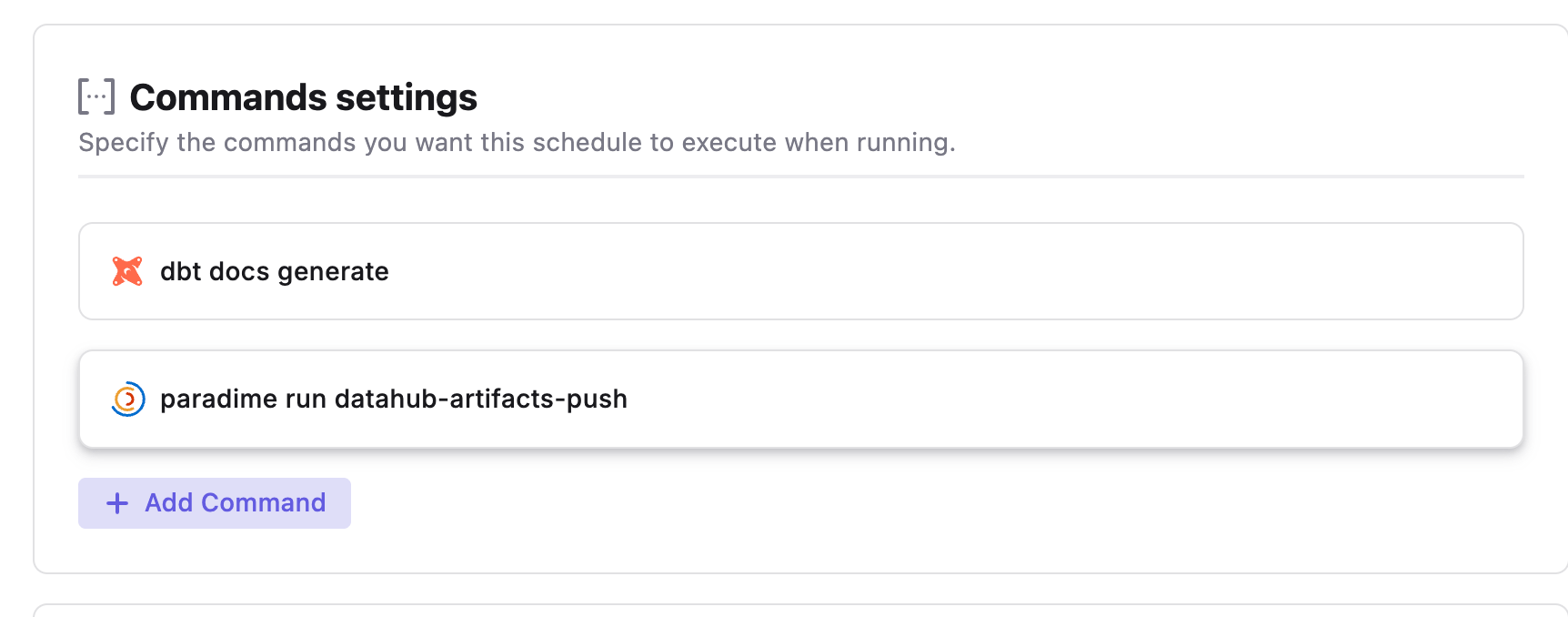 ```bash theme={"system"}
# Generate the artifacts (catalog requires `dbt docs generate`)
dbt docs generate
# Push the manifest + catalog to DataHub using the environment variables
paradime run datahub-artifacts-push
```
**Push with a domain**
Use the `--domain` flag to associate every pushed asset with a specific DataHub domain URN. This overrides the `DATAHUB_DOMAIN` environment variable for this run.
```bash theme={"system"}
# Generate the artifacts (catalog requires `dbt docs generate`)
dbt docs generate
# Push the manifest + catalog to DataHub using the environment variables
paradime run datahub-artifacts-push
```
**Push with a domain**
Use the `--domain` flag to associate every pushed asset with a specific DataHub domain URN. This overrides the `DATAHUB_DOMAIN` environment variable for this run.
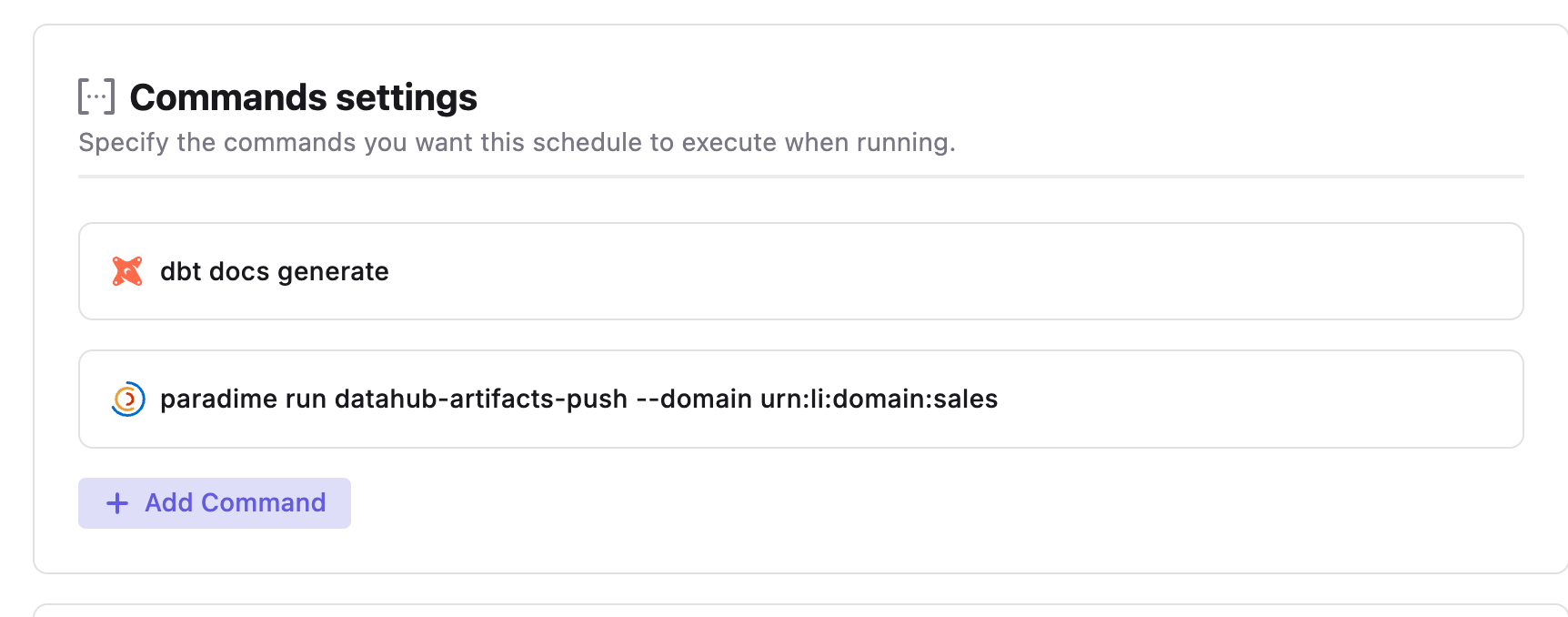 ```bash theme={"system"}
# Generate the artifacts (catalog requires `dbt docs generate`)
dbt docs generate
# Push the manifest + catalog and associate the assets with a domain
paradime run datahub-artifacts-push --domain urn:li:domain:sales
```
**Learn More**: For details on configuring the integration and generating credentials, refer to the [DataHub integration documentation.](/integrations/datahub)
***
Now, let's learn how to configure the Trigger Types of a Bolt Schedule.
## Related topics
- [DataHub](/integrations/datahub.md)
- [Fivetran Connector Sync](/products/bolt/creating-schedules/command-settings/fivetran-connector-sync.md)
- [Trigger Hightouch Syncs](/products/bolt/creating-schedules/templates/reverse-etl-templates/trigger-hightouch-syncs.md)
- [Trigger Census Syncs](/products/bolt/creating-schedules/templates/reverse-etl-templates/trigger-census-syncs.md)
- [Airbyte Connector Sync](/products/bolt/creating-schedules/command-settings/airbyte-connector-sync.md)
```bash theme={"system"}
# Generate the artifacts (catalog requires `dbt docs generate`)
dbt docs generate
# Push the manifest + catalog and associate the assets with a domain
paradime run datahub-artifacts-push --domain urn:li:domain:sales
```
**Learn More**: For details on configuring the integration and generating credentials, refer to the [DataHub integration documentation.](/integrations/datahub)
***
Now, let's learn how to configure the Trigger Types of a Bolt Schedule.
## Related topics
- [DataHub](/integrations/datahub.md)
- [Fivetran Connector Sync](/products/bolt/creating-schedules/command-settings/fivetran-connector-sync.md)
- [Trigger Hightouch Syncs](/products/bolt/creating-schedules/templates/reverse-etl-templates/trigger-hightouch-syncs.md)
- [Trigger Census Syncs](/products/bolt/creating-schedules/templates/reverse-etl-templates/trigger-census-syncs.md)
- [Airbyte Connector Sync](/products/bolt/creating-schedules/command-settings/airbyte-connector-sync.md)