> ## Documentation Index
> Fetch the complete documentation index at: https://docs.paradime.io/llms.txt
> Use this file to discover all available pages before exploring further.
# Paradime Bolt Schedule Toggle Commands
> Manage Paradime Bolt schedules dynamically with Schedule Toggle Commands: pause and resume schedule execution using API credentials for flexible pipeline control.
## Overview
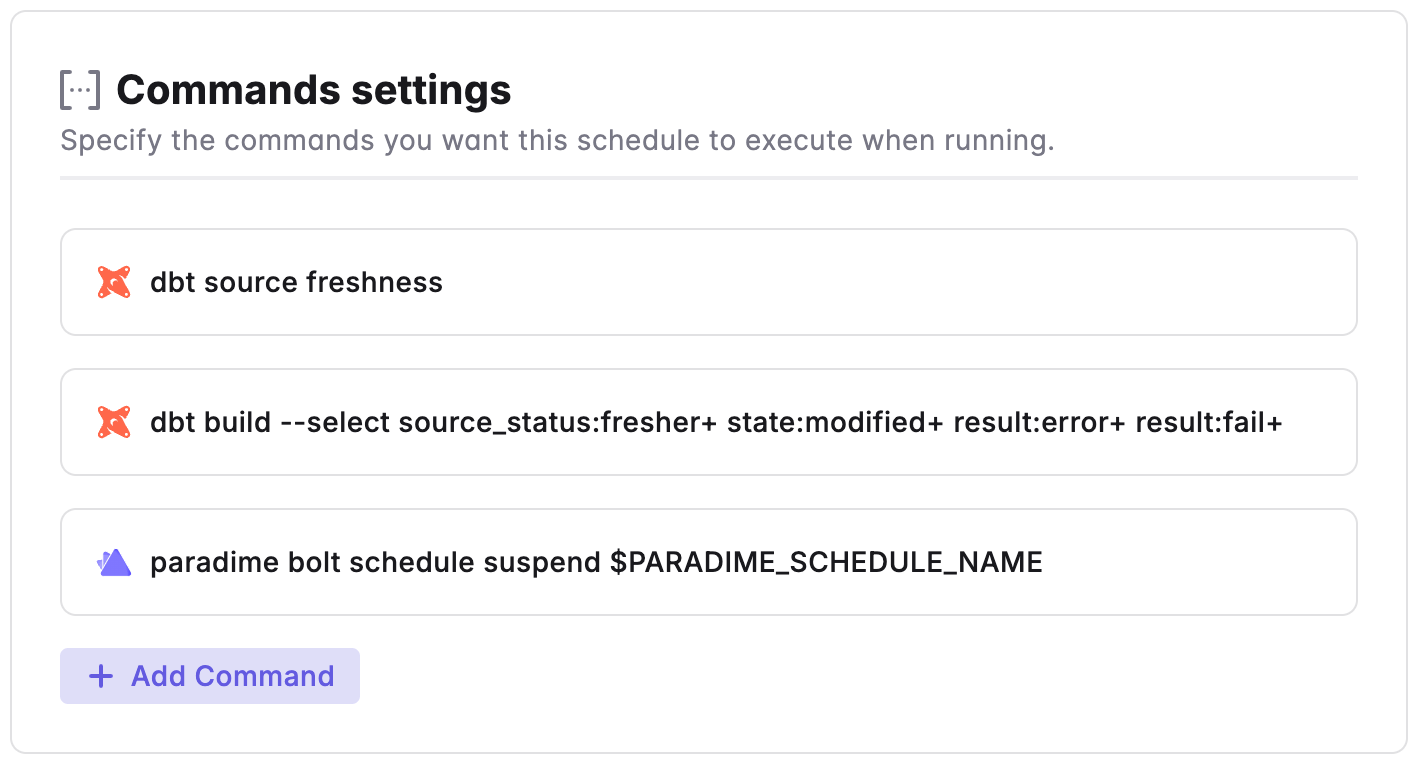
Paradime Bolt introduces a powerful feature called Schedule Toggle Commands, which allows you to dynamically control the status of a Bolt Schedule. With this functionality, you can easily pause a schedule for a specific period of time or until the next day, providing flexibility and control over your data transformation processes.
 **Prerequisites**
* Only UI based schedules can be pauses/unpaused using this commands
* Generate API credentials in your Paradime workspace with **Bolt schedules admin** Capabilities
* Use the generated credentials and set as [environment variables](/products/settings/environment-variables/bolt-schedule-env-variables) for Bolt Schedules. You can find your workspace UID in the settings > workspace tab
* `PARADIME_API_ENDPOINT`
* `PARADIME_API_SECRET`
* `PARADIME_WORKSPACE_UID`
### Pausing a Schedule
One of the key capabilities of Schedule Toggle Commands is the ability to pause a schedule. By issuing a pause command, you can temporarily suspend the execution of a Bolt Schedule. This is particularly useful when you need to halt the processing of data for a certain duration, such as during maintenance windows or when unexpected issues arise.
To pause a schedule, you can use the following command:
```bash theme={"system"}
paradime bolt schedule suspend "hourly refresh"
```
Use the variable `$PARADIME_SCHEDULE_NAME` to let a Bolt schedule "pause iteslf".
### Resuming a Schedule
Once a schedule is paused, you can resume its execution whenever needed. Resuming a schedule allows you to continue the data transformation process after a certain amount of time elapsed. To resume a paused schedule, you can use the following command:
```bash theme={"system"}
paradime bolt schedule unsuspend "hourly refresh"
```
Normally, the `suspend` and `unsuspend` commands will be part of two separate schedules.
For example, you can have one schedule that runs the `suspend` command at a specific time or interval to pause the execution. This schedule can be configured to run at the desired frequency, such as daily or weekly, depending on your requirements.
On the other hand, you can have another schedule that runs the `unsuspend` command at a different time or interval to resume the execution of the suspended Bolt Schedule. This schedule can be set up to run at the appropriate time when you want the data transformation process to resume.
***
Now, let's learn how to configure the [Trigger Types](/products/bolt/creating-schedules/trigger-types) of a Bolt Schedule.
## Related topics
- [3. Command Settings](/products/bolt/creating-schedules/command-settings/index.md)
- [Bolt CLI](/developers/paradime-cli/bolt-cli.md)
- [Github Actions to Paradime Bolt](/guides/migrations/migrating-dbt-tm-jobs-from-github-actions-to-paradime-bolt.md)
- [Schedule Configurations](/products/bolt/managing-schedules/schedule-configurations.md)
- [2. Self-Healing](/products/bolt/creating-schedules/2.-self-healing.md)
**Prerequisites**
* Only UI based schedules can be pauses/unpaused using this commands
* Generate API credentials in your Paradime workspace with **Bolt schedules admin** Capabilities
* Use the generated credentials and set as [environment variables](/products/settings/environment-variables/bolt-schedule-env-variables) for Bolt Schedules. You can find your workspace UID in the settings > workspace tab
* `PARADIME_API_ENDPOINT`
* `PARADIME_API_SECRET`
* `PARADIME_WORKSPACE_UID`
### Pausing a Schedule
One of the key capabilities of Schedule Toggle Commands is the ability to pause a schedule. By issuing a pause command, you can temporarily suspend the execution of a Bolt Schedule. This is particularly useful when you need to halt the processing of data for a certain duration, such as during maintenance windows or when unexpected issues arise.
To pause a schedule, you can use the following command:
```bash theme={"system"}
paradime bolt schedule suspend "hourly refresh"
```
Use the variable `$PARADIME_SCHEDULE_NAME` to let a Bolt schedule "pause iteslf".
### Resuming a Schedule
Once a schedule is paused, you can resume its execution whenever needed. Resuming a schedule allows you to continue the data transformation process after a certain amount of time elapsed. To resume a paused schedule, you can use the following command:
```bash theme={"system"}
paradime bolt schedule unsuspend "hourly refresh"
```
Normally, the `suspend` and `unsuspend` commands will be part of two separate schedules.
For example, you can have one schedule that runs the `suspend` command at a specific time or interval to pause the execution. This schedule can be configured to run at the desired frequency, such as daily or weekly, depending on your requirements.
On the other hand, you can have another schedule that runs the `unsuspend` command at a different time or interval to resume the execution of the suspended Bolt Schedule. This schedule can be set up to run at the appropriate time when you want the data transformation process to resume.
***
Now, let's learn how to configure the [Trigger Types](/products/bolt/creating-schedules/trigger-types) of a Bolt Schedule.
## Related topics
- [3. Command Settings](/products/bolt/creating-schedules/command-settings/index.md)
- [Bolt CLI](/developers/paradime-cli/bolt-cli.md)
- [Github Actions to Paradime Bolt](/guides/migrations/migrating-dbt-tm-jobs-from-github-actions-to-paradime-bolt.md)
- [Schedule Configurations](/products/bolt/managing-schedules/schedule-configurations.md)
- [2. Self-Healing](/products/bolt/creating-schedules/2.-self-healing.md)