> ## Documentation Index
> Fetch the complete documentation index at: https://docs.paradime.io/llms.txt
> Use this file to discover all available pages before exploring further.
# Microsoft Power BI Dataset Refresh
> Automate Power BI dataset refreshes with Paradime Bolt using REST API integration to sync visualizations with dbt™ pipeline completions for current dashboards.
## Overview
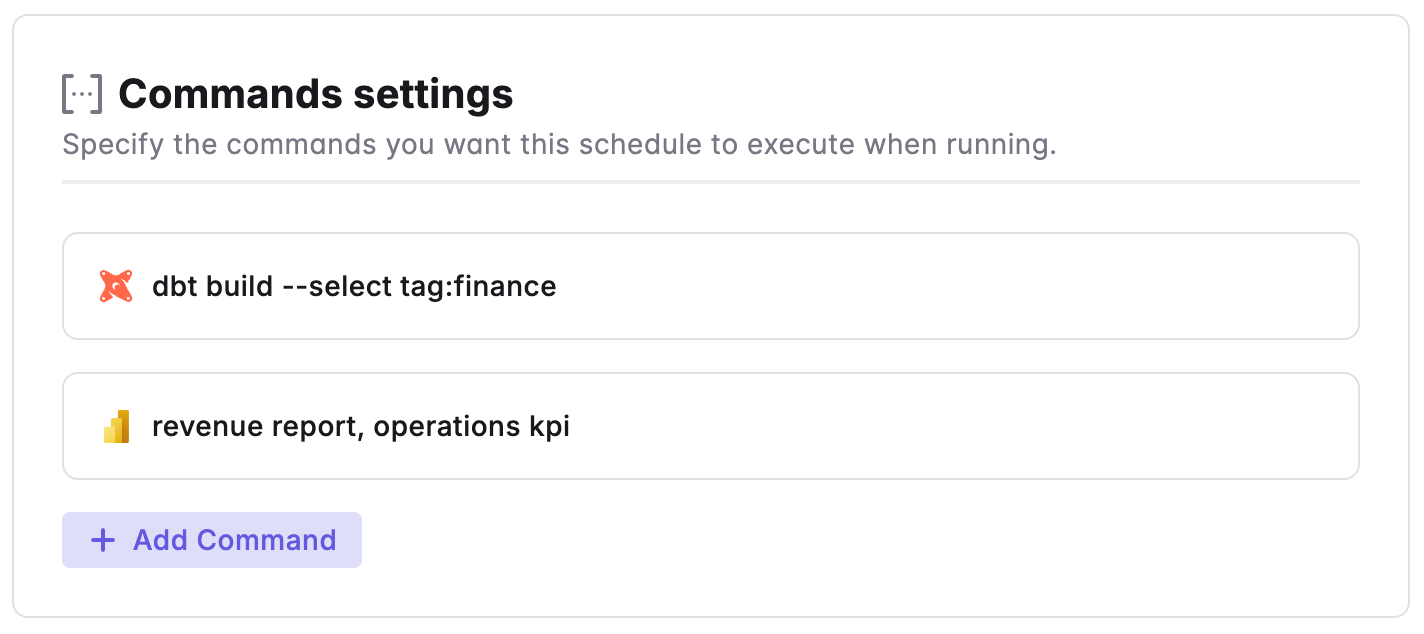
Paradime provides a convenient way to trigger dataset refreshes in [Power BI](/integrations/power-bi), allowing you to keep your visualizations and dashboards up to date with the latest data.
By leveraging the Power BI REST API endpoint for refreshing datasets, Paradime enables you to automate and schedule the refresh process based right after your dbt™ pipeline completes or in a separate schedule, using the [on run completion trigger](/products/bolt/creating-schedules/trigger-types#on-run-completion).
 **Prerequisites**
Follow the [Power BI integration](/integrations/power-bi) guide to generate the API credentials
Get your Group ID, this can be found by navigating to your workspace in the Power BI app and copying the id in the URL after `/groups`. It should be a 36 character UUID.
Use the generated credentials and set as [environment variables](/products/settings/environment-variables/bolt-schedule-env-variables) for Bolt Schedules
* `POWER_BI_CLIENT_ID`
* `POWER_BI_TENANT_ID`
* `POWER_BI_CLIENT_SECRET`
* `POWER_BI_GROUP_ID` ( you can also set this at a command level)
### How to Configure Dataset Refresh
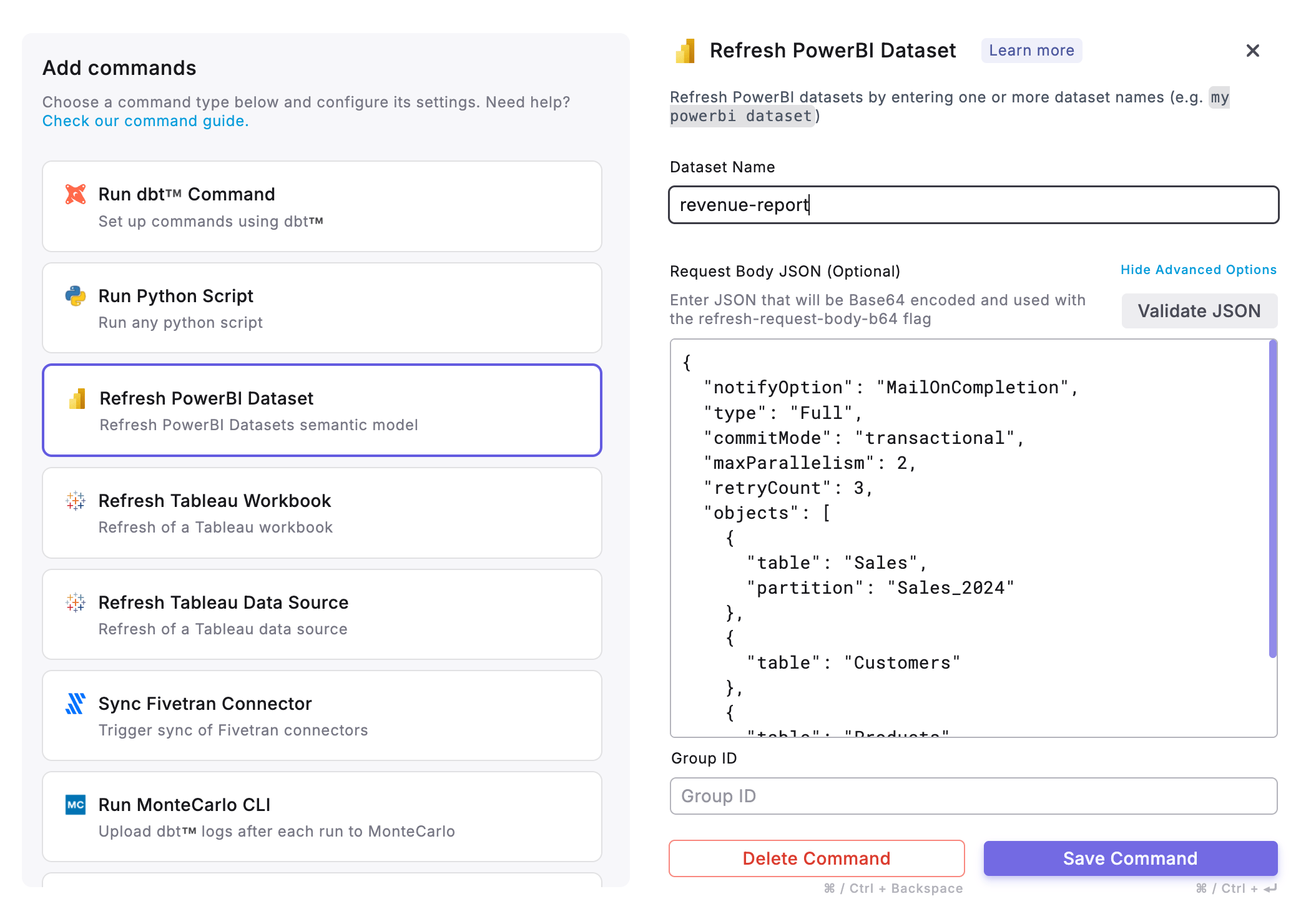
When setting up PowerBI Dataset Refresh, you can provide one or more Dataset names in a single execution.
**Prerequisites**
Follow the [Power BI integration](/integrations/power-bi) guide to generate the API credentials
Get your Group ID, this can be found by navigating to your workspace in the Power BI app and copying the id in the URL after `/groups`. It should be a 36 character UUID.
Use the generated credentials and set as [environment variables](/products/settings/environment-variables/bolt-schedule-env-variables) for Bolt Schedules
* `POWER_BI_CLIENT_ID`
* `POWER_BI_TENANT_ID`
* `POWER_BI_CLIENT_SECRET`
* `POWER_BI_GROUP_ID` ( you can also set this at a command level)
### How to Configure Dataset Refresh
When setting up PowerBI Dataset Refresh, you can provide one or more Dataset names in a single execution.
 ### Optional Refresh Body Configuration
In the Paradime Power BI command, you can provide an optional JSON body to customize the refresh behavior for your datasets. This allows you to control various aspects of the refresh process.
#### How to Use
When configuring your Power BI dataset refresh in Paradime, you can include a custom refresh body JSON to specify for example:
* **Notification preferences** - Control when you receive email notifications
* **Refresh type** - Specify full refresh, automatic, or other refresh types
* **Commit mode** - Choose transactional or partial batch processing
* **Parallelism** - Set the number of parallel operations
* **Retry logic** - Configure automatic retry attempts on failure
* **Specific objects** - Target only certain tables or partitions for refresh
#### Important Notes
* If no refresh body is provided, Power BI will perform a standard full refresh with default settings
* Remember that Power BI accepts only one refresh operation at a time per dataset
* The refresh body is sent to the Power BI REST API endpoint: `https://api.powerbi.com/v1.0/myorg/groups/{groupId}/datasets/{datasetId}/refreshes`
**Learn More**: For all supported commands and additional configuration flags, refer to the [Paradime Microsoft Power BI CLI documentation](/developers/paradime-cli/microsoft-power-bi-cli).
PowerBI accepts only one refresh operation at a time for a model/dataset. If there's a current running refresh and another request is submitted, a `400 Bad Request` HTTP status code returns.
***
Now, let's learn how to configure the [Trigger Types](/products/bolt/creating-schedules/trigger-types) of a Bolt Schedule.
## Related topics
- [Microsoft Power BI CLI](/developers/paradime-cli/microsoft-power-bi-cli.md)
- [Power BI](/integrations/power-bi.md)
- [Power BI assets](/products/data-catalog/data-assets/power-bi-assets.md)
- [Paradime CLI](/developers/paradime-cli/index.md)
- [3. Command Settings](/products/bolt/creating-schedules/command-settings/index.md)
### Optional Refresh Body Configuration
In the Paradime Power BI command, you can provide an optional JSON body to customize the refresh behavior for your datasets. This allows you to control various aspects of the refresh process.
#### How to Use
When configuring your Power BI dataset refresh in Paradime, you can include a custom refresh body JSON to specify for example:
* **Notification preferences** - Control when you receive email notifications
* **Refresh type** - Specify full refresh, automatic, or other refresh types
* **Commit mode** - Choose transactional or partial batch processing
* **Parallelism** - Set the number of parallel operations
* **Retry logic** - Configure automatic retry attempts on failure
* **Specific objects** - Target only certain tables or partitions for refresh
#### Important Notes
* If no refresh body is provided, Power BI will perform a standard full refresh with default settings
* Remember that Power BI accepts only one refresh operation at a time per dataset
* The refresh body is sent to the Power BI REST API endpoint: `https://api.powerbi.com/v1.0/myorg/groups/{groupId}/datasets/{datasetId}/refreshes`
**Learn More**: For all supported commands and additional configuration flags, refer to the [Paradime Microsoft Power BI CLI documentation](/developers/paradime-cli/microsoft-power-bi-cli).
PowerBI accepts only one refresh operation at a time for a model/dataset. If there's a current running refresh and another request is submitted, a `400 Bad Request` HTTP status code returns.
***
Now, let's learn how to configure the [Trigger Types](/products/bolt/creating-schedules/trigger-types) of a Bolt Schedule.
## Related topics
- [Microsoft Power BI CLI](/developers/paradime-cli/microsoft-power-bi-cli.md)
- [Power BI](/integrations/power-bi.md)
- [Power BI assets](/products/data-catalog/data-assets/power-bi-assets.md)
- [Paradime CLI](/developers/paradime-cli/index.md)
- [3. Command Settings](/products/bolt/creating-schedules/command-settings/index.md)