> ## Documentation Index
> Fetch the complete documentation index at: https://docs.paradime.io/llms.txt
> Use this file to discover all available pages before exploring further.
# Tableau Workbook Refresh
> Automate Tableau workbook refreshes with Paradime Bolt using REST API integration, syncing visualizations with dbt™ pipeline completions for up-to-date dashboards.
## Overview
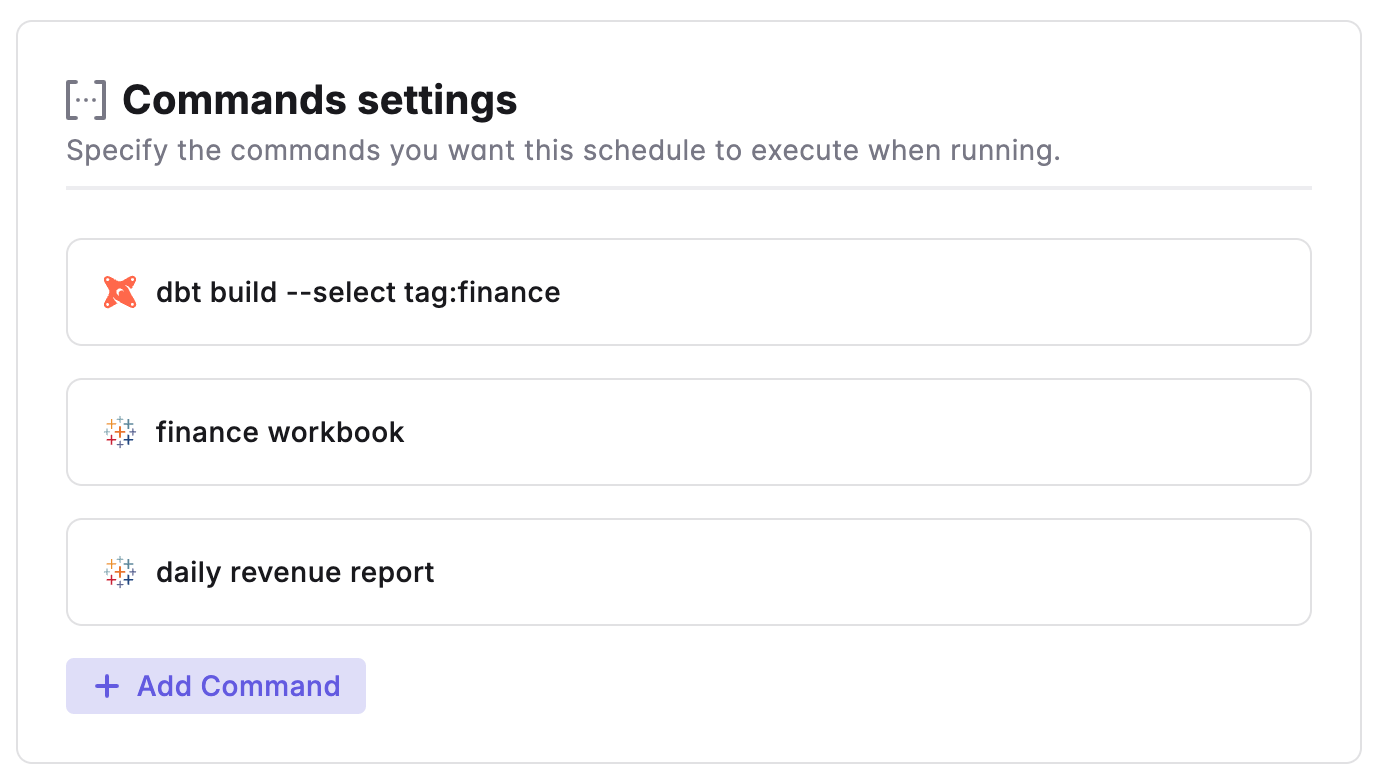
Paradime provides a convenient way to trigger Workbook refreshes in Tableau, allowing you to keep your visualizations and dashboards up to date with the latest data.
By leveraging the Tableau REST API endpoint for refreshing Workbook, Paradime enables you to automate and schedule the refresh process based right after your dbt™ pipeline completes or in a separate schedule, using the [on run completion trigger](/products/bolt/creating-schedules/trigger-types#on-run-completion).
 **Prerequisites**
**1. Generate API Credentials**
Follow the [Tableau integration](/integrations/tableau) guide to generate the API credentials
**2. Configure Data Source Credentials**
To enable Paradime to trigger a data extract refresh, ensure that any required credentials are embedded within the extract:
1. Edit the data source in Tableau
2. Click **'Publish'**
3. Select **'Embed credentials'**
**3. Set Environment Variables**
Configure the following environment variables in your Bolt Schedules:
* `TABLEAU_PERSONAL_ACCESS_TOKEN_NAME`
* `TABLEAU_PERSONAL_ACCESS_TOKEN_SECRET`
* `TABLEAU_HOST`
* `TABLEAU_SITE_NAME`
* `TABLEAU_TIMEOUT` (optional - sets request timeout in seconds, default: 300)
### How to Configure Workbook Refresh
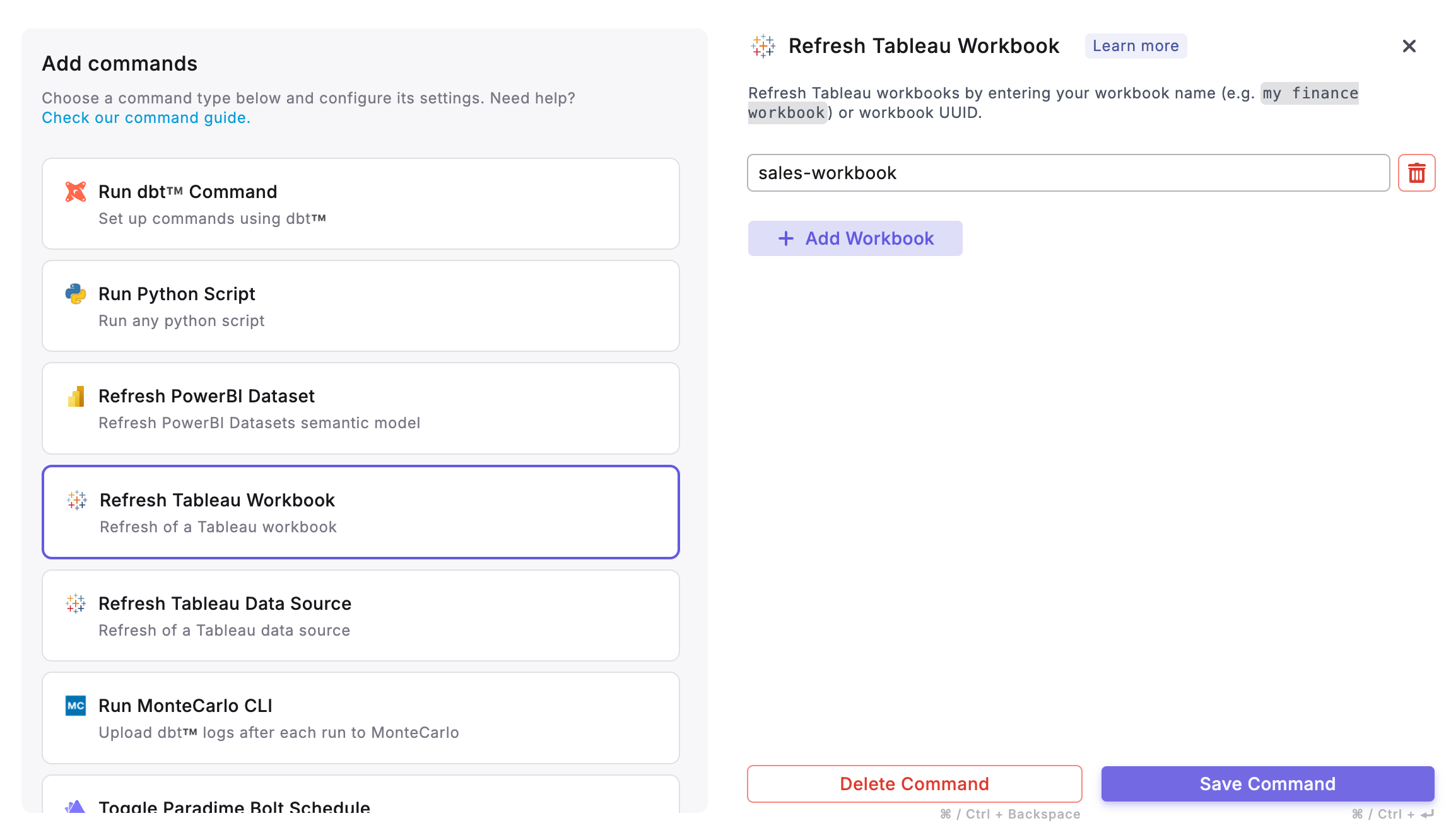
When setting up Tableau Workbook Refresh, you can provide one or more Workbook names when setting up the task by adding the names in a separate line.
Alternatively you can provide the Workbook UUID, a string like `9f8e7d6c5b-4a3f-2e1d-0c9b-8a7f6e5d4c`. This UUID is used in Tableau’s REST and Metadata APIs to ensure uniqueness even if workbook names change or duplicate names exist. [You can use our CLI to list workbooks and their UUID](/developers/paradime-cli/tableau-cli#list-tableau-workbooks).
**Prerequisites**
**1. Generate API Credentials**
Follow the [Tableau integration](/integrations/tableau) guide to generate the API credentials
**2. Configure Data Source Credentials**
To enable Paradime to trigger a data extract refresh, ensure that any required credentials are embedded within the extract:
1. Edit the data source in Tableau
2. Click **'Publish'**
3. Select **'Embed credentials'**
**3. Set Environment Variables**
Configure the following environment variables in your Bolt Schedules:
* `TABLEAU_PERSONAL_ACCESS_TOKEN_NAME`
* `TABLEAU_PERSONAL_ACCESS_TOKEN_SECRET`
* `TABLEAU_HOST`
* `TABLEAU_SITE_NAME`
* `TABLEAU_TIMEOUT` (optional - sets request timeout in seconds, default: 300)
### How to Configure Workbook Refresh
When setting up Tableau Workbook Refresh, you can provide one or more Workbook names when setting up the task by adding the names in a separate line.
Alternatively you can provide the Workbook UUID, a string like `9f8e7d6c5b-4a3f-2e1d-0c9b-8a7f6e5d4c`. This UUID is used in Tableau’s REST and Metadata APIs to ensure uniqueness even if workbook names change or duplicate names exist. [You can use our CLI to list workbooks and their UUID](/developers/paradime-cli/tableau-cli#list-tableau-workbooks).
 **Learn More**: For all supported commands and additional configuration flags, refer to the [Paradime Tableau CLI documentation](/developers/paradime-cli/tableau-cli).
**Tableau doesn't let you use the same Personal access token for multiple requests at the same time. So Workbook refreshes have to be executed sequentially not in parallel.**
You can monitor your workbook and data source refresh jobs in [Paradime Bolt Logs output](/products/bolt/managing-schedules/analyzing-run-details/index) or directly through the Tableau interface by **Navigating in Tableau to the Jobs page.**
***
Now, let's learn how to configure the [Trigger Types](/products/bolt/creating-schedules/trigger-types) of a Bolt Schedule.
## Related topics
- [3. Command Settings](/products/bolt/creating-schedules/command-settings/index.md)
- [Tableau](/integrations/tableau.md)
- [Tableau CLI](/developers/paradime-cli/tableau-cli.md)
- [Tableau Data Source Refresh](/products/bolt/creating-schedules/command-settings/tableau-data-source-refresh.md)
**Learn More**: For all supported commands and additional configuration flags, refer to the [Paradime Tableau CLI documentation](/developers/paradime-cli/tableau-cli).
**Tableau doesn't let you use the same Personal access token for multiple requests at the same time. So Workbook refreshes have to be executed sequentially not in parallel.**
You can monitor your workbook and data source refresh jobs in [Paradime Bolt Logs output](/products/bolt/managing-schedules/analyzing-run-details/index) or directly through the Tableau interface by **Navigating in Tableau to the Jobs page.**
***
Now, let's learn how to configure the [Trigger Types](/products/bolt/creating-schedules/trigger-types) of a Bolt Schedule.
## Related topics
- [3. Command Settings](/products/bolt/creating-schedules/command-settings/index.md)
- [Tableau](/integrations/tableau.md)
- [Tableau CLI](/developers/paradime-cli/tableau-cli.md)
- [Tableau Data Source Refresh](/products/bolt/creating-schedules/command-settings/tableau-data-source-refresh.md)