> ## Documentation Index
> Fetch the complete documentation index at: https://docs.paradime.io/llms.txt
> Use this file to discover all available pages before exploring further.
# 5. Notification Settings
> Set up alerts via email, Slack, or Microsoft Teams for schedule success, failures, and SLA breaches in Bolt.
export const Arcade = ({src, title}) =>
;
After configuring the [Trigger Type](/products/bolt/creating-schedules/trigger-types) for a Bolt Schedule, you can set up notifications to monitor its execution. While optional, notifications help you track job statuses and respond to issues promptly.
***
## Notification Triggers
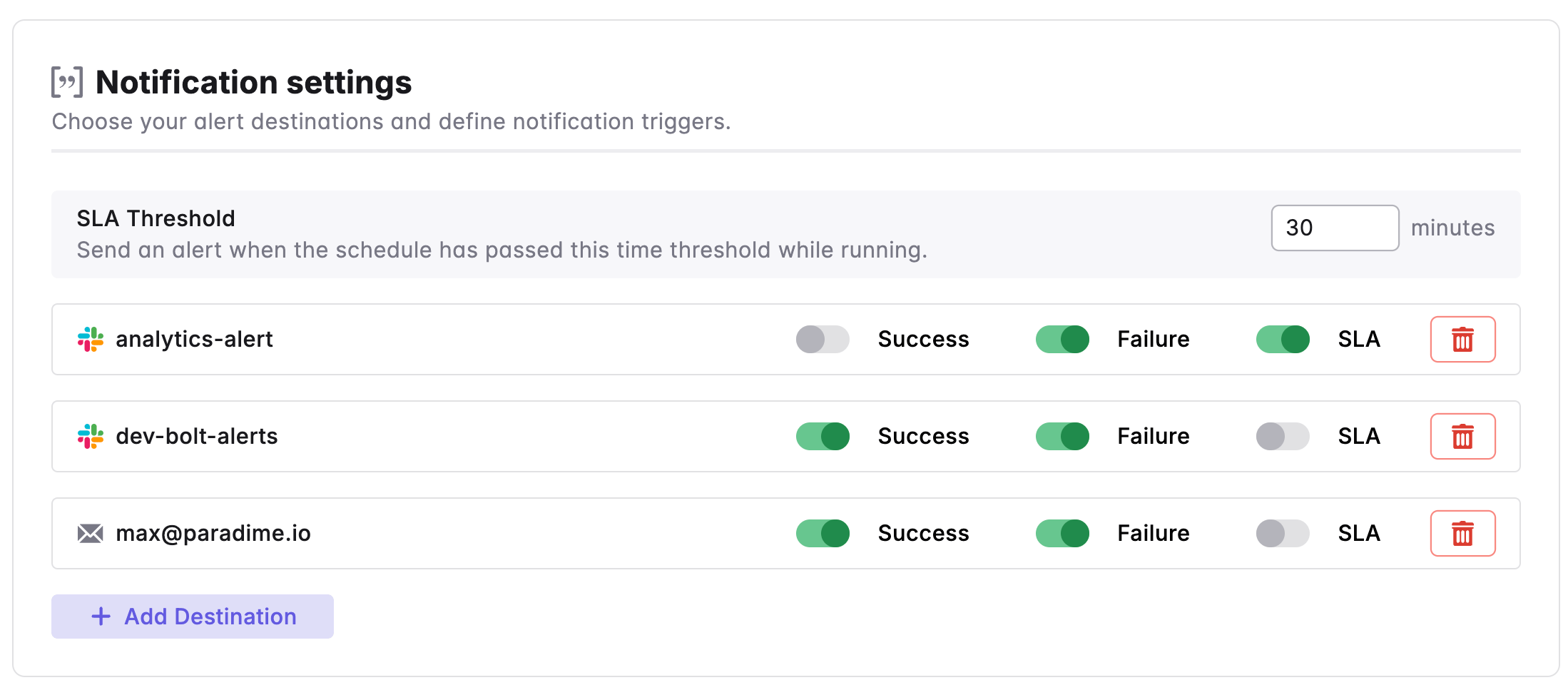
You can choose from three triggers to keep updated on schedule activity:
* **Success**: Alerts you when a Bolt Schedule completes successfully. Useful for confirming jobs are running as expected, tracking deployments, or monitoring scheduled runs.
* **Failure**: Notifies you of job failures, keeping you informed of pipeline issues, triggering incident responses, or monitoring data quality.
* **SLA (Service Level Agreement)**: Sends a notification if a job exceeds a specified runtime threshold (e.g., 30 minutes), which helps track performance issues, monitor long-running jobs, and ensure timely data processing.
 ***
## Notification Destinations
Paradime offers three notification options, allowing you to choose destinations based on your team’s communication preferences: [Email](/products/bolt/creating-schedules/notification-settings#email-notifications), [Slack](/products/bolt/creating-schedules/notification-settings#slack-notifications), and [Microsoft Teams](/products/bolt/creating-schedules/notification-settings#microsoft-teams-notifications).
To enable notifications for Slack or Microsoft Teams, see our set up guides:
* [Slack](/integrations/slack)
* [Microsoft Teams](/integrations/microsoft-teams)
***
### Configuration
To set up notifications, follow these steps:
1. **Navigate to the Bolt UI** and select the schedule you wish to edit.
2. **Click “Edit”** in the top right.
3. In **Notification Settings**, click **Add destination**.
4. Configure notifications for **Email, Slack,** or **Microsoft Teams**.
5. Update the **SLA Threshold** value if needed.
6. **Toggle notifications** “On” or “Off” as desired.
7. **Click “Deploy”** to save changes.
***
## Notification Templates
You can fully customize the content and structure of Slack and MS Teams alerts using Notification Templates. Templates are created in **Bolt > Alert Templates** and attached to a channel destination per schedule.
For full details on creating and using templates, see Alert Templates.
## Bolt System Alerts Notifications
Bolt System Alerts are notifications that keep you informed about system-level issues in relation to Bolt Pipelines.
These configuration are set at a workspace level instead of at a Bolt Scheduler level. These includes:
* Bolt Parse Errors
* OOM (Out of Memory) Runs
* Git Clone Failures
* 24-hour Run Timeouts
To learn more about these additional notifications and how to configure it in your workspace, check our [**Notifications settings guide**](/products/settings/notifications).
## Related topics
- [Snapshot Source Data Freshness](/products/bolt/creating-schedules/templates/dbt-tm-templates/snapshot-source-data-freshness.md)
- [Test Code Changes On Pull Requests](/products/bolt/creating-schedules/templates/ci-cd-templates/test-code-changes-on-pull-requests.md)
- [Run and Test all your dbt™ Models](/products/bolt/creating-schedules/templates/dbt-tm-templates/run-and-test-all-your-dbt-tm-models.md)
- [Re-executes the last dbt™ command from the point of failure](/products/bolt/creating-schedules/templates/dbt-tm-templates/re-executes-the-last-dbt-command.md)
- [Paradime Turbo CI Schema Cleanup](/products/bolt/ci-cd/turbo-ci/paradime-turbo-ci-schema-cleanup.md)
***
## Notification Destinations
Paradime offers three notification options, allowing you to choose destinations based on your team’s communication preferences: [Email](/products/bolt/creating-schedules/notification-settings#email-notifications), [Slack](/products/bolt/creating-schedules/notification-settings#slack-notifications), and [Microsoft Teams](/products/bolt/creating-schedules/notification-settings#microsoft-teams-notifications).
To enable notifications for Slack or Microsoft Teams, see our set up guides:
* [Slack](/integrations/slack)
* [Microsoft Teams](/integrations/microsoft-teams)
***
### Configuration
To set up notifications, follow these steps:
1. **Navigate to the Bolt UI** and select the schedule you wish to edit.
2. **Click “Edit”** in the top right.
3. In **Notification Settings**, click **Add destination**.
4. Configure notifications for **Email, Slack,** or **Microsoft Teams**.
5. Update the **SLA Threshold** value if needed.
6. **Toggle notifications** “On” or “Off” as desired.
7. **Click “Deploy”** to save changes.
***
## Notification Templates
You can fully customize the content and structure of Slack and MS Teams alerts using Notification Templates. Templates are created in **Bolt > Alert Templates** and attached to a channel destination per schedule.
For full details on creating and using templates, see Alert Templates.
## Bolt System Alerts Notifications
Bolt System Alerts are notifications that keep you informed about system-level issues in relation to Bolt Pipelines.
These configuration are set at a workspace level instead of at a Bolt Scheduler level. These includes:
* Bolt Parse Errors
* OOM (Out of Memory) Runs
* Git Clone Failures
* 24-hour Run Timeouts
To learn more about these additional notifications and how to configure it in your workspace, check our [**Notifications settings guide**](/products/settings/notifications).
## Related topics
- [Snapshot Source Data Freshness](/products/bolt/creating-schedules/templates/dbt-tm-templates/snapshot-source-data-freshness.md)
- [Test Code Changes On Pull Requests](/products/bolt/creating-schedules/templates/ci-cd-templates/test-code-changes-on-pull-requests.md)
- [Run and Test all your dbt™ Models](/products/bolt/creating-schedules/templates/dbt-tm-templates/run-and-test-all-your-dbt-tm-models.md)
- [Re-executes the last dbt™ command from the point of failure](/products/bolt/creating-schedules/templates/dbt-tm-templates/re-executes-the-last-dbt-command.md)
- [Paradime Turbo CI Schema Cleanup](/products/bolt/ci-cd/turbo-ci/paradime-turbo-ci-schema-cleanup.md)