 ### Schedule Types
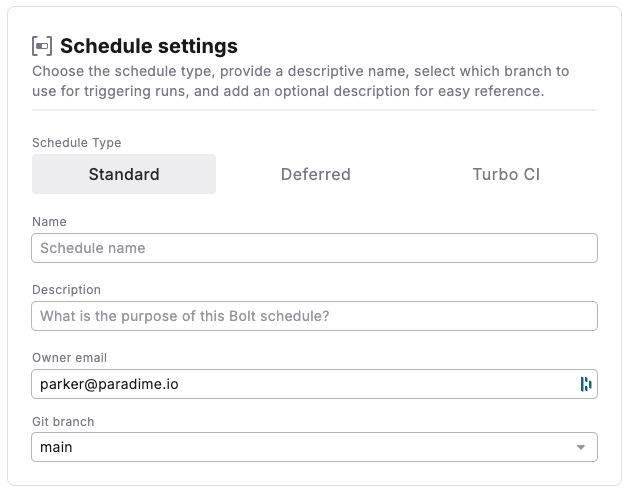
Bolt Schedules offer three separate schedule types in the schedule settings:
| Schedule Type | Description | When to Use |
| -------------------------------------------------------------------------------------- | --------------------------------------------------------------------------------------------------------------- | -------------------------------------------------------------------------------------------------------------------------------------------------------------------------------------------------------------------------------------------------------------- |
| [**Standard**](/products/bolt/creating-schedules/schedule-settings#standard-schedules) | Regular scheduled runs that execute your pipelines on a set schedule. | • Simple, time-based execution• Consistent, periodic runs• Basic scheduling needs |
| [**Deferred**](/products/bolt/creating-schedules/schedule-settings#deferred-schedules) | Optimized runs that leverage manifest comparison between runs to optimize execution time and compute resources. | • Run only modified models that have changed between runs• Run only models with "fresher" data.• Re-run models from point of failure in previous runs• Deploy changes to models after a Pull Request in Merged as part of Continuous Deployment workflows (CD) |
| [**Turbo** CI](/products/bolt/creating-schedules/schedule-settings#turbo-ci-schedules) | Automated pull request validation that builds modified models and their dependencies in a temporary schema. | • CI workflows to test code changes• Automatic validation for pull requests |
### Creating Schedules
#### Standard Schedules
Regular scheduled runs that execute your pipelines on a set schedule.
1. Go to **Bolt**, click **`Create New Schedule`**
2. **Schedule Type**: Select **`Standard`**
3. **Name**: Use a clear, descriptive name (e.g., "daily-backup-prod", "weekly-data-cleanup")
4. **Description**: (Optional) Add a brief purpose statement
5. **Owner Email**: Assign an owner
6. **Branch Selection**: Select the Git branch for execution (main/master or a feature/staging branch)
### Schedule Types
Bolt Schedules offer three separate schedule types in the schedule settings:
| Schedule Type | Description | When to Use |
| -------------------------------------------------------------------------------------- | --------------------------------------------------------------------------------------------------------------- | -------------------------------------------------------------------------------------------------------------------------------------------------------------------------------------------------------------------------------------------------------------- |
| [**Standard**](/products/bolt/creating-schedules/schedule-settings#standard-schedules) | Regular scheduled runs that execute your pipelines on a set schedule. | • Simple, time-based execution• Consistent, periodic runs• Basic scheduling needs |
| [**Deferred**](/products/bolt/creating-schedules/schedule-settings#deferred-schedules) | Optimized runs that leverage manifest comparison between runs to optimize execution time and compute resources. | • Run only modified models that have changed between runs• Run only models with "fresher" data.• Re-run models from point of failure in previous runs• Deploy changes to models after a Pull Request in Merged as part of Continuous Deployment workflows (CD) |
| [**Turbo** CI](/products/bolt/creating-schedules/schedule-settings#turbo-ci-schedules) | Automated pull request validation that builds modified models and their dependencies in a temporary schema. | • CI workflows to test code changes• Automatic validation for pull requests |
### Creating Schedules
#### Standard Schedules
Regular scheduled runs that execute your pipelines on a set schedule.
1. Go to **Bolt**, click **`Create New Schedule`**
2. **Schedule Type**: Select **`Standard`**
3. **Name**: Use a clear, descriptive name (e.g., "daily-backup-prod", "weekly-data-cleanup")
4. **Description**: (Optional) Add a brief purpose statement
5. **Owner Email**: Assign an owner
6. **Branch Selection**: Select the Git branch for execution (main/master or a feature/staging branch)
Tip: Use Last run unless retrying builds
8. **`Branch Selection:`** For Turbo CI, Bolt will execute the schedule when a PR is opened against your Main/Master branch.