> ## Documentation Index
> Fetch the complete documentation index at: https://docs.paradime.io/llms.txt
> Use this file to discover all available pages before exploring further.
# 6. Environment Variables Override
> Override environment variables at the schedule level in Paradime Bolt to customize runtime settings, manage secrets, and configure different values for development, staging, and production pipelines.
After configuring the [Notifications Settings](/products/bolt/creating-schedules/notification-settings) for a Bolt Schedule, you can override your Bolt environment variable values for specific schedules. This allows you to customize variable values per schedule without affecting your global environment configuration.
***
**Prerequisites**
* **Admin Access Required:** Only Admin roles have the ability to override environment variable values in Bolt Schedules.
* **Environment variables must first be created** in the [Paradime Environment Variables settings page](https://docs.paradime.io/app-help/documentation/settings/environment-variables/bolt-schedule-env-variables) before they can be overridden in a schedule.
* **Only UI based schedules currently supports Environment variables values override.**
### Use Cases
Overriding environment variables at the schedule level is useful for:
* **Environment-specific configurations** - Different values for development, staging, and production schedules
* **Schedule-specific parameters** - Custom thresholds, limits, or settings per schedule
* **Testing and debugging** - Temporary value changes without affecting global settings
* **Multi-tenant deployments** - Client-specific configurations within the same workspace
### Configuration
To override environment variables for a Bolt Schedule, follow these steps:
1. Navigate to the **Bolt UI** and select the schedule you wish to edit.
2. Click **"Edit"** in the top right corner.
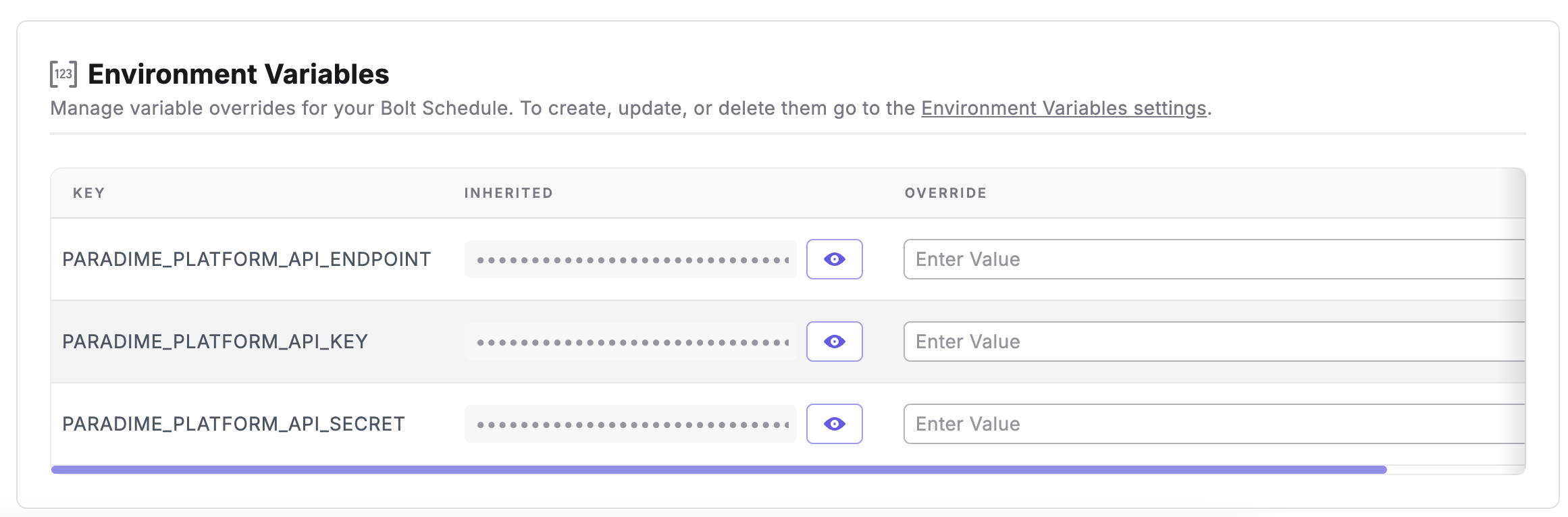
3. Scroll to the **Environment Variables Override** section.
4. In the **Override** column, enter a new variable value. If empty, Paradime will use the inherited value set at the [workspace level](/products/settings/environment-variables/bolt-schedule-env-variables).
5. Click **"Deploy"** to save your changes.
 ### How Overrides Work
* **Precedence:** Schedule-level overrides take precedence over global environment variable values
* **Scope:** Overrides only affect the specific schedule where they are configured
* **Inheritance:** If no override is set, the schedule uses the global variable value
* **Validation:** The system validates that the variable exists globally before allowing an override
## Related topics
- [Bolt Schedules Environment Variables](/products/settings/environment-variables/bolt-schedule-env-variables.md)
- [Bolt API](/developers/graphql-api/api-reference/bolt-api.md)
- [Bolt](/developers/python-sdk/modules/bolt.md)
- [Environment Variables](/products/settings/environment-variables/index.md)
- [Variables and Parameters](/guides/dbt-fundamentals/configuring-your-dbt-project/variables-and-parameters.md)
### How Overrides Work
* **Precedence:** Schedule-level overrides take precedence over global environment variable values
* **Scope:** Overrides only affect the specific schedule where they are configured
* **Inheritance:** If no override is set, the schedule uses the global variable value
* **Validation:** The system validates that the variable exists globally before allowing an override
## Related topics
- [Bolt Schedules Environment Variables](/products/settings/environment-variables/bolt-schedule-env-variables.md)
- [Bolt API](/developers/graphql-api/api-reference/bolt-api.md)
- [Bolt](/developers/python-sdk/modules/bolt.md)
- [Environment Variables](/products/settings/environment-variables/index.md)
- [Variables and Parameters](/guides/dbt-fundamentals/configuring-your-dbt-project/variables-and-parameters.md)