

What You’ll Get
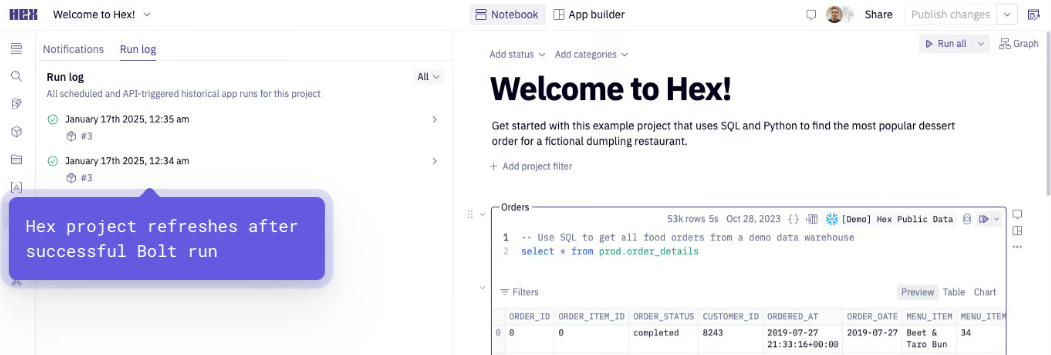
When a run succeeds, Bolt automatically triggers your Hex project:- Webhook triggers automatically
- Hex project refreshes with latest data
Key Benefits for Data Teams
- Automatic Hex project updates after successful Bolt runs
- Real-time dashboard refreshes
- Streamlined workflow between dbt™ pipelines and Hex analytics
- Always current visualizations and reports
Setup Guide
Set up Hex project updates for successful runs. Follow the steps below, and watch our interactive tutorial.Step 1: Gather Your Hex Credentials
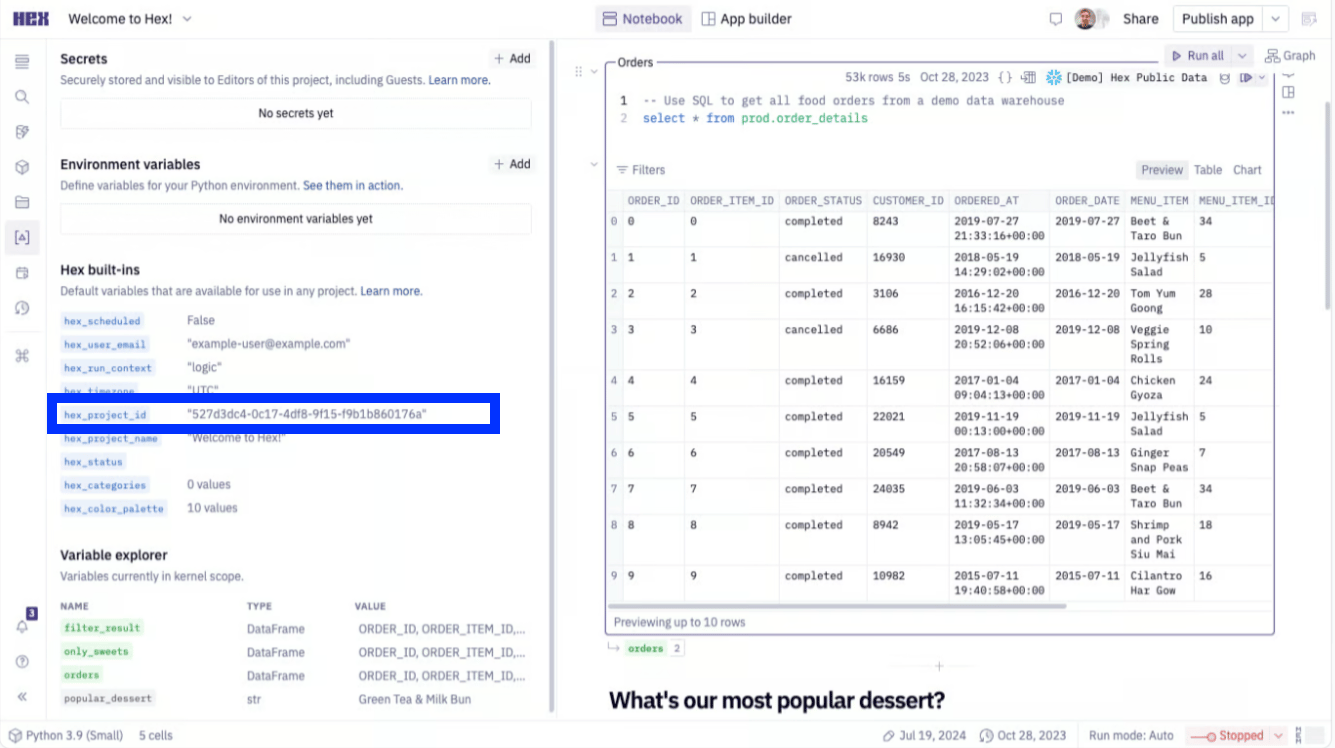
- Get Your Project UUID:
- Find the UUID in either:
- The URL after
/hex/ - The Variables view in the sidebar
- The URL after
- Find the UUID in either:
- Generate API Key:
- Go to Settings > API Keys
- Create a new workspace token
- Save the token securely
Step 2: Configure the Webhook In Paradime
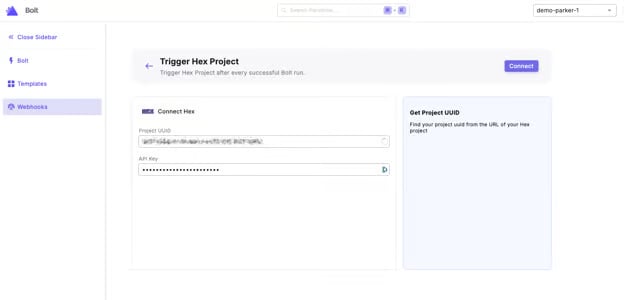
- From the Bolt home screen, go to Templates
- Click “Trigger Hex Project”
- Enter your Hex Credentials:
- Project UUID
- API Key (Workspace Token)
- Click “Connect”
Step 3: Test the Integration
- Run a Bolt schedule manually (the webhook triggers only on successful runs)
- After the run succeeds:
- From the Bolt homescreen, go to Webhooks
- Select your Hex Project Webhook
- Check the Endpoints tab to verify the webhook triggered
- Verify your Hex dashboard has updated