> ## Documentation Index
> Fetch the complete documentation index at: https://docs.paradime.io/llms.txt
> Use this file to discover all available pages before exploring further.
# Create Datadog Incident
> Automatically create Datadog incidents when dbt™ production runs fail
## Create Datadog Incident
Learn how to automatically create [Datadog](https://www.datadoghq.com/) incidents when dbt™ runs fail in Bolt. This integration helps data teams track and respond to pipeline failures efficiently by connecting Bolt's pipeline monitoring with Datadog's incident management system.
***
#### What You'll Get
When a run fails, Bolt automatically creates a Datadog incident containing:
* Incident title with schedule name and workspace
* Incident details including:
* Link to Paradime run logs
* Run ID with direct link
* Execution timestamps
* Commands executed
* Branch information
***
**Key Benefits for Data Teams**
* **Centralize incident management** - Track all pipeline failures alongside infrastructure incidents
* **Accelerate debugging** - Jump directly from Datadog alerts to Paradime run logs
* **Improve MTTR** - Leverage Datadog's incident workflow for faster resolution
* **Enable cross-team visibility** - Share pipeline health with platform and DevOps teams
**Prerequisites for Datadog Integration**
* Existing [Bolt schedule](https://app.paradime.io/bolt)
* Datadog account
* [Datadog API Key](https://docs.datadoghq.com/account_management/api-app-keys/)
* [Datadog Application Key](https://docs.datadoghq.com/account_management/api-app-keys/)
***
### Setup Guide
**Step 1: Gather Your Datadog Credentials**
1. **Generate API Key**:
* Follow the instructions in [Datadog documentation](https://docs.datadoghq.com/cloudcraft/getting-started/generate-api-key/)
* Copy and save your API Key securely
2. **Generate Application Key**:
* Follow the instructions in [Datadog documentation](https://docs.datadoghq.com/account_management/api-app-keys/)
* Copy and save your Application Key securely
**Step 2: Configure Template in Bolt**
1. From the [Bolt](https://app.paradime.io/bolt) home screen, go to [Templates](https://app.paradime.io/bolt/templates)
2. Click **Incidents** and select "Create Datadog Incident"
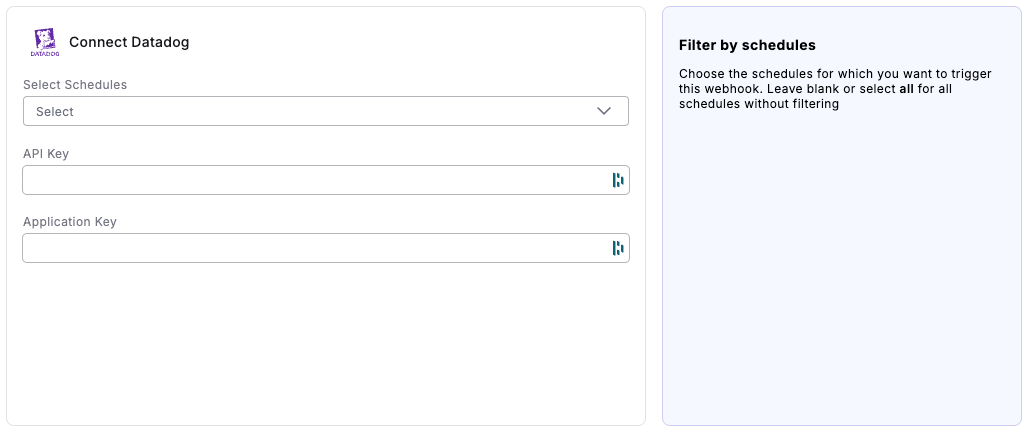
3. Fill in the following fields:
* **Select Schedules**: Choose the schedules for which you want to trigger this webhook. Leave blank or select all for all schedules without filtering
* **API Key**: Enter the API Key you generated in Datadog
* **Application Key**: Enter the Application Key you generated in Datadog
4. Click "Connect"
 **Step 3: Test the Integration**
1. Run a Bolt schedule manually that will fail (the webhook only triggers on failed runs)
2. After the run fails, check your Datadog dashboard for the new incident
3. Verify the incident contains run failure details
## Related topics
- [Incident Templates](/products/bolt/creating-schedules/templates/incident-templates/index.md)
- [Trigger Datadog Incidents](/products/bolt/creating-schedules/trigger-integrations/trigger-datadog-incidents.md)
- [Create Incident in incident.io](/products/bolt/creating-schedules/templates/incident-templates/create-incident-in-incident.io.md)
- [Create Rootly Incident](/products/bolt/creating-schedules/templates/incident-templates/create-rootly-incident.md)
- [Create New Relic Incidents](/products/bolt/creating-schedules/templates/incident-templates/create-new-relic-incidents.md)
**Step 3: Test the Integration**
1. Run a Bolt schedule manually that will fail (the webhook only triggers on failed runs)
2. After the run fails, check your Datadog dashboard for the new incident
3. Verify the incident contains run failure details
## Related topics
- [Incident Templates](/products/bolt/creating-schedules/templates/incident-templates/index.md)
- [Trigger Datadog Incidents](/products/bolt/creating-schedules/trigger-integrations/trigger-datadog-incidents.md)
- [Create Incident in incident.io](/products/bolt/creating-schedules/templates/incident-templates/create-incident-in-incident.io.md)
- [Create Rootly Incident](/products/bolt/creating-schedules/templates/incident-templates/create-rootly-incident.md)
- [Create New Relic Incidents](/products/bolt/creating-schedules/templates/incident-templates/create-new-relic-incidents.md)