> ## Documentation Index
> Fetch the complete documentation index at: https://docs.paradime.io/llms.txt
> Use this file to discover all available pages before exploring further.
# Create PagerDuty Incident
> Create PagerDuty incident when the following Bolt schedules fail.
export const Arcade = ({src, title}) =>
;
Learn how to automatically create [PagerDuty](https://www.pagerduty.com/) incidents when dbt™ runs fail in Bolt. This integration helps data teams track and respond to pipeline failures efficiently by connecting Bolt's pipeline monitoring with PagerDuty's incident response platform.
***
#### What You'll Get
When a run fails, Bolt automatically creates a PagerDuty incident containing:
* Incident title with schedule name and workspace
* Incident details including:
* Direct link to Paradime run logs
* Run ID and execution details
* Start and end timestamps
* Commands executed
* Branch information
* Urgency level based on your configuration
***
**Key Benefits for Data Teams**
* **Leverage existing on-call rotations** - Route data pipeline failures to the right team automatically
* **Unified incident response** - Manage data incidents alongside infrastructure incidents
* **Mobile alerting** - Get notified of critical pipeline failures via SMS, phone, or mobile push
* **Escalation policies** - Ensure critical data issues never go unaddressed
**Prerequisites for PagerDuty Integration**
* Existing [Bolt schedule](https://app.paradime.io/bolt)
* PagerDuty account with API access
* Valid PagerDuty user email address
* PagerDuty API Key
***
#### Setup Guide
Set up PagerDuty incident creation for failed runs. Follow the steps below, and watch our interactive tutorial.
**Step 1: Gather Your PagerDuty Information**
1. **Generate API Key**:
* Follow the instructions in Pager Duty Documentation [https://support.pagerduty.com/main/docs/api-access-keys](https://support.pagerduty.com/main/docs/api-access-keys)
* Create a new API key
* Copy and save your API key securely
2. **Identify From Email**:
* Use the email address of a valid PagerDuty user in your account
* This email must be associated with the account making API requests
* Typically, this should be a service account or bot user email
**Step 2: Configure the Webhook**
1. From the [Bolt](https://app.paradime.io/bolt) home screen, go to [Templates](https://app.paradime.io/bolt/templates)
2. Click **Ticketing** and select "Create PagerDuty Incident"
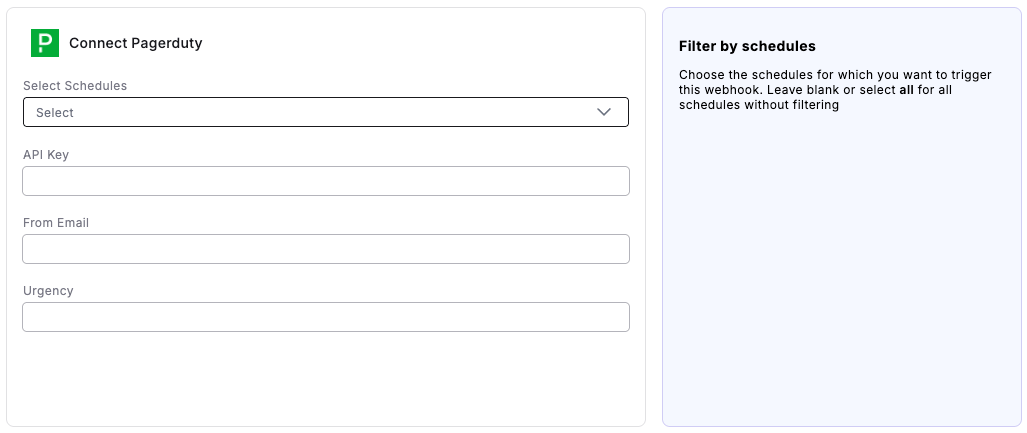
3. Fill in the following fields:
* **Select Schedules**: Choose the schedules for which you want to trigger this webhook. Leave blank or select all for all schedules without filtering
* **API Key**: Enter the API key you generated in PagerDuty
* **From Email**: Enter the email address of a valid user associated with the account making the request
* **Urgency**: Select the urgency level:
* `high` - For critical pipeline failures requiring immediate attention
* `low` - For non-critical failures that can be addressed during business hours
4. Click "Connect"
**Step 3: Test the Integration**
1. Run a Bolt schedule manually that will fail (the webhook only triggers on failed runs)
2. After the run fails:
* Check your PagerDuty dashboard for the new incident
* Verify the appropriate on-call person was notified
* Confirm the incident contains all run failure details
 ## Related topics
- [PagerDuty](/integrations/pagerduty.md)
- [Trigger PagerDuty Alarms](/products/bolt/creating-schedules/trigger-integrations/trigger-pagerduty-alarms.md)
- [Incident Templates](/products/bolt/creating-schedules/templates/incident-templates/index.md)
- [7. Trigger Integrations](/products/bolt/creating-schedules/trigger-integrations/index.md)
- [Webhooks](/developers/webhooks/index.md)
## Related topics
- [PagerDuty](/integrations/pagerduty.md)
- [Trigger PagerDuty Alarms](/products/bolt/creating-schedules/trigger-integrations/trigger-pagerduty-alarms.md)
- [Incident Templates](/products/bolt/creating-schedules/templates/incident-templates/index.md)
- [7. Trigger Integrations](/products/bolt/creating-schedules/trigger-integrations/index.md)
- [Webhooks](/developers/webhooks/index.md)