> ## Documentation Index
> Fetch the complete documentation index at: https://docs.paradime.io/llms.txt
> Use this file to discover all available pages before exploring further.
# Trigger Hightouch Syncs
> Trigger Hightouch Syncs when the following Bolt schedules succeed.
Learn how to automatically trigger Hightouch syncs when your dbt™ runs complete successfully in Bolt. This integration helps data teams maintain synchronized data by sending fresh data to operational tools immediately after successful pipeline runs.
***
#### What You'll Get
When a run succeeds, Bolt automatically triggers your Hightouch sync:
* Webhook sent to Hightouch API endpoint
* Sync executes with your configured mappings
* Updated data flows to your operational tools (Salesforce, HubSpot, etc.)
***
**Key Benefits for Data Teams**
* **Eliminate manual sync triggers** - No more logging into Hightouch after each dbt™ run
* **Accelerate data activation** - Fresh operational data available in minutes, not hours
* **Prevent stale data in business tools** - Ensure sales and marketing always use today's data
* **Scale reverse ETL operations** - Automate the data flow that powers customer-facing applications
**Prerequisites for Hightouch Integration**
* Existing [Bolt schedule](https://app.paradime.io/bolt)
* Hightouch account with configured sync(s)
* Admin access to Hightouch workspace
***
#### Setup Guide
Set up Hightouch sync triggering for successful runs. Follow the steps below, and watch our interactive tutorial.
**Step 1: Gather Your Hightouch Information**
1. **Get Your Sync Slug**:
* Go to your Hightouch Sync and find your Sync Slug in the [overview section](https://hightouch.com/docs/syncs/overview#run-details)
* Copy Sync Slug
2. **Generate Your API Key**:
* Follow [Hightouch documentation](https://hightouch.com/docs/developer-tools/api-guide#create-an-api-key) to create API Key
* Copy your API key and store it in a safe location (the key will only be displayed once)
**Step 2: Configure the Webhook in Bolt**
1. From the [Bolt](https://app.paradime.io/bolt) home screen, go to [Templates](https://app.paradime.io/bolt/templates)
2. Click **Reverse ETL** and select the "Trigger Hightouch Sync" template
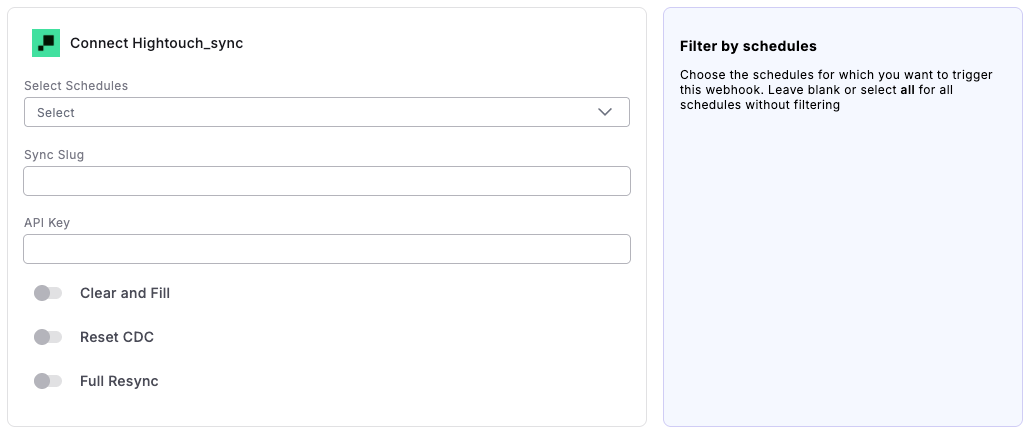
3. Fill in the following fields:
* **Select Schedules**: Choose the schedules for which you want to trigger this webhook. Leave blank or select all for all schedules without filtering
* **Sync Slug**: Enter the Sync Slug you copied from Hightouch
* **API Key**: Enter the API key you generated in Hightouch
4. Click "Connect"
 **Step 3: Test the Integration**
1. Run a Bolt schedule manually (the webhook triggers only on successful runs)
2. After the run succeeds:
* From the Bolt homescreen, go to [Webhooks](https://app.paradime.io/bolt/webhook)
* Select your Hightouch Sync Webhook
* Check the Endpoints tab to verify the webhook triggered
* Verify in Hightouch that your sync has started
## Related topics
- [Reverse ETL Templates](/products/bolt/creating-schedules/templates/reverse-etl-templates/index.md)
- [Trigger Hightouch Sequence Sync](/products/bolt/creating-schedules/templates/reverse-etl-templates/trigger-hightouch-sequence-sync.md)
- [Trigger Census Syncs](/products/bolt/creating-schedules/templates/reverse-etl-templates/trigger-census-syncs.md)
- [Fivetran CLI](/developers/paradime-cli/fivetran-cli.md)
- [Airbyte CLI](/developers/paradime-cli/airbyte-cli.md)
**Step 3: Test the Integration**
1. Run a Bolt schedule manually (the webhook triggers only on successful runs)
2. After the run succeeds:
* From the Bolt homescreen, go to [Webhooks](https://app.paradime.io/bolt/webhook)
* Select your Hightouch Sync Webhook
* Check the Endpoints tab to verify the webhook triggered
* Verify in Hightouch that your sync has started
## Related topics
- [Reverse ETL Templates](/products/bolt/creating-schedules/templates/reverse-etl-templates/index.md)
- [Trigger Hightouch Sequence Sync](/products/bolt/creating-schedules/templates/reverse-etl-templates/trigger-hightouch-sequence-sync.md)
- [Trigger Census Syncs](/products/bolt/creating-schedules/templates/reverse-etl-templates/trigger-census-syncs.md)
- [Fivetran CLI](/developers/paradime-cli/fivetran-cli.md)
- [Airbyte CLI](/developers/paradime-cli/airbyte-cli.md)