> ## Documentation Index
> Fetch the complete documentation index at: https://docs.paradime.io/llms.txt
> Use this file to discover all available pages before exploring further.
# 4. Trigger Types
> Explore different ways to trigger Bolt schedules: time-based, event-driven, merge triggers, and API-based execution options.
export const Arcade = ({src, title}) =>
;
After configuring the **Command Settings** of a Bolt Schedule, you’ll define trigger conditions to specify when the schedule should initiate runs. Bolt Schedules support four distinct trigger types, each designed for specific use cases and workflows.
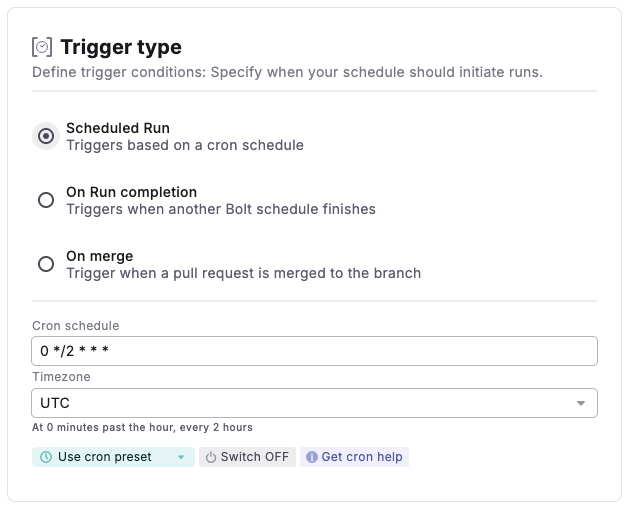 ## Available Trigger Types
| Trigger Type | Description | Use Cases |
| ------------------------------------------------------------------------------------------ | ---------------------------------------------------------------------------------------------------------------- | ----------------------------------------------------------------------------------------------------------- |
| [**Scheduled Run**](/products/bolt/creating-schedules/trigger-types#scheduled-run) | Runs the job at specific times and frequencies using cron syntax. | • Daily data warehouse updates• Hourly incremental loads• Weekly report generation, monthly reconciliation. |
| [**On Run Completion**](/products/bolt/creating-schedules/trigger-types#on-run-completion) | Triggers when a specified run finishes its execution, in the same dbt project or from another Paradime workspace | • Sequential data processing• Dependency-based execution to other projects• Chained transformations |
| [**On Merge**](/products/bolt/creating-schedules/trigger-types#on-merge) | Executes when code is merged into designated branches in your Git repository. | • Continuous Deployment (CD) workflows to deploy changes right after merged in your Git Branch |
| [**Bolt API**](/products/bolt/creating-schedules/trigger-types#bolt-api) | Programmatically triggers jobs through [Bolt API](/products/bolt/bolt-api) endpoints. | • External tool integration• Custom workflows (e.g. Data Orchestration)• Event-driven processing |
## Detailed Trigger Type Configurations
### Scheduled Run
**Purpose**: To automate jobs on a fixed schedule using cron syntax.
**How it Works**: Specify the timing and frequency with cron expressions, such as hourly, daily, weekly, or custom intervals.
#### Configuration:
1. From the Bolt UI, select **Scheduled Run** as the **Trigger Type**
2. A**dd cron expression -** you can use some of the preset option from the dropdown or build your own
3. (Optional) **Select your timezone** to ensure schedules execute at the correct time for your location and business hours
* **Default**: UTC (schedules run in Coordinated Universal Time)
4. For **Manual** (Ad-hoc) runs, simply set the cron schedule to `OFF`.
For assistance in setting up cron expressions, use the **cron preset** dropdown, or visit [crontab.guru](https://crontab.guru/).
***
### On Run Completion
**Purpose**: Initiates a Bolt Schedule once another specified Bolt Schedule completes, ensuring dependency-based execution for sequential workflows.
**How it works:** This trigger starts a Bolt Schedule only after a designated “parent” job finishes, creating a dependency chain.
#### Configuration
1. From the Bolt UI, select **On Run Completion** as the **Trigger Type**
2. In the **Workspace Name** dropdown, select the [Paradime Workspace](/products/settings/workspaces) containing the triggering Bolt Schedule.
3. In the **Bolt Schedule Name** dropdown, select the specific Bolt Schedule that will act as the trigger.
4. Select in which event the "parent" Schedule will trigger this new run, you can choose between:
1. **Passed:** the schedule will be trigger only if the "parent" complete successfully
2. **Failed:** the schedule will be trigger only if the "parent" complete and contains errors
3. **Both Passed & Failed:** the schedule will be trigger only irrespective of the "parent" status after completion
***
### On Merge
**Purpose**: Automatically runs Bolt pipelines when code is merged into designated branches in your Git repository.
**Prerequisites - GitHub integration**
Ensure that Paradime is connected to your GitHub repository and the[ **GitHub App**](/products/bolt/ci-cd/turbo-ci/github) is installed This integration enables Paradime to detect merge events in specified branches.
**Using another Git provider?** Check our [code templates](/products/bolt/ci-cd/continuous-deployment-with-bolt/index) to execute on Merge Runs.
#### Configuration:
1. From the Bolt UI, select **On Merge** as the **Trigger Type**
2. Click **Deploy** to publish your schedule.
***
### Bolt API
**Purpose**: Allows external systems or custom scripts to programmatically trigger jobs via REST API.
**How it Works**: Uses Paradime’s REST API endpoints to initiate jobs based on events or actions outside of Paradime.
**Configuration**: When configuring a Bolt schedule and wants to trigger this via the Paradime API, select the [**Scheduled run** ](/products/bolt/creating-schedules/trigger-types#scheduled-run)trigger type click on the `OFF` button to let the Schedule being trigger only via the API.
For detailed configuration steps, refer to the [Bolt API and Webhooks](/products/bolt/bolt-api) documentation.
***
Now, let's learn how to configure the [Notification Settings](/products/bolt/creating-schedules/notification-settings) of a Bolt Schedule.
## Related topics
- [Run and Test all your dbt™ Models](/products/bolt/creating-schedules/templates/dbt-tm-templates/run-and-test-all-your-dbt-tm-models.md)
- [Snapshot Source Data Freshness](/products/bolt/creating-schedules/templates/dbt-tm-templates/snapshot-source-data-freshness.md)
- [Test Code Changes On Pull Requests](/products/bolt/creating-schedules/templates/ci-cd-templates/test-code-changes-on-pull-requests.md)
- [Transferring dbt™ Jobs](/guides/migrations/dbt-cloud-tm-importer/transferring-dbt-tm-jobs.md)
- [Paradime Turbo CI Schema Cleanup](/products/bolt/ci-cd/turbo-ci/paradime-turbo-ci-schema-cleanup.md)
## Available Trigger Types
| Trigger Type | Description | Use Cases |
| ------------------------------------------------------------------------------------------ | ---------------------------------------------------------------------------------------------------------------- | ----------------------------------------------------------------------------------------------------------- |
| [**Scheduled Run**](/products/bolt/creating-schedules/trigger-types#scheduled-run) | Runs the job at specific times and frequencies using cron syntax. | • Daily data warehouse updates• Hourly incremental loads• Weekly report generation, monthly reconciliation. |
| [**On Run Completion**](/products/bolt/creating-schedules/trigger-types#on-run-completion) | Triggers when a specified run finishes its execution, in the same dbt project or from another Paradime workspace | • Sequential data processing• Dependency-based execution to other projects• Chained transformations |
| [**On Merge**](/products/bolt/creating-schedules/trigger-types#on-merge) | Executes when code is merged into designated branches in your Git repository. | • Continuous Deployment (CD) workflows to deploy changes right after merged in your Git Branch |
| [**Bolt API**](/products/bolt/creating-schedules/trigger-types#bolt-api) | Programmatically triggers jobs through [Bolt API](/products/bolt/bolt-api) endpoints. | • External tool integration• Custom workflows (e.g. Data Orchestration)• Event-driven processing |
## Detailed Trigger Type Configurations
### Scheduled Run
**Purpose**: To automate jobs on a fixed schedule using cron syntax.
**How it Works**: Specify the timing and frequency with cron expressions, such as hourly, daily, weekly, or custom intervals.
#### Configuration:
1. From the Bolt UI, select **Scheduled Run** as the **Trigger Type**
2. A**dd cron expression -** you can use some of the preset option from the dropdown or build your own
3. (Optional) **Select your timezone** to ensure schedules execute at the correct time for your location and business hours
* **Default**: UTC (schedules run in Coordinated Universal Time)
4. For **Manual** (Ad-hoc) runs, simply set the cron schedule to `OFF`.
For assistance in setting up cron expressions, use the **cron preset** dropdown, or visit [crontab.guru](https://crontab.guru/).
***
### On Run Completion
**Purpose**: Initiates a Bolt Schedule once another specified Bolt Schedule completes, ensuring dependency-based execution for sequential workflows.
**How it works:** This trigger starts a Bolt Schedule only after a designated “parent” job finishes, creating a dependency chain.
#### Configuration
1. From the Bolt UI, select **On Run Completion** as the **Trigger Type**
2. In the **Workspace Name** dropdown, select the [Paradime Workspace](/products/settings/workspaces) containing the triggering Bolt Schedule.
3. In the **Bolt Schedule Name** dropdown, select the specific Bolt Schedule that will act as the trigger.
4. Select in which event the "parent" Schedule will trigger this new run, you can choose between:
1. **Passed:** the schedule will be trigger only if the "parent" complete successfully
2. **Failed:** the schedule will be trigger only if the "parent" complete and contains errors
3. **Both Passed & Failed:** the schedule will be trigger only irrespective of the "parent" status after completion
***
### On Merge
**Purpose**: Automatically runs Bolt pipelines when code is merged into designated branches in your Git repository.
**Prerequisites - GitHub integration**
Ensure that Paradime is connected to your GitHub repository and the[ **GitHub App**](/products/bolt/ci-cd/turbo-ci/github) is installed This integration enables Paradime to detect merge events in specified branches.
**Using another Git provider?** Check our [code templates](/products/bolt/ci-cd/continuous-deployment-with-bolt/index) to execute on Merge Runs.
#### Configuration:
1. From the Bolt UI, select **On Merge** as the **Trigger Type**
2. Click **Deploy** to publish your schedule.
***
### Bolt API
**Purpose**: Allows external systems or custom scripts to programmatically trigger jobs via REST API.
**How it Works**: Uses Paradime’s REST API endpoints to initiate jobs based on events or actions outside of Paradime.
**Configuration**: When configuring a Bolt schedule and wants to trigger this via the Paradime API, select the [**Scheduled run** ](/products/bolt/creating-schedules/trigger-types#scheduled-run)trigger type click on the `OFF` button to let the Schedule being trigger only via the API.
For detailed configuration steps, refer to the [Bolt API and Webhooks](/products/bolt/bolt-api) documentation.
***
Now, let's learn how to configure the [Notification Settings](/products/bolt/creating-schedules/notification-settings) of a Bolt Schedule.
## Related topics
- [Run and Test all your dbt™ Models](/products/bolt/creating-schedules/templates/dbt-tm-templates/run-and-test-all-your-dbt-tm-models.md)
- [Snapshot Source Data Freshness](/products/bolt/creating-schedules/templates/dbt-tm-templates/snapshot-source-data-freshness.md)
- [Test Code Changes On Pull Requests](/products/bolt/creating-schedules/templates/ci-cd-templates/test-code-changes-on-pull-requests.md)
- [Transferring dbt™ Jobs](/guides/migrations/dbt-cloud-tm-importer/transferring-dbt-tm-jobs.md)
- [Paradime Turbo CI Schema Cleanup](/products/bolt/ci-cd/turbo-ci/paradime-turbo-ci-schema-cleanup.md)