> ## Documentation Index
> Fetch the complete documentation index at: https://docs.paradime.io/llms.txt
> Use this file to discover all available pages before exploring further.
# Incoming webhooks
> Start a Bolt schedule from any tool that can send a POST request, using a secret incoming webhook, and check every request the webhook receives.
An incoming webhook starts a Bolt schedule when another tool sends a `POST` request to its URL with its secret. Use one for any tool that can send an HTTP request with a custom header, such as Jira Automation, Zapier, a CI job, or a script, without setting up an API key for the [Bolt API](/products/bolt/bolt-api). In the app, each incoming webhook is listed as a **Trigger URL**.
## Before you start
* To create and manage incoming webhooks, you need the Admin, Workspace Admin, or Developer role. Anyone who can open Bolt can see them and the requests they receive.
* The schedule must be built in the Bolt UI and deployed. Schedules defined in YAML can't get an incoming webhook from the app.
## Create an incoming webhook
1. Open the schedule in Bolt and click **Edit**.
2. Under **Trigger type**, select **Incoming webhook**, so the schedule runs only when a request comes in.
3. In the **Trigger URLs** card, click **New Trigger URL**.
4. Enter a **Name**, such as the tool that will call the webhook, and click **Create**. The name shows on every run the webhook starts.
5. Copy the **URL** and the **Authorization header**, or click **Copy as curl**, then click **Done**.
6. Click **Deploy** to save the schedule's new trigger type.
The secret shows only once. Paradime doesn't store it, so if you lose it, [rotate the secret](#pause-rotate-or-delete-an-incoming-webhook) to get a new one.
An incoming webhook works as soon as you create it. Pausing, rotating, and deleting it also apply right away, without a deploy.
## Call the webhook
Send a `POST` request to the webhook's URL, with the secret in the `Authorization` header:
```bash theme={"system"}
curl -X POST "" \
-H "Authorization: Bearer "
```
* Only `POST` requests start a run.
* Send the secret only in the `Authorization` header. A request that puts it in the URL's query string is refused.
* The request body is optional and doesn't change the run. The run uses the schedule's own commands and branch.
Paradime answers each request with JSON:
| Response | What happened |
| - | - |
| `200` with `"accepted": true` and a `run_id` | A run started. |
| `200` with `"skipped": "already_running"` | The schedule was already running, so no new run started. Requests aren't queued. |
| `200` with `"accepted": false` and `"rejected"` | The schedule is no longer in the repository, was renamed, or is suspended. |
| `200` with `"accepted": false` and `"failed"` | The run couldn't start. |
| `401` | The secret is missing or wrong, or the webhook is paused or deleted. |
| `429` | Too many requests to this webhook. Wait for the number of seconds in the `Retry-After` header. |
## Test an incoming webhook
To check a webhook without waiting for the other tool, click **Send test request** on it. A test request starts a real run of the schedule, so the toast links to the run.
## Check deliveries
Every request that reaches a schedule is recorded as a delivery. To see them, go to **Bolt** > **Webhooks** > **Incoming**, or click **Deliveries** on a webhook in the schedule's edit form.
The **Incoming** tab lists every incoming webhook in the workspace with its schedule, its status (**Active** or **Paused**), and its last request. Search by name, or filter by schedule. Expand a row to see its deliveries:
* **Outcome**: **Run started**, **Skipped**, **Rejected**, or **Failed**. Test requests carry a **Test** tag.
* **Details**: why, for example "A run was already in progress".
* **Run**: a link to the run the request started.
* **Received**: when the request arrived.
The list shows the latest 100 deliveries for each webhook. Requests refused before they reach the schedule, with a `400`, `401`, or `429` response, aren't recorded.
The **Outgoing** tab is where you manage the [outgoing webhooks](/developers/webhooks/index) that Paradime sends to other tools when a run starts or completes.
## Pause, rotate, or delete an incoming webhook
Manage a webhook from the **Trigger URLs** card in the schedule's edit form:
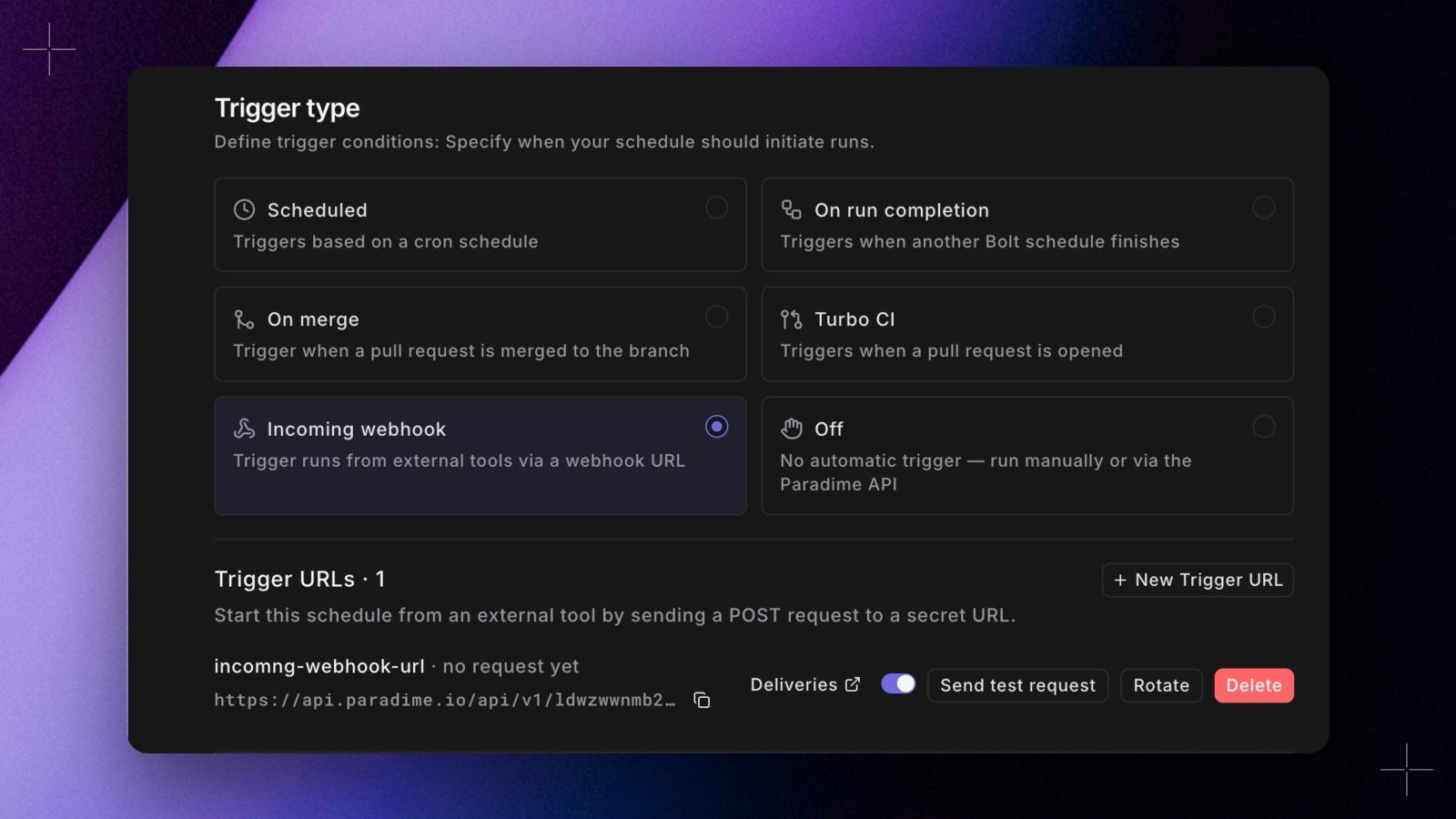 * **Pause**: turn off the webhook's switch. Requests to a paused webhook get a `401` and start nothing. Turn the switch back on to resume.
* **Rotate**: confirm with **Rotate secret** to create a new secret, shown once. The old secret stops working immediately, so update the tool that calls the webhook.
* **Delete**: requests to the webhook's URL are refused from then on. You can't undo this.
Creating, rotating, and deleting an incoming webhook are recorded in the [audit log](/products/settings/configuration/audit-logs).
## How runs started by an incoming webhook show up
* The run page says **Triggered by an incoming webhook**, with the webhook's name and a link to its deliveries.
* In the schedule list, the **Trigger** column shows **Trigger URL**, and **Next run** shows **On request**.
* Schedules set to [run after](/products/bolt/creating-schedules/trigger-types#on-run-completion) this one start after a run that an incoming webhook started, as they do after any other run.
## Things to know
* A request that arrives while the schedule is running is skipped, not queued.
* If you remove or rename the schedule, its incoming webhooks reject requests. They work again if a schedule with the same name comes back.
* Changing the schedule's trigger type doesn't delete its incoming webhooks, and they keep starting runs. Pause or delete them to stop them.
## Related topics
- [Triggers](/products/bolt/creating-schedules/trigger-types.md)
- [Start a Bolt schedule from any tool with an incoming webhook](/changelog/2026-10-16/incoming-webhooks.md)
- [Microsoft Teams](/integrations/microsoft-teams.md)
- [Start Bolt schedules from outside Paradime](/products/bolt/external-triggers/index.md)
- [Microsoft Teams Alerts](/integrations/elementary-data/sending-alerts/microsoft-teams-alerts.md)
This documentation is built and hosted on [Mintlify](https://mintlify.com), a developer documentation platform.
* **Pause**: turn off the webhook's switch. Requests to a paused webhook get a `401` and start nothing. Turn the switch back on to resume.
* **Rotate**: confirm with **Rotate secret** to create a new secret, shown once. The old secret stops working immediately, so update the tool that calls the webhook.
* **Delete**: requests to the webhook's URL are refused from then on. You can't undo this.
Creating, rotating, and deleting an incoming webhook are recorded in the [audit log](/products/settings/configuration/audit-logs).
## How runs started by an incoming webhook show up
* The run page says **Triggered by an incoming webhook**, with the webhook's name and a link to its deliveries.
* In the schedule list, the **Trigger** column shows **Trigger URL**, and **Next run** shows **On request**.
* Schedules set to [run after](/products/bolt/creating-schedules/trigger-types#on-run-completion) this one start after a run that an incoming webhook started, as they do after any other run.
## Things to know
* A request that arrives while the schedule is running is skipped, not queued.
* If you remove or rename the schedule, its incoming webhooks reject requests. They work again if a schedule with the same name comes back.
* Changing the schedule's trigger type doesn't delete its incoming webhooks, and they keep starting runs. Pause or delete them to stop them.
## Related topics
- [Triggers](/products/bolt/creating-schedules/trigger-types.md)
- [Start a Bolt schedule from any tool with an incoming webhook](/changelog/2026-10-16/incoming-webhooks.md)
- [Microsoft Teams](/integrations/microsoft-teams.md)
- [Start Bolt schedules from outside Paradime](/products/bolt/external-triggers/index.md)
- [Microsoft Teams Alerts](/integrations/elementary-data/sending-alerts/microsoft-teams-alerts.md)
This documentation is built and hosted on [Mintlify](https://mintlify.com), a developer documentation platform.