> ## Documentation Index
> Fetch the complete documentation index at: https://docs.paradime.io/llms.txt
> Use this file to discover all available pages before exploring further.
# Schedule Configurations
> View and modify existing Bolt schedules, manage scheduled runs, and access different code formats for deployment.
export const Arcade = ({src, title}) =>
;
After creating a Bolt Schedule, you can view and modify it to suit your evolving needs. This section covers how to view and edit Bolt Schedules via the UI and highlights essential actions for managing your schedules.
### Table of Contents
* [Viewing Bolt Schedule List](/products/bolt/managing-schedules/schedule-configurations#viewing-bolt-schedule-list)
* [Modifying Existing Schedules](/products/bolt/managing-schedules/schedule-configurations#modifying-existing-schedules)
* [Managing Scheduled Runs](/products/bolt/managing-schedules/schedule-configurations#managing-scheduled-runs)
* [Trigger a Manual Run](/products/bolt/managing-schedules/schedule-configurations#trigger-a-run-manually)
* [Cancel a Running Schedule](/products/bolt/managing-schedules/schedule-configurations#cancel-running-schedule)
* [Pause a Schedule](/products/bolt/managing-schedules/schedule-configurations#pause-a-schedule)
* [View a Schedule’s YAML Code](/products/bolt/managing-schedules/schedule-configurations#utilize-a-schedules-yaml-code)
* [“Defer to Production” Configuration](/products/bolt/managing-schedules/schedule-configurations#defer-to-production-configuration)
### Viewing Bolt Schedule List
The Bolt home page provides a summarized list of all the schedules configured in your Paradime workspace.
Bolt Schedules created through the `paradime_schedules.yml` file are available in the Bolt UI and can also be reconfigured there. However, schedules created directly in the Bolt UI are not version-controlled and will not appear in the `paradime_schedules.yml` file.
Here you can view preview details of each schedule, including:
| Column | Description | Example Value(s) |
| --------------------------- | --------------------------------------------------------------------------------- | --------------------------------------------------- |
| Name | Name of the schedule | `"production run"` |
| Status | Current run status of the schedule | `Success`, `Error`, `No Runs`, `Running` |
| Owner | The owner of the schedule (if configured) | `john@acme.com` |
| Cron Description | The time of day (UTC time) that the schedule runs, defined by cron configuration. | `OFF`, `At 00:00, every day (UTC)` |
| Cron Configuration | The cron syntax of the scheduled run. | `OFF`, `@daily`, `0 8 * * *` |
| Last Run | Date and time of when the schedule was last triggered | `October 31, 2024 at 5:00 PM PDT` |
| Next Run | Date and time the scheduler will trigger next | `November 1, 2024 at 5:00 PM PDT` |
| Trigger Type | How your schedule is triggered | `On Schedule`, `On run completion,` |
| On completion Configuration | Details on how your `On Run Completion` is configured (If applicable) | `schedule medium in workspace max on status passed` |
Use this list to view all schedule names parsed, including any [schedules configured as code](/products/bolt/creating-schedules/schedules-as-code/index).
### Modifying Existing Schedules
1. **Navigate to the Bolt UI** and select the schedule you wish to edit.
2. **Click “Edit”** to access the schedule's configuration settings.
3. Update any necessary schedule parameters, including **Schedule Type**, **Commands**, **Trigger Type**, and **Notifications**.
4. **Deploy your changes** to save the updated configuration.
Alternatively, you can modify schedules directly in the `paradime_schedules.yml` file within your dbt™ project. For details, refer to [View a Schedule’s YAML Code](/products/bolt/managing-schedules/schedule-configurations#utilize-a-schedules-yaml-code)
### Managing Scheduled Runs
Bolt offers four trigger types for schedules:
#### Trigger a manual run
In addition to automatic executions, you can trigger manual runs for Bolt Schedules as needed:
1. **Navigate to the Bolt UI** and select the specific schedule.
2. Click the **Run** button in the top right corner to initiate a new run.
#### Cancel running schedule
While the schedule is active, click the **Cancel** button next to the currently running schedule.
#### Pause a Schedule
To temporarily disable a schedule:
1. **Click on the schedule name** to view its details.
2. Click **Edit** to begin modifying the schedule.
3. At the top of the editor, toggle the **switch off** to pause the schedule.
***
### Understanding Schedule States
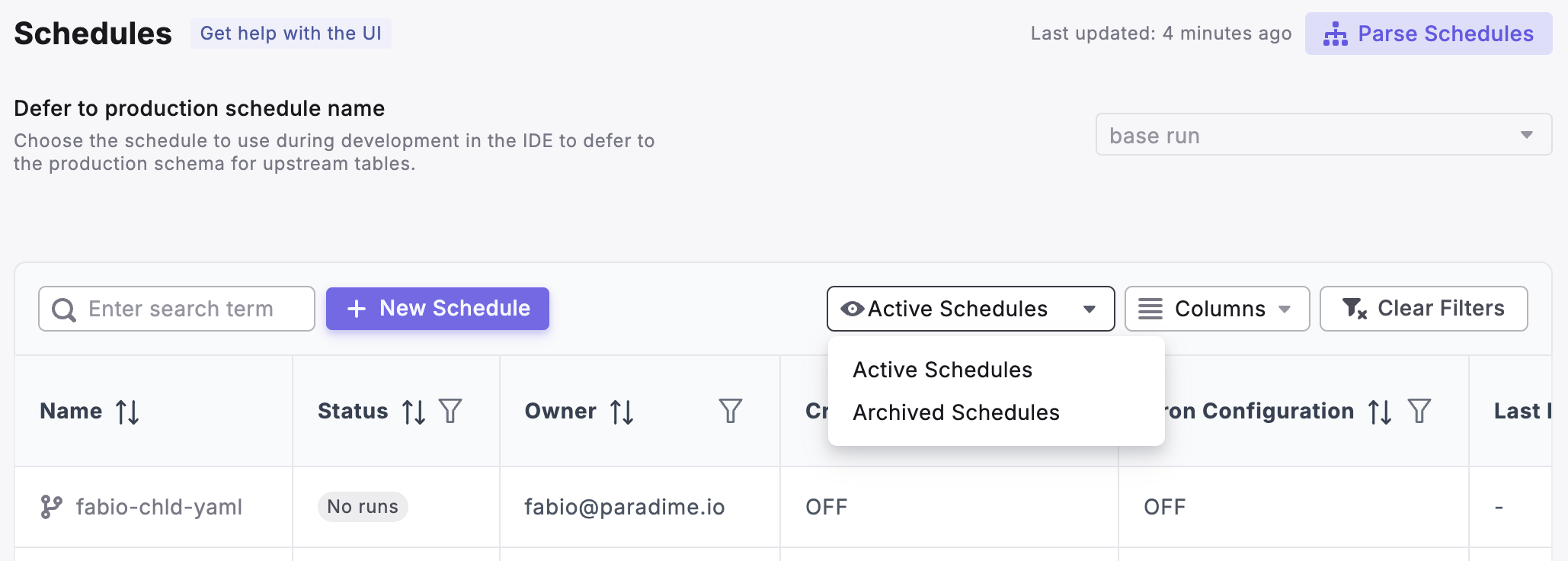
Bolt schedules can be either **Active** or **Archived**. Active schedules can be found in the main schedule list, while archived schedules are accessible via the "Active Schedules" dropdown menu.
 #### **About Archived Schedules**
A schedule becomes archived when:
* It is removed from the `paradime_schedules.yml` file
* It is deleted through the Bolt User Interface
* Its name is changed (the schedule with the old name becomes archived)
To restore an archived schedule:
* **Schedule created via UI**: Access the archived schedule, click Edit, and deploy again
* **Schedules created via** [**code**](/products/bolt/creating-schedules/schedules-as-code/index): Add the schedule back to `paradime_schedules.yml` using its original name
***
### View a Schedule's YAML, Airflow, and Python code
Paradime offers multiple ways to trigger and manage Bolt Schedules. You can choose the method that best suits your workflow, from version-controlled **YAML** configurations to orchestration with **Airflow** or integration with custom scripts using the **Python SDK**.
To access the code for each method:
1. **Click on the Bolt schedule name** to view the schedule details.
2. Click **Edit**.
3. Click **“\ Code”** to view the YAML, Airflow, and Python code options.
Use the tabs below to explore specific code examples for each option:
***
### "Defer to Production" Configuration
To use a production schedule during development in the IDE and [defer to the production](/guides/paradime-fundamentals/dbt-tm-defer-to-production) schema for upstream tables, select the desired schedule name from the dropdown menu.
Learn more about how Defer to Production works in our learning guide, [Using --defer in Parading](/guides/paradime-fundamentals/dbt-tm-defer-to-production)
## Related topics
- [Viewing Run Log History](/products/bolt/managing-schedules/viewing-run-log-history.md)
- [Orchestration](/products/bolt/integrations/orchestration.md)
- [Schedules Dashboard](/products/radar/dbt-monitoring/schedules-dashboard.md)
- [Schedules as Code](/products/bolt/creating-schedules/schedules-as-code/index.md)
- [Managing Schedules](/products/bolt/managing-schedules/index.md)
#### **About Archived Schedules**
A schedule becomes archived when:
* It is removed from the `paradime_schedules.yml` file
* It is deleted through the Bolt User Interface
* Its name is changed (the schedule with the old name becomes archived)
To restore an archived schedule:
* **Schedule created via UI**: Access the archived schedule, click Edit, and deploy again
* **Schedules created via** [**code**](/products/bolt/creating-schedules/schedules-as-code/index): Add the schedule back to `paradime_schedules.yml` using its original name
***
### View a Schedule's YAML, Airflow, and Python code
Paradime offers multiple ways to trigger and manage Bolt Schedules. You can choose the method that best suits your workflow, from version-controlled **YAML** configurations to orchestration with **Airflow** or integration with custom scripts using the **Python SDK**.
To access the code for each method:
1. **Click on the Bolt schedule name** to view the schedule details.
2. Click **Edit**.
3. Click **“\ Code”** to view the YAML, Airflow, and Python code options.
Use the tabs below to explore specific code examples for each option:
***
### "Defer to Production" Configuration
To use a production schedule during development in the IDE and [defer to the production](/guides/paradime-fundamentals/dbt-tm-defer-to-production) schema for upstream tables, select the desired schedule name from the dropdown menu.
Learn more about how Defer to Production works in our learning guide, [Using --defer in Parading](/guides/paradime-fundamentals/dbt-tm-defer-to-production)
## Related topics
- [Viewing Run Log History](/products/bolt/managing-schedules/viewing-run-log-history.md)
- [Orchestration](/products/bolt/integrations/orchestration.md)
- [Schedules Dashboard](/products/radar/dbt-monitoring/schedules-dashboard.md)
- [Schedules as Code](/products/bolt/creating-schedules/schedules-as-code/index.md)
- [Managing Schedules](/products/bolt/managing-schedules/index.md)