> ## Documentation Index
> Fetch the complete documentation index at: https://docs.paradime.io/llms.txt
> Use this file to discover all available pages before exploring further.
# Lint
> Learn how to use Paradime's code quality tools to automatically format SQL and YAML files in your dbt™ project.
export const Arcade = ({src, title}) =>
;
Paradime provides built-in code quality tools to help maintain consistent formatting and style in your dbt™ project. The Lint feature automatically applies the appropriate formatting tool based on your file type.
### How It Works
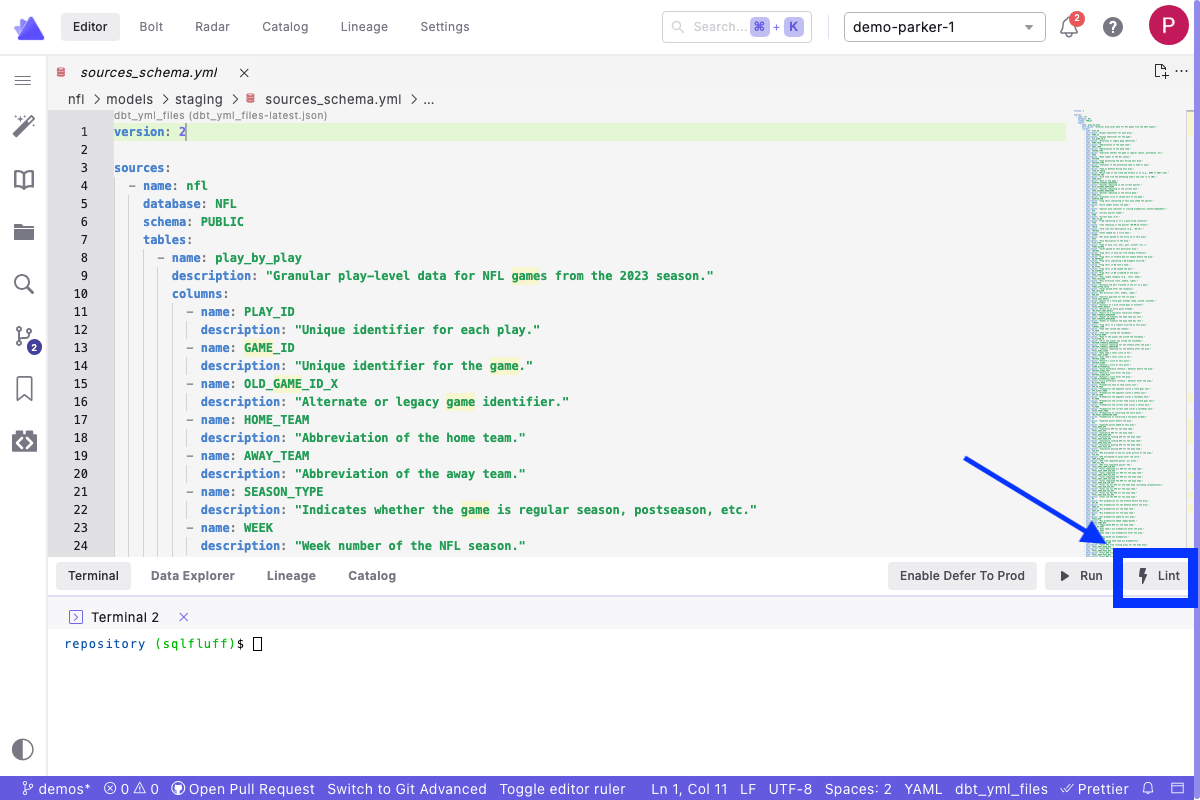
Click the **Lint** button in the Command Panel while editing a file to automatically format your code. The tool used for formatting is determined by the file type you have open in the editor:
* [**SQLfluff**](/products/code-ide/command-panel/code-quality#sqlfluff) - runs to lint your SQL code if you're editing a `.sql` file.
* [**Prettier**](/products/code-ide/command-panel/code-quality#prettier) - runs to lint your YAML if you're editing a `.yml` file.
 ***
### SQLFluff
SQLfluff is a SQL linter that helps maintain consistent SQL code style and catch potential errors. It understands dbt™ and Jinja templating, making it perfect for dbt™ projects.
#### Configuring .sqlfluff
Before using SQLfluff, create a configuration file to customize its behavior:
1. Create a `.sqlfluff` file in your dbt™ project root directory (same location as your `dbt_project.yml`)
2. Add your configuration:
```yaml title=".sqlfluff example file" theme={"system"}
[sqlfluff]
dialect = snowflake # Update based on your warehouse
templater = dbt
[sqlfluff:templater:dbt]
project_dir = ./
# Common rules to exclude
exclude_rules = ambiguous.column_count, structure.column_order
# Line length limit
max_line_length = 120
```
Visit [SQLfluff documentation](https://docs.sqlfluff.com/en/stable/configuration.html) for a complete list of configuration options.
#### Using SQLfluff
1. Open a `.sql` file in your editor
2. Click the **Lint** button in the [Command Panel](/products/code-ide/command-panel/index)
3. Review the changes made in [Git Lite](/products/code-ide/left-panel/git-lite)
* Syntax errors
* Style violations
* Formatting suggestions
4. If satisfied with Lint updates, [Commit and Push](/products/code-ide/left-panel/git-lite#commit-and-push-your-changes) your changes to your remote branch.
Want to automate SQLfluff linting? Learn how to set up [SQLfluff pre-commit hooks](/integrations/pre-commit/sqlfluff-hooks) to automatically lint SQL files before each commit.
***
### Prettier
Prettier automatically formats your YAML files to ensure consistent structure across your dbt™ project. While the integration works out of the box, you can customize Prettier's behavior:
#### Configuring Prettier
While Prettier works out of the box with sensible defaults, you can customize its behavior:
1. Create a `.prettierrc.yaml` file in your dbt™ project root directory (same location as your `dbt_project.yml`)
2. Add your configuration:
```yaml theme={"system"}
# .prettierrc.yaml example file
yamlCopyparser: yaml
trailingComma: es5
tabWidth: 4
semi: false
singleQuote: true
printWidth: 100
```
Visit [prettier documentation](https://prettier.io/docs/en/configuration.html) a complete list of configuration options.
#### Using Prettier
1. Open a `.yml` file in your editor
2. Click the **Lint** button in the [Command Panel](/products/code-ide/command-panel/index)
3. Review the changes in [Git Lite](/products/code-ide/left-panel/git-lite)
* YAML syntax corrections
* Formatting improvements
* Structure updates
4. If satisfied with Lint updates, [Commit and Push](/products/code-ide/left-panel/git-lite#commit-and-push-your-changes) your changes to your remote branch
Want to automate YAML formatting? Learn how to set up [Prettier pre-commit hooks](/integrations/pre-commit/prettier-hooks) to automatically format YAML files before each commit.
## Related topics
- [SQLFluff Hooks](/integrations/pre-commit/sqlfluff-hooks.md)
- [Prettier](/integrations/prettier.md)
- [SQLFluff](/integrations/sql-fluff.md)
- [Enforce SQL and YAML Best Practices](/guides/paradime-101/getting-started-with-the-paradime-ide/utilizing-advanced-developer-features/enforce-sql-and-yaml-best-practices.md)
- [Working with CSV Files](/guides/paradime-101/getting-started-with-the-paradime-ide/utilizing-advanced-developer-features/working-with-csv-files.md)
***
### SQLFluff
SQLfluff is a SQL linter that helps maintain consistent SQL code style and catch potential errors. It understands dbt™ and Jinja templating, making it perfect for dbt™ projects.
#### Configuring .sqlfluff
Before using SQLfluff, create a configuration file to customize its behavior:
1. Create a `.sqlfluff` file in your dbt™ project root directory (same location as your `dbt_project.yml`)
2. Add your configuration:
```yaml title=".sqlfluff example file" theme={"system"}
[sqlfluff]
dialect = snowflake # Update based on your warehouse
templater = dbt
[sqlfluff:templater:dbt]
project_dir = ./
# Common rules to exclude
exclude_rules = ambiguous.column_count, structure.column_order
# Line length limit
max_line_length = 120
```
Visit [SQLfluff documentation](https://docs.sqlfluff.com/en/stable/configuration.html) for a complete list of configuration options.
#### Using SQLfluff
1. Open a `.sql` file in your editor
2. Click the **Lint** button in the [Command Panel](/products/code-ide/command-panel/index)
3. Review the changes made in [Git Lite](/products/code-ide/left-panel/git-lite)
* Syntax errors
* Style violations
* Formatting suggestions
4. If satisfied with Lint updates, [Commit and Push](/products/code-ide/left-panel/git-lite#commit-and-push-your-changes) your changes to your remote branch.
Want to automate SQLfluff linting? Learn how to set up [SQLfluff pre-commit hooks](/integrations/pre-commit/sqlfluff-hooks) to automatically lint SQL files before each commit.
***
### Prettier
Prettier automatically formats your YAML files to ensure consistent structure across your dbt™ project. While the integration works out of the box, you can customize Prettier's behavior:
#### Configuring Prettier
While Prettier works out of the box with sensible defaults, you can customize its behavior:
1. Create a `.prettierrc.yaml` file in your dbt™ project root directory (same location as your `dbt_project.yml`)
2. Add your configuration:
```yaml theme={"system"}
# .prettierrc.yaml example file
yamlCopyparser: yaml
trailingComma: es5
tabWidth: 4
semi: false
singleQuote: true
printWidth: 100
```
Visit [prettier documentation](https://prettier.io/docs/en/configuration.html) a complete list of configuration options.
#### Using Prettier
1. Open a `.yml` file in your editor
2. Click the **Lint** button in the [Command Panel](/products/code-ide/command-panel/index)
3. Review the changes in [Git Lite](/products/code-ide/left-panel/git-lite)
* YAML syntax corrections
* Formatting improvements
* Structure updates
4. If satisfied with Lint updates, [Commit and Push](/products/code-ide/left-panel/git-lite#commit-and-push-your-changes) your changes to your remote branch
Want to automate YAML formatting? Learn how to set up [Prettier pre-commit hooks](/integrations/pre-commit/prettier-hooks) to automatically format YAML files before each commit.
## Related topics
- [SQLFluff Hooks](/integrations/pre-commit/sqlfluff-hooks.md)
- [Prettier](/integrations/prettier.md)
- [SQLFluff](/integrations/sql-fluff.md)
- [Enforce SQL and YAML Best Practices](/guides/paradime-101/getting-started-with-the-paradime-ide/utilizing-advanced-developer-features/enforce-sql-and-yaml-best-practices.md)
- [Working with CSV Files](/guides/paradime-101/getting-started-with-the-paradime-ide/utilizing-advanced-developer-features/working-with-csv-files.md)