> ## Documentation Index
> Fetch the complete documentation index at: https://docs.paradime.io/llms.txt
> Use this file to discover all available pages before exploring further.
# Catalog
> View and edit dbt™ project's documentation in real-time without context switching
export const Arcade = ({src, title}) =>
;
In the Command Panel within the Code IDE, view and edit your dbt™ docs without context switching. Paradime will sync changes from the UI back to your dbt™ project's .yml files with each edit, ensuring consistency across your project.
**Why Document Your dbt™ Project?**
Thorough documentation is a critical component of any successful dbt™ project. Well-documented models and columns provide numerous benefits:
* **Knowledge Sharing**: Makes your data models accessible to stakeholders across your organization
* **Onboarding**: Helps new team members understand your data models quickly
* **Self-Service Analytics**: Empowers business users to explore data confidently
* **Governance**: Helps track sensitive data and ownership for compliance
### Creating and Editing Documentation
#### Step-by-Step Guide
1. Click **Catalog** to view and edit your dbt™ project's documentation in real time. By default, you'll see a catalog preview; expand it to utilize all catalog features.
2. Make your desired edits:
* **Model Classification**
* Edit existing classifications in the meta section
* Add new classifications
* **Model Description**
* Type your model description manually
* Use the text formatting toolbar for better readability
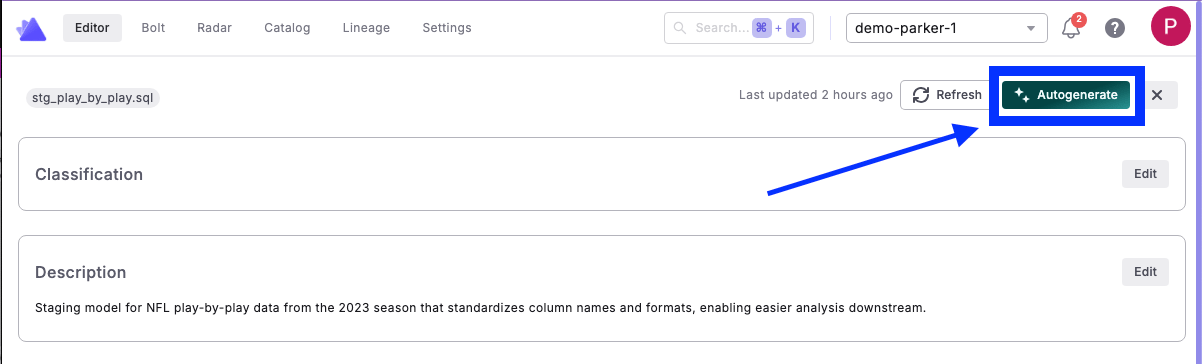
* Alternatively, use [DinoAI](https://docs.paradime.io/app-help/documentation/code-ide/left-panel/copilot#data-catalog-autogenerate) to autogenerate an in-depth, context-specific description
 * **Column Details**
* Edit individual column descriptions
* Add or modify column classifications (e.g., `[primary_key, true]`)
3. Click **Save Changes** to apply your edits
4. When finished, [commit and push your git branch](/products/code-ide/left-panel/git-lite#committing-changes)
* The edits you made in the UI will be reflected in the corresponding `.yml` file
### Available Documentation Features
| Feature | Description | Example |
| -------------------- | ---------------------------------------------------------------------------------------------------------------------------------------------------------------- | --------------------------------------------------------------------------------------------------------------------------------------------------------------- |
| Model Classification | View and/or edit your model classifications (AKA tags).You can select an existing classification or create a new one. | `meta: is sensitive: true owner: data_team` |
| Model Description | View and/or edit your model description.Leverage DinoAI's Autogenerate feature to create a high-quality, context-specific Business summary and Technical summary | `description: > This is the base model for our customer data...` |
| Column Details | View and/or edit metadata for each column, including type, description, tests, and classification.You can select an existing classification or create a new one. | `- name: customer_id tests: - unique: severity: warn - not_null: severity: error meta: primary_key: true description: > The unique identifier of our customers` |
Docs Preview is built using the current version of your dbt™ repository from the git branch currently selected in the Paradime IDE and Information schema from your Development Environment default connection.
For maximum efficiency, use [Dino AI](/products/code-ide/left-panel/copilot#data-catalog-autogenerate) to autogenerate comprehensive data documentation, then refine it to meet your specific needs.
## Related topics
- [Catalog Tool](/products/dino-ai/tools-and-features/catalog-tool.md)
- [Data Catalog](/products/data-catalog/index.md)
- [Paradime Refresh Catalog](/products/bolt/creating-schedules/command-settings/paradime-refresh-catalog.md)
- [MCP Server](/products/dino-ai/mcp-server/index.md)
- [Default Roles and Permissions](/products/settings/users/roles-and-permissions.md)
* **Column Details**
* Edit individual column descriptions
* Add or modify column classifications (e.g., `[primary_key, true]`)
3. Click **Save Changes** to apply your edits
4. When finished, [commit and push your git branch](/products/code-ide/left-panel/git-lite#committing-changes)
* The edits you made in the UI will be reflected in the corresponding `.yml` file
### Available Documentation Features
| Feature | Description | Example |
| -------------------- | ---------------------------------------------------------------------------------------------------------------------------------------------------------------- | --------------------------------------------------------------------------------------------------------------------------------------------------------------- |
| Model Classification | View and/or edit your model classifications (AKA tags).You can select an existing classification or create a new one. | `meta: is sensitive: true owner: data_team` |
| Model Description | View and/or edit your model description.Leverage DinoAI's Autogenerate feature to create a high-quality, context-specific Business summary and Technical summary | `description: > This is the base model for our customer data...` |
| Column Details | View and/or edit metadata for each column, including type, description, tests, and classification.You can select an existing classification or create a new one. | `- name: customer_id tests: - unique: severity: warn - not_null: severity: error meta: primary_key: true description: > The unique identifier of our customers` |
Docs Preview is built using the current version of your dbt™ repository from the git branch currently selected in the Paradime IDE and Information schema from your Development Environment default connection.
For maximum efficiency, use [Dino AI](/products/code-ide/left-panel/copilot#data-catalog-autogenerate) to autogenerate comprehensive data documentation, then refine it to meet your specific needs.
## Related topics
- [Catalog Tool](/products/dino-ai/tools-and-features/catalog-tool.md)
- [Data Catalog](/products/data-catalog/index.md)
- [Paradime Refresh Catalog](/products/bolt/creating-schedules/command-settings/paradime-refresh-catalog.md)
- [MCP Server](/products/dino-ai/mcp-server/index.md)
- [Default Roles and Permissions](/products/settings/users/roles-and-permissions.md)