> ## Documentation Index
> Fetch the complete documentation index at: https://docs.paradime.io/llms.txt
> Use this file to discover all available pages before exploring further.
# Budget & Consumption
> Track DinoAI credit spend and set monthly allowances across your platform, workspaces, users, and background agents.
Budget & Consumption gives admins visibility into [DinoAI credit](/products/dino-ai/dinoai-credits) spend and lets you set monthly allowances (budgets). It works in two levels:
* **Platform admins** set the monthly allowance for each workspace
* **Workspace admins** decide how to allocate that provided budget across the users in their workspace
Use it to understand where credits are going and to keep spend predictable.
Budget & Consumption is only available to admins. Setting workspace-level allowances is available to platform admins; allocating a workspace's budget across users is available to workspace admins.
## Accessing Budget & Consumption
Budget & Consumption is located in the Paradime **Settings** section under the **Platform** heading.
1. **Navigate to Settings** in your Paradime workspace
2. **Click on "Budget & Consumption"**
3. **Choose a scope**: **Platform** for company-wide spend across every workspace, or **Workspace** for a single workspace's spend with per-user and background-agent allowances
Budgets are tracked per calendar month and reset on the 1st of each month.
***
## Platform
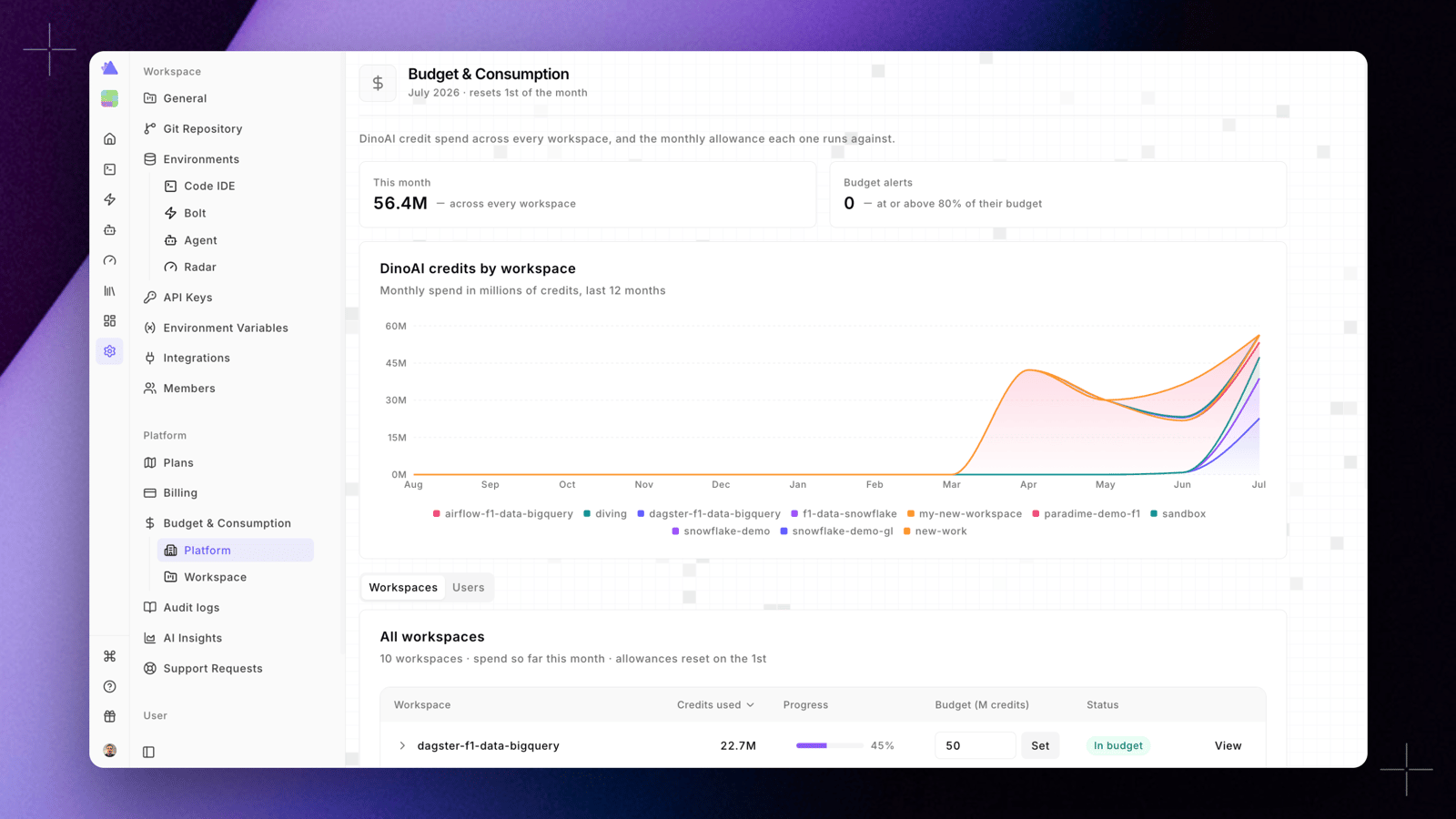
The Platform view shows company-wide DinoAI spend across every workspace, and the monthly allowance each one runs against. It is available to platform admins.
 ### Overview
At the top of the page, two cards summarize the current month:
* **This month**: total credits used across every workspace
* **Budget alerts**: the number of workspaces at or above 80% of their budget
The **DinoAI credits by workspace** chart plots monthly spend, in millions of credits, over the last 12 months so you can spot trends across workspaces.
### Workspaces
The **Workspaces** tab is where platform admins set the monthly allowance for each workspace. It lists every workspace with its spend so far this month. For each workspace you can see:
* **Credits used**: credits consumed this month
* **Progress**: usage relative to the workspace's budget
* **Budget (M credits)**: the monthly allowance, in millions of credits. Enter a value and click **Set** to define the allowance for that workspace, or leave it as **no limit**
* **Status**: **Metered** means usage is tracked with no cap applied
* **View**: open the [Workspace view](#workspace) for that workspace
Once a platform admin sets a workspace's allowance here, the workspace admin decides how to distribute it across their users from the [Workspace view](#workspace).
### Users
The **Users** tab ranks every user across all workspaces by spend so far this month. For each user you can see their workspace, credits used, whether they draw from a shared pool or a fixed share, their usage relative to their allowance, and their status.
***
## Workspace
The Workspace view shows a single workspace's DinoAI spend, with per-user and background-agent allowances. The header shows the workspace name, the current month, and the number of users.
### Overview
At the top of the page, two cards summarize the current month:
* **This month**: total credits used across every workspace
* **Budget alerts**: the number of workspaces at or above 80% of their budget
The **DinoAI credits by workspace** chart plots monthly spend, in millions of credits, over the last 12 months so you can spot trends across workspaces.
### Workspaces
The **Workspaces** tab is where platform admins set the monthly allowance for each workspace. It lists every workspace with its spend so far this month. For each workspace you can see:
* **Credits used**: credits consumed this month
* **Progress**: usage relative to the workspace's budget
* **Budget (M credits)**: the monthly allowance, in millions of credits. Enter a value and click **Set** to define the allowance for that workspace, or leave it as **no limit**
* **Status**: **Metered** means usage is tracked with no cap applied
* **View**: open the [Workspace view](#workspace) for that workspace
Once a platform admin sets a workspace's allowance here, the workspace admin decides how to distribute it across their users from the [Workspace view](#workspace).
### Users
The **Users** tab ranks every user across all workspaces by spend so far this month. For each user you can see their workspace, credits used, whether they draw from a shared pool or a fixed share, their usage relative to their allowance, and their status.
***
## Workspace
The Workspace view shows a single workspace's DinoAI spend, with per-user and background-agent allowances. The header shows the workspace name, the current month, and the number of users.
 ### Monthly credits by agent
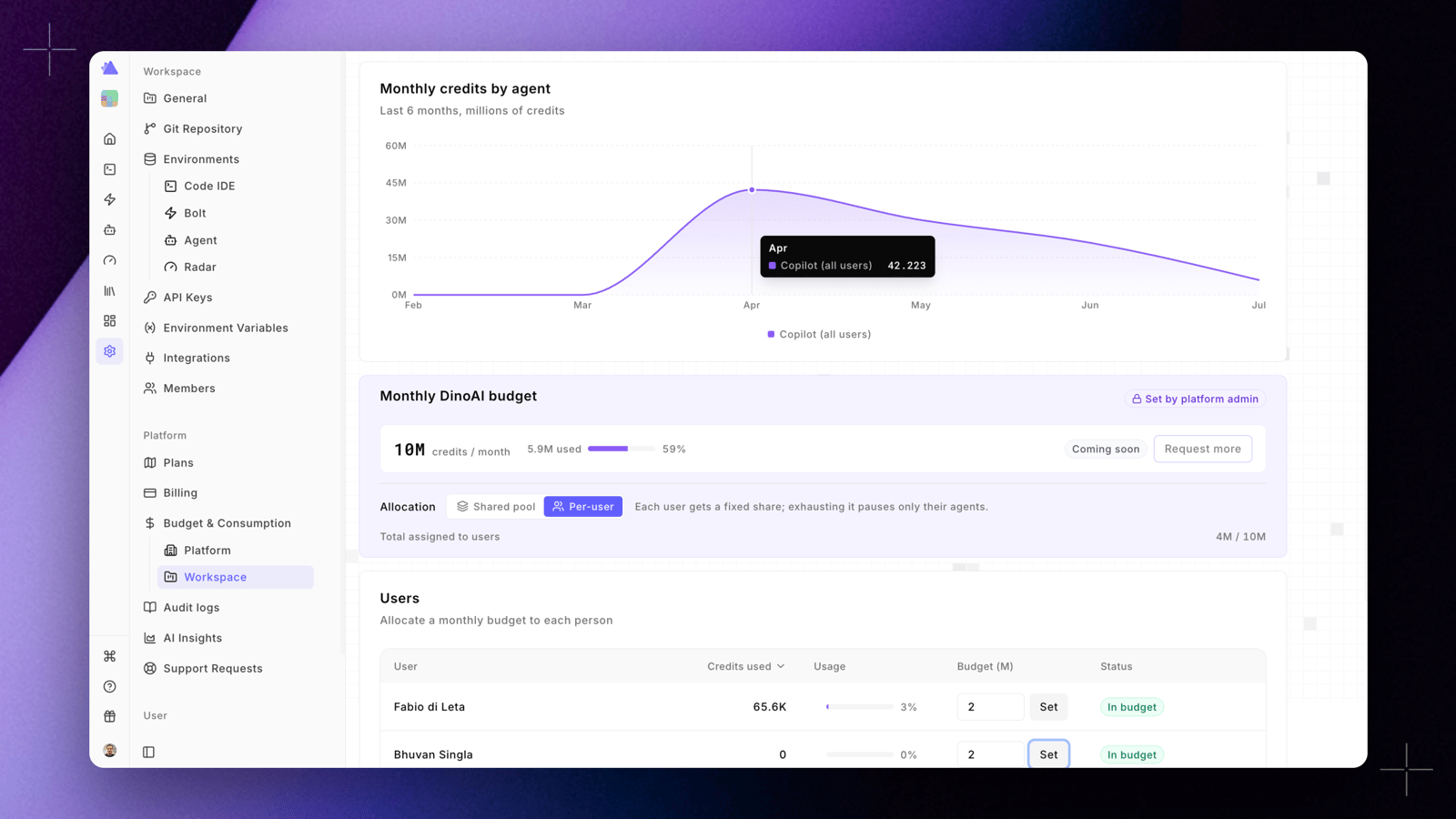
The **Monthly credits by agent** chart plots the workspace's spend, in millions of credits, over the last 6 months, broken down by agent.
### Monthly DinoAI budget
The **Monthly DinoAI budget** panel shows credits used against the workspace's allowance for the month. The allowance is set by a platform admin, so it is labelled **Set by platform admin**. Use **Request more** to ask for a higher allowance.
### Allocation
Workspace admins choose how the provided allowance is distributed across the workspace's users:
* **Shared pool**: any user draws from the full allowance, first come first served
* **Per-user**: each user gets a fixed share. Exhausting it pauses only that user's agents
### Users
The **Users** section lets you allocate a monthly budget to each person. For each user you can see credits used, usage relative to their budget, the budget assigned to them (in millions of credits), and a status:
* **In budget**: usage is within the allocated budget
* **Approaching**: usage is nearing the budget limit
* **Metered**: usage is tracked with no cap applied
In **Per-user** allocation mode, enter a value and click **Set** to assign a budget to an individual user.
### Agents
The **Agents** section applies one combined cap for background agents, plus optional per-agent caps. Enter a value in **Cap (M)** and click **Set** to limit background-agent spend.
[Copilot](/products/dino-ai/copilot/index) is never capped. Budgets and caps apply to background agents, so interactive development is not interrupted.
***
## Related
* [DinoAI Credits](/products/dino-ai/dinoai-credits) - how credits are calculated and Credit Saver Mode
* [Admin Dashboard](/products/dino-ai/admin-dashboard) - organization-wide DinoAI usage analytics
## Related topics
- [DinoAI Credits](/products/dino-ai/dinoai-credits.md)
- [What is Paradime.io](/index.md)
- [Cost connection](/products/settings/connections/cost-connection/index.md)
- [Snowflake cost connection](/products/settings/connections/cost-connection/snowflake-connection.md)
- [Looker Monitoring](/products/radar/looker-monitoring.md)
### Monthly credits by agent
The **Monthly credits by agent** chart plots the workspace's spend, in millions of credits, over the last 6 months, broken down by agent.
### Monthly DinoAI budget
The **Monthly DinoAI budget** panel shows credits used against the workspace's allowance for the month. The allowance is set by a platform admin, so it is labelled **Set by platform admin**. Use **Request more** to ask for a higher allowance.
### Allocation
Workspace admins choose how the provided allowance is distributed across the workspace's users:
* **Shared pool**: any user draws from the full allowance, first come first served
* **Per-user**: each user gets a fixed share. Exhausting it pauses only that user's agents
### Users
The **Users** section lets you allocate a monthly budget to each person. For each user you can see credits used, usage relative to their budget, the budget assigned to them (in millions of credits), and a status:
* **In budget**: usage is within the allocated budget
* **Approaching**: usage is nearing the budget limit
* **Metered**: usage is tracked with no cap applied
In **Per-user** allocation mode, enter a value and click **Set** to assign a budget to an individual user.
### Agents
The **Agents** section applies one combined cap for background agents, plus optional per-agent caps. Enter a value in **Cap (M)** and click **Set** to limit background-agent spend.
[Copilot](/products/dino-ai/copilot/index) is never capped. Budgets and caps apply to background agents, so interactive development is not interrupted.
***
## Related
* [DinoAI Credits](/products/dino-ai/dinoai-credits) - how credits are calculated and Credit Saver Mode
* [Admin Dashboard](/products/dino-ai/admin-dashboard) - organization-wide DinoAI usage analytics
## Related topics
- [DinoAI Credits](/products/dino-ai/dinoai-credits.md)
- [What is Paradime.io](/index.md)
- [Cost connection](/products/settings/connections/cost-connection/index.md)
- [Snowflake cost connection](/products/settings/connections/cost-connection/snowflake-connection.md)
- [Looker Monitoring](/products/radar/looker-monitoring.md)