> ## Documentation Index
> Fetch the complete documentation index at: https://docs.paradime.io/llms.txt
> Use this file to discover all available pages before exploring further.
# Fixing Errors with Jira
> Streamline troubleshooting by connecting Jira tickets to your development workflow. DinoAI analyzes ticket details, suggests fixes, and guides you through implementation without context switching.
export const Arcade = ({src, title}) =>
;
Streamline the process of fixing production issues by connecting ticket information directly to your development workflow.
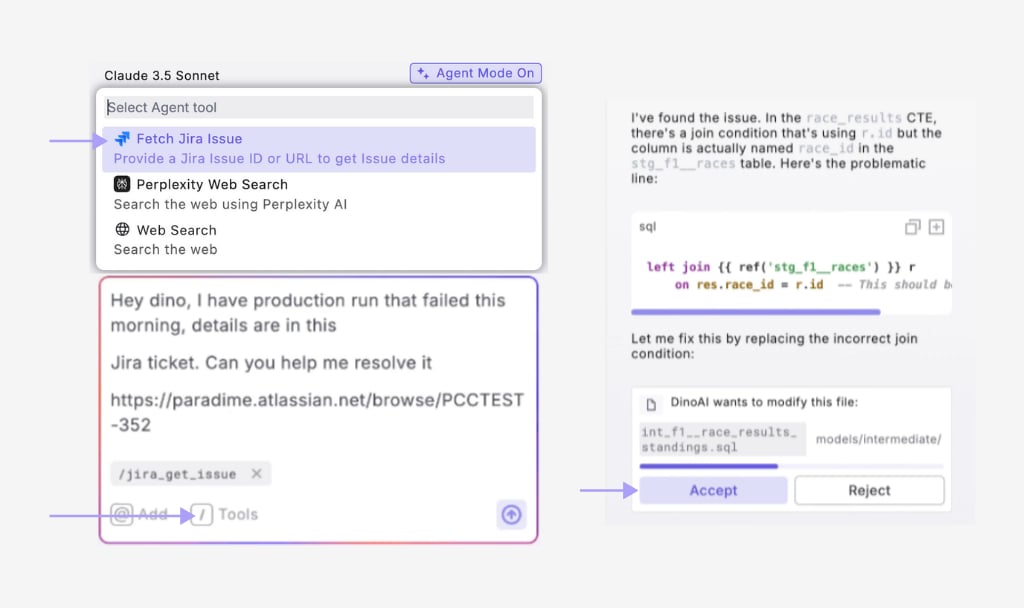
Context switching between Jira tickets, error logs, and your development environment slows down debugging and resolution. DinoAI can access Jira ticket details, analyze errors, and guide you through the fix process all in one interface.
### Example Prompt
> *Help me fix the issue described in PROD-123*
**Prerequisite**: You must [add Jira as an integration](/products/dino-ai/tools-and-features/jira-tool#setting-up-jira-integration) in your Paradime environment for the Jira Tool to work properly.
 ***
### Step-by-Step Instructions
1. [**Set up Jira integration**](/products/dino-ai/tools-and-features/jira-tool#setting-up-jira-integration) (if not already configured):
2. **Open DinoAI** by clicking the DinoAI icon (🪄) in the left panel
3. **Select the** [**Jira tool**](/products/dino-ai/tools-and-features/jira-tool) from the tools menu
4. **Enter the Jira ticket ID** (e.g., "PROD-123") in your prompt
5. **Optional**\*\*\*:\*\*\* [**Add context**](/products/dino-ai/copilot/context/index) about what you want to do with the ticket information
6. **Review/Accept the changes** to create the file in your project
7. **Test the solution** to ensure it resolves the issue
8. **Commit and push** the changes with a reference to the ticket ID
***
#### How It Works
After you enter your prompt:
1. DinoAI accesses your Jira ticket using the provided credentials
2. It analyzes the ticket details, including description, comments, and attachments
3. It identifies the issue type, severity, and any error logs or context
4. If configured, DinoAI applies any relevant [.dinorules](/products/dino-ai/dino-rules) preferences
5. It provides a structured plan to resolve the issue with appropriate Git workflow
***
### Key Benefits
* **Reduced Context Switching**: Access ticket information without leaving your IDE
* **Guided Troubleshooting**: Receive step-by-step instructions for resolving issues
* **Integrated Git Workflow**: Create branches, commit changes, and push fixes in one workflow
* **Knowledge Integration**: Combine ticket requirements with your project's context
* **Traceability**: Maintain connections between code changes and ticket references
## Related topics
- [Create a Jira Issue when a Bolt run complete with errors](/developers/webhooks/custom-webhook-guides/jira-issue.md)
- [Jira](/integrations/jira/index.md)
- [Use Cases](/products/dino-ai/copilot/use-cases/index.md)
- [Jira Tool](/products/dino-ai/tools-and-features/jira-tool.md)
- [Required Jira Permissions](/integrations/jira/required-jira-permissions.md)
***
### Step-by-Step Instructions
1. [**Set up Jira integration**](/products/dino-ai/tools-and-features/jira-tool#setting-up-jira-integration) (if not already configured):
2. **Open DinoAI** by clicking the DinoAI icon (🪄) in the left panel
3. **Select the** [**Jira tool**](/products/dino-ai/tools-and-features/jira-tool) from the tools menu
4. **Enter the Jira ticket ID** (e.g., "PROD-123") in your prompt
5. **Optional**\*\*\*:\*\*\* [**Add context**](/products/dino-ai/copilot/context/index) about what you want to do with the ticket information
6. **Review/Accept the changes** to create the file in your project
7. **Test the solution** to ensure it resolves the issue
8. **Commit and push** the changes with a reference to the ticket ID
***
#### How It Works
After you enter your prompt:
1. DinoAI accesses your Jira ticket using the provided credentials
2. It analyzes the ticket details, including description, comments, and attachments
3. It identifies the issue type, severity, and any error logs or context
4. If configured, DinoAI applies any relevant [.dinorules](/products/dino-ai/dino-rules) preferences
5. It provides a structured plan to resolve the issue with appropriate Git workflow
***
### Key Benefits
* **Reduced Context Switching**: Access ticket information without leaving your IDE
* **Guided Troubleshooting**: Receive step-by-step instructions for resolving issues
* **Integrated Git Workflow**: Create branches, commit changes, and push fixes in one workflow
* **Knowledge Integration**: Combine ticket requirements with your project's context
* **Traceability**: Maintain connections between code changes and ticket references
## Related topics
- [Create a Jira Issue when a Bolt run complete with errors](/developers/webhooks/custom-webhook-guides/jira-issue.md)
- [Jira](/integrations/jira/index.md)
- [Use Cases](/products/dino-ai/copilot/use-cases/index.md)
- [Jira Tool](/products/dino-ai/tools-and-features/jira-tool.md)
- [Required Jira Permissions](/integrations/jira/required-jira-permissions.md)