> ## Documentation Index
> Fetch the complete documentation index at: https://docs.paradime.io/llms.txt
> Use this file to discover all available pages before exploring further.
# MCP Server
The Paradime MCP Server is a single, authenticated remote endpoint that brings DinoAI's full context graph — your warehouse, repositories, dbt™ catalog, lineage, and Bolt orchestration — to any MCP-compatible AI client.
This guide walks you through generating an access token, configuring your client, and verifying the connection.
**Setup takes about a minute.** If you already have a Paradime account, you can be connected and running queries in your AI client before this page finishes loading.
### Before you start
You need:
* A **Paradime account**. Business and read-only seats are free — if you don't have access, ask your data team to invite you to your workspace.
* An **MCP-compatible client**. Claude (Desktop or web), Claude Code, ChatGPT, GitHub Copilot, Cursor, and OpenCode are all supported. See [Client setup](https://claude.ai/chat/9c39d868-001c-4eab-aed5-60df4d2970b4#step-3-add-paradime-to-your-client) below.
* Your data team has **configured the workspace integrations** the MCP should expose (warehouse, code repository, BI tools). The MCP inherits your workspace's existing connections — there's nothing extra to configure on the MCP side.
The MCP server uses the **same access boundaries** as the rest of Paradime. Your token can only reach the integrations your workspace has connected, and only with the permissions your role allows.
### Step 1: Generate your MCP token
1. Log in to Paradime at [app.paradime.io](https://app.paradime.io/).
2. Open **Settings → API keys** ([direct link](https://app.paradime.io/settings/api-keys)).
3. Click **Generate MCP token**.
4. Give the token a recognisable name (for example, `claude-desktop-laptop` or `cursor-work-mbp`). Naming tokens per device makes it easier to rotate or revoke them later and a lifetime in days
5. Copy the token **and** the MCP server URL shown next to it. You'll need both in Step 3.
**Treat your MCP token like a password.** It carries your full Paradime permissions. Never commit it to a repository, paste it into a shared document, or share it with teammates.\
\
If you suspect a token is compromised, return to **Settings → API keys** and revoke it. Generate a new one to replace it.
### Step 2: Copy the MCP server URL
The MCP server URL is shown alongside your token in the API keys page. It will look like:
```
https://.paradime.io/api/v1//mcp
```
Copy this URL exactly as displayed. It's specific to your Paradime instance.
If you belong to **multiple Paradime workspaces** - for example, separate workspaces for finance, marketing, and engineering, that's not a problem. One single MCP endpoint allows you to access across workspaces you have access to.
### Step 3: Add Paradime to your client
Pick the tab for your client below. The exact menu wording varies between client versions, but the flow is the same everywhere: add a remote MCP server, paste in the URL, paste in the token.
**Claude Desktop or claude.ai**
1. Open **Settings → Connectors**.
2. Click **Add custom connector**.
3. Fill in:
* **Name**: `Paradime`
* **Remote MCP server URL**: paste the URL from Step 2.
4. Click **Add**, then **Connect**.
5. When prompted, paste in your MCP token from Step 1 and authorize.
You should see Paradime appear in your Connectors list. The 17 tools will be available the next time you start a chat.
 Custom connectors are available on Claude Pro, Max, Team, and Enterprise plans.
**Claude Code (terminal)**
Run the `mcp add` command from any directory:
```bash theme={"system"}
claude mcp add --transport http paradime
```
Replace the URL with your actual MCP server URL from Step 2.
When Claude Code prompts you for the token, paste in the MCP token from Step 1.
To verify the connection:
```bash theme={"system"}
claude mcp list
```
You should see `paradime` listed with a `connected` status.
Claude Code stores MCP credentials in `~/.claude.json`. To remove the connector, run `claude mcp remove paradime`.
**Cursor**
Open Cursor's settings file at `~/.cursor/mcp.json` (create it if it doesn't exist) and add the Paradime entry:
```json title="~/.cursor/mcp.json" theme={"system"}
{
"mcpServers": {
"paradime": {
"url": "",
"headers": {
"Authorization": "Bearer YOUR_MCP_TOKEN"
}
}
}
}
```
Replace `` with your URL from Step 2 and `YOUR_MCP_TOKEN` with the token from Step 1.
Restart Cursor. You can verify the connection under **Settings → MCP**, where Paradime should be listed with a green dot.
**GitHub Copilot in VS Code**
1. In your repository (or globally), create or open `.vscode/mcp.json`.
2. Add the Paradime entry:
```json title=".vscode/mcp.json" theme={"system"}
{
"servers": {
"paradime": {
"type": "http",
"url": "",
"headers": {
"Authorization": "Bearer ${input:paradime-token}"
}
}
},
"inputs": [
{
"id": "paradime-token",
"type": "promptString",
"description": "Paradime MCP token",
"password": true
}
]
}
```
Replace `` with your URL from Step 2.
3. Reload VS Code. The first time you use Copilot Chat, you'll be prompted for the Paradime token. Paste in the token from Step 1.
Using `${input:paradime-token}` keeps the token out of the file itself — VS Code stores it in its secret store. **Don't commit the file with the token inlined.**
**OpenCode**
Edit your OpenCode config file (typically `~/.config/opencode/config.json`) and add Paradime under `mcp`:
```json title="~/.config/opencode/config.json" theme={"system"}
{
"mcp": {
"paradime": {
"type": "remote",
"url": "",
"headers": {
"Authorization": "Bearer YOUR_MCP_TOKEN"
}
}
}
}
```
Replace `` with your URL from Step 2 and `YOUR_MCP_TOKEN` with the token from Step 1. Restart OpenCode.
**Any MCP-compatible client**
The Paradime MCP server speaks the standard remote MCP protocol over HTTP with bearer-token authentication. To connect any other MCP-compatible client:
* **Server URL** — copy from **Settings → API keys** in Paradime.
* **Authentication** — `Authorization: Bearer ` header.
* **Transport** — HTTP/SSE (the client should support remote MCP servers, not just local stdio).
If your client requires a JSON config, the typical shape is:
```json theme={"system"}
{
"mcpServers": {
"paradime": {
"url": "",
"headers": {
"Authorization": "Bearer YOUR_MCP_TOKEN"
}
}
}
}
```
If you run into issues, check that your client supports remote (not just local) MCP servers - older or stdio-only clients won't work.
**Kiro**
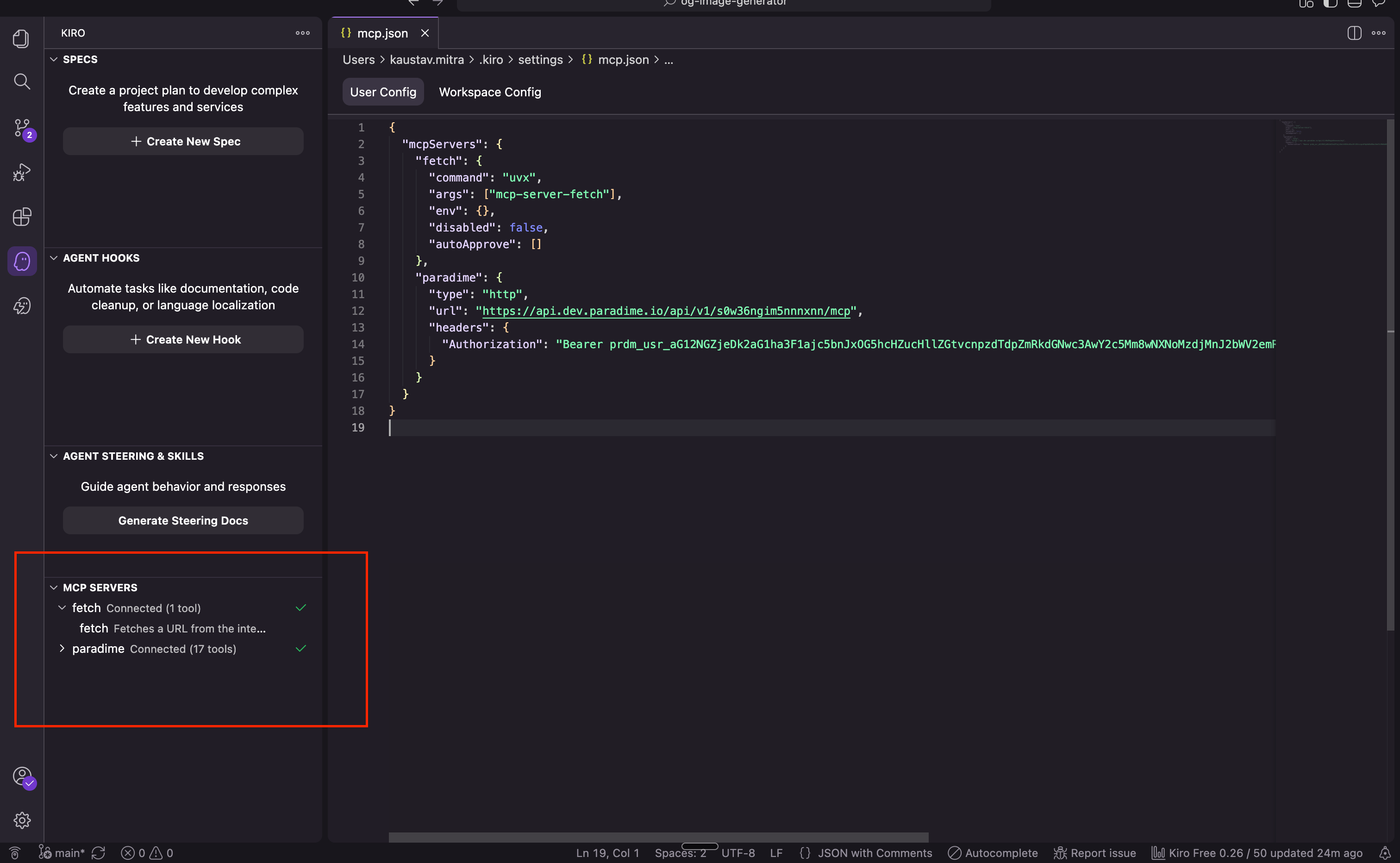
Open Kiro's settings file at `~/.kiro/settings/mcp.json` (create it if it doesn't exist) and add the Paradime entry:
```json theme={"system"}
{
"mcpServers": {
"paradime": {
"url": "<mcp-endpoint-url>",
"headers": {
"Authorization": "Bearer YOUR_MCP_TOKEN"
}
}
}
}
```
Replace `` with your URL from Step 2 and `YOUR_MCP_TOKEN` with the token from Step 1.
Restart Kiro. You can verify the connection under **Settings → MCP**, where Paradime should be listed with a green checkmark.
Custom connectors are available on Claude Pro, Max, Team, and Enterprise plans.
**Claude Code (terminal)**
Run the `mcp add` command from any directory:
```bash theme={"system"}
claude mcp add --transport http paradime
```
Replace the URL with your actual MCP server URL from Step 2.
When Claude Code prompts you for the token, paste in the MCP token from Step 1.
To verify the connection:
```bash theme={"system"}
claude mcp list
```
You should see `paradime` listed with a `connected` status.
Claude Code stores MCP credentials in `~/.claude.json`. To remove the connector, run `claude mcp remove paradime`.
**Cursor**
Open Cursor's settings file at `~/.cursor/mcp.json` (create it if it doesn't exist) and add the Paradime entry:
```json title="~/.cursor/mcp.json" theme={"system"}
{
"mcpServers": {
"paradime": {
"url": "",
"headers": {
"Authorization": "Bearer YOUR_MCP_TOKEN"
}
}
}
}
```
Replace `` with your URL from Step 2 and `YOUR_MCP_TOKEN` with the token from Step 1.
Restart Cursor. You can verify the connection under **Settings → MCP**, where Paradime should be listed with a green dot.
**GitHub Copilot in VS Code**
1. In your repository (or globally), create or open `.vscode/mcp.json`.
2. Add the Paradime entry:
```json title=".vscode/mcp.json" theme={"system"}
{
"servers": {
"paradime": {
"type": "http",
"url": "",
"headers": {
"Authorization": "Bearer ${input:paradime-token}"
}
}
},
"inputs": [
{
"id": "paradime-token",
"type": "promptString",
"description": "Paradime MCP token",
"password": true
}
]
}
```
Replace `` with your URL from Step 2.
3. Reload VS Code. The first time you use Copilot Chat, you'll be prompted for the Paradime token. Paste in the token from Step 1.
Using `${input:paradime-token}` keeps the token out of the file itself — VS Code stores it in its secret store. **Don't commit the file with the token inlined.**
**OpenCode**
Edit your OpenCode config file (typically `~/.config/opencode/config.json`) and add Paradime under `mcp`:
```json title="~/.config/opencode/config.json" theme={"system"}
{
"mcp": {
"paradime": {
"type": "remote",
"url": "",
"headers": {
"Authorization": "Bearer YOUR_MCP_TOKEN"
}
}
}
}
```
Replace `` with your URL from Step 2 and `YOUR_MCP_TOKEN` with the token from Step 1. Restart OpenCode.
**Any MCP-compatible client**
The Paradime MCP server speaks the standard remote MCP protocol over HTTP with bearer-token authentication. To connect any other MCP-compatible client:
* **Server URL** — copy from **Settings → API keys** in Paradime.
* **Authentication** — `Authorization: Bearer ` header.
* **Transport** — HTTP/SSE (the client should support remote MCP servers, not just local stdio).
If your client requires a JSON config, the typical shape is:
```json theme={"system"}
{
"mcpServers": {
"paradime": {
"url": "",
"headers": {
"Authorization": "Bearer YOUR_MCP_TOKEN"
}
}
}
}
```
If you run into issues, check that your client supports remote (not just local) MCP servers - older or stdio-only clients won't work.
**Kiro**
Open Kiro's settings file at `~/.kiro/settings/mcp.json` (create it if it doesn't exist) and add the Paradime entry:
```json theme={"system"}
{
"mcpServers": {
"paradime": {
"url": "<mcp-endpoint-url>",
"headers": {
"Authorization": "Bearer YOUR_MCP_TOKEN"
}
}
}
}
```
Replace `` with your URL from Step 2 and `YOUR_MCP_TOKEN` with the token from Step 1.
Restart Kiro. You can verify the connection under **Settings → MCP**, where Paradime should be listed with a green checkmark.
 **Re-connecting expired connection**
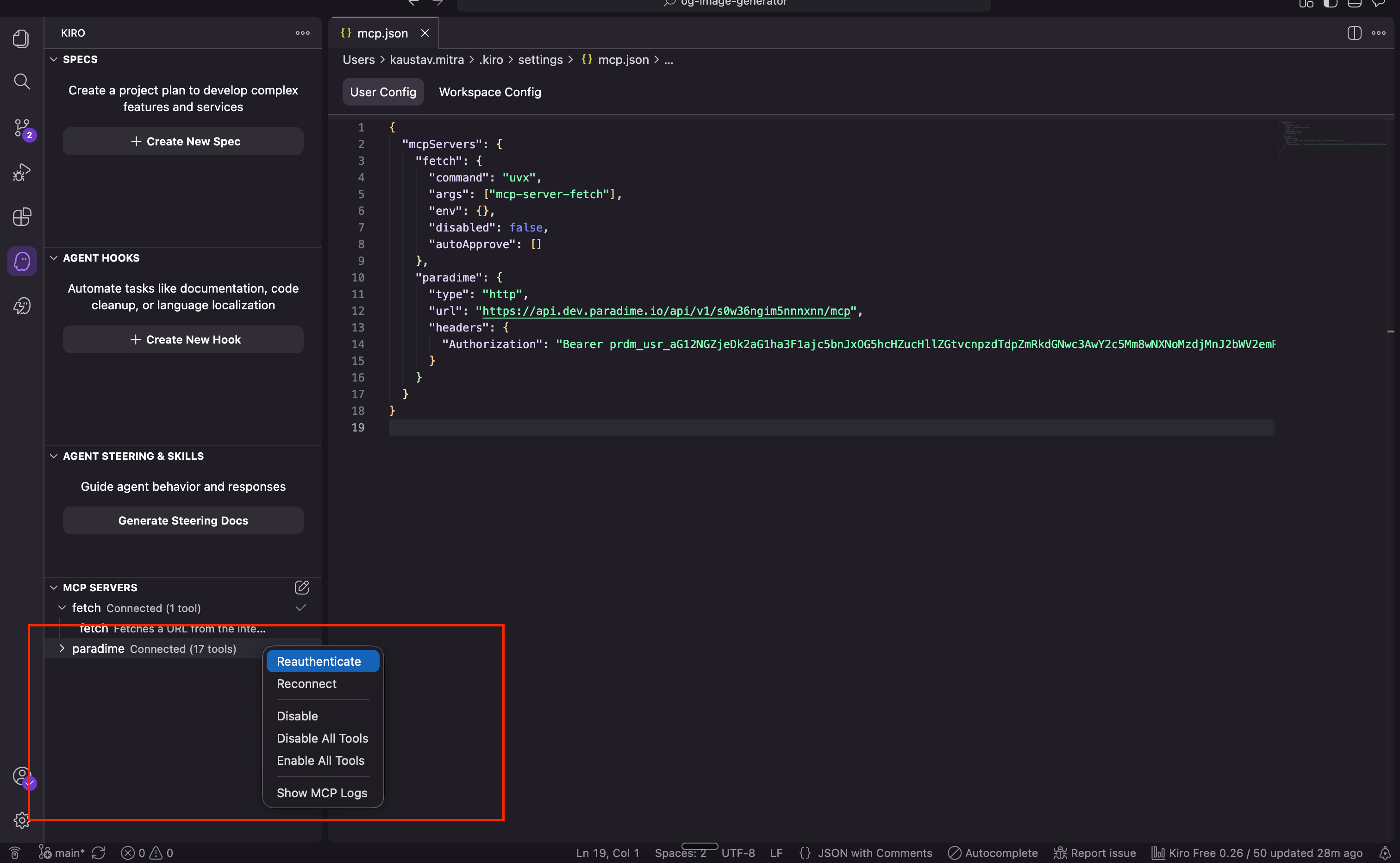
By default, the MCP connection expires after 1 week and you will need to reconnect. To do that, visit [https://app.paradime.iosettings/api-keys](https://app.paradime.iosettings/api-keys), get a new MCP token, and replace that in your `~/.kiro/settings/mcp.json` and then click **Reauthenticate** in the MCP Servers panel in Kiro as shown below and your Paradime MCP will be reconnected.
**Re-connecting expired connection**
By default, the MCP connection expires after 1 week and you will need to reconnect. To do that, visit [https://app.paradime.iosettings/api-keys](https://app.paradime.iosettings/api-keys), get a new MCP token, and replace that in your `~/.kiro/settings/mcp.json` and then click **Reauthenticate** in the MCP Servers panel in Kiro as shown below and your Paradime MCP will be reconnected.
 Restart the Kiro IDE after the change.
For the Kiro , don't use the **Reconnect** and enter the PAT token in the browser window.
### Step 4: Verify the connection
To confirm your connection is healthy, ask your AI client a simple question that requires Paradime context. For example:
> *"Use Paradime to list my Bolt schedules."*
or
> *"Use Paradime to search the catalog for models that touch the orders table."*
If your client returns real data from your workspace, you're connected. If you get an error, jump to [Troubleshooting](https://claude.ai/chat/9c39d868-001c-4eab-aed5-60df4d2970b4#troubleshooting) below.
### Available tools
Once connected, your client has access to all 17 tools below.
#### Code & repository
| Tool | What it does |
| ------------------------------ | ------------------------------------------------------------------------------- |
| `read_file` | Read any file in your connected code repository (SQL, Python, YAML, etc.). |
| `rename_file` | Rename a file in the repo. Parent directories are created automatically. |
| `search_files_and_directories` | Find files and folders by glob pattern (`**/*.sql`, `models/staging/**`). |
| `ripgrep_search` | High-speed regex search across the entire repo with context lines. |
| `create_pull_request` | Open a new PR - including drafts — using the connected user's GitHub account. |
| `read_pull_request` | Pull PR metadata, the full code diff, CI status, or review and inline comments. |
| `list_pull_requests` | List PRs by state, branch, sort order, or popularity. |
#### Data warehouse & catalog
| Tool | What it does |
| -------------------------- | --------------------------------------------------------------------------------------------------------- |
| `run_sql_query` | Execute SQL against your warehouse and return results as CSV (Snowflake, BigQuery, Databricks, Redshift). |
| `search_catalog` | Search the unified catalog — dbt™ models, sources, tests, macros, plus Looker, Tableau, Fivetran assets. |
| `get_column_level_lineage` | Trace upstream and downstream dependencies for any column in any model. |
#### Bolt orchestration
| Tool | What it does |
| --------------------------- | ---------------------------------------------------------------------------------------------------------------------------------------------------------------------------------------------------------------------------------------------------------------------------------------------------------------------- |
| `list_bolt_schedules` | List every active Bolt schedule with name, UUID, cron, owner, and configured commands. |
| `get_bolt_run_logs` | Pull AI-generated failure summaries for a specific run or the most recent run. |
| `trigger_bolt_schedule_run` | Kick off a new run of a Bolt schedule by `slug` (required get it from `list_bolt_schedules`). Optional `branch` to run against a different git branch or commit, and optional `commands` (array of strings) to override the schedule's configured commands. Omit both to run with defaults. Returns the new `run_id`. |
#### Workspace management
| Tool | What it does |
| ------------------ | --------------------------------------------------------------------------------- |
| `list_workspaces` | List every Paradime workspace your account has access to. |
| `switch_workspace` | Switch the active workspace — useful when you have multiple workspaces connected. |
#### Web & research
| Tool | What it does |
| --------------------- | ----------------------------------------------------------------------------------------- |
| `execute_web_search` | General-purpose web search, with optional domain restrictions (e.g. limit to docs sites). |
| `perplexity_search` | Real-time web search via the Perplexity API for up-to-date documentation and references. |
| `extract_url_content` | Pull clean text content from any HTTP/HTTPS URL. |
### Troubleshooting
Your token is either expired, revoked, or pasted incorrectly.
* Check **Settings → API keys** in Paradime to confirm the token still exists.
* Make sure you copied the **full** token without trailing whitespace.
* If unsure, generate a new token and re-add the connector with the fresh value.
* Confirm the **MCP server URL** is correct — it includes a workspace ID at the end and is unique to your workspace.
* Check that your network or VPN isn't blocking outbound HTTPS to `*.paradime.io`.
* Make sure your client supports **remote** MCP servers (over HTTP/SSE), not just local stdio servers.
The token is working, but the underlying integration may not be configured.
* For warehouse tools (`run_sql_query`), confirm your data team has connected a warehouse to your workspace.
* For repo tools (`read_file`, `ripgrep_search`, `create_pull_request`), confirm a code repository is connected and the connected user has access to it.
* For catalog/lineage tools, your dbt™ project needs to have been parsed at least once in Paradime.
* Some clients cache the MCP tool list at startup — try restarting the client after adding the connector.
* In Claude and ChatGPT, ensure Paradime is **enabled** in the connectors menu of your current chat.
* If you've recently rotated your token, the old connector may still be cached. Remove and re-add it.
Use the `switch_workspace` tool — ask the agent to switch context: *"Switch to the marketing workspace before continuing."*
This is usually a sign the underlying client is sending the wrong context to the model. A few things to try:
* Be specific in your prompt — *"In the dbt catalog, find models that ref `stg_orders`"* routes more efficiently than *"find anything related to orders"*.
* On large monorepos, prefer `search_catalog` over `ripgrep_search` for catalog-aware queries.
* If using a smaller model, switch to a larger context model (Claude Sonnet/Opus, GPT-5) for complex multi-step tasks.
### FAQ
When your Paradime account is deactivated, your MCP token is **revoked automatically**. Any AI client still configured with it will fail to authenticate on the next call. There are no leftover credentials to chase down.
Yes. Generate a new token in **Settings → API keys**, replace the value in your client's connector config, then revoke the old token. Tokens can be rotated at any time without affecting the underlying workspace integrations.
No. The token inherits **exactly** the permissions of your Paradime user. If you can't see the marketing workspace in Paradime, the MCP can't either. If you're a read-only user, the MCP can read but not write.
Yes. All MCP tool calls are logged against your user account in Paradime, the same way warehouse queries and Bolt runs are.
The Paradime MCP Server is included with all paid Paradime plans, and free for business and read-only seats. Token consumption on the AI side (Claude, ChatGPT, etc.) is billed by your AI provider, not by Paradime.
You can use the configure page to set which tools are allowed, denied and needs permission before executing.
### Related
* [Announcement: The Paradime MCP Server is here](https://www.paradime.io/blog/paradime-mcp-server-is-here)
* [Generating Paradime API keys](https://app.paradime.io/settings/api-keys)
* [Model Context Protocol specification](https://modelcontextprotocol.io/)
[^1]: Get this token from Paradime
## Related topics
- [DinoAI](/products/dino-ai/index.md)
- [Amazon Quick](/products/dino-ai/mcp-server/amazon-quick.md)
- [Airbyte Server](/integrations/airbyte/airbyte-server.md)
- [SQL Server Tools](/products/dino-ai/tools-and-features/warehouse-tool/sql-server-tools.md)
- [Microsoft SQL Server](/products/settings/connections/scheduler-environment/microsoft-sql-server.md)
Restart the Kiro IDE after the change.
For the Kiro , don't use the **Reconnect** and enter the PAT token in the browser window.
### Step 4: Verify the connection
To confirm your connection is healthy, ask your AI client a simple question that requires Paradime context. For example:
> *"Use Paradime to list my Bolt schedules."*
or
> *"Use Paradime to search the catalog for models that touch the orders table."*
If your client returns real data from your workspace, you're connected. If you get an error, jump to [Troubleshooting](https://claude.ai/chat/9c39d868-001c-4eab-aed5-60df4d2970b4#troubleshooting) below.
### Available tools
Once connected, your client has access to all 17 tools below.
#### Code & repository
| Tool | What it does |
| ------------------------------ | ------------------------------------------------------------------------------- |
| `read_file` | Read any file in your connected code repository (SQL, Python, YAML, etc.). |
| `rename_file` | Rename a file in the repo. Parent directories are created automatically. |
| `search_files_and_directories` | Find files and folders by glob pattern (`**/*.sql`, `models/staging/**`). |
| `ripgrep_search` | High-speed regex search across the entire repo with context lines. |
| `create_pull_request` | Open a new PR - including drafts — using the connected user's GitHub account. |
| `read_pull_request` | Pull PR metadata, the full code diff, CI status, or review and inline comments. |
| `list_pull_requests` | List PRs by state, branch, sort order, or popularity. |
#### Data warehouse & catalog
| Tool | What it does |
| -------------------------- | --------------------------------------------------------------------------------------------------------- |
| `run_sql_query` | Execute SQL against your warehouse and return results as CSV (Snowflake, BigQuery, Databricks, Redshift). |
| `search_catalog` | Search the unified catalog — dbt™ models, sources, tests, macros, plus Looker, Tableau, Fivetran assets. |
| `get_column_level_lineage` | Trace upstream and downstream dependencies for any column in any model. |
#### Bolt orchestration
| Tool | What it does |
| --------------------------- | ---------------------------------------------------------------------------------------------------------------------------------------------------------------------------------------------------------------------------------------------------------------------------------------------------------------------- |
| `list_bolt_schedules` | List every active Bolt schedule with name, UUID, cron, owner, and configured commands. |
| `get_bolt_run_logs` | Pull AI-generated failure summaries for a specific run or the most recent run. |
| `trigger_bolt_schedule_run` | Kick off a new run of a Bolt schedule by `slug` (required get it from `list_bolt_schedules`). Optional `branch` to run against a different git branch or commit, and optional `commands` (array of strings) to override the schedule's configured commands. Omit both to run with defaults. Returns the new `run_id`. |
#### Workspace management
| Tool | What it does |
| ------------------ | --------------------------------------------------------------------------------- |
| `list_workspaces` | List every Paradime workspace your account has access to. |
| `switch_workspace` | Switch the active workspace — useful when you have multiple workspaces connected. |
#### Web & research
| Tool | What it does |
| --------------------- | ----------------------------------------------------------------------------------------- |
| `execute_web_search` | General-purpose web search, with optional domain restrictions (e.g. limit to docs sites). |
| `perplexity_search` | Real-time web search via the Perplexity API for up-to-date documentation and references. |
| `extract_url_content` | Pull clean text content from any HTTP/HTTPS URL. |
### Troubleshooting
Your token is either expired, revoked, or pasted incorrectly.
* Check **Settings → API keys** in Paradime to confirm the token still exists.
* Make sure you copied the **full** token without trailing whitespace.
* If unsure, generate a new token and re-add the connector with the fresh value.
* Confirm the **MCP server URL** is correct — it includes a workspace ID at the end and is unique to your workspace.
* Check that your network or VPN isn't blocking outbound HTTPS to `*.paradime.io`.
* Make sure your client supports **remote** MCP servers (over HTTP/SSE), not just local stdio servers.
The token is working, but the underlying integration may not be configured.
* For warehouse tools (`run_sql_query`), confirm your data team has connected a warehouse to your workspace.
* For repo tools (`read_file`, `ripgrep_search`, `create_pull_request`), confirm a code repository is connected and the connected user has access to it.
* For catalog/lineage tools, your dbt™ project needs to have been parsed at least once in Paradime.
* Some clients cache the MCP tool list at startup — try restarting the client after adding the connector.
* In Claude and ChatGPT, ensure Paradime is **enabled** in the connectors menu of your current chat.
* If you've recently rotated your token, the old connector may still be cached. Remove and re-add it.
Use the `switch_workspace` tool — ask the agent to switch context: *"Switch to the marketing workspace before continuing."*
This is usually a sign the underlying client is sending the wrong context to the model. A few things to try:
* Be specific in your prompt — *"In the dbt catalog, find models that ref `stg_orders`"* routes more efficiently than *"find anything related to orders"*.
* On large monorepos, prefer `search_catalog` over `ripgrep_search` for catalog-aware queries.
* If using a smaller model, switch to a larger context model (Claude Sonnet/Opus, GPT-5) for complex multi-step tasks.
### FAQ
When your Paradime account is deactivated, your MCP token is **revoked automatically**. Any AI client still configured with it will fail to authenticate on the next call. There are no leftover credentials to chase down.
Yes. Generate a new token in **Settings → API keys**, replace the value in your client's connector config, then revoke the old token. Tokens can be rotated at any time without affecting the underlying workspace integrations.
No. The token inherits **exactly** the permissions of your Paradime user. If you can't see the marketing workspace in Paradime, the MCP can't either. If you're a read-only user, the MCP can read but not write.
Yes. All MCP tool calls are logged against your user account in Paradime, the same way warehouse queries and Bolt runs are.
The Paradime MCP Server is included with all paid Paradime plans, and free for business and read-only seats. Token consumption on the AI side (Claude, ChatGPT, etc.) is billed by your AI provider, not by Paradime.
You can use the configure page to set which tools are allowed, denied and needs permission before executing.
### Related
* [Announcement: The Paradime MCP Server is here](https://www.paradime.io/blog/paradime-mcp-server-is-here)
* [Generating Paradime API keys](https://app.paradime.io/settings/api-keys)
* [Model Context Protocol specification](https://modelcontextprotocol.io/)
[^1]: Get this token from Paradime
## Related topics
- [DinoAI](/products/dino-ai/index.md)
- [Amazon Quick](/products/dino-ai/mcp-server/amazon-quick.md)
- [Airbyte Server](/integrations/airbyte/airbyte-server.md)
- [SQL Server Tools](/products/dino-ai/tools-and-features/warehouse-tool/sql-server-tools.md)
- [Microsoft SQL Server](/products/settings/connections/scheduler-environment/microsoft-sql-server.md)