> ## Documentation Index
> Fetch the complete documentation index at: https://docs.paradime.io/llms.txt
> Use this file to discover all available pages before exploring further.
# Starting a Session
Once [setup](/products/dino-ai/slack-agent/setup) is complete, you're ready to wake DinoAI up.
### 1. Add the Paradime Bot to a Channel
Add the DinoAI agent to the Slack channel where you want it to operate. You can do this in two ways:
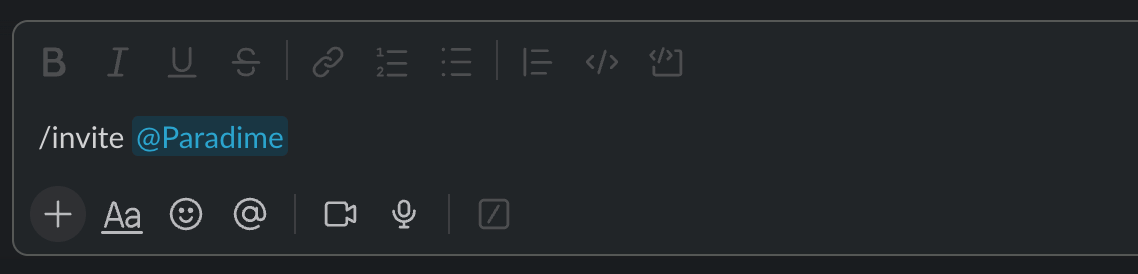
**Option A - Slash command**
Inside the channel, type:
```
/invite @paradime
```
 **Option B - Channel settings**
1. Click the channel name at the top
2. Go to the **Integrations** tab
3. Select **Add an App**
4. Search for and add **Paradime**
***
### 2. Select a Workspace (Optional)
If your Paradime account has multiple workspaces, you can choose which one the agent should run against before starting a task. Use the workspace dropdown in the Paradime Slack App to select the workspace you want DinoAI to operate on.
**Option B - Channel settings**
1. Click the channel name at the top
2. Go to the **Integrations** tab
3. Select **Add an App**
4. Search for and add **Paradime**
***
### 2. Select a Workspace (Optional)
If your Paradime account has multiple workspaces, you can choose which one the agent should run against before starting a task. Use the workspace dropdown in the Paradime Slack App to select the workspace you want DinoAI to operate on.
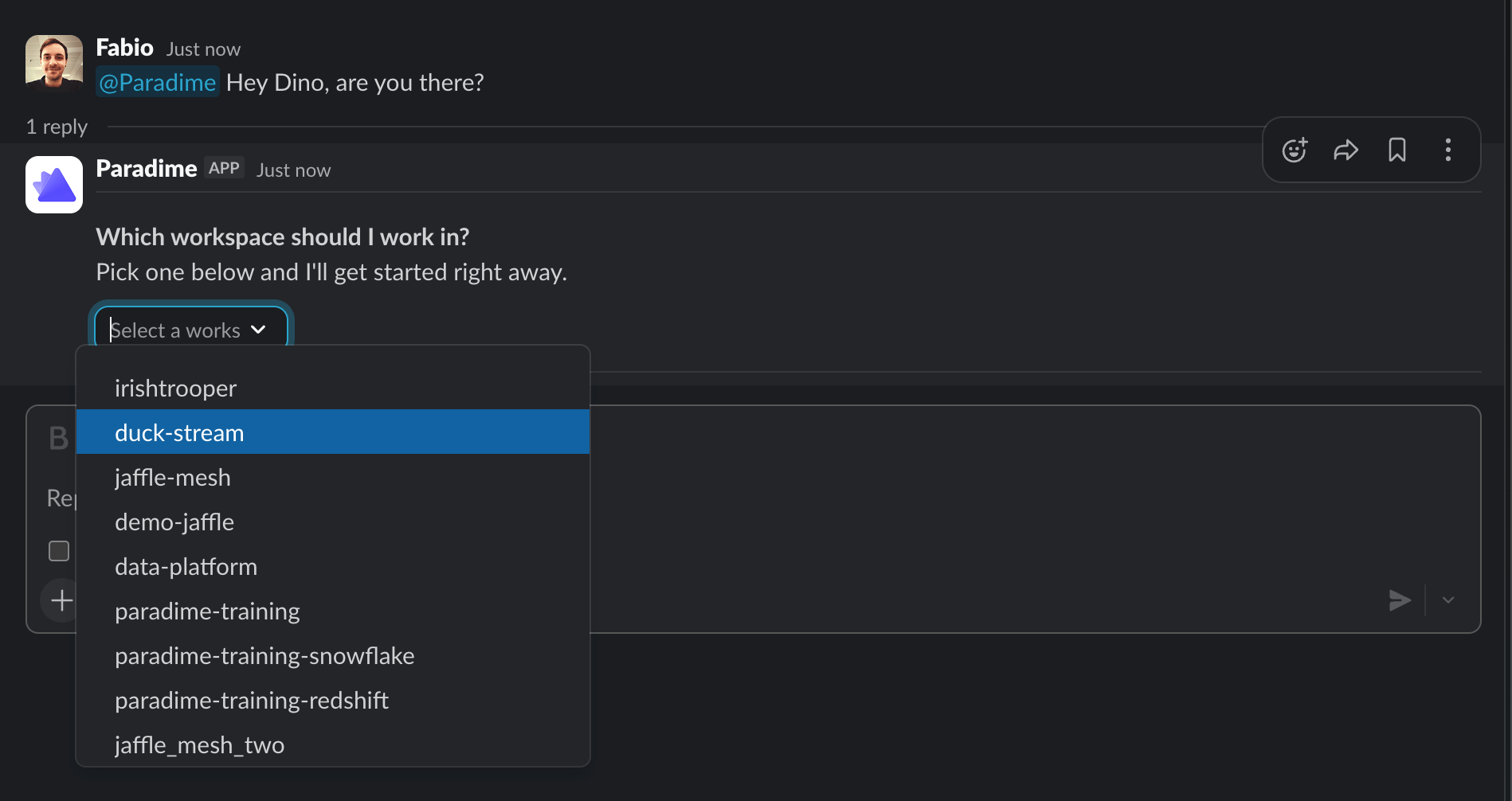 **This matters.** The workspace you select determines the environment DinoAI runs with — including the data warehouse connection, integrations, and configuration set up for that workspace. If no workspace is explicitly selected, DinoAI defaults to your primary workspace.
### Step 3 — Check It's Listening
Send a quick message to confirm the agent is connected and ready:
```
@paradime Hey Dino, are you there?
```
**Always use `@paradime`** when sending messages to the agent. Without the mention, DinoAI won't see or respond to your message.
If everything is connected, DinoAI will respond and confirm it's ready to take on tasks.
### Step 4 — Send Your First Task
Give DinoAI something real to work on. Here are a few examples to get started:
**This matters.** The workspace you select determines the environment DinoAI runs with — including the data warehouse connection, integrations, and configuration set up for that workspace. If no workspace is explicitly selected, DinoAI defaults to your primary workspace.
### Step 3 — Check It's Listening
Send a quick message to confirm the agent is connected and ready:
```
@paradime Hey Dino, are you there?
```
**Always use `@paradime`** when sending messages to the agent. Without the mention, DinoAI won't see or respond to your message.
If everything is connected, DinoAI will respond and confirm it's ready to take on tasks.
### Step 4 — Send Your First Task
Give DinoAI something real to work on. Here are a few examples to get started:
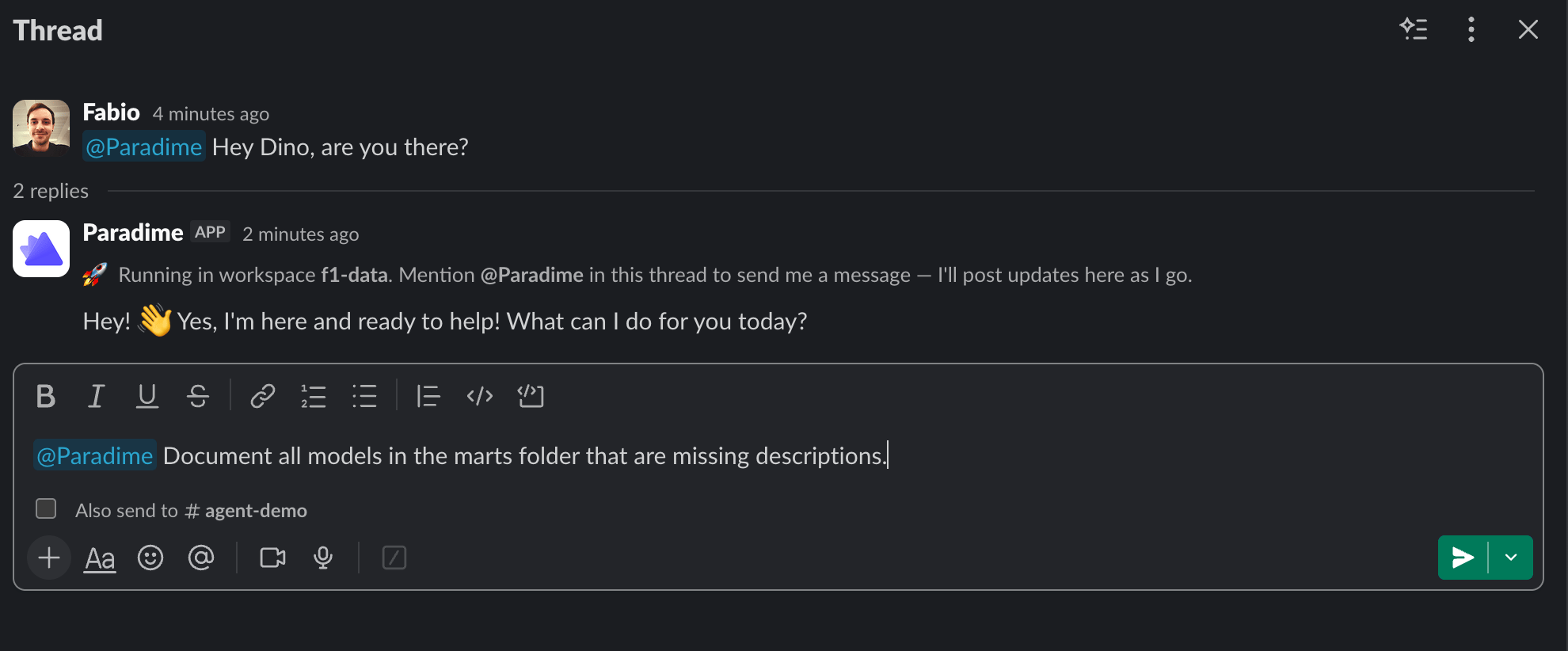 ```
@paradime Document all models in the marts folder that are missing descriptions.
```
```
@paradime Create a new model that joins orders and customers on customer_id.
```
```
@paradime Run a quick check on our staging models and flag anything that looks off.
```
DinoAI will pick up the task, work in the background, and report back in the channel when it's done.
***
### How Cloning Works
When a session starts, DinoAI clones the repository connected to the selected workspace and uses it as the base for all work in that session.
#### Working across multiple repositories
The agent isn't limited to a single repo. If DinoAI has access to additional repositories via the [GitHub App integration](/integrations/github), it can clone and work in those repos in parallel — without you needing to do anything extra.
This is useful for tasks that span multiple codebases, for example:
* **Looker or Omni updates** — if you ask DinoAI to update a field definition or a derived table, and the relevant repo is accessible via the GitHub App, the agent will clone that repo and open a PR there directly
* **dbt™ Mesh setups** — if your dbt™ project is split across multiple repos (upstream and downstream packages), DinoAI can work across all of them in a single session, opening PRs in each repo as needed
#### What stays scoped to the selected workspace
Even when the agent works across multiple repos, the following are always determined by the workspace selected at the start of the session:
* **Data warehouse connection** — the warehouse credentials and permissions DinoAI uses to run queries
* **Integrations** — Slack, GitHub, and any other connected services
* **Environment configuration** — variables, settings, and DinoAI behaviour defined for that workspace
Switching workspaces mid-session is not supported. If you need to run a task under a different workspace, start a new session.
### Related
* [Setup](/products/dino-ai/slack-agent/setup) — Configure the GitHub App and warehouse environment
* [.dinorules](/products/dino-ai/dino-rules) — Set rules that guide how DinoAI works across all sessions
* [Tools and Fearures](/products/dino-ai/tools-and-features/index) — Explore tools accessuble by the Slack Agent
## Related topics
- [using-dinoai-in-direct-messages](/products/dino-ai/slack-agent/using-dinoai-in-direct-messages.md)
- [Setup](/products/dino-ai/slack-agent/setup.md)
- [Slack Agent](/products/dino-ai/slack-agent/index.md)
- [2. Self-Healing](/products/bolt/creating-schedules/2.-self-healing.md)
- [Self-Healing](/products/dino-ai/bolt-pipeline-agent/self-healing.md)
```
@paradime Document all models in the marts folder that are missing descriptions.
```
```
@paradime Create a new model that joins orders and customers on customer_id.
```
```
@paradime Run a quick check on our staging models and flag anything that looks off.
```
DinoAI will pick up the task, work in the background, and report back in the channel when it's done.
***
### How Cloning Works
When a session starts, DinoAI clones the repository connected to the selected workspace and uses it as the base for all work in that session.
#### Working across multiple repositories
The agent isn't limited to a single repo. If DinoAI has access to additional repositories via the [GitHub App integration](/integrations/github), it can clone and work in those repos in parallel — without you needing to do anything extra.
This is useful for tasks that span multiple codebases, for example:
* **Looker or Omni updates** — if you ask DinoAI to update a field definition or a derived table, and the relevant repo is accessible via the GitHub App, the agent will clone that repo and open a PR there directly
* **dbt™ Mesh setups** — if your dbt™ project is split across multiple repos (upstream and downstream packages), DinoAI can work across all of them in a single session, opening PRs in each repo as needed
#### What stays scoped to the selected workspace
Even when the agent works across multiple repos, the following are always determined by the workspace selected at the start of the session:
* **Data warehouse connection** — the warehouse credentials and permissions DinoAI uses to run queries
* **Integrations** — Slack, GitHub, and any other connected services
* **Environment configuration** — variables, settings, and DinoAI behaviour defined for that workspace
Switching workspaces mid-session is not supported. If you need to run a task under a different workspace, start a new session.
### Related
* [Setup](/products/dino-ai/slack-agent/setup) — Configure the GitHub App and warehouse environment
* [.dinorules](/products/dino-ai/dino-rules) — Set rules that guide how DinoAI works across all sessions
* [Tools and Fearures](/products/dino-ai/tools-and-features/index) — Explore tools accessuble by the Slack Agent
## Related topics
- [using-dinoai-in-direct-messages](/products/dino-ai/slack-agent/using-dinoai-in-direct-messages.md)
- [Setup](/products/dino-ai/slack-agent/setup.md)
- [Slack Agent](/products/dino-ai/slack-agent/index.md)
- [2. Self-Healing](/products/bolt/creating-schedules/2.-self-healing.md)
- [Self-Healing](/products/dino-ai/bolt-pipeline-agent/self-healing.md)