> ## Documentation Index
> Fetch the complete documentation index at: https://docs.paradime.io/llms.txt
> Use this file to discover all available pages before exploring further.
# using-dinoai-in-direct-messages
You don't need a shared channel to work with DinoAI. Once setup is complete, you can message the Paradime bot directly and run entire sessions from your DMs — perfect for quick tasks, personal workflows, or work you don't need to broadcast to a channel.
#### 1. Open a DM with the Paradime Bot
Find the **Paradime** app in your Slack sidebar and open its **Messages** tab. You can get there in two ways:
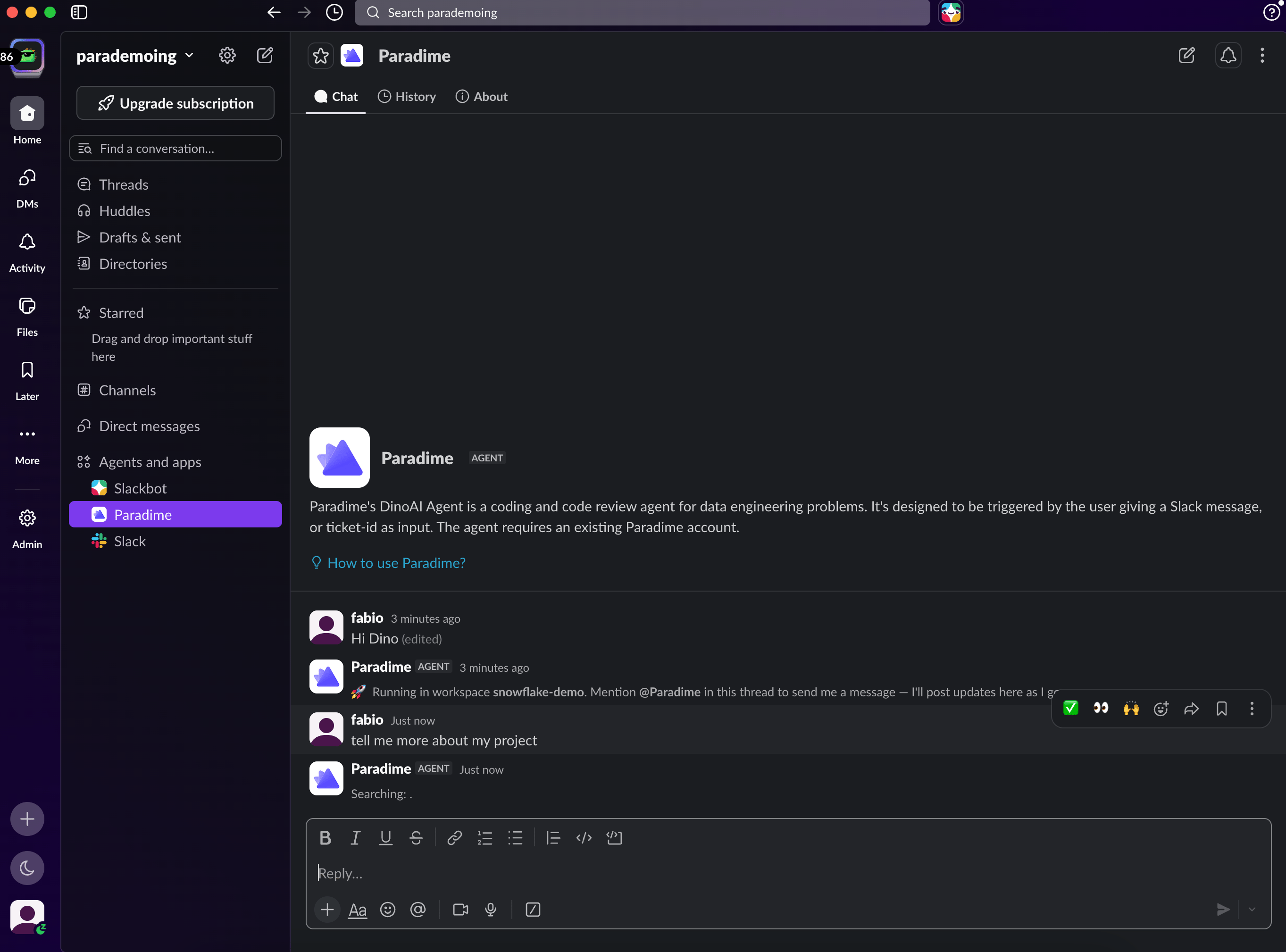 **Option A — From the sidebar**
1. In the left sidebar, scroll to the **Apps** section
2. Click **Paradime** (use **Add apps** and search for it if it's not listed yet)
3. Select the **Messages** tab
**Option B — Search**
1. Press `Cmd/Ctrl + K` to open the Slack jump menu
2. Type **Paradime** and select the app
3. Select the **Messages** tab
***
#### 2. Select a Workspace (Optional)
If your Paradime account has multiple workspaces, DinoAI will ask which one to run against the first time you send a message — a workspace dropdown appears right in the DM. Pick the workspace you want the agent to operate on, and DinoAI will confirm before getting to work.
If your account has a single workspace, DinoAI selects it automatically and starts straight away.
**Option A — From the sidebar**
1. In the left sidebar, scroll to the **Apps** section
2. Click **Paradime** (use **Add apps** and search for it if it's not listed yet)
3. Select the **Messages** tab
**Option B — Search**
1. Press `Cmd/Ctrl + K` to open the Slack jump menu
2. Type **Paradime** and select the app
3. Select the **Messages** tab
***
#### 2. Select a Workspace (Optional)
If your Paradime account has multiple workspaces, DinoAI will ask which one to run against the first time you send a message — a workspace dropdown appears right in the DM. Pick the workspace you want the agent to operate on, and DinoAI will confirm before getting to work.
If your account has a single workspace, DinoAI selects it automatically and starts straight away.
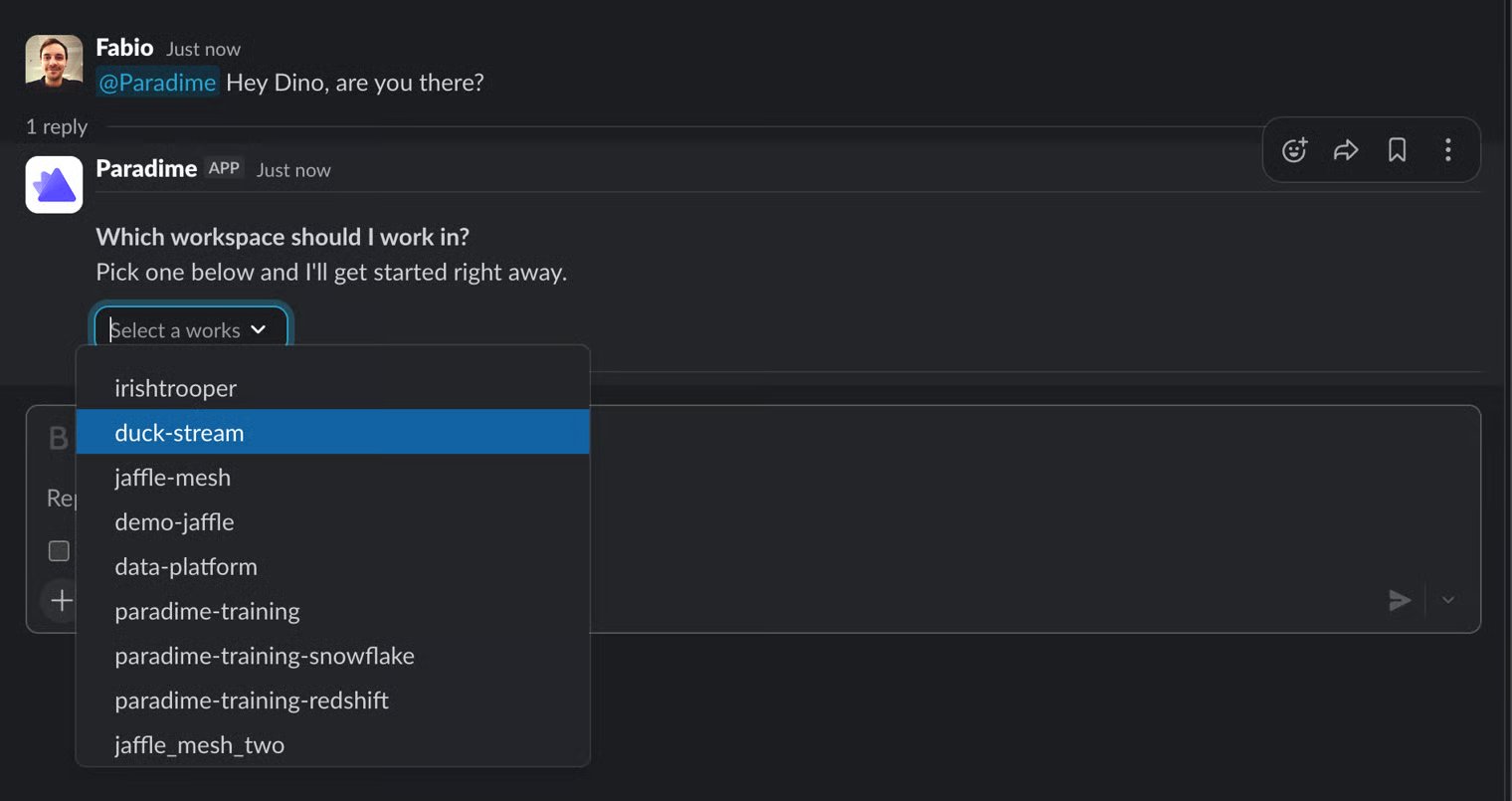 **This matters.** The workspace you select determines the environment DinoAI runs with — including the data warehouse connection, integrations, and configuration set up for that workspace.
#### 3. Send Your First Message
Just type. Unlike channels, **you don't need to mention `@paradime` in a DM** — every message you send in the conversation goes straight to the agent.
```
Hey Dino, are you there?
```
If everything is connected, DinoAI will respond and confirm it's ready to take on tasks.
#### 4. Give It a Task
Here are a few examples to get started:
```
Document all models in the marts folder that are missing descriptions.
```
```
Create a new model that joins orders and customers on customer_id.
```
```
Run a quick check on our staging models and flag anything that looks off.
```
DinoAI will pick up the task, work in the background, and reply in the DM when it's done.
Switching workspaces mid-session is not supported. If you need to run a task under a different workspace, start a new session with a fresh message.
***
#### DMs vs Channels
Everything DinoAI can do in a channel, it can do in a DM — cloning repositories, working across multiple repos, opening PRs, and querying your warehouse all work exactly the same. The differences are only about how you talk to it:
| | Channel | Direct Message |
| ----------------------- | ---------------------------------------- | --------------------------------------- |
| **Starting a task** | Mention `@paradime` in a message | Just send a message — no mention needed |
| **Following up** | Reply in the thread | Reply in the thread |
| **Visibility** | Everyone in the channel sees the session | Only you see the conversation |
| **Workspace selection** | Dropdown in the thread | Dropdown in the DM |
Use channels when you want the team to see and collaborate on what the agent is doing; use DMs for personal or exploratory work.
#### Related
* Setup — Configure the GitHub App and warehouse environment
* Starting a Session — Work with DinoAI in Slack channels
* .dinorules — Set rules that guide how DinoAI works across all sessions
* Tools and Features — Explore tools accessible by the Slack Agent
## Related topics
- [customize-agent](/products/dino-ai/slack-agent/customize-agent.md)
- [GitHub Branch Protection Guide: Preventing Direct Commits to Main](/guides/working-with-git/github-branch-protection-guide-preventing-direct-commits-to-main.md)
- [DinoAI CLI](/developers/paradime-cli/dinoai-cli.md)
- [Directory Context](/products/dino-ai/copilot/context/directory-context.md)
- [Version Control](/products/dino-ai/copilot/version-control.md)
**This matters.** The workspace you select determines the environment DinoAI runs with — including the data warehouse connection, integrations, and configuration set up for that workspace.
#### 3. Send Your First Message
Just type. Unlike channels, **you don't need to mention `@paradime` in a DM** — every message you send in the conversation goes straight to the agent.
```
Hey Dino, are you there?
```
If everything is connected, DinoAI will respond and confirm it's ready to take on tasks.
#### 4. Give It a Task
Here are a few examples to get started:
```
Document all models in the marts folder that are missing descriptions.
```
```
Create a new model that joins orders and customers on customer_id.
```
```
Run a quick check on our staging models and flag anything that looks off.
```
DinoAI will pick up the task, work in the background, and reply in the DM when it's done.
Switching workspaces mid-session is not supported. If you need to run a task under a different workspace, start a new session with a fresh message.
***
#### DMs vs Channels
Everything DinoAI can do in a channel, it can do in a DM — cloning repositories, working across multiple repos, opening PRs, and querying your warehouse all work exactly the same. The differences are only about how you talk to it:
| | Channel | Direct Message |
| ----------------------- | ---------------------------------------- | --------------------------------------- |
| **Starting a task** | Mention `@paradime` in a message | Just send a message — no mention needed |
| **Following up** | Reply in the thread | Reply in the thread |
| **Visibility** | Everyone in the channel sees the session | Only you see the conversation |
| **Workspace selection** | Dropdown in the thread | Dropdown in the DM |
Use channels when you want the team to see and collaborate on what the agent is doing; use DMs for personal or exploratory work.
#### Related
* Setup — Configure the GitHub App and warehouse environment
* Starting a Session — Work with DinoAI in Slack channels
* .dinorules — Set rules that guide how DinoAI works across all sessions
* Tools and Features — Explore tools accessible by the Slack Agent
## Related topics
- [customize-agent](/products/dino-ai/slack-agent/customize-agent.md)
- [GitHub Branch Protection Guide: Preventing Direct Commits to Main](/guides/working-with-git/github-branch-protection-guide-preventing-direct-commits-to-main.md)
- [DinoAI CLI](/developers/paradime-cli/dinoai-cli.md)
- [Directory Context](/products/dino-ai/copilot/context/directory-context.md)
- [Version Control](/products/dino-ai/copilot/version-control.md)