> ## Documentation Index
> Fetch the complete documentation index at: https://docs.paradime.io/llms.txt
> Use this file to discover all available pages before exploring further.
# Amazon Athena
> Integrate Amazon Athena with Paradime to enables deploying dbt™ in production with Bolt
Amazon Athena is a serverless query service that makes it easy to analyze data stored in Amazon S3. As a scheduler environment in Paradime, Athena enables deploying dbt™ in production with [Bolt](/products/bolt/index).
**IP RESTRICTIONS**
Make sure to allow traffic from one of the Paradime IPs in your firewall depending on the data location selected.
👉 See also: [Paradime IP addresses](/developers/ip-restrictions).
### Setup Instructions
1. Click **Settings** in the top menu bar of the Paradime interface to access **Account Settings**
2. In the left sidebar, click "**Connections**"
3. Click "**Add New**" next to the **Bolt Schedules** section
4. Select "**Amazon Athena**"
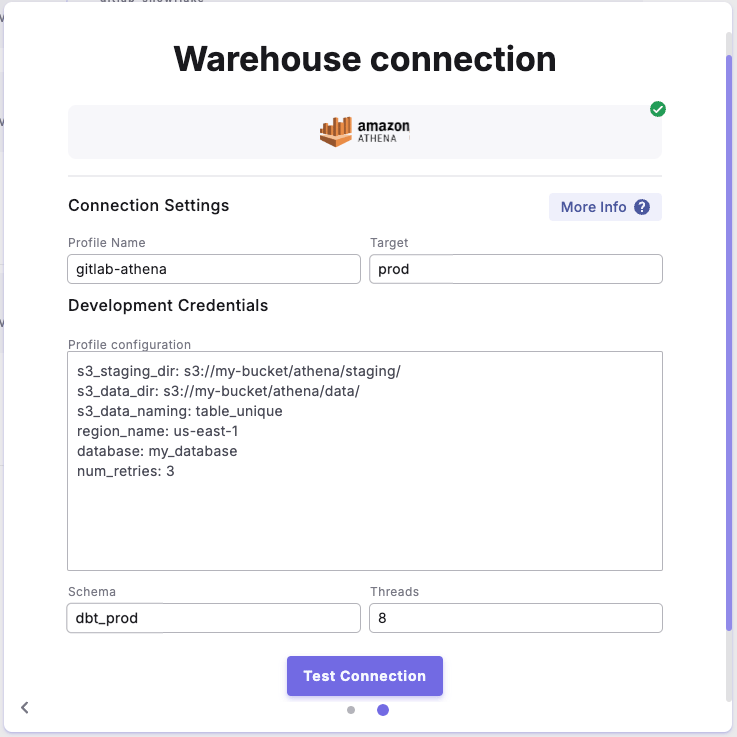
5. In the **Profile Configuration** field, add at least these required parameters. For additional configuration options, see the [Profile Fields Reference](/products/settings/connections/scheduler-environment/amazon-athena#profile-fields-reference) section.
```yaml theme={"system"}
s3_staging_dir: s3://analytics-staging/athena/query-results/ # Store query results
s3_data_dir: s3://analytics-data/raw/ # Raw data location
s3_data_naming: table_unique # Unique table naming
region_name: us-west-2 # AWS region
database: analytics_prod # Production database
num_retries: 3 # Query retry attempts
```
After adding the configuration, ensure it's properly formatted using a YAML formatter like [YAML Formatter](https://jsonformatter.org/yaml-formatter).
6. Provide a dbt™ **Profile Name** (This should match with the profile name set in your `dbt_project.yml`).
7. In the **Target** field, enter "**`prod`**". This is the default target your dbt™ project will use for your [Bolt Schedules.](/products/bolt/index)
8. The "**Schema**" field is pre-configured, but you can change it to specify the schema where dbt will build objects.
9. The "**Threads**" value is pre-configured to 1, but you can adjust this number to specify how many parallel operations your dbt project can run.
***
### Example Profile Configuration
 ***
### Profile Fields Reference
| Field | Description | Example | Default | Required |
| ------------------ | --------------------------------------------------------------------------------------- | -------------------------------- | ------- | -------- |
| s3\_staging\_dir | S3 bucket location where Athena will store query results | `s3://my-bucket/athena/staging/` | None | ✅ |
| s3\_data\_dir | S3 bucket location where Athena will store table data | `s3://my-bucket/athena/data/` | None | ✅ |
| s3\_data\_naming | Naming convention used when writing to S3 | `table_unique` | None | ❌ |
| region\_name | AWS region where your Athena instance is located | `us-east-1` | None | ✅ |
| database | Name of the Athena database to connect to | `analytics_db` | None | ✅ |
| schema | Default schema where dbt will build objects.This is configured in the UI "Schema" field | `reporting` | None | ✅ |
| aws\_profile\_name | Profile name from your AWS shared credentials file | `default` | None | ❌ |
| threads | Number of concurrent operations.This is configured in the UI "Threads" field | `4` | `1` | ❌ |
| num\_retries | Number of times to retry a failed query before failing | `3` | `5` | ❌ |
***
**Important Notes**
* All S3 paths should end with a forward slash (/)
* The AWS credentials can be configured through environment variables, AWS credentials file, or IAM roles
## Related topics
- [Amazon Athena](/products/settings/connections/dinoai-background-agent-environment/amazon-athena.md)
- [Scheduler environment](/products/settings/connections/scheduler-environment/index.md)
- [DinoAI Background Agent environment](/products/settings/connections/dinoai-background-agent-environment/index.md)
- [Code IDE environment](/products/settings/connections/development-environment/index.md)
***
### Profile Fields Reference
| Field | Description | Example | Default | Required |
| ------------------ | --------------------------------------------------------------------------------------- | -------------------------------- | ------- | -------- |
| s3\_staging\_dir | S3 bucket location where Athena will store query results | `s3://my-bucket/athena/staging/` | None | ✅ |
| s3\_data\_dir | S3 bucket location where Athena will store table data | `s3://my-bucket/athena/data/` | None | ✅ |
| s3\_data\_naming | Naming convention used when writing to S3 | `table_unique` | None | ❌ |
| region\_name | AWS region where your Athena instance is located | `us-east-1` | None | ✅ |
| database | Name of the Athena database to connect to | `analytics_db` | None | ✅ |
| schema | Default schema where dbt will build objects.This is configured in the UI "Schema" field | `reporting` | None | ✅ |
| aws\_profile\_name | Profile name from your AWS shared credentials file | `default` | None | ❌ |
| threads | Number of concurrent operations.This is configured in the UI "Threads" field | `4` | `1` | ❌ |
| num\_retries | Number of times to retry a failed query before failing | `3` | `5` | ❌ |
***
**Important Notes**
* All S3 paths should end with a forward slash (/)
* The AWS credentials can be configured through environment variables, AWS credentials file, or IAM roles
## Related topics
- [Amazon Athena](/products/settings/connections/dinoai-background-agent-environment/amazon-athena.md)
- [Scheduler environment](/products/settings/connections/scheduler-environment/index.md)
- [DinoAI Background Agent environment](/products/settings/connections/dinoai-background-agent-environment/index.md)
- [Code IDE environment](/products/settings/connections/development-environment/index.md)