> ## Documentation Index
> Fetch the complete documentation index at: https://docs.paradime.io/llms.txt
> Use this file to discover all available pages before exploring further.
# Dremio
> Integrate Dremio with Paradime to enables deploying dbt™ in production with Bolt
Dremio is a lakehouse platform that enables high-performance SQL queries directly on data lake storage. Paradime supports connections to both **Dremio Cloud** and **Dremio Software**. As a scheduler environment in Paradime, Dremio enables deploying dbt™ in production with [Bolt](/products/bolt/index).
**IP RESTRICTIONS**
Make sure to allow traffic from one of the Paradime IPs in your firewall depending on the data location selected.
👉 See also: [Paradime IP addresses](/developers/ip-restrictions).
### Prerequisites
Dremio offers different authentication methods for Dremio Cloud and Dremio Software deployments. Choose the appropriate method and ensure complete their respective prerequisites.
#### Dremio Cloud
* Access to a Dremio Cloud workspace
* Access to the ID of the Sonar project you want to use. See [Obtaining the ID of a Project](https://docs.dremio.com/cloud/cloud-entities/projects/#obtaining-the-id-of-a-project).
* A valid personal access token (PAT) for authenticating to Dremio Cloud. See [Creating a Token](https://docs.dremio.com/cloud/security/authentication/personal-access-token/#creating-a-token).
* Python 3.9 or later installed on the system that you are running dbt on.
#### Dremio Software
* Dremio Software version 22.0 or later
* Python 3.9 or later installed
* Required support keys enabled in your Dremio cluster (See [Support Keys](https://docs.dremio.com/software/advanced-administration/support-settings/#support-keys) docs for details)
* `dremio.iceberg.enabled`
* `dremio.iceberg.ctas.enabled`
* `dremio.execution.support_unlimited_splits`
### Setup Instructions
1. Click **Settings** in the top menu bar of the Paradime interface to access **Account Settings**
2. In the left sidebar, click "**Connections**"
3. Click "**Add New**" next to the **Bolt Schedules** section
4. Select "**Dremio**"
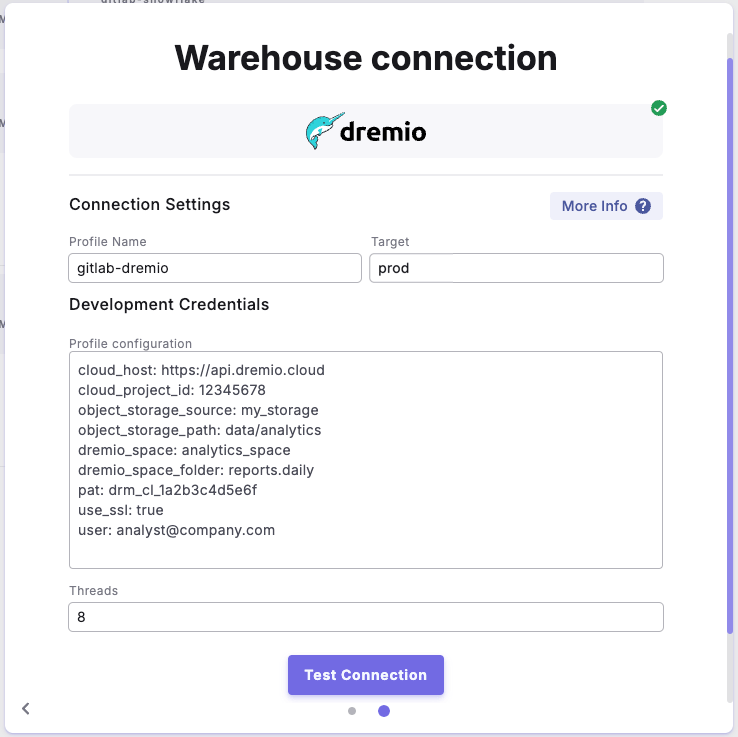
5. In the **Profile Configuration** field, add the following parameters based on your authentication method. Reference the [**Profile Fields Reference**](/products/settings/connections/scheduler-environment/dremio#profile-fields-reference) section below for additional context and configurations:
```yaml theme={"system"}
cloud_host: https://api.dremio.cloud # US Control Plane
cloud_project_id: 12345678 # Sonar project ID
object_storage_source: my_storage # Filesystem name for objects
object_storage_path: data/analytics # Filesystem path for objects
dremio_space: analytics_space # Space for view creation
dremio_space_folder: reports.daily # Space folder path
pat: drm_cl_1a2b3c4d5e6f # Personal access token
use_ssl: true # Required for Cloud
user: analyst@company.com # Your email
```
```yaml theme={"system"}
software_host: dremio.company.com # Hostname or IP address
port: 9047 # Default: 9047
user: dremio_analyst # Username
password: your_secure_password # Password
object_storage_source: company_storage # Filesystem name for objects
object_storage_path: data/transforms # Filesystem path for objects
dremio_space: dev_space # Space for view creation
dremio_space_folder: testing.models # Space folder path
threads: 4 # Number of threads
use_ssl: true # Enable SSL
```
```yaml theme={"system"}
pat: drm_sw_1a2b3c4d5e6f # Token for authentication
port: 9047 # Port for Dremio Software cluster API endpoints
software_host: dremio.internal.net # Hostname or IP address of the Dremio coordinator node
object_storage_source: analytics_source # Name of filesystem for creating tables and views
object_storage_path: production/models # Path in filesystem for objects
dremio_space: prod_space # Dremio space for creating views
dremio_space_folder: models.validated # Folder path in Dremio space
threads: 4 # Number of threads for dbt project execution
use_ssl: true # Enable/disable SSL connection
user: dremio_prod # Username for authentication
```
After adding the configuration, ensure it's properly formatted using a YAML formatter like [YAML Formatter](https://jsonformatter.org/yaml-formatter).
6. Provide a dbt™ **Profile Name** (This should match with the profile name set in your `dbt_project.yml`).
7. In the **Target** field, enter "**`prod`**". This is the default target your dbt™ project will use for your [Bolt Schedules.](/products/bolt/index)
8. The "**Threads**" value is pre-configured to 1, but you can adjust this number to specify how many parallel operations your dbt project can run.
***
### Example Profile Configuration
 ***
### Profile Fields Reference[](https://docs.getdbt.com/docs/core/connect-data-platform/clickhouse-setup#description-of-clickhouse-profile-fields)
| Field | Description | Default Value | Required |
| ----------------------- | ------------------------------------------------ | ------------- | -------- |
| object\_storage\_source | Source name for storing tables and other objects | `$scratch` | ❌ |
| object\_storage\_path | Path within storage for object creation | `no_schema` | ❌ |
| dremio\_space | Space designation for view creation | `@username` | ❌ |
| dremio\_space\_folder | Folder structure within Dremio space | `no_schema` | ❌ |
| Field | Description | Default Value | Required |
| ------------------ | ---------------------------------- | -------------------------- | -------- |
| cloud\_host | Dremio Cloud API endpoint | `https://api.dremio.cloud` | ✅ |
| cloud\_project\_id | Project identifier in Dremio Cloud | None | ✅ |
| user | Email address for authentication | None | ✅ |
| pat | Authentication token | None | ✅ |
| use\_ssl | SSL connection enablement | `true` | ✅ |
| Field | Description | Default Value | Required |
| -------------- | -------------------------------------------- | ------------- | -------- |
| software\_host | Host address of Dremio instance | None | ✅ |
| port | Connection port number | `9047` | ✅ |
| user | Authentication username | None | ✅ |
| password | User password (if not using PAT) | None | ✅\* |
| pat | Authentication token (if not using password) | None | ✅\* |
| use\_ssl | SSL connection enablement | `false` | ✅ |
\*: Either password or port must be provided, but not both
## Related topics
- [Dremio](/products/settings/connections/dinoai-background-agent-environment/dremio.md)
- [Scheduler environment](/products/settings/connections/scheduler-environment/index.md)
- [DinoAI Background Agent environment](/products/settings/connections/dinoai-background-agent-environment/index.md)
- [Code IDE environment](/products/settings/connections/development-environment/index.md)
***
### Profile Fields Reference[](https://docs.getdbt.com/docs/core/connect-data-platform/clickhouse-setup#description-of-clickhouse-profile-fields)
| Field | Description | Default Value | Required |
| ----------------------- | ------------------------------------------------ | ------------- | -------- |
| object\_storage\_source | Source name for storing tables and other objects | `$scratch` | ❌ |
| object\_storage\_path | Path within storage for object creation | `no_schema` | ❌ |
| dremio\_space | Space designation for view creation | `@username` | ❌ |
| dremio\_space\_folder | Folder structure within Dremio space | `no_schema` | ❌ |
| Field | Description | Default Value | Required |
| ------------------ | ---------------------------------- | -------------------------- | -------- |
| cloud\_host | Dremio Cloud API endpoint | `https://api.dremio.cloud` | ✅ |
| cloud\_project\_id | Project identifier in Dremio Cloud | None | ✅ |
| user | Email address for authentication | None | ✅ |
| pat | Authentication token | None | ✅ |
| use\_ssl | SSL connection enablement | `true` | ✅ |
| Field | Description | Default Value | Required |
| -------------- | -------------------------------------------- | ------------- | -------- |
| software\_host | Host address of Dremio instance | None | ✅ |
| port | Connection port number | `9047` | ✅ |
| user | Authentication username | None | ✅ |
| password | User password (if not using PAT) | None | ✅\* |
| pat | Authentication token (if not using password) | None | ✅\* |
| use\_ssl | SSL connection enablement | `false` | ✅ |
\*: Either password or port must be provided, but not both
## Related topics
- [Dremio](/products/settings/connections/dinoai-background-agent-environment/dremio.md)
- [Scheduler environment](/products/settings/connections/scheduler-environment/index.md)
- [DinoAI Background Agent environment](/products/settings/connections/dinoai-background-agent-environment/index.md)
- [Code IDE environment](/products/settings/connections/development-environment/index.md)