> ## Documentation Index
> Fetch the complete documentation index at: https://docs.paradime.io/llms.txt
> Use this file to discover all available pages before exploring further.
# Redshift
> Integrate Amazon Redshift with Paradime to enables deploying dbt™ in production with Bolt
**IP RESTRICTIONS**
Make sure to allow traffic from one of the Paradime IPs in your firewall depending on the data location selected.
👉 See also: [Paradime IP addresses](/developers/ip-restrictions).
We advise creating a new Redshift user and grant the suggested access required to create tables and views in your Production database.
## Create a Redshift user
In Redshift, you can run the below script to create a new user and grant access to your database/schema. Make sure you run these commands as an **`Account Admin`.**
### Suggested permissions
This set of permissions will enable Paradime to read from and create tables and views when running production jobs in you Redshift database.
```sql lineNumbers theme={"system"}
-- create group
create group transformer;
-- create user and assign to group
create user paradime_prod_user
password ''
in group transformer;
-- grant privileges to the user group
grant select on all tables in schema information_schema to group transformer;
grant select on all tables in schema pg_catalog to group transformer;
-- for each schema:
grant usage on schema to group transformer;
grant select on all tables in schema to group transformer;
-- grant privileges to user group to create in database
grant create on database to group transformer;
```
### Maintain privileges
In Redshift after each dbt™️ run in production you need to make sure to grants the correct privileges as Redshift doesn't not support grant on future schemas.
The `paradime_prod_user` user should be able to read new schemas created in your production runs.
Check[ this](https://docs.getdbt.com/blog/configuring-grants) guide on using grants and hooks.
## Add Scheduler Connection
1. Click **Settings** in the top menu bar of the Paradime interface to access **Account Settings**
2. In the left sidebar, click "**Connections**"
3. Click "**Add New**" next to the **Bolt Schedules** section
4. Select "Redshift" and fill out the corresponding fields.
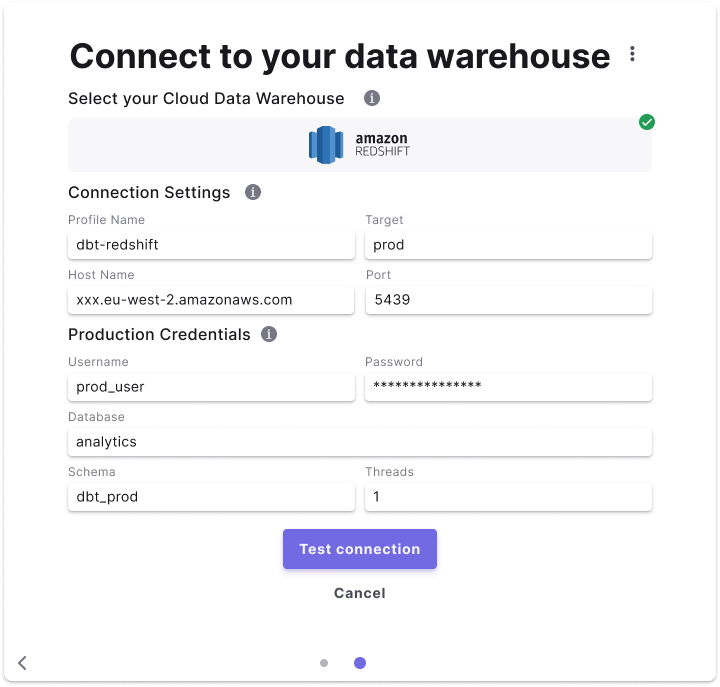 ### Fields Details
Below are list of fields and example to create a connection.
| Field | Description | Example |
| ------------ | ----------------------------------------------------------------------------------------------------------------------------------------------- | --------------------------------- |
| Profile Name | The profile name set in your `dbt_project.yaml` . See more [here](https://docs.getdbt.com/docs/core/connect-data-platform/connection-profiles). | **`dbt-redshift`** |
| Target | The target name used to identify the connection. See more [here](https://docs.getdbt.com/reference/dbt-jinja-functions/target). | **`prod`** |
| Host Name | The hostname of the Redshift database to connect to. | **`xxx.eu-west-2.amazonaws.com`** |
| Port | Usually `5439` for Redshift. | **`5439`** |
| Database | The name of your Redshift production database. | **`analytics`** |
| Username | The username created with access to the production database. | **`prod_user`** |
| Password | The password set for the user created in Redshift. | **`password_xyz`** |
| Schema | The default schema used to build dbt™️ objects at runtime. | **`dbt_prod`** |
| Threads | The number of threads used in this connection. See more [here](https://docs.getdbt.com/docs/running-a-dbt-project/using-threads). | **`8`** |
## Related topics
- [Redshift](/products/settings/connections/development-environment/redshift.md)
- [Redshift Tools](/products/dino-ai/tools-and-features/warehouse-tool/redshift-tools.md)
- [Redshift PrivateLink](/products/settings/connections/connection-security/aws-privatelink/redshift-privatelink.md)
- [Security model](/resources/other-important-stuff/security-model.md)
### Fields Details
Below are list of fields and example to create a connection.
| Field | Description | Example |
| ------------ | ----------------------------------------------------------------------------------------------------------------------------------------------- | --------------------------------- |
| Profile Name | The profile name set in your `dbt_project.yaml` . See more [here](https://docs.getdbt.com/docs/core/connect-data-platform/connection-profiles). | **`dbt-redshift`** |
| Target | The target name used to identify the connection. See more [here](https://docs.getdbt.com/reference/dbt-jinja-functions/target). | **`prod`** |
| Host Name | The hostname of the Redshift database to connect to. | **`xxx.eu-west-2.amazonaws.com`** |
| Port | Usually `5439` for Redshift. | **`5439`** |
| Database | The name of your Redshift production database. | **`analytics`** |
| Username | The username created with access to the production database. | **`prod_user`** |
| Password | The password set for the user created in Redshift. | **`password_xyz`** |
| Schema | The default schema used to build dbt™️ objects at runtime. | **`dbt_prod`** |
| Threads | The number of threads used in this connection. See more [here](https://docs.getdbt.com/docs/running-a-dbt-project/using-threads). | **`8`** |
## Related topics
- [Redshift](/products/settings/connections/development-environment/redshift.md)
- [Redshift Tools](/products/dino-ai/tools-and-features/warehouse-tool/redshift-tools.md)
- [Redshift PrivateLink](/products/settings/connections/connection-security/aws-privatelink/redshift-privatelink.md)
- [Security model](/resources/other-important-stuff/security-model.md)