> ## Documentation Index
> Fetch the complete documentation index at: https://docs.paradime.io/llms.txt
> Use this file to discover all available pages before exploring further.
# Snowflake
> Integrate Snowflake with Paradime to enables deploying dbt™ in production with Bolt
**IP RESTRICTIONS**
Make sure to allow traffic from one of the Paradime IPs in your firewall depending on the data location selected.
👉 See also: [Paradime IP addresses](/developers/ip-restrictions).
We advise creating a new Snowflake user and grant the suggested access required to create tables and views your Production database.
## Create a new Snowflake user
You can execute the SQL commands below in Snowflake and create a user with the suggested access credentials.
## Suggested Permissions
This set of permissions will enable Paradime to read from and create tables and views when running production jobs in you Snowflake database.
```sql theme={"system"}
use role securityadmin;
-- create warehouse if not exists
create warehouse transforming
warehouse_size = xsmall
auto_suspend = 60
auto_resume = true
initially_suspended = true;
-- create role and grant warehouse permission
create role transformer;
grant all on warehouse transforming to role transformer;
-- create prod user
create user paradime_prod_user
password = ''
default_warehouse = transforming
default_role = transformer;
-- grant this roles to paradime_prod_user
grant role transformer to user paradime_prod_user;
-- grant permission to allow role to read from your source database
grant usage on database to role transformer;
grant usage on future schemas in database to role transformer;
grant select on future tables in database to role transformer;
grant select on future views in database to role transformer;
grant usage on all schemas in database to role transformer;
grant select on all tables in database to role transformer;
grant select on all views in database to role transformer;
-- grant permission to allow role to write to your prod database
grant all on database analytics to role transformer;
```
## Add Scheduler Connection
To add the Snowflake Scheduler connection, follow these instructions:
1. Click **Settings** in the top menu bar of the Paradime interface to access **Account Settings**
2. In the left sidebar, click "**Connections**"
3. Click "**Add New**" next to the **Bolt Schedules** section
4. Select "Snowflake" and fill out the corresponding fields.
## Using Username & Password
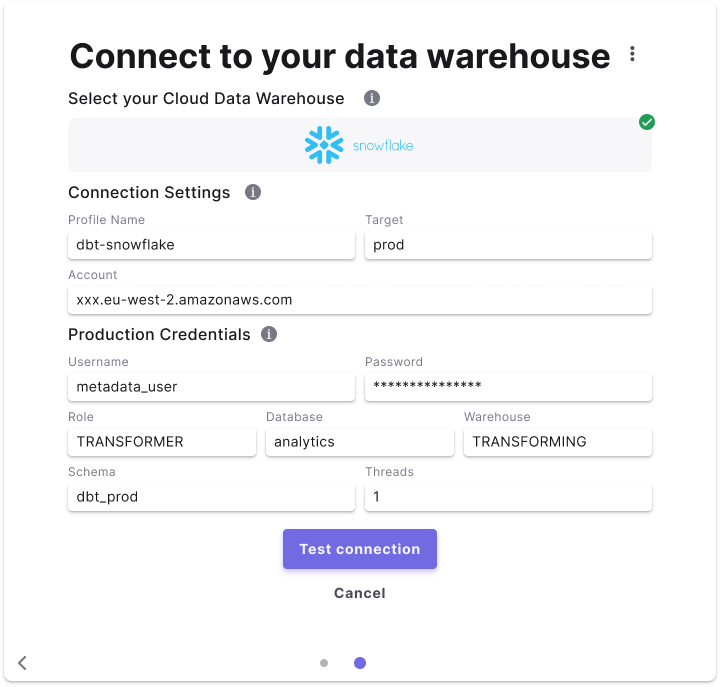 ### Fields Details
Below are list of fields and example to create a connection.
| Field | Description | Example |
| --------- | ----------------------------------------------------------------------------------------------------------------------------------------------- | --------------------------- |
| Profile | The profile name set in your `dbt_project.yaml` . See more [here](https://docs.getdbt.com/docs/core/connect-data-platform/connection-profiles). | **`dbt-snowflake`** |
| Target | The target name used to identify the connection. See more [here](https://docs.getdbt.com/reference/dbt-jinja-functions/target). | **`prod`** |
| Account | The Snowflake account to connect to as per [Snowflake's documentation.](https://docs.snowflake.com/en/user-guide/admin-account-identifier) | **`vj71689.eu-west-2.aws`** |
| Role | The role to assume when running queries as the specified user. | **`transformer`** |
| Database | The name of your Snowflake production database. | **`analytics`** |
| Warehouse | The virtual warehouse to use for running queries. | **`transforming`** |
| Username | The username created with access to the production database. | **`prod_user`** |
| Password | The password set for the user created in Snowflake. | **`password_xyz`** |
| Schema | The default schema used to build dbt™️ objects at runtime. | **`dbt_prod`** |
| Threads | The number of threads used in this connection. See more [here](https://docs.getdbt.com/docs/running-a-dbt-project/using-threads). | **`8`** |
## Using Key-Pair authentication
In Paradime you can use Key-Pair authentication method to connect your Scheduler environment using a Private Key and optionally a Private Key Passphrase.
After [generating an encrypted or unencrypted key pair](https://docs.snowflake.com/en/user-guide/key-pair-auth#configuring-key-pair-authentication), you will need to set the `rsa_public_key` for the Snowflake user connecting to Paradime.
```sql theme={"system"}
alter user prod_user set rsa_public_key='MIIBIjANBgkqh...';
```
### Fields Details
Below are list of fields and example to create a connection.
| Field | Description | Example |
| --------- | ----------------------------------------------------------------------------------------------------------------------------------------------- | --------------------------- |
| Profile | The profile name set in your `dbt_project.yaml` . See more [here](https://docs.getdbt.com/docs/core/connect-data-platform/connection-profiles). | **`dbt-snowflake`** |
| Target | The target name used to identify the connection. See more [here](https://docs.getdbt.com/reference/dbt-jinja-functions/target). | **`prod`** |
| Account | The Snowflake account to connect to as per [Snowflake's documentation.](https://docs.snowflake.com/en/user-guide/admin-account-identifier) | **`vj71689.eu-west-2.aws`** |
| Role | The role to assume when running queries as the specified user. | **`transformer`** |
| Database | The name of your Snowflake production database. | **`analytics`** |
| Warehouse | The virtual warehouse to use for running queries. | **`transforming`** |
| Username | The username created with access to the production database. | **`prod_user`** |
| Password | The password set for the user created in Snowflake. | **`password_xyz`** |
| Schema | The default schema used to build dbt™️ objects at runtime. | **`dbt_prod`** |
| Threads | The number of threads used in this connection. See more [here](https://docs.getdbt.com/docs/running-a-dbt-project/using-threads). | **`8`** |
## Using Key-Pair authentication
In Paradime you can use Key-Pair authentication method to connect your Scheduler environment using a Private Key and optionally a Private Key Passphrase.
After [generating an encrypted or unencrypted key pair](https://docs.snowflake.com/en/user-guide/key-pair-auth#configuring-key-pair-authentication), you will need to set the `rsa_public_key` for the Snowflake user connecting to Paradime.
```sql theme={"system"}
alter user prod_user set rsa_public_key='MIIBIjANBgkqh...';
```
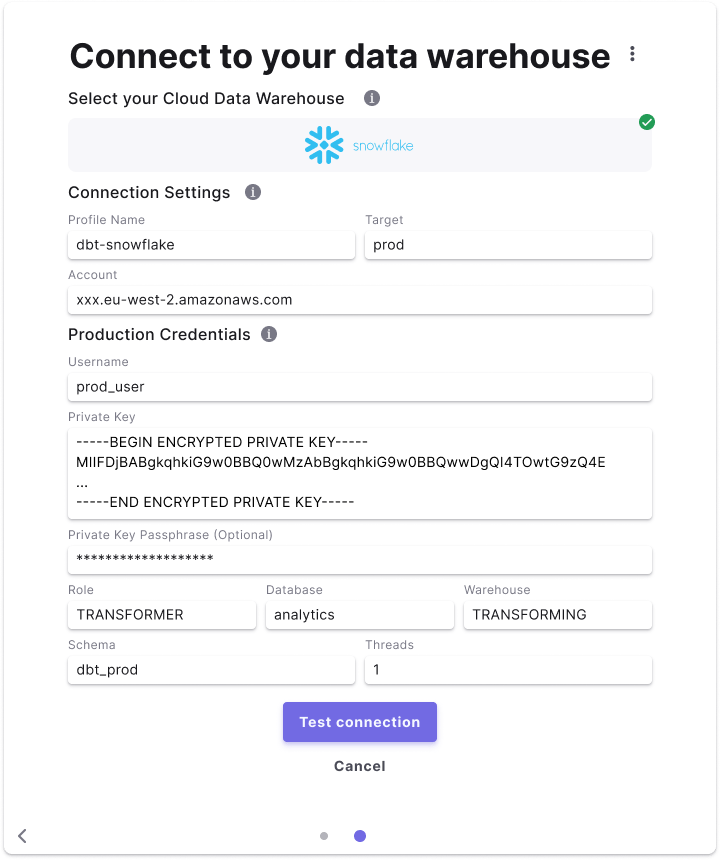 ### Fields Details
Below are list of fields and example to create a connection.
| Field | Description | Example |
| --------------------------------- | ----------------------------------------------------------------------------------------------------------------------------------------------- | ------------------------------------------------------------------------------------------------------------ |
| Profile | The profile name set in your `dbt_project.yaml` . See more [here](https://docs.getdbt.com/docs/core/connect-data-platform/connection-profiles). | **`dbt-snowflake`** |
| Target | The target name used to identify the connection. See more [here](https://docs.getdbt.com/reference/dbt-jinja-functions/target). | **`prod`** |
| Account | The Snowflake account to connect to as per [Snowflake's documentation.](https://docs.snowflake.com/en/user-guide/admin-account-identifier) | **`vj71689.eu-west-2.aws`** |
| Role | The role to assume when running queries as the specified user. | **`transformer`** |
| Database | The name of your Snowflake production database. | **`analytics`** |
| Warehouse | The virtual warehouse to use for running queries. | **`transforming`** |
| Username | The username created with access to the production database. | **`prod_user`** |
| Private Key | The Private Key generated and linked to the user. You **must** include the commented lines when adding the Private Key. | **`-----BEGIN ENCRYPTED PRIVATE KEY----- < private key content here > -----END ENCRYPTED PRIVATE KEY-----`** |
| Private Key Passphrase (Optional) | The Passphrase created when generating the encrypted key | **`passphrase_xyz`** |
| Schema | The default schema used to build dbt™️ objects at runtime. | **`dbt_prod`** |
| Threads | The number of threads used in this connection. See more [here](https://docs.getdbt.com/docs/running-a-dbt-project/using-threads). | **`8`** |
## Related topics
- [Snowflake](/products/settings/connections/development-environment/snowflake.md)
- [Snowflake Storage](/integrations/snowflake-storage.md)
- [Snowflake Tools](/products/dino-ai/tools-and-features/warehouse-tool/snowflake-tools.md)
- [Snowflake OAuth](/products/settings/connections/connection-security/snowflake-oauth.md)
### Fields Details
Below are list of fields and example to create a connection.
| Field | Description | Example |
| --------------------------------- | ----------------------------------------------------------------------------------------------------------------------------------------------- | ------------------------------------------------------------------------------------------------------------ |
| Profile | The profile name set in your `dbt_project.yaml` . See more [here](https://docs.getdbt.com/docs/core/connect-data-platform/connection-profiles). | **`dbt-snowflake`** |
| Target | The target name used to identify the connection. See more [here](https://docs.getdbt.com/reference/dbt-jinja-functions/target). | **`prod`** |
| Account | The Snowflake account to connect to as per [Snowflake's documentation.](https://docs.snowflake.com/en/user-guide/admin-account-identifier) | **`vj71689.eu-west-2.aws`** |
| Role | The role to assume when running queries as the specified user. | **`transformer`** |
| Database | The name of your Snowflake production database. | **`analytics`** |
| Warehouse | The virtual warehouse to use for running queries. | **`transforming`** |
| Username | The username created with access to the production database. | **`prod_user`** |
| Private Key | The Private Key generated and linked to the user. You **must** include the commented lines when adding the Private Key. | **`-----BEGIN ENCRYPTED PRIVATE KEY----- < private key content here > -----END ENCRYPTED PRIVATE KEY-----`** |
| Private Key Passphrase (Optional) | The Passphrase created when generating the encrypted key | **`passphrase_xyz`** |
| Schema | The default schema used to build dbt™️ objects at runtime. | **`dbt_prod`** |
| Threads | The number of threads used in this connection. See more [here](https://docs.getdbt.com/docs/running-a-dbt-project/using-threads). | **`8`** |
## Related topics
- [Snowflake](/products/settings/connections/development-environment/snowflake.md)
- [Snowflake Storage](/integrations/snowflake-storage.md)
- [Snowflake Tools](/products/dino-ai/tools-and-features/warehouse-tool/snowflake-tools.md)
- [Snowflake OAuth](/products/settings/connections/connection-security/snowflake-oauth.md)