> ## Documentation Index
> Fetch the complete documentation index at: https://docs.paradime.io/llms.txt
> Use this file to discover all available pages before exploring further.
# Code IDE Environment Variables
> Set up environment variables for use when running dbt™, Python, and CLI commands in the Code IDE.
export const Arcade = ({src, title}) =>
;
Set up environment variables for use in Paradime [Code IDE](/products/code-ide/index) when running dbt™, Python, and CLI commands.
**Important Notes:**
* These variables only apply to your [Code IDE](/products/code-ide/index) development environment
* They do not affect Bolt schedules
* For production environment variables, see [Bolt Schedules Environment Variables](/products/settings/environment-variables/bolt-schedule-env-variables)
### Setup Instructions
1. From any page in the Paradime application, Click the **Settings**
2. Navigate to **Workspaces > Environment Variables**
3. In the Code IDE section, click **Add New**
4. Configure your variable:
* Enter Key name
* Enter Value
* Click Save icon (💾)
***
### Bulk Upload Environment Variables
Instead of adding environment variables one at a time, you can upload multiple variables at once using a CSV file.
**To bulk upload variables:**
1. From any page in the Paradime application, click **Settings**
2. Navigate to **Workspaces > Environment Variables**
3. In the Code IDE section, click **Bulk Upload**
4. Drag and drop your CSV file or click to select a file
5. Review and confirm the upload
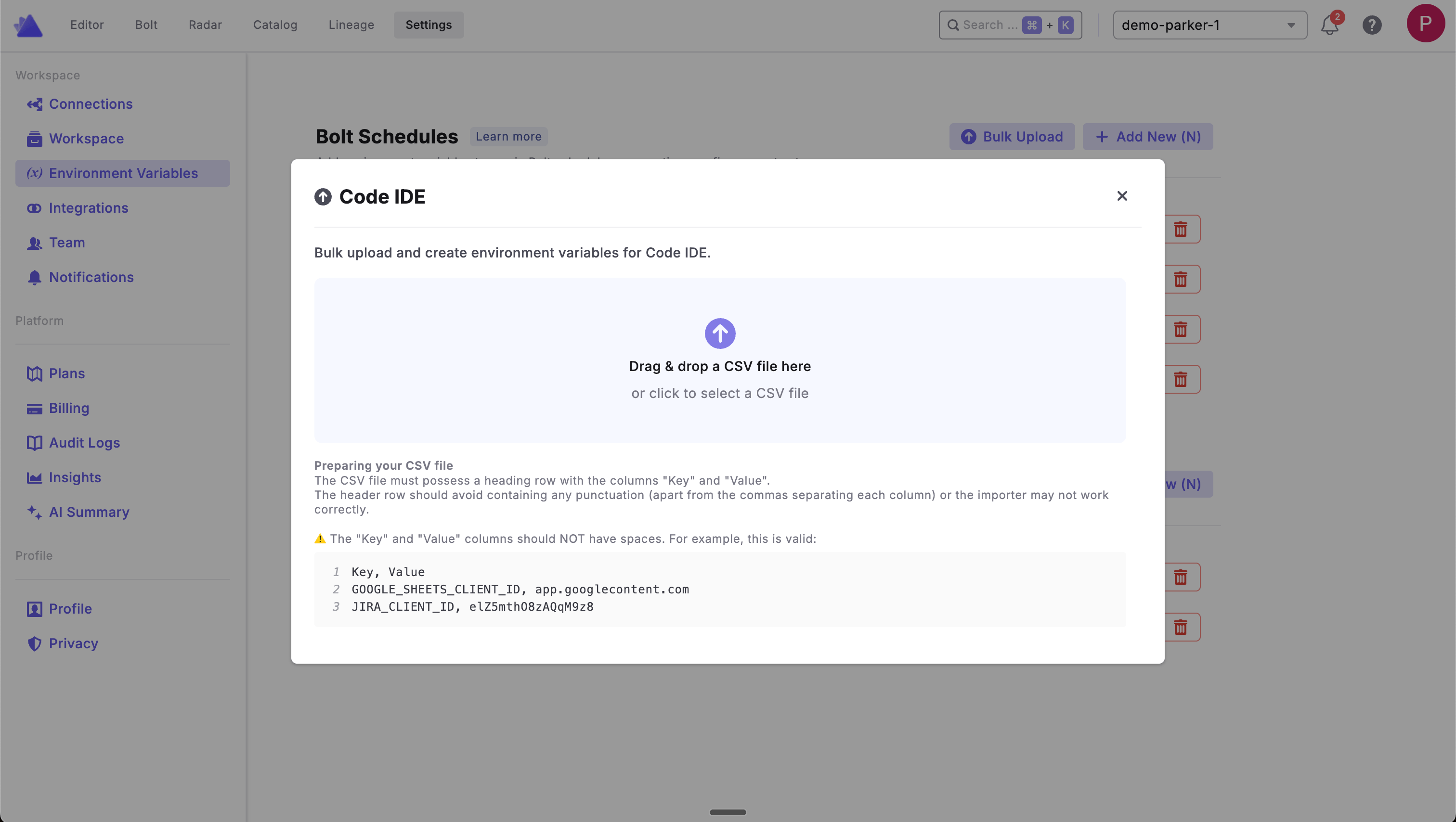 **Preparing your CSV file**
The CSV file must have a header row with the columns "Key" and "Value". The header row should avoid containing any punctuation (apart from the commas separating each column) or the importer may not work correctly.
The "Key" and "Value" columns should NOT have spaces. Your CSV file should look like this:
**Example CSV format:**
| Key | Value |
| -------------------------- | --------------------- |
| GOOGLE\_SHEETS\_CLIENT\_ID | app.googlecontent.com |
| JIRA\_CLIENT\_ID | e1Z5mthO8zAQqM9z8 |
| DEV\_SCHEMA\_PREFIX | dev\_ |
## Related topics
- [DinoAI Background Agent Environment Variables](/products/settings/environment-variables/dinoai-background-agent-environment-variables.md)
- [Bolt Schedules Environment Variables](/products/settings/environment-variables/bolt-schedule-env-variables.md)
- [Python Scripts](/products/bolt/creating-schedules/command-settings/python-scripts.md)
- [Managing workspace configurations](/guides/paradime-101/getting-started-with-your-paradime-workspace/managing-workspace-configurations.md)
- [Code IDE environment](/products/settings/connections/development-environment/index.md)
**Preparing your CSV file**
The CSV file must have a header row with the columns "Key" and "Value". The header row should avoid containing any punctuation (apart from the commas separating each column) or the importer may not work correctly.
The "Key" and "Value" columns should NOT have spaces. Your CSV file should look like this:
**Example CSV format:**
| Key | Value |
| -------------------------- | --------------------- |
| GOOGLE\_SHEETS\_CLIENT\_ID | app.googlecontent.com |
| JIRA\_CLIENT\_ID | e1Z5mthO8zAQqM9z8 |
| DEV\_SCHEMA\_PREFIX | dev\_ |
## Related topics
- [DinoAI Background Agent Environment Variables](/products/settings/environment-variables/dinoai-background-agent-environment-variables.md)
- [Bolt Schedules Environment Variables](/products/settings/environment-variables/bolt-schedule-env-variables.md)
- [Python Scripts](/products/bolt/creating-schedules/command-settings/python-scripts.md)
- [Managing workspace configurations](/guides/paradime-101/getting-started-with-your-paradime-workspace/managing-workspace-configurations.md)
- [Code IDE environment](/products/settings/connections/development-environment/index.md)