> ## Documentation Index
> Fetch the complete documentation index at: https://docs.paradime.io/llms.txt
> Use this file to discover all available pages before exploring further.
# Update connected git repository
> Update Git Repository - Manage and update connected Git repositories for dbt™ projects in Paradime.
export const Arcade = ({src, title}) =>
;
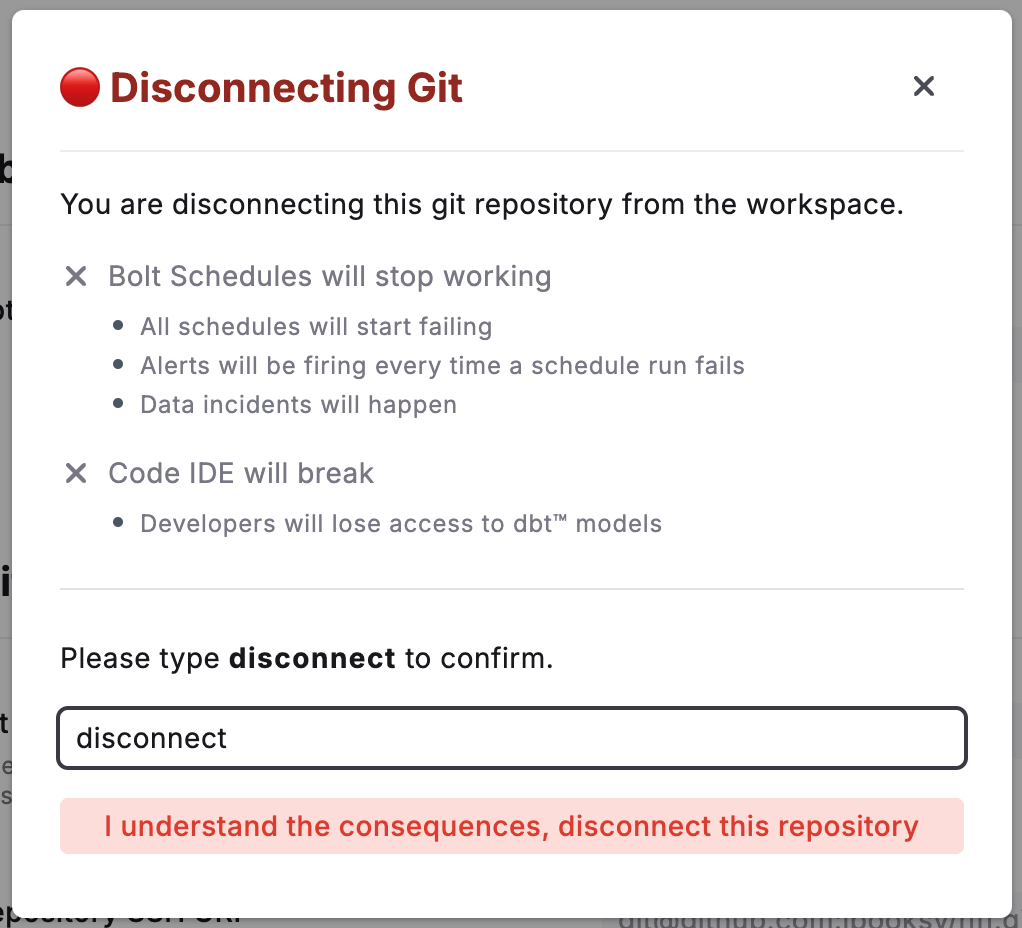
By updating your git repository, Paradime will lose the authorization to your previously connected git repository. If you proceed, you will need to:
* Re-authenticate your Git repo
* Re-upload the new deploy key
### Step-by-Step Guide
#### Phase 1: Disconnecting Current Repository
1. Click on Settings (⚙️) from the Paradime home screen
2. Select "Workspace" from the Workspace Settings
3. Click "Edit Repository" in the Git Connections Section
4. Proceed with Caution: Read the instructions and type "Disconnect" in the provided field
 #### Phase 2: Connecting New Repository
The following steps use GitHub as an example. The process is similar for other Git providers.
**In Git Provider:**
1. Go to your project repository
2. Select the "Code" dropdown
3. Copy the SSH key
**In Paradime:**
1. Click on Settings from Paradime
2. Select "Workspace" from the Workspace Settings
3. In the Git Connections section, Click "Edit Repository"
4. Paste the SSH key in the "Repository SSH URL" field
5. Copy the new generated Deploy Key
**Back in Git Provider:**
1. Navigate to repository Settings
2. Select "Deploy Keys"
3. Create a new Deploy Key
4. Paste the Deploy Key from Paradime
5. Enable "Allow Write access"
**Complete Setup in Paradime:**
1. Click "Save" to update your repository
## Related topics
- [Git Repositories](/products/settings/git-repositories/index.md)
- [GitHub](/integrations/github.md)
- [Importing a repository](/products/settings/git-repositories/importing-a-repository/index.md)
- [Setting Up a dbt™ Project](/guides/paradime-101/getting-started-with-the-paradime-ide/setting-up-a-dbt-project.md)
- [jira-backlog-agent](/guides/programmable-agents/jira-backlog-agent.md)
#### Phase 2: Connecting New Repository
The following steps use GitHub as an example. The process is similar for other Git providers.
**In Git Provider:**
1. Go to your project repository
2. Select the "Code" dropdown
3. Copy the SSH key
**In Paradime:**
1. Click on Settings from Paradime
2. Select "Workspace" from the Workspace Settings
3. In the Git Connections section, Click "Edit Repository"
4. Paste the SSH key in the "Repository SSH URL" field
5. Copy the new generated Deploy Key
**Back in Git Provider:**
1. Navigate to repository Settings
2. Select "Deploy Keys"
3. Create a new Deploy Key
4. Paste the Deploy Key from Paradime
5. Enable "Allow Write access"
**Complete Setup in Paradime:**
1. Click "Save" to update your repository
## Related topics
- [Git Repositories](/products/settings/git-repositories/index.md)
- [GitHub](/integrations/github.md)
- [Importing a repository](/products/settings/git-repositories/importing-a-repository/index.md)
- [Setting Up a dbt™ Project](/guides/paradime-101/getting-started-with-the-paradime-ide/setting-up-a-dbt-project.md)
- [jira-backlog-agent](/guides/programmable-agents/jira-backlog-agent.md)