> ## Documentation Index
> Fetch the complete documentation index at: https://docs.paradime.io/llms.txt
> Use this file to discover all available pages before exploring further.
# JumpCloud SSO
> JumpCloud SSO: Integrate JumpCloud SSO for Paradime and dbt™ projects. Enhance user authentication and access control.
### Introduction
[JumpCloud](https://jumpcloud.com) provides an open directory platform unifying the technology stack across identity, access and device management, in a cost-effective manner that doesn't sacrifice security or functionality.
Organizations that use JumpCloud can enable Single Sign-on (SSO) between Paradime and their JumpCloud instance using OIDC. This page describes how to configure SSO between Paradime and JumpCloud.
### Create a new JumpCloud Application Integration
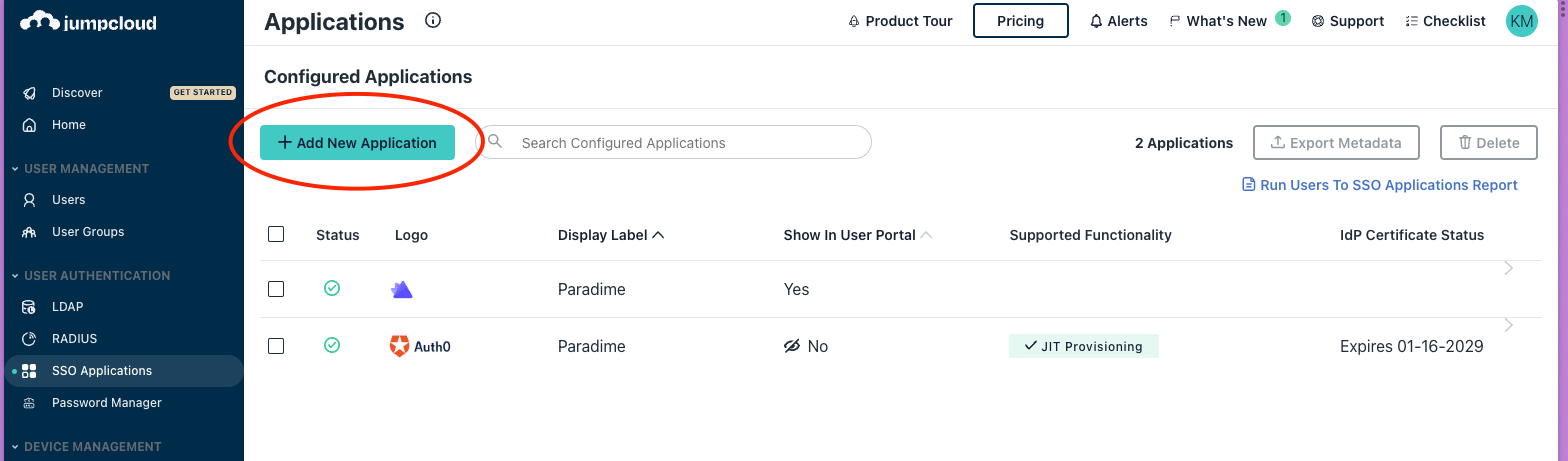
1. Login to the [JumpCloud Admin Portal](https://console.jumpcloud.com/) and navigate to the **SSO Applications** section and click on **"+ Add New Application"**
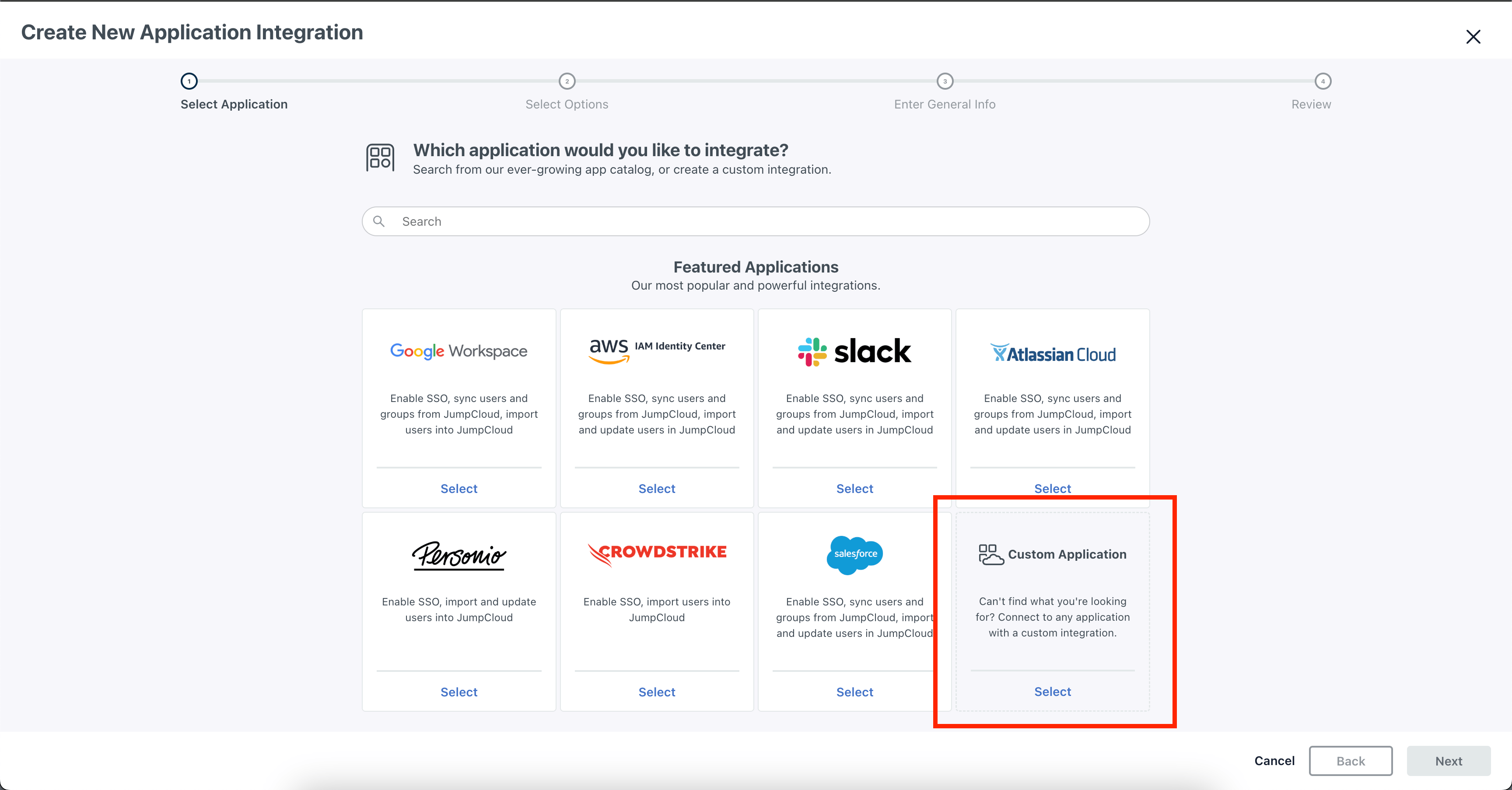
 2. Select **Custom Application** in the list of applications an click **Next** in the bottom right.
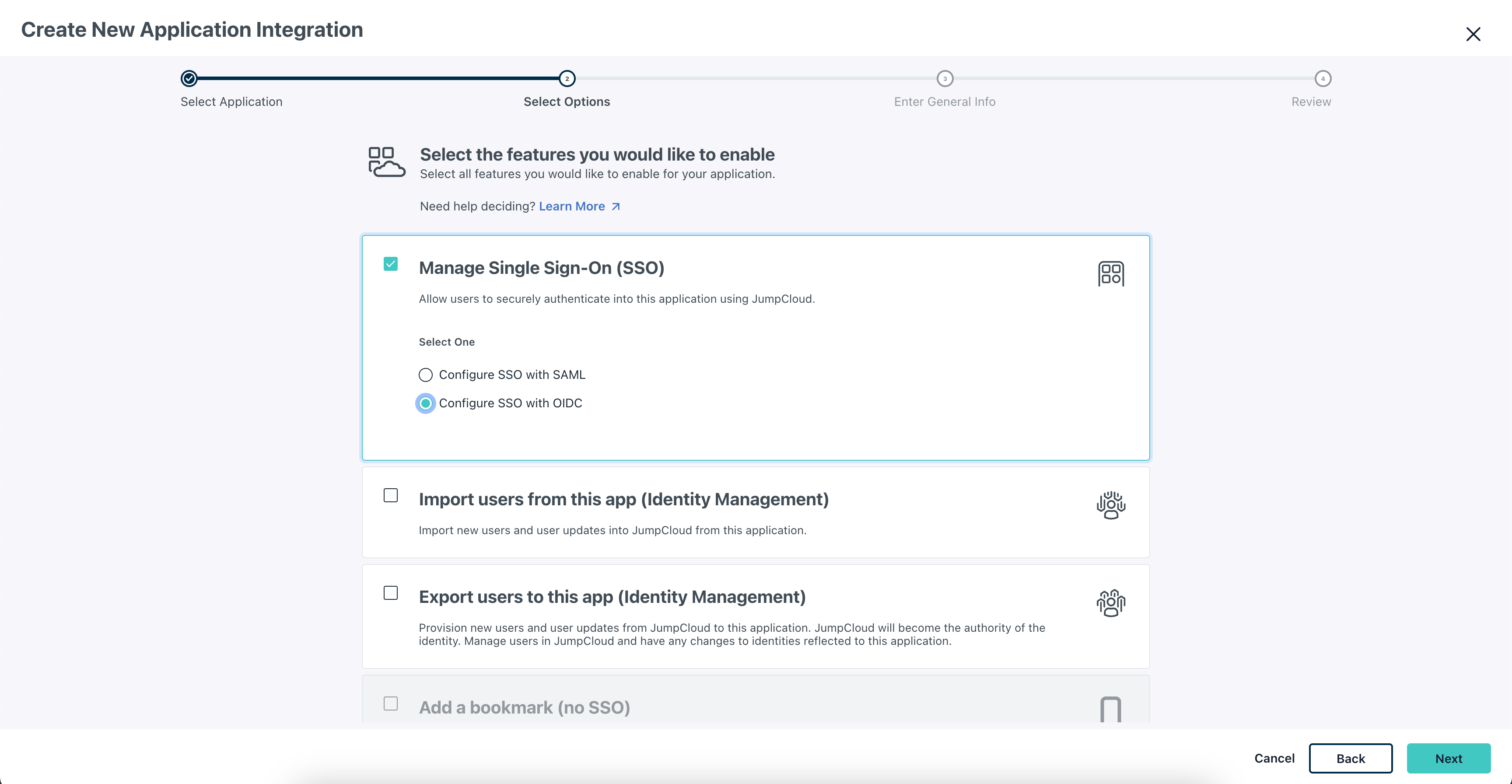
 3. From the features list, you'd want to enable the **Manage Single Sign-On (SSO)** and select **Configure SSO with OIDC**. Then press Next to Continue
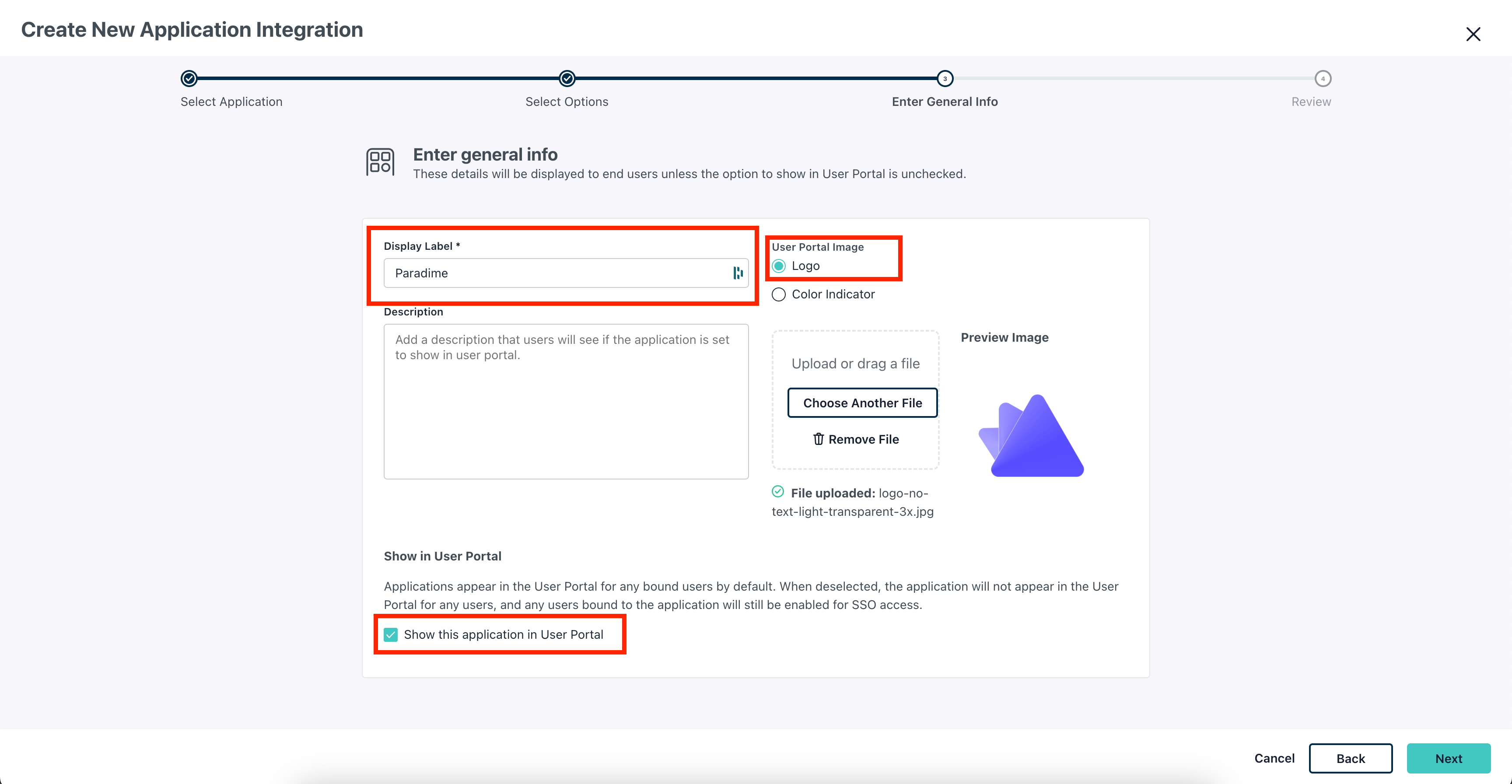
 4. In the general info for the SSO application, enter the following details:
* Enter "**Paradime**" for the Display Label
* Select **Show application in User Portal**
* Add the Paradime Logo in the **User Portal Image**. You can download the paradime logo here [Paradime Logo](https://paradime.notion.site/Icon-purple-90c6f9527e1e4195b95a6f4595e6f15c).
Click **Next** to continue.
4. In the general info for the SSO application, enter the following details:
* Enter "**Paradime**" for the Display Label
* Select **Show application in User Portal**
* Add the Paradime Logo in the **User Portal Image**. You can download the paradime logo here [Paradime Logo](https://paradime.notion.site/Icon-purple-90c6f9527e1e4195b95a6f4595e6f15c).
Click **Next** to continue.
 ### Configure the JumpCloud Application
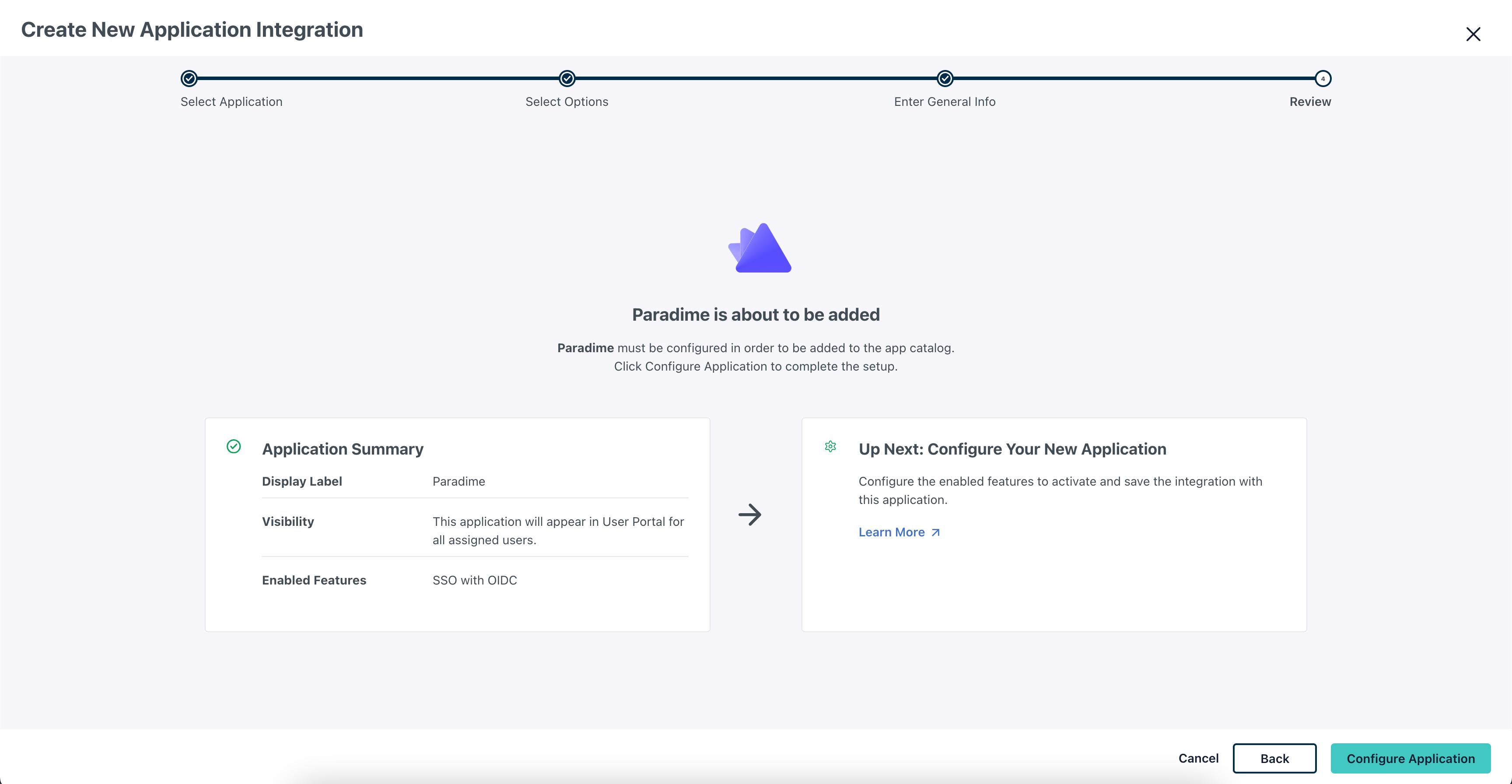
After creating the custom application, click on **Configure Application**.
### Configure the JumpCloud Application
After creating the custom application, click on **Configure Application**.
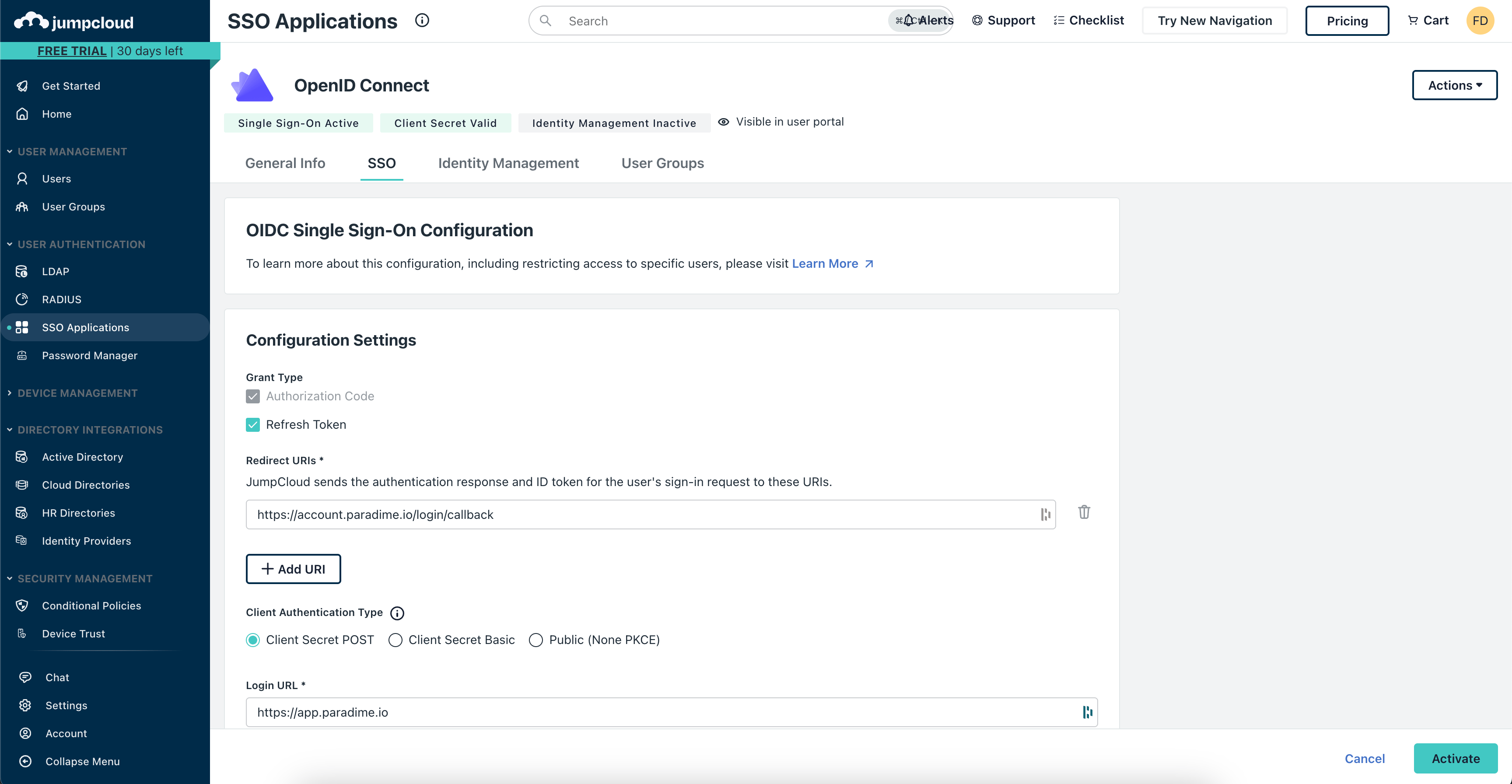
 1. In the **Configuration Settings** enter the following details:
* Make sure to select "Refresh Token" in the **Grant type**
* In the **Redirect URI** section, enter the Redirect URI below based on the region where your Paradime account is hosted
| Region | Redirect URI |
| ------- | ----------------------------------------------- |
| EU 🇪🇺 | `https://account.paradime.io/login/callback` |
| US 🇺🇸 | `https://account.us.paradime.io/login/callback` |
* Set the **Client Authentication Type** to "Client Secret Post"
* Enter `https://app.paradime.io` in the **Login URL**
1. In the **Configuration Settings** enter the following details:
* Make sure to select "Refresh Token" in the **Grant type**
* In the **Redirect URI** section, enter the Redirect URI below based on the region where your Paradime account is hosted
| Region | Redirect URI |
| ------- | ----------------------------------------------- |
| EU 🇪🇺 | `https://account.paradime.io/login/callback` |
| US 🇺🇸 | `https://account.us.paradime.io/login/callback` |
* Set the **Client Authentication Type** to "Client Secret Post"
* Enter `https://app.paradime.io` in the **Login URL**
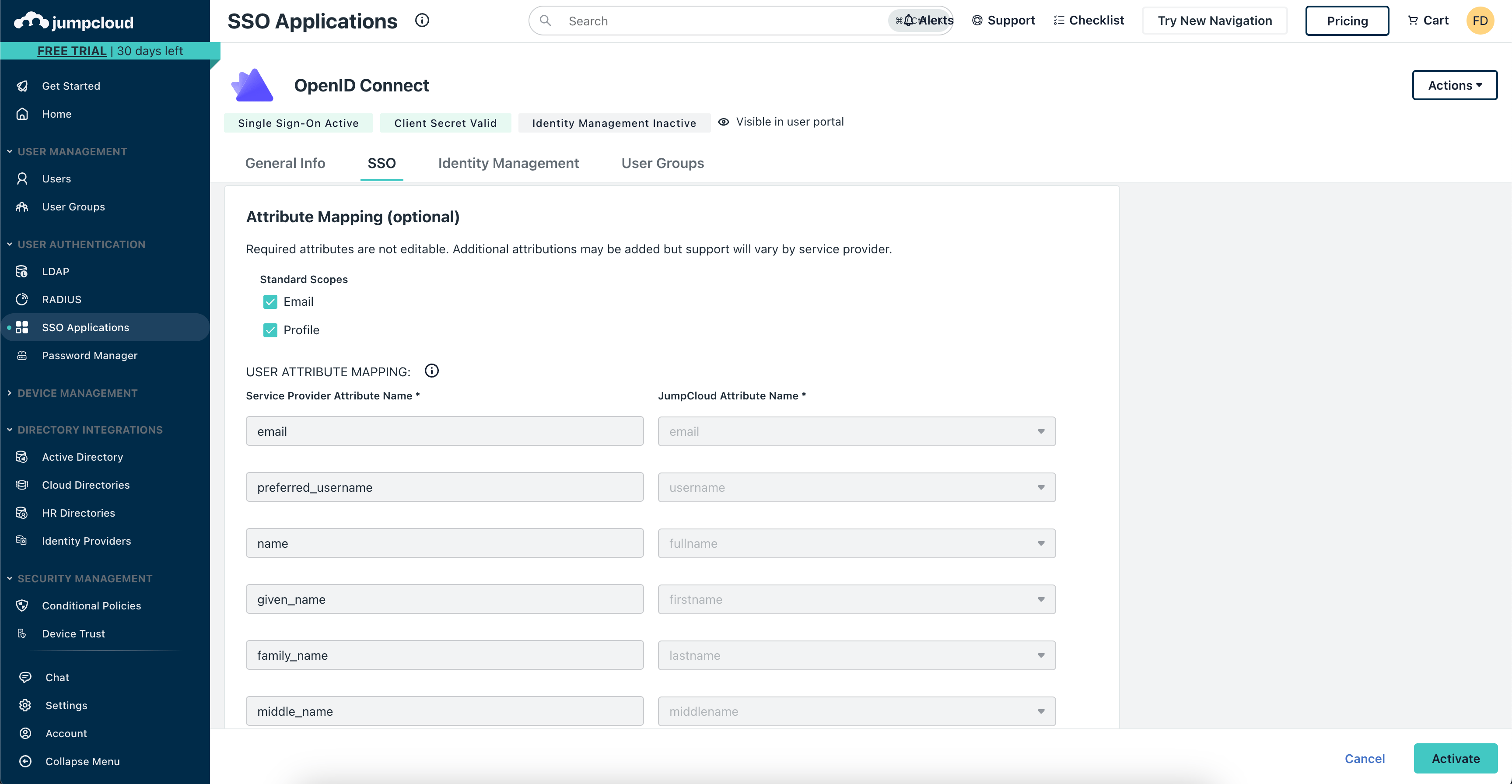
 2.In the **Attribute Mapping** **Settings** enter, make sure to enable "Email" and "Profile" in the Standard Scope Settings and click on **Activate** to complete the configuration.
 Once completed the configuration, you will be provided with a **Client ID** and **Client Secret.** Make sure to copy and save these in a safe place, as you wont be able to access these again.
Make sure you add all the users and user groups who need access to Paradime either individually or as a group added to the Paradime app in JumpCloud in the **User Groups** tab.
### Configuring Paradime to enable JumpCloud SSO[](https://app.dev.paradime.io/_help/92e9662/sso-azure-ad#configuring-paradime-to-enable-azure-ad-sso)
Once the JumpCloud SSO Application is configured, reach out to the Paradime team at [support@paradime.io](mailto:support@paradime.io) and share the following information via a password manager like 1Password, Dashlane and similar.
* **Client ID**
* **Client Secret**
Paradime team will then create the SSO client and enable SSO on your company name and once confirmed, during login, users in your company will see a **Continue with JumpCloud** option.
If you already have an existing Social login setup, then using the JumpCloud option, Paradime will automatically link your accounts and you can then use JumpCloud SSO for all future logins.
## Related topics
- [JumpCloud SSO](/products/single-sign-on/jumpcloud-sso-legacy.md)
- [Single Sign On (SSO)](/products/single-sign-on/index.md)
- [Google SSO](/products/single-sign-on/google-sso.md)
- [Google SAML SSO](/products/single-sign-on/google-saml-sso.md)
- [Google Workspace SSO](/products/single-sign-on/google-workspace-sso.md)
Once completed the configuration, you will be provided with a **Client ID** and **Client Secret.** Make sure to copy and save these in a safe place, as you wont be able to access these again.
Make sure you add all the users and user groups who need access to Paradime either individually or as a group added to the Paradime app in JumpCloud in the **User Groups** tab.
### Configuring Paradime to enable JumpCloud SSO[](https://app.dev.paradime.io/_help/92e9662/sso-azure-ad#configuring-paradime-to-enable-azure-ad-sso)
Once the JumpCloud SSO Application is configured, reach out to the Paradime team at [support@paradime.io](mailto:support@paradime.io) and share the following information via a password manager like 1Password, Dashlane and similar.
* **Client ID**
* **Client Secret**
Paradime team will then create the SSO client and enable SSO on your company name and once confirmed, during login, users in your company will see a **Continue with JumpCloud** option.
If you already have an existing Social login setup, then using the JumpCloud option, Paradime will automatically link your accounts and you can then use JumpCloud SSO for all future logins.
## Related topics
- [JumpCloud SSO](/products/single-sign-on/jumpcloud-sso-legacy.md)
- [Single Sign On (SSO)](/products/single-sign-on/index.md)
- [Google SSO](/products/single-sign-on/google-sso.md)
- [Google SAML SSO](/products/single-sign-on/google-saml-sso.md)
- [Google Workspace SSO](/products/single-sign-on/google-workspace-sso.md)