

Create Datadog Incident
Learn how to automatically create Datadog incidents when dbt™ runs fail in Bolt. This integration helps data teams track and respond to pipeline failures efficiently by connecting Bolt’s pipeline monitoring with Datadog’s incident management system.What You’ll Get
When a run fails, Bolt automatically creates a Datadog incident containing:- Incident title with schedule name and workspace
- Incident details including:
- Link to Paradime run logs
- Run ID with direct link
- Execution timestamps
- Commands executed
- Branch information
Key Benefits for Data Teams
- Centralize incident management - Track all pipeline failures alongside infrastructure incidents
- Accelerate debugging - Jump directly from Datadog alerts to Paradime run logs
- Improve MTTR - Leverage Datadog’s incident workflow for faster resolution
- Enable cross-team visibility - Share pipeline health with platform and DevOps teams
Setup Guide
Step 1: Gather Your Datadog Credentials- Generate API Key:
- Follow the instructions in Datadog documentation
- Copy and save your API Key securely
- Generate Application Key:
- Follow the instructions in Datadog documentation
- Copy and save your Application Key securely
- From the Bolt home screen, go to Templates
- Click Incidents and select “Create Datadog Incident”
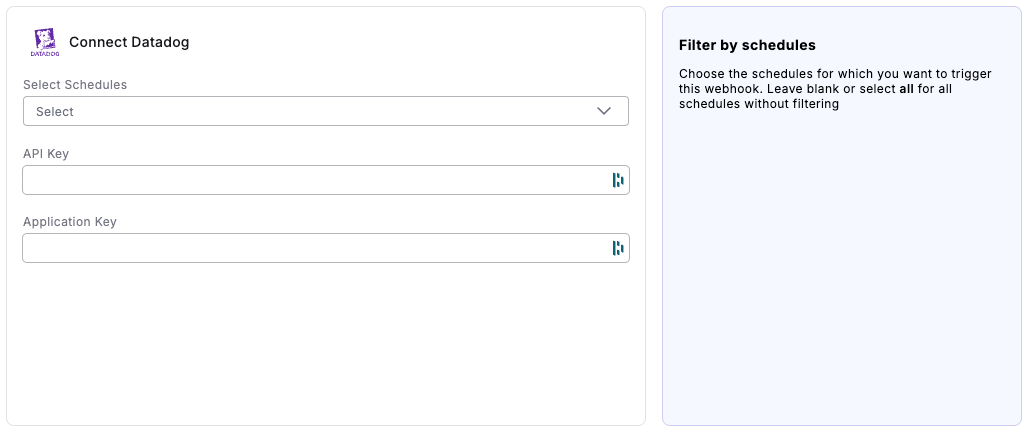
- Fill in the following fields:
- Select Schedules: Choose the schedules for which you want to trigger this webhook. Leave blank or select all for all schedules without filtering
- API Key: Enter the API Key you generated in Datadog
- Application Key: Enter the Application Key you generated in Datadog
- Click “Connect”
- Run a Bolt schedule manually that will fail (the webhook only triggers on failed runs)
- After the run fails, check your Datadog dashboard for the new incident
- Verify the incident contains run failure details