

What You’ll Get
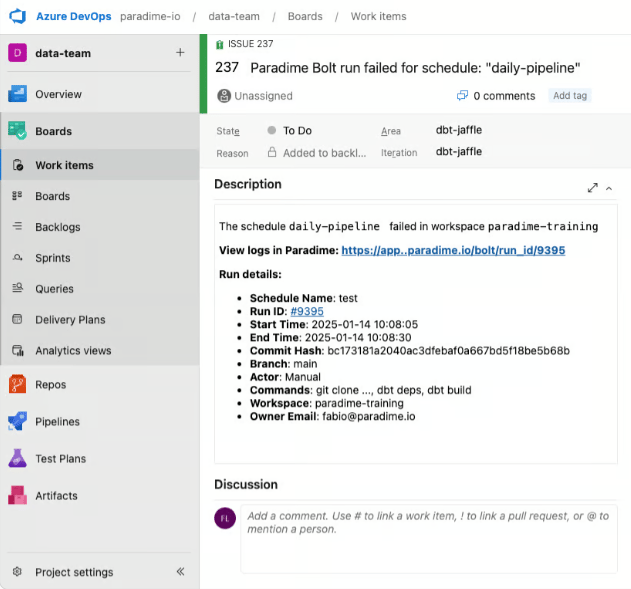
When a run fails, Bolt automatically creates an Azure DevOps work item containing:- Issue title with schedule name
- Description including:
- Link to Paradime run logs
- Run details: Run ID, Start and end time, Commands executed, Branch information, etc.
Key Benefits for Data Teams
- Automatic work item creation when dbt™ pipelines fail
- Real-time pipeline monitoring in Azure DevOps
- Streamlined workflow between dbt™ runs and Azure DevOps
- Faster response time to pipeline failures
Getting Started
Set up Azure DevOps work item creation for failed runs. Follow the steps below, and watch our interactive tutorial.Step 1: Gather Your Azure DevOps Information
- Get Organization and Project Names:
- Open your Azure DevOps project
- From the URL
https://dev.azure.com/YOUR-ORG-NAME/YOUR-PROJECT-NAME:- Copy your organization name (
YOUR-ORG-NAME) - Copy your project name (
YOUR-PROJECT-NAME)
- Copy your organization name (
- Get Organization and Project Names:
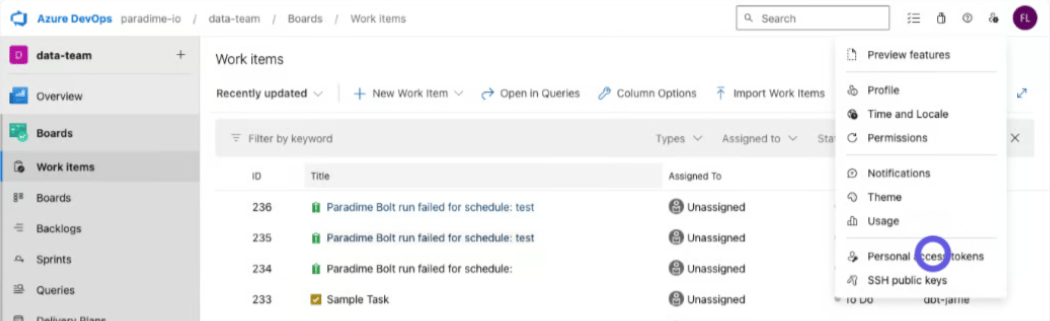
- In Azure DevOps, go to User Settings and select Personal Access Tokens
- Create a new token with work item permissions
- Save this token securely
Need help generating Access Tokens? Follow Azure Devops official documentation.
Step 2: Configure the Webhook
- From the Bolt home screen, go to Templates
- Click Ticketing and use the Create Azure DevOps Work Item template
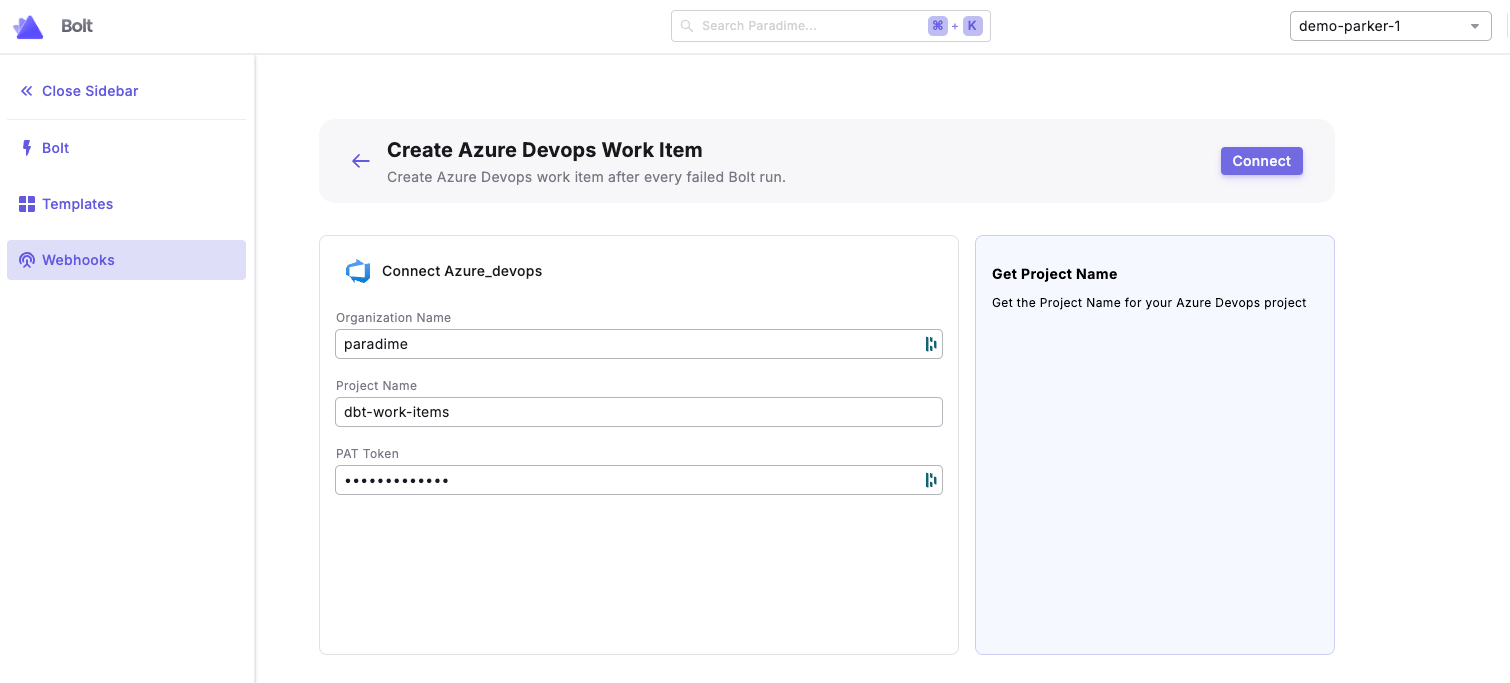
- Enter your Azure DevOps credentials:
- Organization Name
- Project Name
- PAT Token
- Click “Connect”
Step 3: Test the Integration
- Run a Bolt schedule manually (the webhook triggers only on failed runs)
- After the run fails, check your Azure DevOps project for the new work item
- Verify the work item contains run failure details