

What You’ll Get
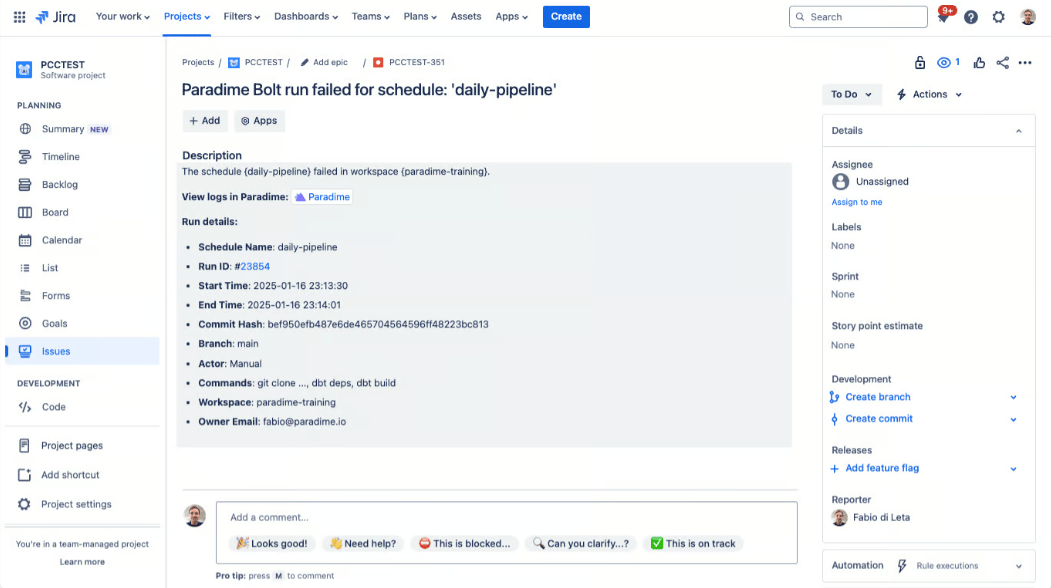
When a run fails, Bolt automatically creates a Jira ticket containing:- Schedule name and workspace
- Various Run details to help you debug, like:
- Run ID with link to Paradime
- Execution Start and end time
- Commands executed Branch information.
Key Benefits for Data Teams
- Automatic Jira ticket creation when dbt™ pipelines fail
- Real-time pipeline monitoring and issue tracking
- Streamlined workflow integration between dbt™ runs and Jira
- Faster response time to data pipeline failures
Setup Guide
Set up Jira ticket creation for failed runs. Follow the steps below, and watch the interactive tutorial.Step 1: Gather Your Jira Information
- Base URL: Get your Jira Base URL (e.g., https://acme.atlassian.net)
- API Token:
- Visit https://id.atlassian.com/manage-profile/security/api-tokens
- Generate an API token
- Save this token securely
- User Email:
- Use the email associated with your API token
- This must be the email used to create the API token
- Project Key:
- Open your Jira project
- Extract the project key where you want tickets created
Step 2: Configure the Webhook
- In Bolt, navigate to the lefthand panel and click Templates
- Click Ticketing and use the “Create Jira tickets” template
- Enter your:
- Base URL (example:
https://acme.atlassian.net) - API Secret (AKA API Token): Visit https://id.atlassian.com/manage-profile/security/api-tokens and generate an API token
- User Email: the email used to create the API secret
- Project Key: Extract the JIRA project key where you want to create Jira tickets
- Base URL (example:
- Click “Connect”
Step 3: Test the Integration
- Run a Bolt schedule manually that will fail (the webhook only triggers on failed runs).
- After the run fails, check your Jira project for the new ticket
- Verify the ticket contains run failure details